
If you’ve ever landed in a foreign country and spent the first 30 minutes hunting for a local SIM card kiosk, you already know the pain. Airalo fixes that. It’s one of the most popular eSIM marketplaces around, and once you know how to set it up, getting connected abroad becomes genuinely easy.
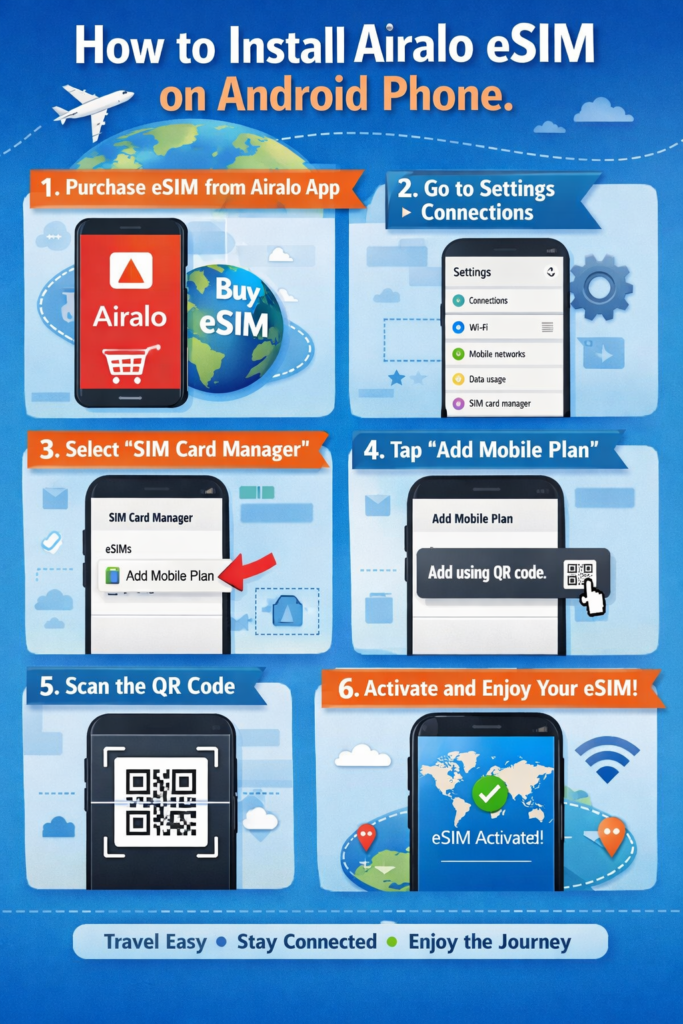
How to Install Airalo eSIM on an Android Phone. This guide walks you through everything — from checking if your phone supports eSIM, to buying a plan, to actually getting online. No jargon, no fluff. Just the steps that work.
What Is Airalo and Why Should You Use It?
Airalo is a platform that sells eSIMs for over 200 countries and regions. Instead of swapping out a physical SIM card, you download a digital SIM onto your phone. That’s the whole idea behind eSIM — it lives inside your phone’s chip.
For travellers, How to Install Airalo eSIM on Android Phone digital nomads, or anyone tired of paying absurd roaming charges, Airalo is a practical solution. You buy a plan before you even leave home, and by the time you land, your phone is ready to connect.
Before You Start: Is Your Android Phone eSIM Compatible?
Not every Android phone supports eSIM. Before you buy anything on Airalo, check this first.
How to check: Go to Settings → About Phone → SIM Status or Settings → Connections → SIM Manager. If you see an option for “eSIM” or “Add eSIM,” you’re good to go.
Phones that generally support eSIM:
- Samsung Galaxy S21 and newer (S21, S22, S23, S24 series)
- Google Pixel 3 and newer
- OnePlus 11 and newer
- Motorola Razr and Edge series (select models)
- Huawei (some models, but with limitations)
Important caveat: Even if your phone model supports eSIM, some carriers lock this feature — especially if you bought the phone on a contract or from a carrier-specific store. If you’re not sure, call your carrier and ask whether your device is eSIM unlocked.
How to Install Airalo eSIM on Android Phone:-

Step 1: Download the Airalo App
The easiest way to install an Airalo eSIM is through their app. Open the Google Play Store, search for “Airalo,” and install it. The app is free.
Once installed, open it and create an account. You’ll need an email address and a password. If you already have an account, just log in.
Step 2: Browse and Buy an eSIM Plan

This is where you pick the data plan that fits your trip.
- On the home screen, tap the search icon or browse by region — you can choose by country, region (like “Europe”), or global plans.
- Let’s say you’re going to Japan. Search “Japan”, and you’ll see a list of eSIM plans from different providers.
- Each plan shows you the data amount, validity period, and price. For example, you might see something like: 1 GB – 7 days – $4.50 or 10 GB – 30 days – $18.
- Pick one that suits your trip and tap Buy Now.
- Choose your payment method — Airalo accepts credit/debit cards and PayPal. Complete the purchase.
Practical tip: If you’re unsure how much data you’ll need, think about your habits. Light usage (maps, messaging, occasional browsing) can get by on 1–3 GB per week. If you’re uploading content or working remotely, go for 5 GB or more.
Step 3: Install the eSIM on your Android Phone

Once you’ve bought the plan, Airalo gives you two ways to install the eSIM: through the app directly, or manually using a QR code.
Option A: Install Directly Through the Airalo App (Recommended)
- After purchase, go to My eSIMs in the app.
- Find your newly purchased plan and tap Install.
- Airalo will prompt you to confirm — tap Continue.
- Your Android phone will then open its eSIM installation screen automatically.
- Follow the on-screen prompts. Your phone may ask: “Do you want to add this cellular plan?” — tap Download or Confirm.
- Wait for the installation to complete. It usually takes under a minute.
Option B: Install Using a QR Code
If the in-app installation doesn’t work on your specific phone model, use the QR code method.
- In the Airalo app, go to My eSIMs → [Your Plan] → Details.
- You’ll see a QR code along with an activation code.
- On your Android phone, go to Settings → Connections → SIM Manager → Add eSIM.
- Select Scan QR code and scan the code shown in the app.
Note: You can’t scan a QR code that’s on the same phone screen. Either use a second device to display the QR code, or ask someone nearby to hold their phone while you scan. Alternatively, Airalo also provides a manual activation code you can type in instead of scanning.
Step 4: Set Up the eSIM on Your Phone
After installation, your eSIM appears as a second SIM line. Now you need to configure it correctly.
- Go to Settings → Connections → SIM Manager (on Samsung) or Settings → Network & Internet → SIMs (on Pixel and other Android phones).
- You’ll see your physical SIM and the new Airalo eSIM listed.
- Tap on the Airalo eSIM line.
- Enable it by toggling it ON.
- Set Data to use the Airalo eSIM. You can still keep calls and SMS on your regular SIM — that’s the beauty of a dual-SIM setup.
Recommended settings:
- Primary SIM (for calls/SMS): Your home carrier SIM
- Data SIM: Airalo eSIM
This way, people can still call you on your regular number, but all your mobile data goes through the local eSIM plan you bought.
Step 5: Enable Data Roaming (If Required)
Some Airalo plans require Data Roaming to be turned on, even though you’re technically using a local eSIM. This sounds counterintuitive, but it’s just how eSIM networks work in some countries.
To enable it:
- Go to Settings → Connections → Mobile Networks.
- Select the Airalo eSIM line.
- Toggle on Data Roaming.
If you’re not sure whether your plan needs this, open the Airalo app, go to your eSIM details, and look for installation instructions. They’ll mention if roaming needs to be enabled.
Step 6: Test Your Connection
Once everything is set up, do a quick test before you rely on it:
- Open a browser and load a webpage.
- Check if the status bar shows signal bars for the Airalo eSIM.
- Open Google Maps and see if your location loads.
If it works, you’re all set. If not, jump to the troubleshooting section below.
Pros and Cons of Using Airalo eSIM
Pros
Convenience: You can buy and install a plan from your couch, days before your trip. No airport SIM hunting required.
Cost savings: Airalo plans are often significantly cheaper than roaming charges from your home carrier. A week’s worth of data in Thailand might cost $5 on Airalo versus $50 in roaming fees.
Flexibility: You can have multiple eSIMs stored on your phone (though only one can be active at a time). This is great if you travel frequently to the same few countries.
No physical SIM swap: You keep your home SIM in the phone the whole time. Your regular number stays active for calls and SMS.
Wide coverage: Airalo covers over 200 countries and regions, with multiple provider options per destination.
Cons
Not all phones are compatible: Older Android phones and some carrier-locked devices won’t support eSIM at all.
No calls or SMS (usually): Most Airalo plans are data-only. For calls, you’d still rely on your home SIM or use apps like WhatsApp.
One eSIM active at a time: Even if you store multiple eSIMs, you can only use one for data at a time. Switching between them takes a few taps, but it’s not automatic.
Refund limitations: Once an eSIM is installed, Airalo generally does not offer refunds. Buy carefully.
Dependent on app access: If you lose access to the Airalo app (say, you forgot your password while travelling), recovering your eSIM details can be tricky. Save your QR code or activation code somewhere safe before you travel.
Troubleshooting Common Issues
eSIM won’t install: Restart your phone and try again. If it still fails, try the QR code method instead of in-app installation.
No internet after installation: Make sure data roaming is enabled on the Airalo eSIM line. Also, confirm the correct SIM is selected for mobile data in Settings.
eSIM shows “No Service”: This sometimes happens right after installation. Wait a few minutes. If it persists, manually select a network operator: go to Settings → Mobile Networks → Network Operators → Search Networks and choose the one listed in your Airalo plan details.
App says eSIM already installed, but it’s not working: Delete the eSIM from your phone settings and reinstall it. In the Airalo app, go to My eSIMs → Details and look for a reinstall option.
QR code expired: eSIM QR codes can expire if not used within a certain window. Contact Airalo support through the app,p and they can usually reissue a new code.
Tips to Get the Most Out of Airalo
- Buy before you travel. You can purchase a plan days in advance; just don’t install it until you arrive (or just before departure). This way, the plan’s validity starts when you actually need it.
- Save your eSIM details. Screenshot or write down the QR code and activation code before travelling, in case you need to reinstall.
- Check top-up options. Some Airalo plans let you top up data if you run out. Look for plans labelled “top-up available” if you think you might need extra data.
- Use Wi-Fi for heavy tasks. Even with a generous data plan, save video calls and large downloads for hotel or café Wi-Fi. Your data lasts longer.
- Install the eSIM before you board. Do it while you still have a reliable internet connection at home. Don’t leave it for the airport lounge.
Frequently Asked Questions
Can I use Airalo on any Android phone?
No. Your phone needs to support eSIM technology and must not be carrier-locked (or must be eSIM unlocked). Check your phone settings or contact your carrier to confirm.
Does Airalo work for calls and texts?
Most Airalo plans are data-only. You can use apps like WhatsApp, Telegram, or FaceTime Audio for calls over the internet. If you need traditional call and SMS capability, keep your home SIM active alongside the Airalo eSIM.
Can I install Airalo eSIM without the app?
Yes. You can purchase a plan on the Airalo website and install the eSIM using the QR code method through your phone’s settings. The app just makes it easier.
How many eSIMs can I store on my Android phone?
Most Android phones that support eSIM can store between 5 and 10 eSIM profiles. However, you can only use one for data at a time.
What happens if my eSIM doesn’t work after installation?
First, try enabling data roaming and check that the Airalo eSIM is selected for mobile data. If problems persist, contact Airalo’s in-app support — they respond fairly quickly and can usually resolve issues within a few hours.
Can I share my Airalo data as a hotspot?
Yes, in most cases. Once the eSIM is active and connected, you can use your phone’s mobile hotspot feature to share the connection with other devices. Just be mindful that hotspot usage eats through data faster.
Is it safe to buy from Airalo?
Yes. Airalo is a well-established platform that’s been around since 2019 and is widely used by travellers worldwide. Their payment system is secure, and they partner with licensed telecom providers globally.
What if I delete the eSIM by accident?
Deleted eSIMs generally cannot be reinstalled using the same QR code. Contact Airalo support immediately — they may be able to reissue a new installation code depending on whether the plan’s data has been used.
Conclsion
Setting up Airalo on an Android phone is a lot simpler than it sounds. The first time takes maybe 10 minutes if you follow the steps. After that, you’ll wonder why you ever stood in airport SIM card queues.
The key things to remember: check your phone’s eSIM compatibility first, buy the plan before you travel, install it while you have Wi-Fi at home, and enable data roaming on the eSIM line if your connection isn’t working after installation.
Once it clicks, travelling with an eSIM feels like the obvious choice — and Airalo makes it easier than most other options out there.

