

So you just got a Pixel 10 and want to set up an eSIM instead of dealing with a physical SIM card. Good call — eSIM is faster to set up, works great for travel, and means one less tiny card to lose.
How to install eSIM on Pixel 10. This guide walks you through the whole process step by step, covers what can go wrong, and answers the questions most people search for after they get stuck halfway through.
- Chake now – How to set up eSIM on Pixel 10
What is an eSIM and Why Use It on Pixel 10?
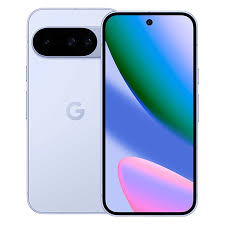
An eSIM (embedded SIM) is a digital SIM card built directly into your phone. Instead of inserting a physical card, you activate a mobile plan by scanning a QR code or entering a confirmation code — and the carrier information is stored on a chip inside the device.
The Pixel 10 supports eSIM natively, and depending on your region and carrier, it may support dual SIM — meaning you can run two active plans at the same time. That’s useful if you want to keep a local data SIM while traveling, or separate your work and personal numbers on one phone.
Reasons people switch to eSIM on Pixel 10:
- No physical SIM slot means less risk of damage from dust or water
- Switching carriers doesn’t require a new card — just a new QR code
- Travelers can add a local data plan without removing their home SIM
- Faster activation — most carriers can activate an eSIM in under five minutes
- If you lose your phone, the eSIM can’t be physically removed and swapped into another device
Before You Start: What You’ll Need

Before walking through the installation steps, make sure you have everything ready. Skipping this part is usually why people get stuck.
1. A compatible carrier. Not every carrier supports eSIM, and not every carrier’s eSIM works with the Pixel 10. Check your carrier’s website or call support to confirm eSIM is available on your plan and in your region.
Major carriers that generally support eSIM on Pixel devices include T-Mobile, AT&T, Verizon (US), EE, Vodafone, O2 (UK), Telstra (Australia), and most major European operators. If you’re using a regional or budget carrier, double-check before assuming.
2. A QR code or activation code from your Carrie.r Your carrier will provide either:
- A QR code (printed on paper, sent by email, or shown in your carrier’s app)
- A manual activation code (a long string of numbers and letters)
Don’t start the installation without this — you’ll get stuck at the activation screen.
3. A Wi-Fi or mobile data connection. Your Pixel 10 needs an internet connection to download and activate the eSIM profile. If you’re switching from an old phone and have no SIM in the Pixel 10 yet, connect to Wi-Fi first.
4. Your Google account is logged in. The Pixel 10 stores eSIM profiles tied to your device. Having your Google account set up ensures your eSIM can be backed up and restored if needed.
5. The Pixel 10 is running the latest software.e Go to Settings → System → Software update and make sure you’re on the latest version. eSIM bugs are patched regularly, and running an outdated build can cause activation failures.
How to Install eSIM on Pixel 10: Step-by-Step

Method 1: Using a QR Code (Most Common)
This is the standard method and works with most carriers.
Step 1: Open Settings.gs On your Pixel 10, go to Settings.
Step 2: Go to Network & Internet. Tap Network & Internet, then tap SIMs.
Step 3: Add a new SIM. Tap the “+” (Add SIM) button or “Add eSIM” option. If you already have a physical SIM active, it will show alongside the option to add a second line.
Step 4: Choose “Download a SIM instead.” You’ll see an option to scan a QR code. Tap it.
Step 5: Scan the QR code. Hold your phone up to the QR code your carrier provided. The camera will scan it automatically — you don’t need to take a photo. Keep the phone steady and make sure the code is well-lit.
Step 6: Confirm the plan details.s Your Pixel 10 will show the carrier name and plan details it’s about to download. Review and tap Confirm or Download.
Step 7: Wait for the eSIM to activate. te This usually takes 30 seconds to 2 minutes. Your phone downloads the carrier profile and activates the line. You’ll see a notification when it’s complete.
Step 8: Set your preferences. Once activated, you’ll be asked which SIM to use for calls, texts, and data. Set these according to your preference — for example, a new eSIM for data, a physical SIM for calls.
Done. You should now see the carrier name in your status bar and have an active mobile connection.
Method 2: Manual Entry (If You Don’t Have a QR Code)
Some carriers provide an activation code instead of a QR code — especially useful if you’re setting up an eSIM remotely and can’t print or display a QR code.
Step 1–3: Follow the same steps as above (Settings → Network & Internet → SIMs → Add SIM).
Step 4: Enter the code manually. Instead of scanning, look for the option that says “Need help? Enter code manually” or similar. Tap it.
Step 5: Type in the activation details.s Enter the SM-DP+ address and activation code provided by your carrier. These are usually sent by email or shown in your carrier’s app.
Step 6: Confirm and activate Tap Connect or Download. The process from here is the same as the QR code method.
Method 3: Carrier App Activation
Several carriers now let you activate an eSIM entirely through their own app — no QR code required.
Examples:
- T-Mobile: The T-Mobile app has an “Add line” or “Switch to eSIM” feature built in
- Google Fi: Since Pixel 10 works natively with Fi, you can activate directly through the Google Fi app
- AT&T: The myAT&T app supports direct eSIM activation for eligible plans
How it works: Download your carrier’s official app from the Play Store. Log in to your account, find the SIM or device management section, and look for an option to add or switch to eSIM. The app handles the QR code behind the scenes — you just tap through a few confirmation screens.
This method is easiest if you’re already a customer switching from a physical SIM to eSIM on the same plan.
How to Transfer eSIM from an Old Phone to Pixel 10
If you’re upgrading from an older phone and already have an eSIM there, you can’t copy the file directly — eSIM profiles are device-locked for security reasons. You need to request a new eSIM from your carrier.
The process:
- Contact your carrier (by phone, app, or store) and tell them you’re switching to a new device
- Ask them to issue a new eSIM for your existing number
- They’ll deactivate the old eSIM and provide a new QR code or activation code for the Pixel 10
- Follow the installation steps above
Most carriers can do this in a few minutes over the phone or through a chat. Some carriers have a self-service option in their app — look for “Switch device” or “Transfer eSIM.”
Important: Don’t factory reset your old phone before the transfer is complete. If something goes wrong during activation, you’ll need the old eSIM as a backup until the issue is resolved.
Using Dual SIM on Pixel 10
The Pixel 10 supports dual SIM — one eSIM active alongside a second eSIM or physical nano-SIM (depending on your region’s model). This is genuinely useful in a few situations:
For travelers: Keep your home SIM active for calls and texts, add a local data eSIM for cheap data abroad. For example, if you’re visiting Europe, you could add an Airalo or Holafly eSIM for local data rates without losing your home number.
For work/personal split: Use one number for work calls and a separate personal plan for everything else — both on one device, no need to carry two phones.
How to manage dual SIM on Pixel 10: Go to Settings → Network & Internet → SIMs. From here you can:
- See both active SIMs
- Set a preferred SIM for calls, texts, and data
- Toggle each SIM on or off without removing anything
- Label each SIM (e.g., “Work” and “Personal”) so you can tell them apart in the dialer
Pros and Cons of Using eSIM on Pixel 10
Pros
No physical card to manage — You’ll never need to hunt for a SIM ejector tool again. Great if you switch phones or carriers regularly.
Faster carrier switching — Moving to a new carrier is a matter of scanning a QR code rather than waiting for a physical SIM to arrive by post.
Dual SIM flexibility — Run two numbers or two data plans simultaneously without any hardware changes.
Travel-friendly — Adding a local data plan in another country takes minutes. Services like Airalo, Nomad, and Holafly sell travel eSIMs that work in 100+ countries.
More secure — A physical SIM can be swapped out by someone with access to your phone. An eSIM can’t be removed without your PIN and carrier authorization.
Space efficiency — No SIM tray means the phone can be slightly thinner and better sealed against water and dust.
Cons
Not all carriers support it — Smaller or regional carriers may not have eSIM capability yet. Always check before assuming your plan is compatible.
Harder to switch phones quickly — With a physical SIM, you can just pop it into another phone. With eSIM, you need to go through the carrier transfer process each time.
Device-locked profiles — You can’t copy an eSIM to a new device without going through your carrier. If your Pixel 10 is damaged or lost, getting your number back requires contacting the carrier.
Limited to certain regions — Some Pixel 10 models sold in specific countries may have different eSIM capabilities or restrictions depending on local regulations.
Can be confusing to set up for the first time — If you’re not technically comfortable, the QR code and activation process can feel unfamiliar. It’s not difficult, but it’s different from just inserting a card.
Common Problems and How to Fix Them
QR code won’t scan. Make sure the code isn’t damaged or too small on your screen. Try increasing your screen brightness, or ask your carrier to email you the QR code so you can display it on another device and scan from there. Alternatively, ask for the manual activation code instead.
“Download failed” error.r This usually means the eSIM profile couldn’t connect to the carrier’s server. Check your Wi-Fi connection, restart your Pixel 10, and try again. If it keeps failing, contact your carrier — sometimes the QR code expires after a set time and needs to be reissued.
eSIM shows as active but nosignalg. nal Your plan may not be fully activated on the carrier’s end. This sometimes takes a few minutes after the eSIM downloads. If it’s been more than 10 minutes with no signal, restart the phone. If still nothing, call your carrier — the account may need manual activation on their system.
“SIM not supported”messages. sage This can happen if your Pixel 10 is carrier-locked. If you bought the phone through a specific carrier, it may only accept SIMs from that carrier until it’s unlocked. Contact the carrier to request an unlock.
eSIM disappeared after a factory reset. Factory resets erase eSIM profiles. You’ll need to re-add the eSIM using a new QR code from your carrier. This is worth knowing before you reset, transfer, or note your eSIM details first.
Best eSIM Providers to Use with Pixel 10 in 2026
If you’re looking for a data-only eSIM for travel, here are some well-regarded options that work with the Pixel 10:
Airalo — One of the most popular travel eSIM marketplaces. Covers 200+ countries. You buy a data plan, get a QR code by email, and install it in minutes. Plans start from around $5 for 1GB.
Nomad — Similar to Airalo with competitive regional and global plans. Known for reliable speeds across Asia and Europe.
Holafly — Offers unlimited data plans for travel (with some speed caps). Good option if you want a flat daily rate rather than tracking gigabytes.
Google Fi — If you’re open to switching carriers entirely, Google Fi is built natively for Pixel devices. eSIM setup through the Fi app is seamless on Pixel 10, and Fi’s international data coverage is excellent.
FAQs
Does the Pixel 10 support eSIM?
Yes. The Pixel 10 supports eSIM natively. Depending on your region and carrier, it also supports dual SIM — running two active lines simultaneously.
Can I use two eSIMs at the same time on the Pixel 10?
The Pixel 10 supports dual SIM, which can include two eSIMs, or one eSIM and one physical nano-SIM. You can store multiple eSIM profiles on the device, but the number of simultaneously active profiles depends on your model and region.
What happens to my eSIM if I factory reset my Pixel 10?
A factory reset will erase your eSIM profiles. You’ll need to contact your carrier and request a new QR code or activation code to reinstall the eSIM after the reset.
Can I switch back to a physical SIM after setting up eSIM?
Yes. You can switch back at any time by inserting a physical SIM and adjusting your SIM preferences in Settings. Having an eSIM active doesn’t prevent you from using a physical SIM as well.
How long does eSIM activation take on the Pixel 10?
Most activations are complete within 1–3 minutes. In some cases, it can take up to 10 minutes if the carrier’s server is slow. If it takes longer than 15 minutes, restart your phone and check with your carrier.
Can I transfer my eSIM from Pixel 10 to another phone?
Not directly. eSIM profiles are locked to the device they’re installed on. To move your number to a new phone, contact your carrier and request a new eSIM issuance for the new device. Your old eSIM will be deactivated in the process.
Is eSIM more expensive than a regular SIM plan?
No — eSIM plans are priced the same as physical SIM plans from the same carrier. For travel eSIMs from third-party providers like Airalo, pricing varies by provider and region, but is generally competitive with local SIM options.
What if my carrier doesn’t support eSIM?
Your options are to wait until they add eSIM support, switch to a carrier that does, or use a travel/data eSIM from a third-party provider alongside your physical SIM for data purposes.
Can I have multiple eSIM profiles stored on my Pixel 10?
Yes. The Pixel 10 can store multiple eSIM profiles, but only a limited number can be active at the same time. You can switch between stored profiles through Settings → Network & Internet → SIMs without needing to re-download them.
Conclsion
Setting up an eSIM on the Pixel 10 is one of those things that sounds more complicated than it actually is. Once you have your carrier’s QR code in hand and a Wi-Fi connection ready, the whole process takes under five minutes. The most common sticking point is not having the QR code ready before starting — so get that from your carrier first, then work through the steps above.
If you’re a frequent traveler, eSIM on the Pixel 10 is a genuine game-changer. Being able to add a local data plan in minutes at the airport — without hunting for a SIM vendor or risking losing your home SIM — makes the whole travel experience noticeably smoother.
And if you run into any issues during setup, the troubleshooting section above covers the most common problems. When in doubt, your carrier’s support line is the fastest route to a fix — they can see your account status and reissue activation codes on the spot.

