
Best AI Coding Assistant Tools in 2026. Let’s be honest — writing code has changed a lot over the past few years. Whether you’re a solo developer building a side project, a student learning your first programming language, or a senior engineer at a tech company, you’ve probably noticed that coding assistants have become a serious part of the workflow.
But with so many tools available in 2026, figuring out which one is actually worth using — and paying for — can feel overwhelming. Some are great for autocomplete. Some help you debug. Others can write entire functions from a plain English description.
This guide breaks down the best coding assistant tools available right now, what each one is good at, and how to pick the right one based on how you actually work. AI Coding
Why Coding Assistants Have Become Hard to Ignore
A few years ago, these tools were mostly novelties — fun to play with, but not reliable enough to trust in a real project. That’s changed significantly.
Today’s coding assistants can suggest entire blocks of code, catch bugs before you run the program, explain unfamiliar code in plain English, and even help you write tests. For a junior developer, that’s like having a senior engineer sitting next to you. For an experienced developer, it’s like having a fast, tireless assistant handling the repetitive stuff. Coding Assistant
The result? Developers are shipping faster, spending less time on boilerplate, and catching more errors early. Coding Assistant
That said, these tools aren’t magic. They still make mistakes, sometimes confidently. Knowing their limits is just as important as knowing their strengths.
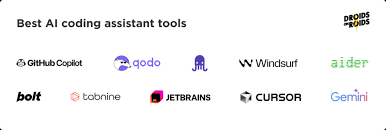
Best AI Coding Assistant Tools in 2026:-
1. GitHub Copilot — Still the Most Widely Used
GitHub Copilot has been around longer than most, and in 2026, it’s still the tool most professional developers reach for first. It integrates directly with VS Code, JetBrains IDEs, Neovim, and several other editors, so it fits into your existing setup without friction.
The core feature is inline code suggestions — as you type, Copilot suggests what comes next, sometimes a single line, sometimes an entire function. You can accept the suggestion with Tab or keep typing to ignore it.

What sets Copilot apart in 2026 is its Copilot Workspace feature, which lets you describe a task in plain English and get a full plan — files to change, code to write, tests to add — before you touch a single line. It’s moved well beyond simple autocomplete.
GitHub Copilot continues to be one of the most widely used coding assistants in 2026. Built by GitHub in partnership with OpenAI, the tool helps developers write code faster by suggesting lines of code, functions, and even complete blocks in real time. It works directly inside popular code editors such as Visual Studio Code, JetBrains IDEs, and Neovim, making it convenient for both beginners and professional programmers.
One of the biggest reasons behind GitHub Copilot’s popularity is its simplicity. Developers can install the extension, start typing, and instantly receive intelligent code suggestions. Instead of searching documentation or writing repetitive boilerplate code manually, users can rely on Copilot to generate working solutions within seconds. This saves time and improves productivity, especially for developers working on large projects or tight deadlines. AI Coding
GitHub Copilot supports many programming languages, including Python, JavaScript, TypeScript, Java, C++, Go, PHP, and Rust. Whether someone is building a website, creating a mobile app, automating tasks, or developing backend systems, the tool adapts to different coding styles and workflows. It can also generate comments, documentation, regex patterns, SQL queries, and unit tests, making it useful beyond simple code completion. AI Coding
Another reason why developers continue to use GitHub Copilot is its strong integration with the GitHub ecosystem. Developers already using GitHub repositories, pull requests, and workflows find that the assistant naturally fits into their existing environment. Teams can collaborate more efficiently because repetitive tasks become easier and faster to complete.
For beginners learning programming, GitHub Copilot can also act like a coding companion. It helps explain patterns by showing examples while typing. Many new developers use it to understand syntax, debug simple issues, and explore new frameworks more confidently. However, experienced programmers still recommend reviewing every generated suggestion carefully because AI-generated code can sometimes include bugs, outdated practices, or security issues.
Despite growing competition from newer coding tools in 2026, GitHub Copilot remains a leading choice because of its reliability, speed, and developer-friendly experience. Many startups, freelancers, and large software companies continue to use it daily for web development, automation, cloud projects, and application development. Its ability to reduce repetitive work while helping developers stay focused on creativity and problem-solving keeps it ahead of many alternatives. AI Coding
For anyone searching for a coding assistant that balances ease of use, powerful suggestions, and wide compatibility, GitHub Copilot still stands as one of the strongest and most trusted tools available today.
Best for: Professional developers working in established codebases, teams using GitHub for version control
Supported languages: Python, JavaScript, TypeScript, Go, Ruby, Rust, C++, and dozens more
Pricing: Free tier available; Pro plan around $10/month; Business plan for teams
Pros:
- Deeply integrated with GitHub’s ecosystem
- Works across most popular IDEs
- Handles multi-file context well
- Copilot Chat lets you ask questions about your code directly
Cons:
- Suggestions can be confidently wrong, especially with niche libraries
- Privacy concerns for developers working with proprietary code
- Free tier has usage limits that can feel restrictive
Practical example: You’re building a Node.js REST API. You type a comment: // function to validate email and return error if invalid. Copilot writes the full validation function below it, including the regex and the error response structure. You review it, tweak one line, and move on. What would have taken five minutes takes thirty seconds.
2. Cursor — The Editor Built Around Coding Assistance
Cursor is not a plugin. It’s a full code editor — built on top of VS Code, so it feels familiar — but designed from the ground up around having a coding assistant baked in at every level.
The thing that makes Cursor different is how it handles context. You can open a file, highlight a section, and ask it to refactor, explain, or rewrite that section. You can also ask it questions about your entire codebase — “where is the user authentication logic?” — and it actually searches through your files to answer. Coding Assistant

In 2026, Cursor has become the preferred tool for a lot of freelancers and indie developers who want more control than Copilot offers but don’t want to switch to an entirely unfamiliar environment. Coding Assistant
Best for: Developers who want a full editor experience with deep assistant integration, solo projects, and freelancers
Pricing: Free tier; Pro plan around $20/month
Pros:
- Full editor, not just a plugin — no compatibility issues
- Codebase-aware context (can search your whole project)
- Excellent at refactoring existing code
- Supports custom model selection in some plans
Cons:
- Switching from VS Code or JetBrains requires some adjustment
- Can be slower on very large codebases
- Some features are locked behind the Pro plan
Practical example: You inherit a messy 3,000-line Python file from a colleague. Instead of reading through all of it, you ask Cursor: “What does this file do and where are the main entry points?” It gives you a clean summary and highlights the key functions. You’re up to speed in two minutes instead of thirty.
3. Amazon CodeWhisperer (Now Amazon Q Developer) — Best for AWS Users
If your work involves AWS services — Lambda, DynamoDB, S3, CloudFormation — Amazon Q Developer (the rebranded version of CodeWhisperer) is worth serious consideration. It’s been trained heavily on AWS documentation and usage patterns, which means it gives more accurate suggestions for cloud-specific code than generalist tools.

It integrates with VS Code and JetBrains, and also works inside the AWS console itself, which is genuinely useful when you’re building or debugging infrastructure.
Best for: Backend developers and DevOps engineers working heavily in the AWS ecosystem
Pricing: Free tier available; Pro plan for teams
Pros:
- Excellent for AWS-specific code and infrastructure
- Built-in security scanning that flags vulnerable code patterns
- Free tier is generous compared to competitors
- Works inside the AWS Management Console
Cons:
- Less impressive outside the AWS context
- Smaller community and fewer third-party resources
- Not as strong for frontend or mobile development
4. Tabnine — Best for Privacy-Conscious Teams
Tabnine has carved out a specific niche: teams and companies that need coding assistance but cannot send their source code to external servers. Tabnine offers a self-hosted option, which means the model runs on your own infrastructure. Your code never leaves your environment.
For industries like finance, healthcare, or defence — where source code confidentiality is non-negotiable — this is a significant advantage.
Beyond privacy, Tabnine’s suggestions are solid, especially after it’s been running in your codebase for a while. It learns your patterns and style over time, which means suggestions become more relevant the longer you use it. Coding Assistant
Best for: Enterprise teams, regulated industries, any team with strict data privacy requirements
Pricing: Free individual plan; Pro and Enterprise plans with self-hosting options
Pros:
- Self-hosted option keeps code fully private
- Learns your team’s coding style over time
- Works with a wide range of IDEs
- No vendor lock-in with proprietary models
Cons:
- Out-of-the-box suggestions less impressive than Copilot on day one
- Self-hosting requires infrastructure setup and maintenance
- UI and chat features are less polished than Cursor or Copilot
5. Replit — Best for Beginners and Browser-Based Coding
Replit is a browser-based development environment, which means you don’t install anything. You open a browser, create a project, and start coding. Its built-in assistant — Replit AI — helps you write, debug, and deploy code entirely within the browser interface.
For students, beginners, or people who just want to prototype something quickly without setting up a local environment, Replit is hard to beat. You can go from idea to running app in minutes.
In 2026, Replit has also expanded its deployment features significantly, so you can actually ship small web apps and APIs directly from the platform without touching a server.
Best for: Beginners, students, rapid prototyping, educators
Pricing: Free tier; Core plan around $20/month
Pros:
- Zero setup — runs entirely in the browser
- Great for learning and teaching
- Built-in deployment for web projects
- Collaborative features for pair programming
Cons:
- Not suitable for large or complex production codebases
- Performance slower than local development environments
- Limited customization compared to desktop editors
Practical example: A student learning Python for the first time writes a function but gets a confusing error. They type the error into Replit’s assistant chat. It explains what the error means, points to the specific line causing it, and shows a corrected version. No Stack Overflow digging required.
6. Codeium — Best Free Alternative
If budget is the main concern, Codeium deserves a hard look. It offers a genuinely capable free plan with no strict usage limits — a rarity in this space. The autocomplete is fast, it supports over 70 programming languages, and it works with most major IDEs.
It doesn’t have the depth of Cursor or the ecosystem integration of Copilot, but for a developer who just wants smart autocomplete and basic chat without a monthly bill, Codeium delivers.
Best for: Developers who want solid assistance without a subscription
Pricing: Free for individuals; Teams plan available
Pros:
- Generous free plan with fast autocomplete
- Supports a wide range of languages and editors
- No usage caps on the free tier
- Lightweight and fast
Cons:
- Chat and context features are less advanced than paid tools
- Smaller feature set overall
- Less capable of complex multi-file tasks
How to Choose the Right Tool for You
Here’s a simple way to think about it:
You’re just learning to code → Replit. Start there, learn the basics, then graduate to a local setup later.
You’re a professional developer using GitHub → GitHub Copilot. The ecosystem integration alone makes it worth it.
You want full editor control and deep refactoring help → Cursor.
You work heavily in AWS → Amazon Q Developer.
Your company has strict data policies → Tabnine with self-hosting.
You want something free that actually works → Codeium.
Many developers use two tools — a primary assistant in their daily editor, and something like Replit for quick experiments or sharing code snippets with others.
Things to Watch Out For
Suggestions aren’t always correct. These tools are confident even when they’re wrong. Always review generated code — especially for logic errors, security issues, and edge cases. A function that looks right can have a subtle bug that only shows up in production.
Understand what you’re accepting. If you’re a junior developer, it’s tempting to accept suggestions without fully understanding them. This can slow your actual learning. Use these tools to speed up work you already understand, not to skip the learning process entirely.
Check licensing for autocomplete-generated code. There’s an ongoing debate about whether code generated by tools trained on open-source repositories carries any licensing implications. For commercial projects, it’s worth being aware of your company’s policy on this.
Data privacy matters. If you’re working on sensitive or proprietary code, check whether your tool of choice sends code to external servers. If it does, check whether your employer or client has any restrictions on this.
FAQs — AI Coding Assistant Tools in 2026
Q: Are coding assistants suitable for complete beginners?
Yes, especially tools like Replit that are designed with beginners in mind. They can explain errors, suggest fixes, and walk you through concepts. That said, beginners should also spend time understanding the code — not just accepting suggestions blindly.
Q: Will coding assistants replace developers?
Not in any realistic near-term scenario. These tools are good at pattern-matching and generating boilerplate, but they struggle with complex system design, understanding business requirements, and handling truly novel problems. They make developers faster, not unnecessary.
Q: Which coding assistant works best with Python?
GitHub Copilot and Cursor both perform very well with Python. For data science and machine learning work specifically, Copilot offers strong support, given how much Python ML code is available in public repositories.
Q: Can I use these tools offline?
Most tools require an internet connection since they rely on cloud-based models. Tabnine’s self-hosted option is the main exception — once set up, it can run without an external connection.
Q: Is GitHub Copilot worth it for a solo developer?
At around $10/month, many solo developers find that it pays for itself quickly in time saved. The free tier is also reasonably useful if you want to try it before committing.
Q: Do these tools support languages other than Python and JavaScript?
Yes. Most major tools support 20–70+ languages. GitHub Copilot, Cursor, and Codeium all handle languages like Go, Rust, C++, Ruby, and PHP well. Less common languages may get weaker suggestions.
Q: Are there coding assistants specifically for mobile development?
Most general-purpose tools support Swift and Kotlin well, which covers iOS and Android development. There’s no dominant mobile-specific tool yet — Copilot and Cursor are the most commonly used by mobile developers.
Q: How do coding assistants handle security vulnerabilities?
Amazon Q Developer has the most explicit built-in security scanning. GitHub Copilot also flags some common vulnerability patterns. That said, none of these tools replace a proper security audit — especially for applications handling sensitive data.
Conclsion
Coding assistants in 2026 have moved from “interesting experiment” to “standard part of the developer toolkit.” The question isn’t really whether to use one — it’s which one fits how you work.
Start with the free tiers. GitHub Copilot’s free plan and Codeium’s unlimited free tier are both good starting points. Spend a week with each, see which one feels natural in your workflow, and then decide if upgrading makes sense.
The best tool is the one you actually use consistently — not the one with the most features you never touch. Pick something, learn it well, and you’ll write better code faster. That’s the whole point.

