
The Samsung Galaxy S23 remains one of the most popular flagship phones in India — and yes, it fully supports eSIM technology. Whether you just picked one up secondhand or have been using yours for a while, setting up an eSIM is one of the best upgrades you can make to your daily experience.

No more swapping physical SIM cards. No more carrying two phones for two numbers. With eSIM, you can manage multiple plans directly from your phone settings — including Jio, Airtel, and Vi in India.
This guide covers everything you need to know about using eSIM on the Samsung Galaxy S23 — from checking compatibility to activating your plan and managing dual SIM settings.
How to Use an eSIM on Samsung Galaxy S23: The Samsung Galaxy S23 supports eSIM, although availability can depend on the phone’s region/model and mobile carrier. Samsung currently lists the S23 series among its eSIM-supported Galaxy devices.
- Check the problem now – How to Use an eSIM on Samsung S20 Ultra
Does Samsung Galaxy S23 Support eSIM?
Yes. The Samsung Galaxy S23, S23+, and S23 Ultra all support eSIM. However, there is one important condition:
The phone must be an unlocked or India-variant model.
Some carrier-locked S23 units sold in the US or other markets may have eSIM functionality restricted. If you bought your S23 from Samsung India, Flipkart, Amazon India, or a local retailer, your device almost certainly supports eSIM without any restrictions.
How to Confirm eSIM Support on Your S23
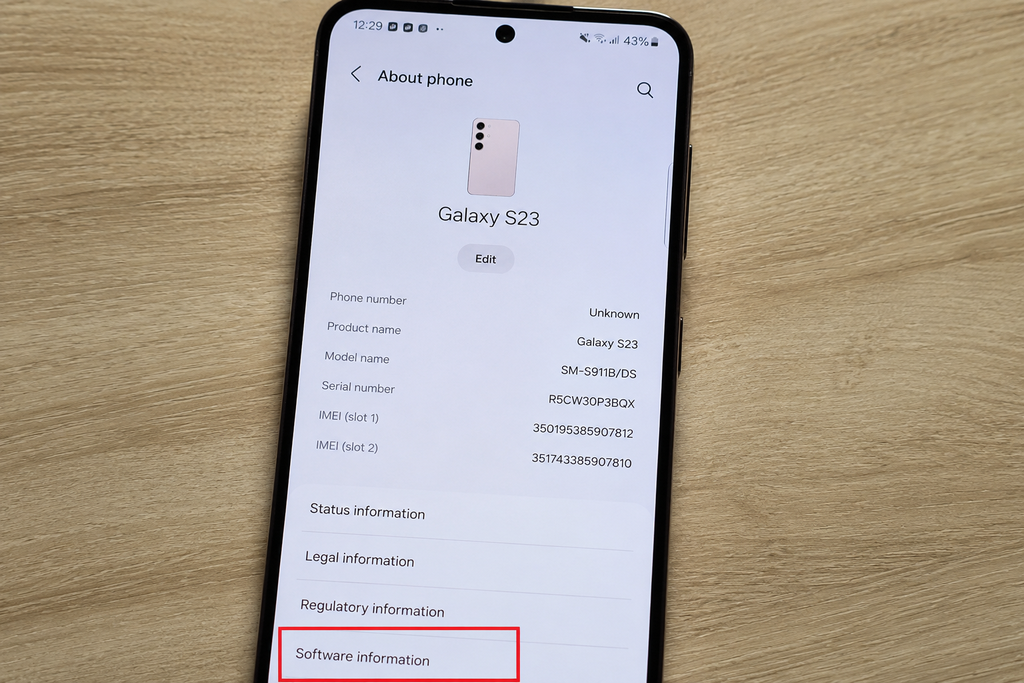
Dial *#06# on your phone. If an EID number appears alongside your IMEI, your device supports eSIM. The EID is the unique identifier for your embedded SIM chip.
Alternatively:
- Go to Settings → Connections → SIM Manager
- If you see an Add eSIM option, your phone is ready
Which Indian Carriers Support eSIM on Samsung S23?
All three major Indian carriers support eSIM on the Galaxy S23:
| Carrier | eSIM Support | How to Activate |
|---|---|---|
| Jio | ✅ Yes | SMS or Jio app |
| Airtel | ✅ Yes | Airtel Thanks app or store |
| Vi (Vodafone Idea) | ✅ Yes | Vi app or store visit |
| BSNL | ⚠️ Limited | Store visit required |
What You Need Before Activating eSIM
Before you start, make sure you have:
- Stable internet connection — Wi-Fi preferred during activation
- QR code from your carrier — provided via email, SMS, or carrier app
- Phone updated to the latest One UI — go to Settings → Software Update and install any pending updates
- Phone unlocked — carrier-locked devices may reject third-party eSIM profiles
- Active mobile number — you will need to verify via OTP during activation
How to use an eSIM on Samsung Galaxy S23 — Activate eSIM Step by Step
Method 1: Using a QR Code (Recommended)
This is the standard method supported by Jio, Airtel, and Vi.
- Open Settings
- Tap Connections
- Tap SIM Manager
- Tap Add eSIM
- Select Scan QR code
- Point your camera at the QR code provided by your carrier
- Tap Confirm when the profile details appear
- Wait for the eSIM profile to download and install
- Tap Done
Your eSIM is now active. The new plan will appear in SIM Manager alongside your physical SIM.
Method 2: Using an Activation Code
If the QR code was sent to the same phone you are activating (making it impossible to scan), use the manual activation code instead.
- Go to Settings → Connections → SIM Manager
- Tap Add eSIM
- Select Enter activation code
- Type or paste the code provided by your carrier
- Confirm and wait for the profile to install
Method 3: Using Your Carrier App
For Jio:

- Open the MyJio app
- Go to My Account → Manage SIM
- Select Get eSIM
- Verify with OTP
- The eSIM profile will be pushed directly to your S23
For Airtel:
- Open the Airtel Thanks app
- Go to Account → Manage SIM → Switch to eSIM
- Verify with OTP
- Follow in-app instructions to complete activation
For Vi:

- Open the Vi app
- Navigate to Account → SIM Settings → eSIM
- Verify identity and complete activation
Method 4: Visit a Carrier Store
If you prefer in-person help or run into issues with the app or QR code, walk into any Jio, Airtel, or Vi store with:
- Your Samsung Galaxy S23
- Your Aadhaar card or valid ID
- Your registered mobile number
The store representative will generate a QR code on the spot and help you activate the eSIM in minutes.
How to Set Up Dual SIM on Samsung Galaxy S23
The S23 supports one physical nano-SIM and one eSIM simultaneously — giving you two active numbers on a single device.
Configure Dual SIM Settings
- Go to Settings → Connections → SIM Manager
- Both SIMs will appear — your physical SIM and the new eSIM
- Tap each SIM to rename it (e.g., “Jio Personal” and “Airtel Work”)
- Set your preferences:
Default calls: Choose which SIM to use for outgoing calls by default — or set it to ask every time.
Default SMS: Select your preferred SIM for sending messages.
Mobile data: Choose one SIM for data. You can switch anytime from the quick settings panel.
Recommended SIM Manager Settings for Indian Users
Here is how most Indian users set up dual SIM on the S23 for the best experience:
Scenario 1 — Personal + Work
- Physical SIM: Personal number (Jio/Airtel) for calls and SMS
- eSIM: Work number for data and professional calls
Scenario 2 — Home + Travel
- Physical SIM: Primary Indian number (keep active always)
- eSIM: Travel data plan (activate when abroad, delete when back)
Scenario 3 — Best Data + Best Calls
- Physical SIM: Airtel (better call quality in your area)
- eSIM: Jio (better data speeds or cheaper recharge plan)
How to Switch Between eSIM Profiles
The Samsung Galaxy S23 can store multiple eSIM profiles, but only one can be active at a time (in addition to the physical SIM).
To switch profiles:
- Go to Settings → Connections → SIM Manager
- Tap eSIM
- Select the profile you want to activate
- Tap Enable
This is useful for travelers who download different eSIM data plans for different countries and switch between them as needed.
How to Delete an eSIM Profile
If you no longer need an eSIM plan or want to add a new one:
- Go to Settings → Connections → SIM Manager
- Tap on the eSIM profile
- Scroll down and tap Delete eSIM
- Confirm deletion
Important: Deleting an eSIM profile removes it permanently from your device. If it was a paid plan, contact your carrier to re-issue the profile before deleting. You cannot recover a deleted eSIM profile without going through your carrier again.
Common eSIM Problems on Samsung S23 and How to Fix Them
Problem: “Add eSIM” option not visible
Fix: Check if your phone is carrier-locked. Go to Settings → Connections → SIM Manager. If the eSIM option is missing entirely, your device may be locked to a specific carrier. Contact Samsung support or your original carrier to unlock.
Problem: QR code scan fails
Fix: Make sure your camera is clean and well-lit. Try increasing screen brightness on the device displaying the QR code. Alternatively, switch to manual activation code entry.
Problem: eSIM profile downloads but does not activate
Fix: Restart your phone after installation. If the issue persists, go to SIM Manager, tap the eSIM profile, and toggle it off and back on.
Problem: Mobile data not working after eSIM activation
Fix: Go to Settings → Connections → SIM Manager → Mobile Data and confirm the correct SIM is selected. Also check APN settings — your carrier’s app usually configures this automatically, but manual APN setup may be needed.
Problem: OTP not received during activation
Fix: Make sure your physical SIM is active and has a network signal during eSIM activation. The OTP is sent to your registered mobile number, so the physical SIM must be working at the time.
eSIM vs Physical SIM on Samsung S23 — Which Is Better?
| Feature | Physical SIM | eSIM |
|---|---|---|
| Easy to swap | ✅ Yes | ❌ No (software switch) |
| Works if phone damaged | ✅ Move to another phone | ❌ Tied to device |
| Travel flexibility | ❌ Buy local SIM | ✅ Download travel plan instantly |
| Dual SIM possible | ✅ With eSIM | ✅ With physical SIM |
| Risk of losing | ✅ Can be lost | ❌ Built into phone |
| Carrier switching | Slower | Faster (digital) |
For most Indian users, the ideal setup is to keep your primary number on a physical SIM and use the eSIM slot for a secondary plan or travel data.
Frequently Asked Questions
Can I use eSIM and physical SIM at the same time on S23?
Yes. The Samsung Galaxy S23 supports one physical SIM and one eSIM simultaneously. Both can be active at the same time for calls, SMS, and data.
Can I transfer my existing Jio or Airtel number to eSIM?
Yes. Both Jio and Airtel support number portability to eSIM. You keep your existing number — it simply moves from a physical SIM to the eSIM profile on your S23.
Does switching to eSIM cost anything?
Jio charges a nominal fee (around ₹10–₹15) for eSIM issuance. Airtel and Vi may charge a small SIM replacement fee. Your existing plan and balance remain unaffected.
Will eSIM work on Samsung S23 FE?
Yes. The Samsung Galaxy S23 FE also supports eSIM in most markets, including India.
Can I use a foreign eSIM plan on my S23 while traveling abroad?
Yes. You can download international travel eSIM plans from providers like Airalo, Nomad, or Holafly directly on your S23. Keep your Indian SIM active for calls and use the travel eSIM for local data abroad.
What happens to my eSIM if I factory reset my phone?
A factory reset will delete all eSIM profiles from your device. Before resetting, back up your eSIM details or contact your carrier to re-issue the profile after the reset.
Conclusion
Setting up eSIM on the Samsung Galaxy S23 is straightforward once you know the steps. Whether you activate through a QR code, the Jio or Airtel app, or visit a store, the whole process takes under 10 minutes.
The real benefit kicks in after activation — managing two numbers from one device, switching data plans without touching a SIM tray, and downloading international plans instantly when you travel. For Indian users juggling personal and work numbers, or anyone who travels frequently, eSIM on the S23 is genuinely worth setting up.

