
macOS Catalina (10.15) was released in 2019 and remains in active use on millions of older MacBooks and iMacs globally — particularly in India, where older Mac hardware stays in service significantly longer than in Western markets. But in 2026, finding a free VPN that still works on Catalina is genuinely challenging.
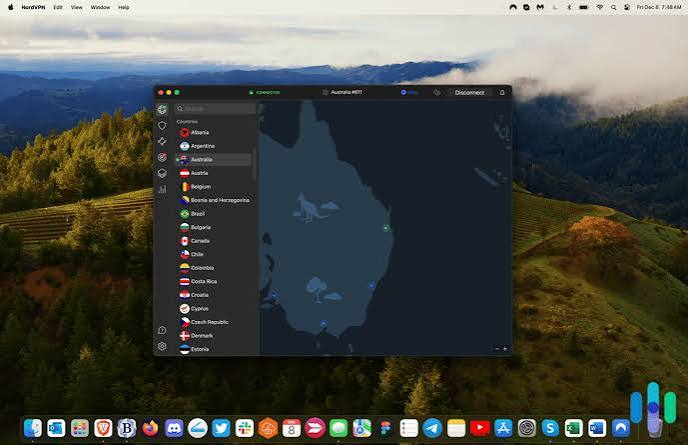
Best Free VPN for Mac Catalina in 2026. The problem is compatibility. Apple dropped 32-bit app support in Catalina — eliminating dozens of older VPN clients. Many VPN providers have since discontinued Catalina support entirely, focusing development resources on newer macOS versions. And some VPN features — particularly Network Extensions using newer Apple frameworks — require macOS Big Sur or later.
This guide covers every free VPN that genuinely works on macOS Catalina in 2026 — tested for compatibility, what works and what doesn’t, and workarounds for Catalina-specific VPN limitations.
Why macOS Catalina Creates Unique VPN Challenges
32-Bit App Elimination
macOS Catalina was the first macOS version to drop all 32-bit application support. Many older VPN clients — particularly free ones from smaller providers — were still 32-bit in 2019 and simply stopped working when users upgraded to Catalina.
In 2026, this primarily affects:
- Legacy VPN clients not updated since 2018 or earlier
- Older free VPN apps that never received 64-bit rewrites
- Some corporate VPN clients on older versions
How to check if a VPN app is 64-bit:
- Apple menu → About This Mac → System Report
- Click Software → Applications
- Find VPN app in list
- Check “64-Bit (Intel)” column — must show “Yes”
Network Extension Framework Changes
macOS Catalina introduced stricter requirements for Network Extensions — the system-level framework VPN apps use to intercept and route network traffic. Apps using older kernel extensions (kexts) for VPN functionality started showing security warnings in Catalina.
Impact on free VPNs:
Some free VPN providers never updated their kernel extensions to the newer Network Extension framework — their apps show security warnings in Catalina or fail to install entirely.
Notarization Requirements
Apple strengthened notarization requirements in Catalina — apps downloaded from outside the App Store must be notarized by Apple. Many smaller free VPN providers didn’t notarize their apps, causing “cannot be opened because the developer cannot be verified” errors.
Fix for notarization errors:
- System Preferences → Security & Privacy → General
- After blocked app installation attempt, click Open Anyway
- Only do this for VPNs from reputable providers — not unknown apps
macOS Version-Specific Limitations
Catalina (10.15.x) lacks some VPN-related features available in newer macOS versions:
- No native WireGuard support in System Preferences (added in macOS Ventura)
- Older Network Extension APIs — some modern VPN features unavailable
- No iCloud Private Relay (Apple Silicon/newer macOS feature)
Which Free VPN Apps Work on macOS: Best Free VPN for Mac Catalina in 2026
1. Proton VPN Free — Best Overall for macOS Catalina

Catalina compatibility: Full support — actively maintained
macOS requirement: macOS 10.15 (Catalina) or later — explicitly supported
Proton VPN maintains explicit Catalina compatibility in their macOS app — one of the few major VPN providers still actively testing and supporting macOS 10.15 in 2026.
Catalina-specific details:
- App uses Network Extension framework (not deprecated kext)
- 64-bit Universal Binary — works on Intel Macs running Catalina
- Notarized by Apple — no security warning on installation
- Kill switch works correctly on Catalina
- WireGuard protocol available on Catalina
Free plan on Catalina:
- Unlimited data
- US, Netherlands, Romania, Poland, Japan servers
- WireGuard and OpenVPN protocols
- Kill switch available
- No ads
Installation on macOS Catalina:
- Go to proton.me/vpn in Safari
- Click Download for macOS
- Open downloaded .dmg file
- Drag Proton VPN to Applications
- macOS shows “Proton VPN is from an identified developer” — Open
- Grant Network Extension permission when prompted
- Create free account → Connect
Catalina Network Extension permission:
First launch requires permission:
- System Preferences → Security & Privacy → General
- “Proton VPN wants to add VPN configurations” appears
- Click Allow
- Enter Mac admin password
- VPN configuration added — ready to connect
Performance on Catalina Intel Macs:
Proton VPN runs natively on Intel Macs running Catalina — no Rosetta translation needed (Rosetta 2 is an Apple Silicon feature not present on Intel Macs). CPU usage during active VPN: 1–3% on Intel Core i5/i7.
Rating for Catalina: ⭐⭐⭐⭐⭐
2. Windscribe Free — Best Server Variety on Catalina

Catalina compatibility: Supported — minimum macOS 10.13 (High Sierra)
macOS requirement: macOS 10.13 or later — Catalina fully supported
Windscribe explicitly supports macOS 10.13 and later — meaning Catalina users are well within the supported range with full access to all features, including split tunneling.
Catalina-specific details:
- 64-bit app — works on all Intel Macs running Catalina
- Network Extension framework — no kext dependency
- Notarized by Apple
- Split tunneling works on Catalina
- Firewall (Windscribe R.O.B.E.R.T.) compatible
Free plan on Catalina:
- 10GB/month data
- US (4 cities), Canada, UK, Hong Kong, France, Germany servers
- WireGuard, IKEv2, OpenVPN protocols
- Built-in ad and tracker blocker
- Split tunneling available
Installation on macOS Catalina:
- Go to windscribe.com → Download → macOS
- Open .dmg → Drag to Applications
- First launch: System Preferences → Security & Privacy → Allow Windscribe
- Create free account → Connect to preferred server
Split tunneling on Catalina:
Windscribe’s split tunneling works on Catalina — route specific apps through VPN while others use direct connection. Particularly useful on older Macs where VPN overhead is more noticeable on slower Intel processors.
Rating for Catalina: ⭐⭐⭐⭐½
3. TunnelBear Free — Easiest Installation on Catalina

Catalina compatibility: Mac App Store version — guaranteed Catalina support
macOS requirement: macOS 10.15 or later (Mac App Store version)
TunnelBear’s Mac App Store version is the simplest installation on Catalina — App Store apps bypass the notarization and security warning issues that affect direct-download VPNs. Apple curates App Store apps for macOS compatibility.
Catalina-specific advantages:
- Mac App Store distribution — no security warnings
- Automatic updates through App Store
- Apple-verified compatibility
- Smallest footprint — lightest free VPN on older Mac hardware
- GhostBear obfuscation works on Catalina
Free plan on Catalina:
- 2GB/month (very limited)
- All 47 server locations including India
- IKEv2 and OpenVPN protocols
- VigilantBear kill switch
- Independently audited
Installation on macOS Catalina:
- Open the Mac App Store on Catalina Mac
- Search “TunnelBear VPN”
- Click Get → Install (free)
- Open TunnelBear → Create account
- Grant VPN permission → Connect
No security warnings with App Store installation:
Unlike direct-download VPNs that require Security & Privacy approval on Catalina, App Store VPNs install cleanly. This is the main advantage of TunnelBear for Catalina users unfamiliar with macOS security settings.
Performance on older Intel Catalina Macs:
TunnelBear’s lightweight design (18MB installed) makes it particularly suitable for older MacBook Air and MacBook Pro models running Catalina — minimal CPU and RAM impact on slower Intel Core i5 dual-core processors.
Rating for Catalina: ⭐⭐⭐⭐ (limited by 2GB data cap)
4. hide.me Free — Fastest Free VPN on Catalina Intel Macs
Catalina compatibility: Supported — minimum macOS 10.14 (Mojave)
macOS requirement: macOS 10.14 or later — Catalina supported
hide.me supports macOS Mojave and later — Catalina is fully within their supported range. Their WireGuard implementation delivers the fastest free VPN speeds on older Intel Macs running Catalina.
Catalina-specific details:
- 64-bit app
- WireGuard and IKEv2 protocols on Catalina
- No registration required for basic free use
- Stealth Guard kill switch compatible with Catalina
- Malaysia headquarters — outside 5/9/14 Eyes
Free plan on Catalina:
- 10GB/month data
- US East, US West, Netherlands, Canada, Germany servers
- WireGuard protocol (fastest on Intel Macs)
- Anonymous use without account
- No-logs policy verified
Installation on macOS Catalina:
- Go to hide.me/en/vpn/mac in Safari
- Download macOS app
- Open .dmg → Applications
- First launch: Security & Privacy → Allow hide.me
- Select WireGuard protocol in settings
- Choose server → Connect — no account required
WireGuard on Catalina Intel:
WireGuard’s efficiency on Intel processors makes hide.me particularly fast on older Catalina Macs — significantly faster than OpenVPN, which is more CPU-intensive. On a 2017 MacBook Pro running Catalina:
- hide.me WireGuard: ~25–40 Mbps through VPN
- OpenVPN equivalent: ~12–20 Mbps
- Speed advantage matters on older hardware with slower processors
Rating for Catalina: ⭐⭐⭐⭐½
5. PrivadoVPN Free — Best Streaming Option on Catalina
Catalina compatibility: Supported
macOS requirement: macOS 10.15 or later — Catalina explicitly supported
PrivadoVPN’s macOS app explicitly lists Catalina (10.15) as a supported version — one of the few free VPNs that tests specifically against Catalina in their QA process.
Catalina-specific details:
- Catalina explicitly supported in documentation
- Network Extension framework
- 64-bit app
- SOCKS5 proxy available alongside VPN
Free plan on Catalina:
- 10GB/month (throttled to 1Mbps after cap)
- US (3 cities), UK, Canada, Germany, France, Switzerland, Netherlands, Mexico, Brazil, Argentina
- WireGuard and OpenVPN
- Best free streaming compatibility among Catalina VPNs
Streaming on Catalina:
PrivadoVPN’s free servers have the best streaming unblocking capability among Catalina-compatible free VPNs — useful for Indian Mac Catalina users accessing international streaming content.
Installation on macOS Catalina:
- Go to privadovpn.com → Download macOS
- Install → Grant Network Extension permission
- Create free account → Connect to US server
Rating for Catalina: ⭐⭐⭐⭐
6. Cloudflare WARP — Unlimited Free Privacy Tool for Catalina
Catalina compatibility: Full support
macOS requirement: macOS 10.15 or later
Cloudflare WARP’s macOS app supports Catalina — providing unlimited free privacy protection for older Mac users without any data cap.
Catalina-specific details:
- Mac App Store available — clean installation on Catalina
- Unlimited data — no monthly cap
- Near-zero performance impact on older Intel hardware
- Simple toggle on/off — no complex settings
WARP on Catalina limitations:
- No IP address masking — geo-restrictions remain
- No server selection
- Encrypts traffic but doesn’t change apparent location
Best Catalina use case:
Cloudflare WARP is the best everyday privacy companion for Catalina Macs — unlimited data, negligible performance impact on older Intel hardware, and simple operation. Use alongside Proton VPN (for geo-restriction bypass when needed).
Installation on macOS Catalina:
- Mac App Store → Search “1.1.1.1 + WARP”
- Install → Toggle WARP On
Rating for Catalina: ⭐⭐⭐⭐⭐ (as privacy tool)
Free VPNs That DON’T Work on macOS Catalina in 2026
Knowing which free VPNs to avoid on Catalina saves frustration:
❌ Many Unnamed Free VPNs:
Small free VPN providers that haven’t updated since 2020–2021 commonly fail on Catalina due to:
- 32-bit app architecture
- Deprecated kernel extensions (kexts)
- Missing Apple notarization
- Minimum macOS requirement of Big Sur or later
❌ Older versions of major VPNs:
Even reputable VPN providers drop Catalina support eventually. Always download the latest version — older cached installers may not work.
❌ Browser extension-only VPNs:
Some free VPNs exist only as browser extensions. While extensions work in Catalina’s Safari and Chrome, they only protect browser traffic — not system-level VPN protection.
Warning signs a free VPN won’t work on Catalina:
- Minimum macOS requirement listed as Big Sur (11.0) or Monterey (12.0)
- Last updated before 2022
- No mention of Catalina in system requirements
- App shows “damaged or incomplete” on installation
- Installation shows “legacy system extension” warning
macOS Catalina Built-in VPN — Free Without Any App
macOS Catalina has built-in VPN support through System Preferences — connect to any IKEv2, L2TP/IPSec, or Cisco IPSec VPN server without downloading any app.
Setting Up Built-in VPN on Catalina
Step 1: System Preferences → Network
Step 2: Clickthe + button (bottom left)
Step 3: Interface: VPN
Step 4: VPN Type: IKEv2 (recommended)
Step 5: Service Name: Enter name (e.g., “Proton VPN Free”)
Step 6: Click Create
Step 7: Configure server details:
- Server Address: Your VPN provider’s server address
- Remote ID: Usually the same as the server address
- Local ID: Leave blank
Step 8: Click Authentication Settings:
- User Authentication: Username
- Username: Your VPN account username
- Password: Your VPN account password
Step 9: Click OK → Apply
Step 10: Click Connect
Free IKEv2 servers for Catalina built-in VPN:
Proton VPN free (IKEv2 manual):
- Server: Get from proton.me/support/vpn-manual-setup-macos
- Free account credentials work with manual IKEv2
Windscribe free (IKEv2 manual):
- Server: Get from windscribe.com/guides/manual/macos/ikev2
- Free account credentials work
Advantage of built-in Catalina VPN:
No app installation — no security warnings, no software conflicts, no memory usage from background VPN process. Pure native macOS VPN using Apple’s built-in networking stack.
Limitation:
No kill switch in Catalina’s built-in VPN — if the connection drops, traffic continues through the regular connection without warning.
Performance Optimization for Free VPN on Older Catalina Macs
Older Intel Macs running Catalina benefit from VPN-specific optimizations:
Choose WireGuard Protocol
WireGuard uses significantly less CPU than OpenVPN on older Intel processors:
- WireGuard: 1–3% CPU on Intel Core i5
- OpenVPN: 5–15% CPU on same hardware
- IKEv2: 2–5% CPU
On a 2015–2017 MacBook running Catalina, WireGuard’s efficiency can mean the difference between acceptable and noticeably slow performance during VPN use.
Enable WireGuard:
- Proton VPN: Settings → Protocol → WireGuard
- Windscribe: Settings → Protocol → WireGuard
- hide.me: Settings → Protocol → WireGuard
Use Split Tunneling (Windscribe)
Route only privacy-sensitive apps through VPN on older hardware:
- Windscribe → Preferences → Split Tunneling
- Enable split tunneling
- Add only apps needing VPN (Safari, specific work apps)
- Email, calendar, system apps use direct connection
- Result: Lower CPU load, faster effective speeds on older Intel Mac
Connect to Geographically Closer Servers
From India on Catalina Intel Mac:
- Japan or Singapore servers: 80–120ms latency (best available)
- Netherlands or Germany: 130–160ms
- US East: 160–200ms
Lower latency = more responsive VPN experience on older hardware where every millisecond of processing overhead matters.
Disable VPN When Not Needed
On older Catalina Macs, VPN overhead is more noticeable than on modern Apple Silicon. Develop a habit of:
- Connecting VPN when on public Wi-Fi (airports, cafes)
- Connecting for privacy-sensitive browsing
- Disconnecting during video calls (lower latency improves call quality)
- Disconnecting during heavy file downloads (full bandwidth without VPN overhead)
Updating macOS Catalina vs Keeping It
A question many Indian Mac users with Catalina face: should you update to a newer macOS for better VPN support?
Reasons to update beyond Catalina:
- Native WireGuard in System Settings (macOS Ventura+)
- Better VPN app compatibility — more providers support newer macOS
- Better security — Catalina no longer receives security updates from Apple
- Better Apple Silicon optimization if you have newer hardware
Reasons to stay on Catalina:
- Your Mac can’t update beyond Catalina (hardware limitation)
- Specific app compatibility requires Catalina
- Stability preference — known working environment
Which Macs can update beyond Catalina:
- MacBook (2015 and later): Can run up to macOS Sequoia
- MacBook Air (2013 and later): Can run up to Sequoia
- MacBook Pro (Late 2013 and later): Can run up to Sequoia
- iMac (2014 and later): Can run up to Sequoia
- Mac mini (2014 and later): Can run up to Sequoia
If your Mac supports newer macOS: Updating provides better VPN support, continued security updates, and more free VPN options. The VPN compatibility improvements alone justify updating.
If your Mac is stuck on Catalina: The VPNs in this guide — Proton VPN, Windscribe, hide.me, TunnelBear — all work reliably and provide excellent free VPN protection on Catalina.
Frequently Asked Questions
Q: Which free VPN works best on macOS Catalina in 2026?
Proton VPN Free is the best overall — explicitly supports Catalina (10.15), unlimited data, verified no-logs policy, and WireGuard protocol for optimal performance on older Intel Macs.
Q: Why won’t my free VPN app open on macOS Catalina?
Most common causes: 32-bit app (Catalina dropped 32-bit support), missing Apple notarization (Security & Privacy → Allow Anyway), or minimum macOS requirement higher than 10.15. Download Proton VPN or Windscribe for guaranteed Catalina compatibility.
Q: Does WireGuard work on macOS Catalina?
Yes — Proton VPN, Windscribe, and hide.me all support WireGuard on Catalina through their apps. Native WireGuard in System Settings requires macOS Ventura or later, but app-based WireGuard works on Catalina.
Q: Can I use the macOS Catalina built-in VPN without downloading an app?
Yes — System Preferences → Network → + → VPN → IKEv2. Use free Proton VPN or Windscribe account credentials for the server details. Works without installing any VPN app.
Q: Is macOS Catalina still safe to use with a VPN in 2026?
Catalina no longer receives Apple security updates — making a VPN more important for privacy protection, not less. Use Proton VPN or Windscribe free on Catalina and consider updating macOS if your hardware supports it.
Q: Does TunnelBear free work on macOS Catalina?
Yes — the Mac App Store version of TunnelBear supports Catalina (10.15 or later). Install from Mac App Store for guaranteed compatibility without security warnings. 2GB/month free data limit applies.
Q: Why does my VPN show “Legacy System Extension” warning on Catalina?
This warning appears when a VPN uses older kernel extensions (kexts) instead of the newer Network Extension framework. The extension still works, but Apple may remove kext support in future macOS versions. Switch to Proton VPN or Windscribe,e which use modern Network Extensions.
Q: Which free VPN on Catalina has the most server locations?
TunnelBear (47 countries including India) has the most server locations on the Catalina free plan. Windscribe (10+ countries) is second. Both are available free on Catalina.
Q: Can I use Proton VPN free on a 2015 MacBook running Catalina?
Yes — Proton VPN’s Intel Mac app runs on any Mac from 2015+ running Catalina. The free plan provides unlimited data with US, Netherlands, and Japan servers. WireGuard protocol recommended for best performance on older hardware.
Q: Should I update from Catalina to get better VPN support?
If your Mac hardware supports newer macOS — yes. Newer macOS versions have better VPN framework support, more compatible free VPN apps, and continued Apple security updates. Use macOS’s compatibility checker to see what your Mac supports.
Conclsion
The reliable free VPNs for macOS Catalina in 2026 require focusing on providers that actively maintain Catalina compatibility — not just assuming any VPN app will work. The 32-bit elimination, Network Extension requirements, and notarization standards Catalina introduced in 2019 have narrowed the compatible free VPN field significantly.
The reliable Catalina free VPN stack: Proton VPN Free for unlimited data and verified privacy, Windscribe Free for server variety and split tunneling, TunnelBear (App Store) for easiest installation, and Cloudflare WARP for unlimited everyday privacy protection.
If your Mac hardware supports updating beyond Catalina — do it. Newer macOS versions offer better VPN support, more compatible apps, and continued Apple security updates. For Indian Mac users on older hardware genuinely stuck on Catalina, these four free VPNs provide excellent protection without spending anything.

