
Video editing software can be expensive. Professional suites often cost hundreds of dollars per year, and for someone just starting or working with a tight budget, that’s a significant barrier. The good news? In 2026, the free options are better than ever. You don’t need to spend a penny to create professional-looking videos.
Whether you are a student, a small business owner, a social media creator, or someone who just wants to make memorable family videos, there is a free tool that will meet your needs. I have tested dozens of options, and I am going to walk you through the very best free tools available right now.

Video editing has become faster and easier in 2026, thanks to a growing number of free AI-powered tools. You no longer need expensive software or advanced editing skills to create polished videos for YouTube, Instagram, TikTok, Facebook, or other platforms. Free AI video editors can help automate tasks such as trimming clips, generating captions, removing backgrounds, improving audio, creating transitions, resizing videos, and turning simple ideas into engaging content.
For beginners, content creators, students, marketers, and small businesses, these free tools can significantly reduce the time required to edit a video. Many platforms offer browser-based editors or desktop and mobile applications, allowing users to work from almost any device. Some provide generous free plans, while others offer selected AI features without requiring a paid subscription.
We will explore some of the best free AI tools for video editing in 2026, their key features, advantages, limitations, and the types of creators they are best suited for. Whether you want to edit short-form social media videos, YouTube content, tutorials, promotional videos, or faceless videos, these tools can help you produce professional-looking results with less manual work.
Why Free Tools Are Better Than Ever
Remember when free video editors meant sacrificing quality? Those days are over. The free tools available in 2026 rival their paid counterparts in many areas. Some even outperform expensive software in specific tasks.
The biggest shift has been in how these tools work. Instead of requiring you to learn complicated workflows, modern free editors focus on helping you get results quickly. They automate tedious tasks, offer smart suggestions, and make the entire process more intuitive.
For many creators, free tools are more than enough. You can edit, add effects, mix audio, and export in high quality without spending a cent. The key is knowing which tool to use for your specific needs.
Free AI tools for video Editing in 2026:-
Professional-Grade Free Editors
If you are serious about video editing but cannot afford expensive software, these options will surprise you with their capabilities.
DaVinci Resolve: The Gold Standard
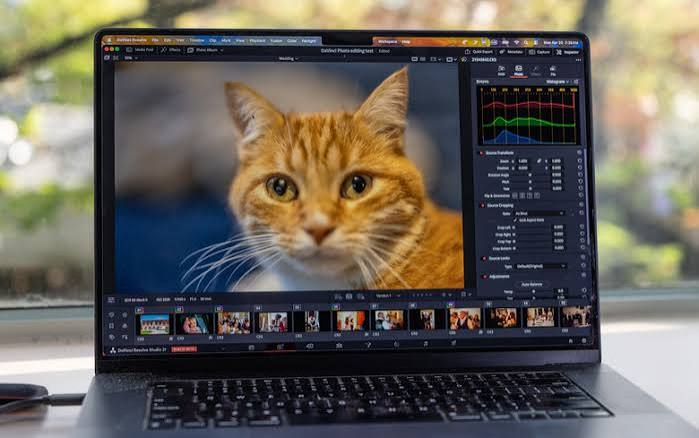
Blackmagic Design’s DaVinci Resolve is one of the most powerful video editing programs available, with a free version in 2026. It combines professional video editing, color correction, visual effects, motion graphics, and audio post-production in a single application, making it a strong choice for creators who want advanced editing capabilities without paying for expensive software.
DaVinci Resolve is particularly suitable for YouTube creators, filmmakers, social media editors, and beginners who want to develop professional video-editing skills. Its free version supports many advanced features and can handle everything from simple cuts and transitions to complex multi-track projects.
For creators looking for a free video editing tool in 2026, DaVinci Resolve stands out because it offers professional-level features while providing enough flexibility for both beginners and experienced editors.
Start with the best free video editor you can get. DaVinci Resolve is used in Hollywood, and its free version is so complete that many professionals never upgrade to the paid Studio version. This is not a watered-down trial—this is a genuine professional tool available at no cost.
Who should use it?
Serious editors, filmmakers, content creators, and anyone who wants professional-grade tools without paying for them. If you want to learn video editing properly, this is where you should start.
What makes it special
The color grading tools in DaVinci Resolve are industry-leading. You can adjust the look of your video with precision that other editors simply cannot match. The free version includes features that other software charges hundreds of dollars for.
Fairlight, the built-in audio workstation, is another standout feature. You can mix multiple audio tracks, remove background noise, add effects, and even work with surround sound—all without leaving the program. This alone saves you from needing separate audio software.
Fusion handles visual effects and motion graphics. You can create titles, animations, and complex effects within the same software. It is a complete post-production suite in one package.
The good side:
- Genuine professional tools at zero cost
- One program handles editing, color, audio, and effects
- Regular updates with new features
- Vast community offering tutorials and support
- No watermarks on exports
The challenges:
- Steep learning curve—this is professional software
- Requires a reasonably powerful computer
- The interface can feel overwhelming at first
- Takes time to learn properly
Practical example: Sarah, a film student, used DaVinci Resolve to edit her final-year documentary. She was able to color grade, mix audio, and create title sequences all in one program, saving her from learning multiple pieces of software. Her final project looked professional enough to be screened at a local film festival.
Shotcut: The Open-Source Alternative
Shotcut is free, open-source video editing software designed for users who want powerful editing features without paying a subscription fee. It works on Windows, macOS, and Linux, making it a flexible option for beginners, students, YouTubers, and creators who need a reliable desktop video editor.
One of Shotcut’s biggest advantages is that it supports a wide range of video formats and provides a straightforward timeline-based editing interface. Users can cut and combine clips, add transitions, apply filters, adjust video speed, and edit audio from a single application. It also supports high-resolution video editing, making it suitable for both everyday projects and more demanding content.
Free software without the complexity of DaVinci Resolve, Shotcut is worth considering. It is open-source, meaning it is developed by a community of volunteers who are passionate about video editing.
Who should use it?
Users who want something simpler than DaVinci Resolve but still need robust editing capabilities. It is great for intermediate editors who value simplicity.

What makes it special
Shotcut has a clean, modern interface that is easier to navigate than some professional software. It supports a wide range of video formats, so you can import almost any file you have.
The native timeline editing is straightforward, and you can apply filters and effects with just a few clicks. The software also includes basic color correction tools and audio editing features.
The good side:
- Completely free and open-source
- Works on Windows, Mac, and Linux
- Supports many video formats
- Regular updates from the community
- No watermarks or limitations
The challenges:
- Some features are less polished than commercial alternatives
- Limited advanced effects compared to DaVinci Resolve
- Smaller user community means fewer tutorials
OpenShot: Simplicity First

OpenShot takes the keep-it-simple approach to video editing. It is designed for users who want to edit without getting bogged down in technical details.
Who should use it?
Beginners and casual users who need basic editing features. If you are making simple videos for personal use or social media, OpenShot does what you need.
What makes it special
The drag-and-drop interface makes it incredibly easy to use. You can add clips, arrange them on the timeline, trim sections, and add transitions without any technical knowledge.
OpenShot also includes basic effects, title creation, and audio mixing. It is not as powerful as DaVinci Resolve, but it does not need to be for basic projects.
The good side:
- Very easy to learn and use
- Completely free with no watermarks
- Works on all major operating systems
- Simple drag-and-drop workflow
The challenges:
- Limited advanced features
- Can be unstable with larger projects
- Not suitable for professional work
- Slower rendering than other options
Free Tools for Social Media Creators
Social media demands speed. You need to create content quickly, often on your phone, and get it published before the moment passes. These free tools are built for exactly that.
CapCut: The Social Media Powerhouse
CapCut has become the default choice for social media creators, and for good reason. It is completely free, works on both mobile and desktop, and includes features that make short-form content creation effortless.
Who should use it?
Social media creators, influencers, small businesses, and anyone producing short-form videos for TikTok, Instagram Reels, or YouTube Shorts.
What makes it special
The auto-caption feature is perhaps the best available. In 2026, captions are essential—people watch videos without sound, and captions keep them engaged. CapCut generates captions quickly and offers animated styles that make your videos look polished.
The effects library is constantly updated with trending options. You can apply transitions, filters, and effects with a single tap. This keeps your content fresh and in line with what is popular on each platform.
The cross-platform support is a huge advantage. Start editing on your phone and finish on your computer without losing any progress.
The good side:
- Completely free for most features
- Very easy to learn and use
- Best auto-captioning available
- Regular updates with trending effects
- No watermarks on exports
The challenges:
- Limited to a 15-minute maximum video length
- Not suitable for long-form content
- Advanced features require the Pro version
Practical example: Alex runs a small bakery and started posting behind-the-scenes videos on Instagram. Using CapCut, he adds captions, applies trending effects, and posts within thirty minutes of filming. His Reels now get thousands of views, and he has gained over 10,000 followers without spending on advertising.
Quik: Highlights in Minutes
Quik comes from GoPro, and it is designed for one thing: speed. You select your clips, choose a theme and soundtrack, and Quik creates a complete video in minutes.
Who should use it?
Casual creators, action sports enthusiasts, and anyone who wants to quickly share highlights without spending time editing.
How it works
The process is incredibly simple. Select your video clips, pick a theme and music track, and let Quik handle the rest. It analyzes your footage, finds the best moments, adds transitions, and creates a finished video.
The good side:
- Incredibly fast
- Very simple interface
- Good for travel and action videos
- No watermarks
The challenges:
- Limited control over the final result
- Basic features compared to other editors
- Best for short highlight reels
Free Web-Based Editors
Sometimes you do not want to download software. Maybe you are using a shared computer, or you just need to make a quick edit. These web-based editors work directly in your browser.
Clipchamp: The Browser-Based Solution
Clipchamp is now built into Windows 11, but it also works in any modern browser. It offers a surprisingly complete editing experience without requiring any downloads.
Who should use it?
Users who want a simple editor without installing software. It is perfect for quick edits and basic projects.
What makes it special
The interface is clean and intuitive. You can import clips, trim them, add text overlays, and apply transitions with minimal effort. Clipchamp also includes a stock library with music and video clips.
The integration with Windows makes it particularly convenient for PC users. It is always there when you need it.
The good side:
- Works in your browser
- Built into Windows 11
- Simple and intuitive interface
- Good for quick edits
- No watermarks on exports
The challenges:
- Limited features compared to desktop software
- Exports take longer than desktop editors
- Some advanced features require payment
- Relies on an internet connection
Canva Video Editor: Design Meets Editing
Canva is famous for design, but its video editor has grown significantly. It is perfect for creators who want to combine graphics and video.
Who should use it?
Content creators, social media managers, and small businesses who already use Canva for design work.
What makes it special
The integration with Canva’s design tools is the main advantage. You can add graphics, text, and animations alongside your video clips. It is particularly useful for creating thumbnails, social media graphics, and video content in one place.
The template library is extensive, with options for social media videos, presentations, and marketing content.
The good side:
- Combines design and video in one tool
- Extensive template library
- Easy-to-use interface
- Web-based, no installation needed
The challenges:
- Limited advanced editing features
- Some features require the paid version
- Video exports have a Canva watermark on the free plan
- Best for simple video projects
Specialized Free Tools
Sometimes you need a tool for a specific task, not a full editor. These free tools excel at particular jobs.
HandBrake: Format Conversion Made Simple
HandBrake is not an editor, but it is essential for many video creators. It converts video files from one format to another, which can be crucial when different platforms require different formats.
Who should use it?
Anyone who needs to convert video files to different formats. It is particularly useful for compressing large files or preparing videos for specific platforms.
What makes it special
HandBrake is powerful yet simple. You choose your input file, select the output format, and let it work. The presets for different devices and platforms make it easy to get the right output.
The good side:
- Completely free
- Supports many formats
- Good compression options
- Batch processing available
The challenges:
- Not an editor
- Can take time for large files
- Technical options can be confusing
OBS Studio: Record and Stream
OBS Studio is the standard for screen recording and live streaming. It is free, powerful, and used by professionals and amateurs alike.
Who should use it?
Gamers, educators, presenters, and anyone who needs to record their screen or stream live video.
What makes it special
The flexibility is unmatched. You can combine video sources, add overlays, switch between scenes, and stream to multiple platforms simultaneously.
The good side:
- Completely free and open-source
- Professional-grade streaming capabilities
- Works on all major platforms
- Extensive plug-in support
The challenges:
- Complex setup for beginners
- Needs a good computer for high-quality streams
- Not an editing tool
Building Your Free Toolkit
You do not have to choose just one tool. The smartest creators use a combination of free tools to handle different parts of their workflow.
For professional-quality projects:
Start with DaVinci Resolve. It handles editing, color, audio, and effects. Add HandBrake for format conversion. Use OBS Studio if you need to record screen content.
For social media creators:
Use CapCut as your primary editor. It handles short-form content perfectly. Add Canva for creating graphics and thumbnails. Use Opus Clip if you need to turn long videos into social media snippets.
For beginners:
Start with OpenShot or Clipchamp. They are easy to learn and produce good results. As you grow, move to DaVinci Resolve for more control.
For students:
DaVinci Resolve is invaluable. It is professional software you can learn for free. This gives you skills that translate directly to professional work.
Practical Examples of Free Workflows
Let me show you how these tools work together in real situations.
Example 1: A wedding video on a budget
You filmed a friend’s wedding but cannot afford expensive editing software. Import the footage into DaVinci Resolve. Use Fairlight to clean up the audio and add background music. Apply color grading to make the footage look cinematic. Export the final video without watermarks or limits. The result looks professional without costing anything.
Example 2: A small business social media plan
You run a local gym and want to post daily videos. Record short clips on your phone during training sessions. Use CapCut to add captions, trending effects, and music. Export in the correct format for Instagram Reels. Post directly from your phone. You maintain a consistent presence without paying for a social media manager.
Example 3: Online course creation
You are creating video lessons for an online course. Use OBS Studio to record your screen with your camera overlay. Import the recording into DaVinci Resolve. Cut out mistakes, add text overlays for key points, and export. Use HandBrake to compress large files for uploading to your course platform.
Example 4: Family memories
You have hours of footage from a family trip. Import the clips into Shotcut. Create a simple edit with your favorite moments. Add transitions and music. Export as a shareable video for family members. No need to learn complicated software—Shotcut handles everything simply.
Comparing Features Across Free Tools
Here is a quick comparison to help you choose:
| Feature | DaVinci Resolve | Shotcut | OpenShot | CapCut | Clipchamp |
|---|---|---|---|---|---|
| Color Grading | Excellent | Good | Basic | Basic | Basic |
| Audio Tools | Professional | Good | Basic | Good | Basic |
| Effects | Extensive | Moderate | Basic | Good | Basic |
| Ease of Use | Complex | Moderate | Easy | Very Easy | Easy |
| Mobile Version | No | No | No | Yes | Yes |
| Watermark | No | No | No | No | No |
| Max Resolution | 4K+ | 4K | 4K | 4K | 1080p (free) |
Common Limitations of Free Tools
While free tools are impressive, they do have limitations. It is good to know what you might face.
Export limits:
Some free tools limit resolution or add watermarks. CapCut and DaVinci Resolve avoid this, but others like Canva include watermarks on the free version.
Performance issues:
Free software can be less optimized. It may run slower or crash more often than paid alternatives, especially on older computers.
Learning curve:
Professional free tools like DaVinci Resolve take time to learn. You are getting professional software, and that comes with professional complexity.
Support:
Free tools have limited support. You rely on community forums and tutorials rather than dedicated customer service.
Feature gaps:
Advanced features like motion tracking, 3D editing, or multi-camera support are often missing from free tools.
Making the Most of Your Free Tools
Here are some tips to get the best results from free software.
Learn keyboard shortcuts:
This is the fastest way to improve your editing speed. Every tool has shortcuts for common tasks.
Use templates and presets:
Many free tools include templates that save time. Use them as starting points and customize from there.
Optimize your computer:
Free editing software needs a decent computer. Close unnecessary programs, free up disk space, and keep your system updated.
Watch tutorials:
The best free tools have extensive tutorial libraries. Spending an hour learning can save you days of frustration.
Start simple:
Do not try to learn everything at once. Start with basic editing and gradually explore advanced features.
Frequently Asked Questions
1. What is the best free video editing software overall?
DaVinci Resolve is the best free video editor available. It offers professional-grade tools for editing, color grading, audio mixing, and visual effects. No other free tool comes close to its capabilities.
2. What is the best free video editor for beginners?
OpenShot and Clipchamp are excellent for beginners. They have simple interfaces and basic features that are easy to learn. CapCut is also very beginner-friendly, especially for social media content.
3. Is there a free video editor with no watermark?
Yes, several. DaVinci Resolve, CapCut, Shotcut, OpenShot, and Clipchamp all allow watermark-free exports. Always check the terms, but most free tools do not add watermarks.
4. What is the best free video editor for social media?
CapCut is the best free editor for social media. It offers auto-captioning, trending effects, and easy sharing to platforms like TikTok and Instagram. It is designed specifically for short-form content.
5. Can I edit 4K videos for free?
Yes. DaVinci Resolve, Shotcut, and OpenShot all support 4K editing in their free versions. CapCut also handles 4K videos on both mobile and desktop.
6. What is the best free video editor for Windows?
For Windows users, DaVinci Resolve is the best free professional editor. Clipchamp is also excellent for quick edits and is built into Windows 11. Shotcut works well on Windows too.
7. What is the best free video editor for Mac?
DaVinci Resolve is the best free editor on Mac. It is fully optimized for macOS and offers professional features. Shotcut and OpenShot also work well on Mac.
8. Are free video editors safe to use?
Most reputable free editors are safe. DaVinci Resolve, CapCut, Shotcut, and OpenShot are all trusted by millions of users. Always download from official websites to avoid malware.
9. Do I need a powerful computer for free editing software?
It depends on the software. DaVinci Resolve needs a powerful computer with a good graphics card. Shotcut, OpenShot, and CapCut work on more modest hardware. Check system requirements before downloading.
10. Can I make professional videos with free tools?
Absolutely. Many professionals use DaVinci Resolve’s free version for commercial work. Social media creators use CapCut for professional-looking content. The tools are capable enough for professional use.
11. What free video editor has the most features?
DaVinci Resolve has the most features by a significant margin. It includes professional color grading, audio mixing, visual effects, and editing tools all in one package.
12. Can I use free software for commercial projects?
Yes, many free tools allow commercial use. Check the license terms for your chosen software. DaVinci Resolve, Shotcut, and OpenShot all allow commercial use without restrictions.
Conclsion
The idea that you need expensive software to create good videos is outdated. The free tools available in 2026 are incredibly powerful, and in some cases, they rival or exceed paid alternatives.
Start with one tool and learn it well. As you grow, add other free tools to your workflow. The combination of DaVinci Resolve for professional projects, CapCut for social media, and specialized tools for specific tasks gives you a complete video creation toolkit at zero cost.
The most important thing is to start creating. Do not wait until you can afford expensive software. The best tool is the one you use, and there are excellent free options waiting for you right now.
Remember, creativity does not come from expensive software. It comes from you. These tools simply help you bring your vision to life. So go ahead—download a free editor, start experimenting, and see what you can create.

