
free VPN for Mac in Russia in 2026 is harder than it sounds. Russia’s internet restrictions have tightened significantly over the past few years, and the list of VPNs that still work — let alone the free ones — keeps getting shorter. Many popular services have been blocked at the ISP level, and even some paid VPNs have struggled to stay accessible.
But it’s not hopeless. A handful of free and freemium VPNs continue to work reliably on Mac inside Russia, and this guide covers exactly which ones those are, how to set them up, and what to realistically expect from a free service in this environment.
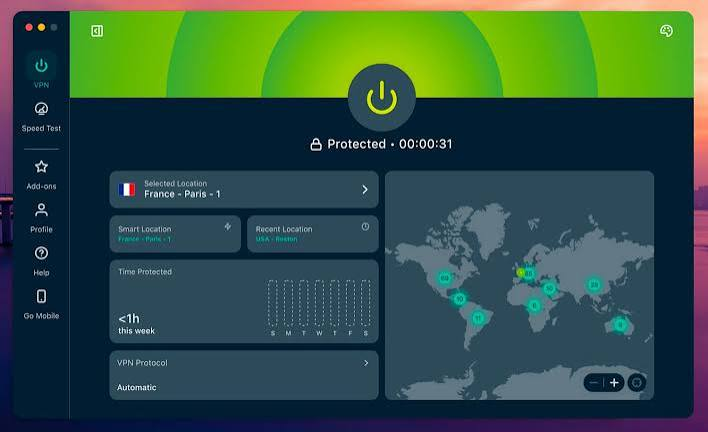
Free VPN for Mac in Russia in 2026? Whether you want to protect your privacy on public Wi-Fi, secure your internet connection, or access services available outside your region while complying with applicable laws and service terms, choosing the right VPN is important. Not every free VPN offers the speed, security, and reliability needed for macOS users, and some may impose strict data limits or lack essential privacy features.
In this guide, we’ll review the best free VPNs for Mac in Russia in 2026, comparing their security, performance, server locations, data allowances, and ease of use. We’ll also explain which VPNs provide unlimited free data, which are best for streaming or everyday browsing, and what limitations to expect from free plans.
Whether you use a MacBook Air, MacBook Pro, iMac, or Mac mini, this article will help you find a trustworthy free VPN that works well with macOS. By the end, you’ll know which option best fits your needs for secure, private, and reliable internet access in 2026.
- Check now: Free VPN on MacBook Air in 2026
Why VPNs Are Harder to Use in Russia Now
Russia’s Roskomnadzor (the federal media regulator) has been actively blocking VPN services since 2017, when a law required VPN providers to connect to a government registry and filter blocked content. Most reputable VPNs refused to comply, which made them targets for blocking.

By 2026, the situation has evolved further. Deep packet inspection (DPI) technology is now widely deployed by Russian ISPs, which means VPNs using standard protocols like OpenVPN can be detected and throttled or blocked even without a specific block on the provider’s servers.
This is why the VPNs that still work in Russia tend to use obfuscation — a technique that disguises VPN traffic so it looks like regular HTTPS browsing. Without obfuscation, even a premium VPN can fail to connect inside Russia.
For Mac users specifically, the challenge is also software availability. Some VPN apps that work on Windows don’t have Mac-compatible obfuscation features, or their Mac app lags behind the Windows version. So you need to check Mac support explicitly, not just assume.
What to Look for in a Free VPN for Mac in Russia

Before jumping to the list, here’s what actually matters when choosing a free VPN for use in Russia on a Mac:
Obfuscation support — Non-negotiable. Without it, your VPN connection will likely fail or get throttled by your ISP.
Mac app quality — Some VPNs have great iOS or Windows apps but a bare-bones Mac experience. Look for one that has a proper native Mac application.
Data limit — Most free VPNs cap your monthly data. For light browsing (checking Gmail, reading news, using social platforms), 10GB/month is workable. For streaming or large downloads, free tiers fall short quickly.
No-logs policy — Especially important in a restricted internet environment. You want a provider that doesn’t store records of what you do online.
Server locations — You’ll want servers in nearby countries (like Germany, Netherlands, or Finland) for better speeds from Russia.
Best Free VPNs for Mac in Russia in 2026
1. Proton VPN — Best Free Option Overall
Proton VPN’s free tier is genuinely one of the best available, and it’s particularly relevant for Russia because of one feature: Stealth protocol. This is Proton’s proprietary obfuscation layer designed specifically for restricted environments like Russia, Iran, and China.

The free plan gives you:
- Unlimited data (rare for a free VPN)
- Access to servers in the US, Netherlands, and Japan
- One device at a time
- No ads, no logs
The Stealth protocol is available on the Mac app, which is well-designed and updated regularly. For most users in Russia who want a reliable daily driver, Proton VPN free is the starting point.
Practical example: A student in Moscow using Proton VPN free on their MacBook Air can browse Instagram, access Google Scholar, and use YouTube without issues. Speeds on the Netherlands server typically sit around 15–25 Mbps — not blazing, but perfectly usable for everyday tasks.
Limitation: The free tier gives you only three server locations and one simultaneous connection. If you need more servers or want to connect your phone and Mac at the same time, you’d need to upgrade to Proton Plus.
2. Windscribe — Best for Data Flexibility
Windscribe is a Canadian VPN with a generous free tier and one of the better track records for working in restricted regions. Their free plan offers 10GB of data per month by default, but you can boost this to 15GB by tweeting about them (yes, really) and earn more by referring friends.
What makes Windscribe relevant for Russia is their Stealth and WStunnel protocols, which help disguise traffic. Their Mac app is solid and includes a built-in firewall feature they call the “Firewall” mode — it acts as a kill switch, cutting your internet if the VPN drops unexpectedly.
Free plan highlights:
- 10GB/month (expandable)
- Access to 10+ server locations on free tier (US, UK, Netherlands, Canada, and more)
- Up to 2 simultaneous devices
- No logs policy
Practical example: A freelancer in St. Petersburg using Windscribe on their MacBook Pro can comfortably handle daily work — email, Slack (via web), and light Zoom calls — within the monthly 10GB limit. Heavier use like video streaming will eat through the data faster.
3. Psiphon — Best for Getting Through Blocks
Psiphon isn’t a traditional VPN — it’s a circumvention tool that combines VPN, SSH, and HTTP proxy technologies. It was originally developed with funding from the US State Department specifically to help people in censored countries access the open internet.

Psiphon doesn’t have a Mac app in the conventional sense, but it works on Mac via a downloadable client from their official site (psiphon.ca). The experience is more bare-bones than Proton or Windscribe, but the connection reliability in Russia is notably strong because Psiphon uses domain fronting and constantly rotates its server infrastructure to stay ahead of blocks.
Free plan highlights:
- Unlimited data
- No account required — download and run
- Works even when many other VPNs fail
- Slower speeds compared to premium options
Best for: Users who just need something that works and don’t care about speed or features. If every other VPN has stopped connecting, Psiphon is often a last resort that still gets through.
4. Lantern — Peer-to-Peer Circumvention Tool
Lantern takes a different approach: instead of routing your traffic through traditional VPN servers, it uses a peer-to-peer network where volunteers in unrestricted countries relay your traffic. This makes it very difficult to block because there’s no central server to target.
On Mac, Lantern runs as a lightweight app and works as a proxy for your browser traffic. It’s free up to a certain monthly bandwidth limit, after which speeds drop significantly.
Good for: Accessing websites and social media. Not ideal for bandwidth-heavy tasks.
Limitation: Speeds can be inconsistent depending on available relays, and it’s not a full-device VPN — only browser traffic is routed through it unless you configure it otherwise.
5. Outline VPN — Best for Tech-Savvy Users
Outline is an open-source VPN tool developed by Jigsaw (a unit within Google). The way it works is slightly different from consumer VPNs: you either access a server shared by someone else, or set up your own server on a cheap VPS (Virtual Private Server) for about $5/month.
This makes it effectively free if you have access to a shared server, which various communities share publicly. Outline uses the Shadowsocks protocol, which was originally developed to bypass China’s Great Firewall and works well against Russia’s DPI systems too.
The Mac client is clean and simple. If you’re comfortable setting up a VPS or finding a shared Outline server key, this is one of the most reliable options available.
Outline VPN is a unique privacy tool designed for users who want more control over their internet connection. Unlike traditional VPN services that provide shared servers through a subscription model, Outline allows users to create and manage their own private VPN server. Developed by Jigsaw, Outline is especially popular among advanced users, developers, journalists, and anyone who values flexibility and customization.
One of Outline VPN’s biggest advantages is that it uses the Shadowsocks protocol, which is lightweight, fast, and designed to provide secure connections with minimal performance impact. Users can deploy their own server through cloud providers such as DigitalOcean, Google Cloud, or Amazon Web Services (AWS) and then connect to that server using the Outline app on macOS, Windows, Android, iPhone, or Linux devices.
The setup process is more technical than installing a standard VPN app, but it offers several benefits. Because you control the server, you have greater transparency over how your connection is managed and can create access keys for family members, teams, or multiple devices. This makes Outline useful for small organizations, remote teams, and users who prefer a self-hosted solution.
Practical example: A developer in Yekaterinburg sets up a $5/month DigitalOcean server outside Russia, installs Outline on it using the Outline Manager app, and then uses the Outline client on their Mac to connect. The result is a fast, private, virtually unblockable connection — for the cost of a coffee per month.
Pros and Cons of Using a Free VPN in Russia
Pros
- No cost — ideal for occasional or light use without committing to a subscription
- Easy to try — most free VPNs let you get started without a credit card
- Good enough for basic tasks — browsing, social media, and email work fine on free tiers
- Options like Proton VPN offer unlimited data — so the “free = limited” assumption doesn’t always hold
- Useful as a backup — even paid VPN users keep a free option installed for when their primary VPN has issues
Cons
- Data caps — most free VPNs limit you to 500MB–10GB per month, which runs out fast
- Slower speeds — free servers are shared by many users, which means congestion
- Fewer server choices — you often can’t choose specific countries or cities
- Obfuscation may be missing — some free tiers don’t include advanced protocols needed for Russia
- Privacy concerns with some providers — not all free VPNs are trustworthy; some log and sell your data
- No customer support — if something stops working, you’re on your own
- Streaming is basically off the table — Netflix, Disney+, and similar platforms are very hard to unblock on free VPNs
How to Set Up a VPN on Mac in Russia (Proton VPN Example)
Here’s a quick walkthrough for Proton VPN, which is the most recommended free option:
Step 1 — Download before you need it
If you’re already inside Russia, download Proton VPN before your regular internet access gets cut off or slowed. Go to protonvpn.com and download the Mac app. If the site is blocked, try protonvpn.com/download via a mirror or ask someone outside Russia to send you the installer.
Step 2 — Create a free account
Sign up with any email address. No payment info required for the free tier.
Step 3 — Enable Stealth protocol
Open the app, go to Settings > Connection > Protocol, and select Stealth. This is the key step for Russia — without it, your connection may not work through Russian ISPs.
Step 4 — Connect to a server
On the free tier, connect to the Netherlands or US server. The app will handle the rest.
Step 5 — Test your connection
Open a browser and go to any previously blocked site. You should now have unrestricted access.
Tips to Make Your Free VPN Work Better in Russia
- Download your VPN app before you lose access — if a VPN’s website is blocked, you won’t be able to download it later.
- Keep a backup option installed — no single VPN works 100% of the time; having Psiphon or Windscribe as a backup means you’re never fully cut off.
- Use nearby servers — Netherlands, Finland, and Germany tend to give better speeds from Russia than US servers.s
- Switch protocols if a connection fails — if Stealth doesn’t work, try WireGuard or TCP mo.de.
- Use a wired connection when possible — Wi-Fi adds latency; a wired connection through your Mac gives more stable VPN performance.
Is It Legal to Use a VPN in Russia?
This is a common and reasonable question. Using a VPN in Russia is not outright illegal for individuals. The law primarily targets VPN providers who don’t comply with Roskomnadzor’s filtering requirements — not the users themselves.
That said, the legal landscape can shift. As of 2026, individual VPN users haven’t faced prosecution simply for using a VPN to access blocked content. The practical risk for regular users remains low.
However, it’s always worth staying informed about current regulations, as these can change. Using a VPN for personal privacy and accessing blocked websites falls into a different category than using one for illegal activity, which carries its own consequences regardless of VPN use.
FAQs
Which free VPN works best on Mac in Russia right now?
Proton VPN is the most reliable option due to its Stealth protocol, unlimited data on the free tier, and well-maintained Mac app. Windscribe is a close second if you need more server location variety.
Can I use a free VPN for streaming in Russia on Mac?
It’s difficult. Free VPN servers are usually detected and blocked by streaming platforms like Netflix. For streaming, a paid VPN with dedicated streaming servers (like Mullvad or ExpressVPN) works much better.
Will a free VPN slow down my internet speed?
Yes, to some degree. Free VPN servers are shared, which means more users and more congestion. Expect speeds to be 30–60% lower than your normal connection. For browsing and email, this is usually fine. For video calls or large downloads, it can be frustrating.
What happens if my VPN stops working mid-session?
Most good VPN apps include a kill switch that cuts your internet connection if the VPN drops — this prevents your real IP from being exposed. Make sure this feature is enabled in your VPN settings on Mac.
Is Proton VPN’s free plan really unlimited?
Yes — Proton VPN is unusual in that its free tier has no data cap. The trade-off is slower speeds and limited server locations compared to paid plans.
Can I use a free VPN on multiple devices at once?
Most free tiers allow only one device. Proton VPN free allows one simultaneous connection. Windscribe free allows two. If you need more, you’d need to upgrade or use different VPN accounts on different devices.
What should I do if all VPNs are blocked on my network?
Try switching between mobile data and Wi-Fi — ISPs sometimes implement blocks differently. Also try different protocols within the same VPN app (Stealth, WireGuard, TCP). As a last resort, Psiphon and Outline tend to get through even when traditional VPNs can’t.
Conclsion
Free VPNs for Mac in Russia in 2026 do exist — and some of them genuinely work well. The key is picking the right one for your situation. For most people, Proton VPN’s free tier covers daily needs without any data stress. If you run into connectivity issues, Windscribe or Psiphon as a backup keeps you covered.
One thing worth keeping in mind: the VPN landscape in Russia shifts regularly. A service that works smoothly today might face new blocks tomorrow. It’s smart to have two options installed rather than relying on a single app.
If your usage grows beyond casual browsing — streaming, remote work, frequent video calls — it’s worth considering a paid VPN. But for getting started and staying connected day-to-day, the free options in this guide are a solid place to begin.

