

The iPhone 16 Pro represents Apple’s most advanced iPhone in 2026 — featuring the A18 Pro chip, Camera Control button, 5x optical zoom on all Pro models, and the most refined iOS 18 experience available. From an eSIM perspective, the iPhone 16 Pro builds on the dual eSIM foundation established in earlier models while adding faster eSIM profile downloads courtesy of the A18 Pro chip and improved iOS 18 eSIM management interface.
For Indian users, the iPhone 16 Pro (purchased in India) maintains the international configuration — one physical nano-SIM tray plus dual eSIM capability — giving three total active numbers simultaneously. US-purchased iPhone 16 Pro is eSIM-only, with no physical SIM tray.
This guide covers complete eSIM activation for iPhone 16 Pro in 2026 — with specific steps for Jio, Airtel, and Vi, all activation methods, iOS 18-specific settings, and troubleshooting for the most common iPhone 16 Pro eSIM issues.
- Check out Actical – eSIM for iPhone 14 Pro Max
iPhone 16 Pro eSIM Specifications
| Feature | iPhone 16 Pro (India) | iPhone 16 Pro (USA/Canada) |
|---|---|---|
| Physical SIM | ✅ nano-SIM | ❌ None |
| eSIM slots | 2 | 2 |
| Dual eSIM active | ✅ | ✅ |
| Total active numbers | 3 (1 physical + 2 eSIM) | 2 (eSIM only) |
| Chip | A18 Pro | A18 Pro |
| Display | 6.3″ ProMotion LTPO | 6.3″ ProMotion LTPO |
| Camera Control | ✅ | ✅ |
| USB-C | USB 3 speeds | USB 3 speeds |
| iOS | iOS 18 | iOS 18 |
Indian model numbers: A3293, A3295
US/Canada model numbers: A3290, A3292
How to Activate an eSIM on iPhone 16 Pro in 2026: (step-by-step)-
Verify Your iPhone 16 Pro Variant
Physical Check
Indian variant: SIM tray visible on left side (below volume buttons) — small pin-eject slot present.
US/Canada variant: Left side completely smooth — no SIM tray, no ejection hole.
Model Number Check
Settings → General → About → Model Number → tap to see full model:
A3293 or A3295 = Indian/international — physical SIM + dual eSIM
A3290 or A3292 = US/Canada — eSIM only
EID Check
Dial *#06#:
- Two EID numbers + two IMEI numbers = dual eSIM capable
- EID 1 and EID 2 both usable for Indian carrier eSIM
iPhone 16 Pro — What’s New for eSIM in iOS 18
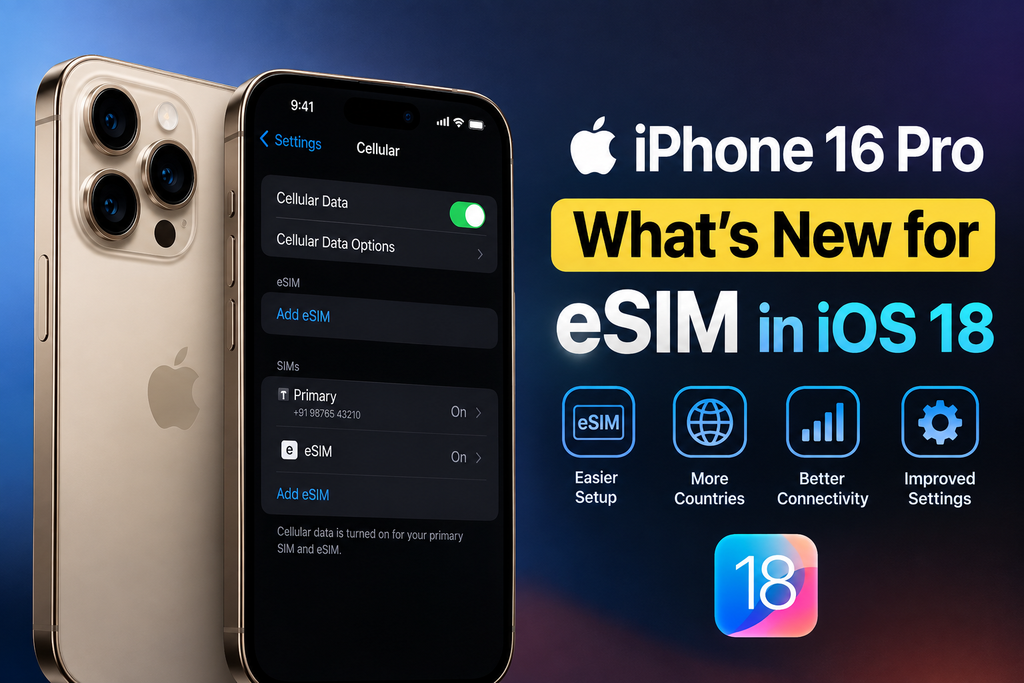
Faster eSIM Downloads
A18 Pro chip processes eSIM profile downloads significantly faster than previous generations:
- iPhone 14 Pro: 45–90 seconds typical download
- iPhone 15 Pro: 30–60 seconds
- iPhone 16 Pro: 20–40 seconds
Practical impact: Activation completes noticeably faster — less waiting during carrier eSIM setup.
iOS 18 Cellular Settings Interface
iOS 18 refines the Cellular settings layout:
Settings → Cellular shows:
- Clean line summary at top — carrier name and signal for each active line
- Add eSIM button — more prominent placement
- Reorganized individual line settings — cleaner navigation
Improved eSIM Backup
iOS 18 eSIM configuration backs up more comprehensively to iCloud:
- Line labels backed up
- Default line preferences backed up
- APN configurations backed up
When restoring iPhone 16 Pro from iCloud backup — eSIM settings restore alongside other configurations (carrier must still re-issue eSIM profile).
Camera Control + eSIM (Indirect)
iPhone 16 Pro’s Camera Control button can be assigned Shortcuts that interact with cellular settings — advanced users can create shortcuts to switch default data SIM quickly.
Settings → Action Button → Shortcut → create SIM-switching shortcut → assign to Camera Control or Action Button.
Pre-Activation Checklist — iPhone 16 Pro
Before activating eSIM on iPhone 16 Pro:
- ✅ iOS 18 updated — Settings → General → Software Update → install latest
- ✅ Wi-Fi connected — stable connection required for eSIM download
- ✅ EIDs noted — dial *#06# → screenshot both EID numbers
- ✅ iPhone unlocked — Settings → General → About → Carrier Lock → “No SIM restrictions”
- ✅ Battery above 20% — prevents interruption during activation
- ✅ Apple ID signed in — Settings → [your name] → confirm signed in
- ✅ Carrier account active — Jio/Airtel/Vi account in good standing
eSIM Activation Methods on iPhone 16 Pro
Method 1: QR Code Activation (Standard)
Most common method — works for all Indian carriers:
- Open Settings
- Tap Cellular
- Tap Add eSIM
- Tap Use QR Code
- Camera opens → point at carrier QR code
- Hold steady 15–25cm from QR code
- QR recognized → carrier plan details appear:
- Carrier name (Jio/Airtel/Vi)
- Phone number
- Plan type
- Tap Continue
- Choose eSIM label:
- “Jio Personal”
- “Airtel Work”
- Or custom name
- Configure default lines (or set up later)
- Tap Done
- A18 Pro downloads profile (20–40 seconds)
- “Cellular Plan Added” → eSIM active
Signal bars appear within 1–3 minutes after activation completes.
Method 2: Manual Activation Code
When the QR code is sent to the same iPhone being activated:
- Settings → Cellular → Add eSIM
- Tap Enter Details Manually
- Enter:
- SM-DP+ Address: from carrier
- Activation Code: from carrier
- Confirmation Code: if required
- Tap Next → plan details appear
- Complete labeling and setup → Done
Method 3: Transfer from Nearby iPhone
Upgrading from previous iPhone to iPhone 16 Pro:
- On iPhone 16 Pro: Settings → Cellular → Add eSIM
- Tap Transfer from Nearby iPhone
- Place previous iPhone within 30cm of iPhone 16 Pro
- Previous iPhone shows transfer prompt → tap Transfer
- Authenticate with Face ID or passcode on old iPhone
- OTP may be sent to the registered number
- Transfer completes → eSIM active on iPhone 16 Pro
- Previous iPhone eSIM automatically deactivated
Supported carriers for Quick Transfer in India:
- Jio: ✅
- Airtel: ⚠️ Partial
- Vi: ⚠️ Limited
Method 4: During iPhone 16 Pro Initial Setup
When setting up iPhone 16 Pro for the first time (Quick Start):
- Turn on the iPhone 16 Pro near the previous iPhone
- Quick Start screen appears
- Follow the setup wizard
- “Set Up Cellular” screen appears
- Options:
- Transfer from previous iPhone (Quick Transfer)
- Use carrier QR code
- Set up later
- Complete eSIM setup during initial configuration
Advantage: eSIM activated before completing device setup — fully functional immediately after setup completes.
Carrier-Specific Activation — iPhone 16 Pro
Jio eSIM on iPhone 16 Pro
Method A — MyJio App:
- Open MyJio on any device
- My Account → Get eSIM
- Select Activate eSIM on New Device
- Enter iPhone 16 Pro EID (from *#06#, last 15 digits)
- Verify OTP sent to Jio number
- MyJio generates a QR code on the screen
- On iPhone 16 Pro: Settings → Cellular → Add eSIM → Use QR Code
- Scan MyJio QR code → Jio eSIM activates
Method B — SMS Activation:
- Dial *#06# on iPhone 16 Pro → note EID 1 (15 digits)
- Send SMS: SIMCHG [15-digit EID] to 199
- Reply 1 to the confirmation SMS
- QR code sent via SMS/email within 2 hours
- Scan in Settings → Cellular → Add eSIM
Method C — Jio Store:
Visit with Aadhaar + iPhone 16 Pro → 10–15 minute activation → EID noted by staff → eSIM pushed remotely.
Jio 5G on iPhone 16 Pro:
iPhone 16 Pro supports Jio’s SA (Standalone) 5G network — fastest available. After activation:
Settings → Cellular → Jio line → Voice & Data → 5G On or 5G Auto
Airtel eSIM on iPhone 16 Pro

Via Airtel Thanks App:
- Open Airtel Thanks
- Account → My Services → Manage SIM
- Tap Switch to eSIM
- iPhone 16 Pro detected automatically OR enter EID manually
- Verify OTP
- Airtel generates a QR code OR pushes directly to iPhone 16 Pro:
- If QR: Settings → Add eSIM → Use QR Code → scan
- If push: iOS notification appears → tap → Settings opens → confirm
- Airtel eSIM activates in 1–4 minutes
Airtel 5G on iPhone 16 Pro:
Settings → Cellular → Airtel line → Voice & Data → 5G Auto
Airtel 5G Plus is available in major Indian cities via eSIM on iPhone 16 Pro.
Vi eSIM on iPhone 16 Pro
Via Vi App:
- Open Vi app
- My Account → SIM Services → Get eSIM
- Verify OTP
- Enter iPhone 16 Pro EID if prompted
- QR code generated → Settings → Add eSIM → scan
- Vi eSIM activates (2–6 hours for full activation)
Vi Store recommended for iPhone 16 Pro:
Vi’s app activation occasionally faces issues — a store visit with Aadhaar provides the most reliable activation for Vi on iPhone 16 Pro.
Setting Up Dual eSIM on iPhone 16 Pro (India)
iPhone 16 Pro (Indian variant) supports: 1 physical SIM + 2 eSIMs = 3 total active numbers.
Most Popular Indian Dual eSIM Setup
Physical SIM: Jio (primary calls + 5G data)
eSIM 1: Airtel (work calls + backup data)
eSIM 2: Travel eSIM (Airalo — pre-loaded for international travel)
Activating Second eSIM on iPhone 16 Pro
After the first eSIM is active:
- Settings → Cellular → Add eSIM (button still present)
- Scan second carrier QR code
- Label second eSIM
- Configure which line handles what
Settings → Cellular → Cellular Data:
Select which line (physical SIM or eSIM) handles mobile data.
Settings → Cellular → Default Line:
Select the primary call line.
Settings → Cellular → Allow Cellular Data Switching:
Toggle On — iPhone 16 Pro automatically switches to the other SIM when the primary data SIM loses signal.
iPhone 16 Pro eSIM Settings — iOS 18 Reference
All Key eSIM Settings Locations
| Setting | Path |
|---|---|
| Add new eSIM | Settings → Cellular → Add eSIM |
| View all lines | Settings → Cellular → [line list] |
| Default call line | Settings → Cellular → Default Line |
| Data SIM | Settings → Cellular → Cellular Data |
| Individual line settings | Settings → Cellular → [line name] |
| Turn line on/off | Settings → Cellular → [line] → Turn On/Off |
| Delete eSIM | Settings → Cellular → [line] → Delete eSIM |
| 5G settings | Settings → Cellular → [line] → Voice & Data |
| Roaming | Settings → Cellular → [line] → Data Roaming |
| Wi-Fi Calling | Settings → Cellular → [line] → Wi-Fi Calling |
| APN settings | Settings → Cellular → [line] → Cellular Data Network |
Recommended iOS 18 Settings for Indian iPhone 16 Pro Users
5G configuration (Jio):
Settings → Cellular → Jio → Voice & Data → 5G Auto
(Uses 5G when beneficial, LTE when 5G is not available — better battery)
Wi-Fi Calling:
Settings → Cellular → [Jio line] → Wi-Fi Calling → On
Settings → Cellular → [Airtel line] → Wi-Fi Calling → On
(Improves call quality in poor signal areas)
Data switching:
Settings → Cellular → Allow Cellular Data Switching → On
(Automatic failover between SIMs)
iMessage line:
Settings → Cellular → [primary line] → iMessage & FaceTime → On
iPhone 16 Pro vs Previous Pro Models — eSIM Comparison
| Feature | iPhone 14 Pro | iPhone 15 Pro | iPhone 16 Pro |
|---|---|---|---|
| Physical SIM (India) | ✅ | ✅ | ✅ |
| Dual eSIM | ✅ | ✅ | ✅ |
| eSIM download speed | ~60 sec | ~40 sec | ~25 sec |
| iOS version | iOS 18 | iOS 18 | iOS 18 |
| 5G SA support | ✅ | ✅ | ✅ |
| Quick Transfer | ✅ | ✅ | ✅ |
| US variant | eSIM only | eSIM only | eSIM only |
| Camera Control | ❌ | ❌ | ✅ |
Key iPhone 16 Pro eSIM improvement over previous models:
Faster profile downloads (A18 Pro chip) + improved iOS 18 eSIM backup + Camera Control shortcut integration.
Troubleshooting iPhone 16 Pro eSIM
“Cellular Plan Cannot Be Added”
Most common causes:
1. iPhone carrier-locked:
Settings → General → About → Carrier Lock → if it shows the carrier name → contact that carrier for an unlock.
2. QR code expired or already used:
Each carrier QR code is single-use — contact the carrier for a new QR code.
3. iOS not updated:
Settings → General → Software Update → install iOS 18 latest version → retry.
4. Network issue during download:
Move to stronger Wi-Fi → retry activation.
eSIM Downloaded But No Signal
Fix sequence:
- Settings → Cellular → [eSIM] → Turn Off → 10 seconds → Turn On
- Airplane Mode → 30 seconds → off
- Settings → Cellular → [line] → Network Selection → Automatic
- Restart iPhone 16 Pro (side button + volume down → slide to power off)
- Contact carrier if signal not appearing after 30 minutes
Jio eSIM Not Working on iPhone 16 Pro After Activation
Common fix:
APN settings may not auto-configure:
Settings → Cellular → Jio → Cellular Data Network:
- APN: jionet
- Username: (blank)
- Password: (blank)
Restart iPhone 16 Pro → Jio data should work.
Face ID Not Working During eSIM Transfer.
Context: Quick Transfer requires Face ID authentication on the old iPhone.
Fix:
If Face ID fails during transfer → use passcode authentication instead → transfer proceeds normally.
iPhone 16 Pro Not Recognizing QR Code
iPhone 16 Pro has excellent cameras — QR code scanning should be very reliable.
If failing:
- Ensure QR code display is bright (max brightness on displaying device)
- Hold iPhone 16 Pro 20–25cm from the QR code
- Ensure no screen cracks or protector interference on iPhone 16 Pro lens
- Try manual code entry as an alternative
Selling iPhone 16 Pro — eSIM Preparation
Before selling or trading in iPhone 16 Pro:
Step 1 — Delete all eSIM profiles:
Settings → Cellular → each eSIM profile → Delete eSIM → confirm
Step 2 — Disable Find My:
Settings → [your name] → Find My → Find My iPhone → Off
Step 3 — Sign out of Apple ID:
Settings → [your name] → Sign Out
Step 4 — Factory Reset:
Settings → General → Transfer or Reset iPhone → Erase All Content and Settings → Confirm
Result: iPhone 16 Pro ready for new owner with no personal data or eSIM profiles.
Frequently Asked Questions
How do I activate Jio eSIM on iPhone 16 Pro?
Open MyJio app → My Account → Get eSIM → enter iPhone 16 Pro EID (from *#06#) → verify OTP → scan generated QR in Settings → Cellular → Add eSIM → Use QR Code. Alternatively, send SMS “SIMCHG [EID]” to 199 or visit a Jio store with Aadhaar. Activation completes in 2–5 minutes on stable Wi-Fi.
Does iPhone 16 Pro have dual eSIM in India?
Yes — the Indian market iPhone 16 Pro has 1 physical nano-SIM + 2 eSIM slots = 3 total active numbers simultaneously. US/Canada iPhone 16 Pro is eSIM-only, with 2 active eSIM numbers and no physical SIM tray.
How long does iPhone 16 Pro eSIM activation take?
A18 Pro chip downloads the eSIM profile in 20–40 seconds — faster than previous Pro models. Network registration takes an additional 1–3 minutes. Full activation from the QR code scan to active signal: approximately 3–5 minutes on stable Wi-Fi.
Can I use both Jio and Airtel on iPhone 16 Pro simultaneously?
Yes — activate Jio on eSIM slot 1 and Airtel on eSIM slot 2 (or one on a physical SIM). Both lines are active simultaneously — both receive calls and SMS. Set Jio as cellular data (5G), Airtel as default voice line. Enable data switching for automatic failover.
What is the difference between the iPhone 16 Pro Indian and US variants for eSIM?
Indian iPhone 16 Pro: physical nano-SIM tray + 2 eSIM slots = 3 active numbers. US iPhone 16 Pro: no physical SIM tray (eSIM only) = 2 active numbers maximum. For Indian use, the Indian variant provides more flexibility. US variant works fine with an Indian carrier eSIM when unlocked.
How do I delete eSIM from iPhone 16 Pro?
Settings → Cellular → tap eSIM profile → Delete eSIM → confirm. Contact carrier before deleting to arrange re-issuance — deletion is permanent on device,e but carrier preserves your number and plan for reactivation on new device.
Conclusion
iPhone 16 Pro eSIM activation in 2026 is the most seamless experience in the iPhone lineup — A18 Pro’s faster profile downloads, iOS 18’s refined Cellular settings interface, and improved eSIM backup make the iPhone 16 Pro the best iPhone for eSIM management available.
For Indian users — fastest activation path:
- Open MyJio or Airtel Thanks
- Navigate to the eSIM section
- The app generates a QR code or pushes the profile directly
- Settings → Cellular → Add eSIM → scan QR
- Label line → configure defaults → done in under 5 minutes
For Indian iPhone 16 Pro users wanting maximum connectivity:
Physical Jio SIM + Airtel eSIM + Airalo travel eSIM (stored, activated when traveling) = three-line setup covering India and international connectivity comprehensively.
The iPhone 16 Pro’s combination of physical SIM flexibility (Indian variant) and dual eSIM capability makes it the most connectivity-versatile iPhone available for Indian power users in 2026.

