

Activating an eSIM on your Apple Watch with Airtel allows you to stay connected even when your iPhone is not nearby. With a cellular-enabled Apple Watch, you can make calls, send messages, stream music, and receive notifications directly from your wrist. Before starting the setup process, ensure that you have a compatible Apple Watch Cellular model, a supported iPhone, and an eligible Airtel mobile plan. Once your devices are paired, you can activate Airtel eSIM through the Apple Watch app and enjoy seamless connectivity wherever you go.
How to Activate eSIM on Apple Watch Airtel Prepaid Getting your Apple Watch connected on its own can feel a bit confusing at first — especially with Airtel prepaid. Here’s a no-fluff guide to walk you through it.
What Is eSIM on Apple Watch and Why Does It Matter?

Before getting into the steps, let’s quickly sort out what eSIM actually is — because a lot of people confuse it with a regular SIM card.
An eSIM (embedded SIM) is a digital SIM built directly into your Apple Watch. There’s no physical card to insert or swap. Your watch connects to a mobile network on its own, without needing your iPhone nearby.
For Apple Watch users on Airtel prepaid, this means you can go for a run, leave your phone at home, and still take calls, receive messages, and stream music — all from your wrist.
Sounds good? Here’s how to set it all up.
How to Activate eSIM on Apple Watch Airtel Prepaid:-
Before You Start: Things to Check
Don’t skip this section. A lot of activation failures happen because of one small thing that wasn’t checked beforehand.
1. Confirm Your Watch Model Supports Cellular
Not all Apple Watch models support eSIM. Only the GPS + Cellular variants do. You can check this by looking at the back of your watch — if it has a red circle on the Digital Crown, it’s a cellular model. If you’re not sure, go to Settings > General > About on your watch and look for the IMEI number. Cellular models will list one.
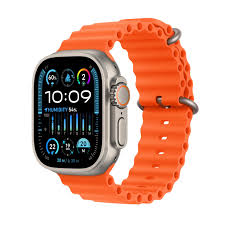
Models that support eSIM include Apple Watch Series 4 and later (GPS + Cellular), Apple Watch SE (2nd gen cellular), and Apple Watch Ultra.
2. Check Airtel Prepaid eSIM Eligibility
Airtel does support eSIM on Apple Watch, but there are some requirements:
- Your Airtel prepaid number must be active and in good standing
- Your account must be KYC verified
- You need a compatible iPhone (iPhone XS or later) paired with your watch
- Both your iPhone and Apple Watch must be on the same Apple ID
3. Make Sure iOS and watchOS Are Updated
Go to Settings > General > Software Update on your iPhone. Update if needed. Then open the Watch app on your iPhone and update watchOS too. Running outdated software is one of the most common reasons eSIM activation fails.
4. Have Your Airtel Credentials Ready
You’ll need your Airtel-registered mobile number and possibly your alternate number for OTP verification during the process.
How to Activate eSIM on Apple Watch — Airtel Prepaid (Step-by-Step)
Step 1: Open the Watch App on Your iPhone
Unlock your iPhone and open the Watch app (the black icon with a watch face). Make sure your Apple Watch is paired and nearby with Bluetooth on.
Step 2: Go to Cellular Settings
In the Watch app, tap Cellular from the list of options. You’ll see a screen showing your current cellular plan status.
Step 3: Tap “Set Up Cellular” or “Add a New Plan”
If you haven’t set up cellular yet, you’ll see a Set Up Cellular button. Tap it. Your iPhone will now look for available carrier plans. This process takes a few seconds.
If you’ve already set up one plan and want to add Airtel prepaid specifically, tap Add a New Plan.
Step 4: Select Airtel as Your Carrier
A list of supported carriers will appear. Select Airtel from the list. If Airtel doesn’t appear, your region may not be supported yet, or there could be a network issue — try again after restarting both devices.
Step 5: Follow the On-Screen Prompts
Once you select Airtel, you’ll be redirected to Airtel’s carrier setup flow. Here’s what usually happens:
- Enter your Airtel prepaid mobile number
- An OTP is sent to your registered number
- Enter the OTP to verify your identity
- Accept Airtel’s terms and conditions
Some users are also asked to confirm the plan they want to link. For prepaid, this typically means linking your existing number rather than getting a new one.
Step 6: Wait for Activation
After confirming, your Apple Watch will begin downloading the eSIM profile. This can take anywhere from 2 to 10 minutes, depending on network conditions. Keep your iPhone close to your watch during this time and don’t lock either device.
You’ll see a confirmation message once it’s done. The Watch app will show your Airtel plan as active under the Cellular section.
Step 7: Test the Connection
Once activation is done, check if your watch has a cellular signal. Swipe up on your watch to open the Control Centre. You should see the cellular bars icon (looks like a phone signal bar) next to your Wi-Fi indicator.
To test it properly, turn off Wi-Fi on your watch and walk away from your iPhone. Try calling someone from your watch. If the call connects, your eSIM is working perfectly.
What If Activation Fails?
Activation errors are more common than you’d think. Here are the most frequent problems and how to fix them:
“Carrier Activation Required” error. This usually means Airtel needs to push an activation from their end. Call Airtel customer care at 121 and tell them you’re trying to activate eSIM for Apple Watch. They’ll usually resolve it within a few hours.
OTP not received.d Make sure your Airtel number isn’t on DND for transactional messages. You can request the OTP again after 60 seconds.
The watch is not showing in the carrier list. Restart your iPhone and Apple Watch, then re-open the Watch app and try again. Also, check that your watch is running the latest watchOS version.
Activation stuck at “Downloading”. Keep your iPhone and watch within Bluetooth range, connected to the same Wi-Fi network, and don’t let either device sleep. If it’s stuck for more than 15 minutes, cancel and try again.
“Could not connect to server” err. Or, this is usually an Apple server issue. Wait 30 minutes and try again. If it persists, check Apple’s system status page at apple.com/support/systemstatus.
Using Airtel Prepaid eSIM on Apple Watch: What to Expect

Once your eSIM is active, you’ll notice that your Apple Watch now has its own cellular identity. Here’s how day-to-day usage works:
Calls and Messages: Calls and iMessages come through to your watch using the same Airtel number as your iPhone. People calling you won’t know if you’re answering from your phone or your watch.
Data Usage: Your watch uses Airtel data for streaming, Maps, Siri, and app updates. Prepaid data packs linked to your number apply here, too.
Recharges: Your existing Airtel prepaid recharges continue to work. You don’t need a separate plan just for the watch — the eSIM shares your existing prepaid plan.
Network Coverage: Your watch uses Airtel’s 4G LTE network. In areas with a weak signal, the watch may fall back to using Wi-Fi or reconnect to your phone via Bluetooth automatically.
Pros and Cons of Using Airtel Prepaid eSIM on Apple Watch
Pros
Freedom from your phone: The biggest benefit. You can leave your phone behind during workouts, errands, or short trips and still stay connected.
Same number, no extra SIM: You don’t need a second number or physical SIM for your watch. Your existing Airtel prepaid number works on both devices.
Emergency access: If you’re ever in a situation where your phone isn’t with you, your watch can still make emergency calls or contact someone quickly.
Clean experience: No fiddling with SIM trays or tiny cards. The setup is entirely digital and takes less than 10 minutes when it goes smoothly.
Works with existing prepaid packs: Most Airtel prepaid recharges cover eSIM usage on the watch, so you’re not paying extra for basic functionality.
Cons
Battery drain: Cellular usage significantly reduces your Apple Watch’s battery life. If you’re regularly using the watch independently, expect to charge it more often.
Activation can be tricky: The setup process isn’t always smooth. Some users face OTP issues, carrier errors, or compatibility problems — especially on older watch models.
Prepaid limitations: Certain Airtel prepaid plans may have data caps or restrictions that affect how much you can use the watch independently. Postpaid plans often offer more flexibility.
No standalone number: Your watch shares your phone’s number. This is convenient for most people, but it means you can’t use the watch as a completely separate device.
Coverage-dependent: If Airtel’s network coverage in your area is weak, the watch won’t perform well on cellular. You’ll end up relying on Bluetooth or Wi-Fi anyway.
How to Manage or Remove Your Airtel eSIM on Apple Watch
If you ever want to remove the eSIM or switch carriers, here’s how:
- Open the Watch app on your iPhone
- Tap Cellular
- Tap your Airtel plan
- Tap Remove [Plan Name]
- Confirm the removal
This removes the eSIM profile from your watch. Your Airtel prepaid number stays active on your iPhone — nothing changes there. You can always re-add it later using the same setup process.
A Quick Note on Airtel eSIM Customer Support
If you run into issues that can’t be solved from your end, Airtel’s customer support for eSIM is available through:
- Call: 121 (from your Airtel number)
- Airtel Thanks App: Go to the Help section and raise a request for eSIM support
- Airtel Store: Visit your nearest Airtel store with your ID proof and IMEI number of your watch
When calling, specifically say “Apple Watch eSIM activation” — this helps them route your call to the right team faster.
FAQs: Apple Watch Airtel Prepaid eSIM
Q1. Can I activate Airtel prepaid eSIM on Apple Watch without visiting a store?
Yes, the entire process is done through the Watch app on your iPhone. You don’t need to visit an Airtel store unless there’s an account-level issue that requires in-person KYC verification.
Q2. Does Airtel charge extra for Apple Watch eSIM on prepaid?
Generally, Airtel doesn’t charge a separate fee for using eSIM on your watch with prepaid. Your watch shares the same data and calling benefits from your active prepaid recharge. However, always confirm with Airtel since prepaid plan terms can vary.
Q3. Which Apple Watch models support Airtel eSIM in India?
Apple Watch Series 4 (GPS + Cellular) and later, Apple Watch SE (2nd generation, cellular version), and Apple Watch Ultra all support eSIM in India with Airtel. Older models and GPS-only variants do not support eSIM.
Q4. Can I use my Apple Watch independently with Airtel prepaid eSIM?
Yes. Once eSIM is active, you can leave your iPhone behind, and your watch will connect to Airtel’s network directly. You can make calls, send messages, and use data on your watch independently.
Q5. Will activating eSIM on my Apple Watch affect my iPhone’s Airtel service?
No. Your iPhone’s service continues as normal. The eSIM on your watch is essentially an extension of your same number — both devices share a connection,n but neither interferes with the other.
Q6. My Apple Watch shows “No SIM” after activation. What should I do?
Restart your Apple Watch by holding the side button and sliding to power off, then turn it back on. All right, start your iPhone. If the issue persists, remove the eSIM plan from the Watch app and re-add it. If that still doesn’t help, contact Airtel at 121.
Q7. Can I use Airtel eSIM on an Apple Watch if my iPhone is on a different carrier?
Your iPhone needs to be running on any active carrier (doesn’t have to be Airtel), but the Airtel prepaid number you’re activating on the watch must be verified and active. The watch eSIM itself is tied to the Airtel number, not your iPhone’s carrier.
Q8. How do I check if eSIM is active on my Apple Watch?
Open the Watch app on your iPhone and tap Cellular. If your Airtel plan shows as active with a green indicator, your eSIM is working. You can also swipe up on your watch face to check the Control Centre — the cellular signal icon should be visible and active.
Q9. What happens to my Apple Watch eSIM if I change my Airtel prepaid number?
If you port your number or switch to a new Airtel number, you’ll need to remove the existing eSIM plan and set it up again with the new number. The process is the same as the initial activation.
Q10. Does Apple Watch eSIM work in other countries with Airtel prepaid?
International roaming on Apple Watch eSIM depends on Airtel’s roaming partnerships and your prepaid plan’s roaming benefits. Check your active recharge plan or call Airtel before traveling internationally if you want to use your watch on cellular abroad.
Setting up Airtel prepaid eSIM on Apple Watch isn’t complicated once you know what to expect. The hardest part is usually just waiting through those first few minutes of activation. After that, having a watch that works on its own — especially during workouts or when you just don’t want to carry your phone — is genuinely useful. Follow the steps above, double-check your eligibility first, and you should be up and running without much trouble.

