
Switching to an eSIM on your Pixel 10 Pro XL is one of those things that sounds complicated but is actually pretty painless once you know what you’re doing. No SIM card tray, no tiny ejector tool, no hunting around for a paperclip — just a few taps and you’re connected.
This guide walks you through everything: what eSIM is, how to set it up on your Pixel 10 Pro XL, what can go wrong (and how to fix it), and whether it’s actually worth using over a physical SIM.

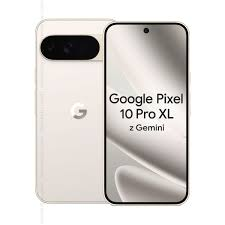
The Google Pixel 10 Pro XL supports full eSIM functionality, making it easy to activate a mobile network without using a physical SIM card. An eSIM is a built-in digital SIM that allows users to connect to carriers, switch plans, and manage multiple numbers directly from the phone settings.
In the United States, the Pixel 10 Pro XL is sold as an eSIM-only device, meaning there is no physical SIM tray. Users can store multiple eSIM profiles and keep two eSIMs active at the same time for work and personal numbers, travel plans, or different carriers. International versions in some countries still include a nano-SIM slot along with eSIM support.
How to Activate eSIM on Pixel 10 Pro XL: Setting up an eSIM on the Pixel 10 Pro XL is simple. During phone setup, users can scan a QR code from their carrier or transfer an existing eSIM from another Android phone or iPhone. The process can also be completed later through Settings → Network & Internet → SIMs → Add eSIM.
The phone also supports Dual SIM Dual Standby (DSDS), allowing two eSIM profiles to stay active simultaneously. This is useful for travelers, business users, or anyone managing multiple mobile plans.
- Chake now-How to Activate eSIM on Pixel 10
What Is an eSIM and Why Should You Care?
An eSIM (embedded SIM) is a SIM card that’s built directly into your phone. Instead of inserting a plastic card, your carrier sends you a QR code or an activation code. You scan it, follow the prompts, and your phone is connected to their network.
The Pixel 10 Pro XL supports eSIM natively, so you don’t need any extra hardware or apps. You can also run multiple eSIM profiles simultaneously — handy if you travel often or want to separate work and personal lines.
Before You Start: What You’ll Need
Don’t skip this part. A few minutes of prep here saves a lot of frustration later.
1. Carrier compatibility — Not every carrier supports eSIM. In the US, major carriers like T-Mobile, AT&T, Verizon, and Google Fi all support it. In India, Jio, Airtel, and Vi (Vodafone Idea) offer eSIM. Check with your carrier before starting.
2. Your activation details — Your carrier will give you either a QR code (via email or printed on a card) or a manual activation code. Have this ready before you begin.
3. A Wi-Fi connection — During setup, your phone needs internet access. Since you’re activating the SIM, you won’t have mobile data yet.
4. Your account credentials — Some carriers ask you to verify your identity during activation. Have your account number or the last four digits of your SSN (or equivalent ID) on hand.
5. Battery above 30% — This isn’t strictly required, but you don’t want your phone dying mid-setup.
How to Activate eSIM on Pixel 10 Pro XL: Step-by-Step
Method 1: Using a QR Code (Most Common)
This is how most carriers deliver eSIM profiles. You’ll receive a QR code by email, in your carrier’s app, or printed in a retail pack.
Step 1: Open Settings. Swipe down from the top of your screen and tap the gear icon, or find Settings in your app drawer.
Step 2: Go to Network & Internet. Tap Network & Internet from the Settings menu.
Step 3: Select SIMs. You’ll see a SIM option. Tap it. This is where all your SIM and eSIM profiles are managed.
Step 4: Add a New SIM Tap the + (plus) button or Add SIM at the bottom of the screen.
Step 5: Choose “Download a SIM instead.” When your phone asks how you want to add a SIM, select Download a SIM instead (if you don’t have a physical SIM to insert).
Step 6: Scan the QR Code. Your camera will open. Point it at the QR code your carrier provided. Hold it steady for a second — the phone should recognize it quickly.
Step 7: Confirm the Download. A prompt will appear showing your carrier’s name and plan details. Tap Download to confirm.
Step 8: Wait for Activation. This usually takes 30 seconds to 2 minutes. Your phone will connect to the carrier’s network once it’s done.
Step 9: Set It as Your Default SIM (Optional) If you have more than one SIM or eSIM, go back to Settings > Network & Internet > SIMs and set your preferred one for calls, texts, and data.
Method 2: Manual Activation (If You Don’t Have a QR Code)

Some carriers give you a manual code instead of a QR code. Here’s how to use it:
Step 1–4: Follow the same steps as above (Settings > Network & Internet > SIMs > Add SIM).
Step 5: Tap “Need help? Use activation code” Below the QR scanner, you’ll see a link that says something like Need help? Enter the activation code manually. Tap it.
Step 6: Enter the SM-DP+ Address and Activation Code. Your carrier will provide both. Enter them exactly as shown — these are case-sensitive.
Step 7: Proceed with Activation. Follow the on-screen prompts. The rest of the process is the same as the QR method.
Method 3: Carrier App Activation
A few carriers, like Google Fi and T-Mobile, let you activate an eSIM entirely through their app. This is the easiest method if your carrier supports it.
- Google Fi: Download the Google Fi app > tap Get Started > follow the prompts. The app handles everything.
- T-Mobile: Open the T-Mobile app > go to Account > Manage SIM > select eSIM setup.
Check your carrier’s app or website to see if they offer in-app eSIM activation.
How to Switch Between Multiple eSIMs

The Pixel 10 Pro XL can store multiple eSIM profiles, though only a certain number can be active at once (check your carrier’s terms — most allow two active profiles).
To switch between them:
- Go to Settings > Network & Internet > SIMs
- You’ll see a list of all downloaded eSIM profiles
- Tap the one you want to use and toggle it on
- Set it as the default for calls and/or data as needed
This is particularly useful when traveling internationally. You can download a local carrier’s eSIM before your trip, then switch to it when you land — without swapping any physical cards.
Real-world example: Say you’re flying from New York to London. Before your trip, you download a UK carrier’s eSIM (like Vodafone UK or a travel eSIM from Airalo). When you land at Heathrow, you open Settings, switch to the UK eSIM, and you’re on local rates immediately. No hunting for a SIM card counter at the airport.
Pros and Cons of Using eSIM on Pixel 10 Pro XL
Pros
No physical SIM slot needed — One less thing to lose or damage. The Pixel 10 Pro XL’s design benefits from this too, with better water resistance when there’s no SIM tray.
Switch carriers without swapping cards — Changing carriers is just a settings change. No waiting for a physical SIM in the mail.
Use two numbers on one device — Keep your personal number and a work number on the same phone without carrying two devices.
Great for international travel — Download a local eSIM before you leave home. Switch when you land. Done.
Instant activation — Once you scan the QR code, you’re usually connected within minutes. No store visit required.
Environmentally friendlier — No plastic card or packaging waste.
Cons
Not all carriers support it — Smaller regional carriers and prepaid MVNOs sometimes don’t offer eSIM yet. You’ll need to check first.
Can’t easily transfer to another phone — Unlike a physical SIM you can just pop it out, transferring an eSIM to a new device requires going through your carrier again. Some carriers delete the eSIM profile once you move it.
Carrier lock concerns — If your eSIM is carrier-locked, switching profiles won’t help. Make sure your Pixel 10 Pro XL is unlocked before trying to add a different carrier’s eSIM.
QR code security — If someone gets your QR code before you scan it, they could potentially claim your number. Treat the QR code like a password.
Backup complications — If you factory reset your phone or it gets lost/stolen, recovering your eSIM profile means contacting your carrier. It’s not instant.
Common Problems and How to Fix Them
“eSIM not supported” message
This usually means your Pixel 10 Pro XL is carrier-locked. Contact your current carrier and ask them to unlock the device first.
QR code not scanning
- Make sure you’re holding the phone steady, and the QR code is well-lit
- Try increasing the screen brightness of whatever you’re displaying the QR code on
- If your carrier emailed you the QR code, open it on another screen (laptop or tablet) for easier scanning
Activation stuck or timing out
- Switch to a different Wi-Fi network
- Restart your phone and try again
- Check if your carrier’s servers are experiencing downtime
eSIM downloaded but showing “No service.”
- Go to Settings > Network & Internet > SIMs and make sure the eSIM is toggled on
- Check that it’s set as the active SIM for data
- Restart your phone — this resolves most “no service” issues after activation
Error: “Could not finish downloading your SIM”
This usually happens when the QR code has already been used. Each QR code is a one-time-use link. Contact your carrier and ask them to generate a new one.
Tips for Getting the Most Out of eSIM on Pixel 10 Pro XL
Label your eSIMs clearly. In Settings > Network & Internet > SIMs, tap on each profile and rename it to something descriptive — like “Personal – Airtel” or “Work – T-Mobile.” This saves confusion when switching.
Use Google Fi if you travel frequently. Fi’s eSIM works in over 200 countries at no extra charge for data, making it one of the best options for Pixel users who travel.
Download travel eSIMs in advance. Apps like Airalo, Holafly, and Maya Mobile sell eSIM plans for specific countries. Buy and download before you travel — you don’t need to have an active connection to download an eSIM profile.
Back up your eSIM information. Note down your carrier account number and the email address associated with your plan. If you ever need to reactivate, you’ll need these.
Keep your phone unlocked. If you ever buy a Pixel 10 Pro XL from a carrier directly, ask for an unlocked version — or request an unlock after your contract terms are met. This gives you full flexibility with eSIM.
Frequently Asked Questions
Can the Pixel 10 Pro XL use both a physical SIM and an eSIM at the same time?
Yes. The Pixel 10 Pro XL supports dual SIM (nano-SIM + eSIM), so you can use a physical SIM card and an eSIM simultaneously. Both lines will be active, and you can set preferences for which one handles calls, texts, and data.
How many eSIM profiles can I store on my Pixel 10 Pro XL?
The Pixel 10 Pro XL can store multiple eSIM profiles, but the exact number depends on the device’s storage allocation for eSIM. In practice, most users store 4–8 profiles without issues. Only a limited number can be active at one time.
Does activating an eSIM delete my physical SIM?
No. Adding an eSIM doesn’t affect your physical SIM card. They work independently.
Can I transfer my existing number to an eSIM?
Yes — this is called number porting or number transfer. Contact your carrier and request a transfer to eSIM. They’ll verify your identity and send you a new QR code. The process usually takes a few minutes to a few hours.
What happens to my eSIM if I factory reset my Pixel 10 Pro XL?
A factory reset will erase your eSIM profiles. You’ll need to contact your carrier to re-download the eSIM after resetting. Some carriers allow instant re-download; others require a new QR code.
Is eSIM as reliable as a physical SIM?
Yes. In day-to-day use, there’s no noticeable difference in call quality, data speeds, or signal strength between eSIM and a physical SIM on the same network.
Can I use an eSIM from another country on my Pixel 10 Pro XL?
Yes, as long as your phone is unlocked and the carrier’s network is compatible. This is one of the main advantages of eSIM for international travelers.
My carrier doesn’t support eSIM. What are my options?
You can use a physical SIM for your main carrier and add a travel eSIM from a third-party provider (like Airalo) for international use. Alternatively, consider switching to a carrier that supports eSIM.
Conclsion
Activating an eSIM on your Pixel 10 Pro XL is genuinely one of the more user-friendly features on the phone. Once you’ve done it once, it becomes second nature — and the convenience of switching carriers or adding a travel SIM without touching a physical card is hard to give up.
The key things to remember: have your QR code ready, be connected to Wi-Fi, and make sure your phone is unlocked if you’re trying to add a different carrier. Everything else is just following the prompts.
If you run into issues, your carrier’s support team can usually sort it out quickly — especially if you explain that you’re setting up an eSIM on a Pixel 10 Pro XL specifically, since most major carrier reps are familiar with the process.

