
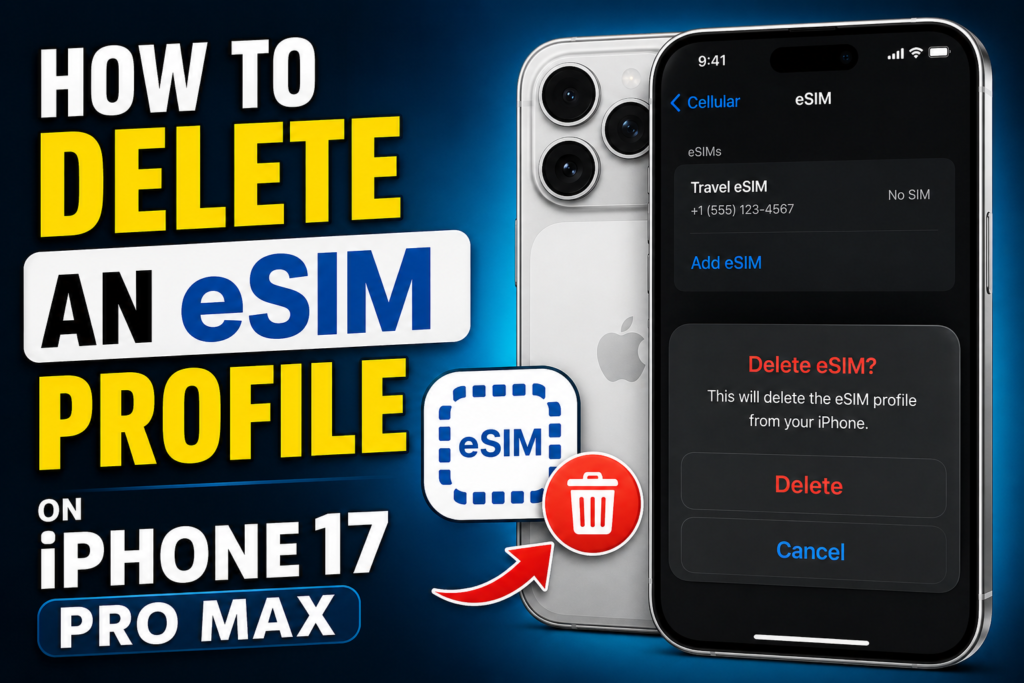
If you’ve been using an eSIM on your iPhone 17 Pro Max and now need to remove it, you’re not alone. People switch carriers, cancel travel eSIMs after a trip, or simply want to clean up their phone settings. Whatever the reason, deleting an eSIM profile is a simple process once you know where to look.
This guide walks you through exactly how to delete an eSIM on your iPhone 17 Pro Max, what happens after you delete it, and a few things you should check before you tap that “Remove” button.

If How to Delete an eSIM Profile on iPhone 17 Pro Max you’re switching carriers, selling your iPhone 17 Pro Max, or simply removing an old cellular plan, deleting an eSIM profile is a quick and straightforward process. Apple allows you to remove unused eSIMs directly from the Settings app without affecting the rest of your device. However, it’s important to understand that deleting an eSIM removes the cellular plan from your iPhone—it does not automatically cancel your mobile service with your carrier. If you plan to keep your phone number, transfer your eSIM to another device before deleting it.
In this guide, you’ll learn exactly how to delete an eSIM profile on the iPhone 17 Pro Max, what happens after you remove it, and the precautions you should take before proceeding. Whether you’re upgrading to a new iPhone, troubleshooting a network issue, or preparing your device for resale, these step-by-step instructions will help you safely remove your eSIM profile without losing important data. Apple also advises against deleting an eSIM as a troubleshooting step unless instructed by your carrier, since you may need to contact them to activate a new eSIM afterward.
What Is an eSIM Profile, Really?
Before we jump into the steps, let’s quickly cover what an eSIM actually is. Unlike a traditional SIM card that you physically insert into your phone, an eSIM (embedded SIM) is a digital SIM built directly into your iPhone’s hardware. Your iPhone 17 Pro Max comes with eSIM support, and depending on your region, it might even be eSIM-only with no physical SIM tray at all.
Each eSIM profile contains your carrier’s network information, phone number, and account details, all stored digitally on your device. You can have multiple eSIM profiles saved on one iPhone, though only two can be active at the same time for calls and data (this is called Dual eSIM).
Because there’s no physical card to remove, deleting an eSIM is done entirely through your iPhone’s settings menu.
Why Would You Want to Delete an eSIM Profile?

There are a handful of common reasons people search for this:
- You bought a travel eSIM (like Airalo, Holafly, or a local carrier’s data pack) for a trip abroad, and now you’re back home and don’t need it anymore
- You switched to a new carrier and want to remove the old profile
- Your iPhone is running low on storage for saved network profiles (though this is rare)
- You’re selling or trading in your iPhone 17 Pro Max and need to wipe your personal data
- The eSIM isn’t working properly, and you want to remove it and reinstall it fresh
Whatever your reason, the process stays the same.
Before You Delete: Things to Check First
A little prep work here saves you from headaches later.
1. Make sure you’re deleting the right eSIM. If you have multiple eSIM profiles saved (say, your main carrier plus a travel eSIM), double-check the label before deleting. iPhones let you name each eSIM, but sometimes people forget which is which.
2. Confirm you won’t need it again. Once an eSIM is deleted, it’s usually gone for good. Some carriers let you re-download the same eSIM using the original QR code, but many travel eSIM providers (especially prepaid ones) do not allow re-installation. If there’s any chance you’ll need that plan again soon, it might be worth keeping it installed but simply turned off instead of deleting it outright.
3. Back up your eSIM QR code or activation details, if you have them saved somewhere, in case you need to reinstall later.
4. Check if it’s your primary line. If the eSIM you’re deleting is your main number for calls and texts, make sure you have another way to stay reachable, especially if you’re deleting it while traveling.
How to Delete an eSIM Profile on iPhone 17 Pro Max (Step-by-Step)

Here’s the exact path to follow. Apple’s iOS settings menu is pretty consistent across recent iPhone models, so if you’ve used an iPhone 14, 15, or 16 before, this will feel familiar.
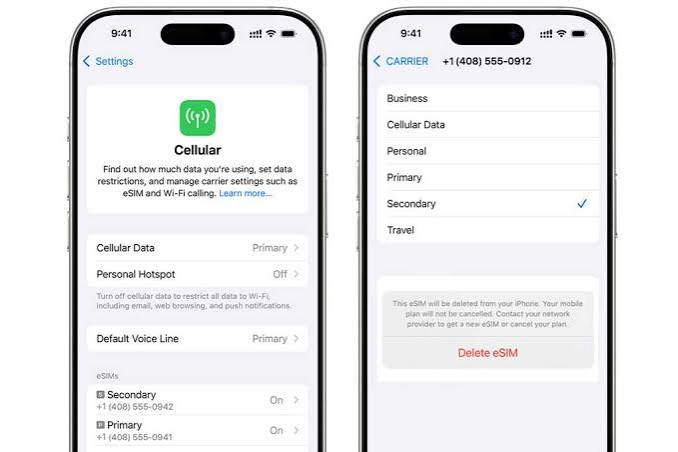
Step 1: Open Settings
Tap the Settings app icon on your home screen. It’s the gray gear-shaped icon.
Step 2: Tap on “Cellular” (or “Mobile Data”)
Scroll down and tap Cellular. Depending on your region, this might show up as Mobile Data instead. Either way, it’s the same menu.
Step 3: Find the eSIM You Want to Remove
You’ll see a list of all the SIM and eSIM profiles currently installed on your iPhone. Each one will show the carrier name (or the custom label you gave it, like “Travel Japan eSIM” or “Jio Prepaid”). Tap on the specific eSIM profile you want to delete.
Step 4: Tap “Remove eSIM”
Scroll to the bottom of that plan’s settings page. You’ll see an option that says Remove eSIM in red text. Tap it.
Step 5: Confirm the Deletion
A pop-up will appear asking you to confirm. Tap Remove eSIM again to finalize it. Your iPhone will process this for a few seconds, and the profile will disappear from your Cellular settings list.
That’s it. No PIN codes, no calling your carrier, no physical card to snap in half. The whole process usually takes under a minute.
A Quick Example
Let’s say you used an Airalo eSIM for a two-week trip to Thailand. Once you’re back home in India and connected to your regular Jio or Airtel eSIM, you’d go to Settings > Cellular, tap on the profile labeled “Airalo Thailand” (or whatever name it shows), scroll down, and tap Remove eSIM. Since Airalo eSIMs are typically single-use and tied to that specific data package, there’s usually no downside to deleting it right away once your trip is done.
What Happens After You Delete an eSIM?
Once deleted, a few things happen:
- The eSIM profile is permanently erased from your iPhone’s Cellular settings
- If it was your active line, you’ll need to select another eSIM or physical SIM (if applicable) as your primary line
- Your phone number tied to that eSIM will stop working on that device (though it may remain active on your carrier’s account if you didn’t formally cancel the plan with them)
- Any data plan balance or minutes tied to that eSIM will not transfer anywhere — deleting the profile doesn’t cancel your subscription with the carrier.r
This last point trips people up a lot. Deleting the eSIM from your iPhone is not the same as canceling your plan with the carrier. If you’re on a postpaid plan, you’ll usually still need to contact your carrier separately to close the account or stop billing. For prepaid travel eSIMs, most of them just expire naturally after the validity period, so there’s nothing extra to cancel.
Deleting an eSIM Before Selling Your iPhone
If you’re planning to sell, trade in, or give away your iPhone 17 Pro Max, deleting the eSIM is an important step, but it’s not the only one. Here’s a more complete checklist:
- Back up your iPhone (via iCloud or your computer)
- Sign out of iCloud (Settings > [Your Name] > Sign Out)
- Remove your eSIM(s) as described above
- Go to Settings > General > Transfer or Reset iPhone > Erase All Content and Settings
This last step actually wipes the entire device, and it will remove any remaining eSIM data automatically. So if you’re doing a full factory reset anyway, you technically don’t need to manually delete the eSIM first, but doing it separately gives you peace of mind, especially since some carriers ask you to deactivate the eSIM through their app before a full reset.
Common Mistakes People Make
Deleting the wrong profile. This happens more than you’d think, especially if someone has two similarly named eSIMs. Always double-check the carrier name and phone number listed before confirming deletion.
Assuming deletion cancels the billing. As mentioned earlier, removing the eSIM from your phone doesn’t automatically stop charges on a postpaid account. Call or message your carrier separately if needed. Do not save
Not saving the QR code beforehand. If there’s even a small chance you’ll need to reinstall the same eSIM later, save a screenshot of the original QR code or the activation link before deleting.
Deleting while it’s your only active line. If you only have one eSIM and no physical SIM, deleting it will leave your phone without cellular service until you install a new one. Make sure you have Wi-Fi access or another way to reinstall a working eSIM afterward.
Pros and Cons of Deleting an eSIM Profile
Pros:
- Frees up space in your Cellular settings menu, making it easier to manage active lines
- Useful for keeping your phone organized if you frequently use travel eSIMs
- Required step if you’re selling, trading in, or handing off your iPhone
- Quick and doesn’t require any technical knowledge or calling support
- Helps avoid confusion between multiple lines when traveling frequently
Cons:
- Most eSIMs can’t be reinstalled once deleted, especially prepaid travel ones.
- Doesn’t cancel your billing or subscription automatically with the carrier
- If deleted by mistake, you may need to contact your carrier for a replacement, which can take time
- If it’s your only active line, you’ll temporarily lose cellular connectivity until a new eSIM is installed
Alternative: Turning Off an eSIM Instead of Deleting It
If you’re not fully sure you want to delete the eSIM, iPhone gives you a middle-ground option: turning it off instead. Go to Settings > Cellular, tap the eSIM in question, and toggle Turn On This Line to off. This keeps the profile saved on your phone but stops it from being used for calls, texts, or data. It’s a good option if you’re just switching between lines temporarily and might want to reactivate it soon, like if you travel to the same country often and reuse the same regional eSIM.
Managing Multiple eSIMs on iPhone 17 Pro Max
The iPhone 17 Pro Max supports multiple eSIM profiles stored on the device, with two active at once (Dual eSIM). If you’re someone who juggles a work number and a personal number, or a home carrier and a travel eSIM, it helps to label each one clearly right when you install it. Go to Settings > Cellular, tap the eSIM, then tap Cellular Plan Label to rename it to something clear, like “Work Line” or “Europe Trip.” This makes it much easier to identify the correct one when it’s time to delete or switch between them later.
FAQs
Can I delete an eSIM without Wi-Fi or internet connection?
Yes. Deleting an eSIM profile doesn’t require an internet connection since it’s a local action on your device. However, if you need to reinstall a new eSIM afterward, you’ll likely need Wi-Fi or another active data connection to scan the QR code or activate it.
Will deleting an eSIM delete my contacts or photos?
No. Deleting an eSIM only removes the network profile tied to that line. Your contacts, photos, messages, and apps remain untouched.
Can I reinstall an eSIM after deleting it?
It depends on the carrier. Some carriers, especially postpaid ones like Jio or Airtel, allow you to re-download the same eSIM through their app or by visiting a store. Most prepaid travel eSIM providers, however, do not allow reinstallation once deleted, since the QR code is usually a one-time-use activation.
Why can’t I find the “Remove eSIM” option?
If you don’t see this option, make sure you’ve tapped into the specific eSIM plan first (not just the general Cellular menu). The Remove option only appears on the individual plan’s settings page, near the bottom.
Does deleting an eSIM affect my Apple ID or iCloud account?
Not at all. Your eSIM and Apple ID are completely separate systems. Deleting a cellular plan has no impact on your iCloud data, App Store purchases, or Apple ID login.
How do I know which eSIM is my primary line?
Go to Settings > Cellular and look for the label under “Default Voice Line” or check which line is marked as primary for iMessage and FaceTime. This tells you which eSIM handles your main calls and texts by default.
Is there a limit to how many eSIMs I can delete and reinstall?
Apple doesn’t set a hard limit on your device, but individual carriers might restrict how many times you can activate the same eSIM. This varies by provider, so it’s worth checking with your specific carrier if you plan on reinstalling frequently.
What if my iPhone 17 Pro Max only has eSIM and no physical SIM slot?
In regions where Apple ships eSIM-only iPhones, you’ll need at least one active eSIM to make calls or use mobile data. If you delete your only eSIM, you’ll need Wi-Fi calling or a Wi-Fi connection to reinstall a new one before your cellular service works again.
Conclsion
Deleting an eSIM profile on the iPhone 17 Pro Max is genuinely one of the easier settings-related tasks on the phone. It takes less than a minute, doesn’t require any special tools, and works the same way whether you’re removing a travel eSIM after a trip or preparing to sell your device. The main thing to keep in mind is that deletion is usually permanent for prepaid or travel eSIMs, so it’s worth pausing for a second to confirm you’re removing the right one and that you won’t need it again anytime soon. Once you’ve got that sorted, the actual steps through Settings and Cellular are pretty much foolproof.

