
If you’ve switched carriers, sold your old Galaxy phone, or just have a bunch of leftover travel eSIMs cluttering your settings, you’ve probably wondered how to actually get rid of one. Deleting an eSIM profile on Samsung phones is simple once you know where to look, but Samsung has moved this menu around a few times over the years, and the process can feel a little different depending on your One UI version.
This guide walks you through exactly how to delete an eSIM profile on a Samsung Galaxy phone in 2026, covers what happens after you delete one, and answers the questions people usually ask before they tap that “Remove” button.
switching mobile carriers, selling your Samsung phone, or troubleshooting network issues, you may need to delete an eSIM profile. Samsung Galaxy smartphones released in 2026 make it easy to manage and remove eSIMs through the device settings, but the exact steps can vary slightly depending on your model and One UI version.
Deleting an eSIM profile permanently removes the digital SIM information stored on your device. Before you proceed, make sure the eSIM is no longer needed or has been transferred to another compatible device, as you may need to contact your carrier to reactivate it later.
eSIM Profile on Samsung. In this guide, you’ll learn how to delete an eSIM profile on Samsung phones in 2026, including Galaxy S26, Galaxy Z Fold 8, Galaxy Z Flip 8, and other compatible models. We’ll also explain what happens after deleting an eSIM, when you should remove it, and important precautions to take before getting started. By following these simple steps, you can safely remove an eSIM profile and keep your Samsung device ready for a new mobile plan or carrier.
An eSIM (embedded SIM) profile on a Samsung Galaxy phone is a digital version of a traditional physical SIM card. Instead of inserting a plastic SIM, your mobile carrier downloads a secure profile directly to your device, allowing you to connect to its network for calls, text messages, and mobile data.
Samsung Galaxy smartphones released in recent years, including the Galaxy S, Galaxy Z Fold, and Galaxy Z Flip series, support eSIM technology alongside physical SIM cards on many models. This gives users the flexibility to use multiple mobile plans without swapping SIM cards.
- Check now–How does eSIM work on Samsung?
What Is an eSIM Profile, Exactly?
Before deleting anything, it helps to know what you’re deleting. An eSIM (embedded SIM) is a digital SIM card built into your phone’s hardware. Instead of popping in a physical plastic card, your carrier sends you a QR code or activation file, and your phone stores that carrier’s network information as a “profile.”
Most modern Samsung Galaxy phones — think the Galaxy S24, S25, S26, and the Z Fold/Flip series — support multiple eSIM profiles at once, even though only one or two can usually be active at the same time. That means over a year of travel or carrier-switching, it’s easy to end up with three or four unused profiles sitting in your settings, quietly doing nothing.
Deleting the ones you don’t need keeps your SIM management screen clean and, in some cases, frees up storage space reserved for eSIM data.
Why You Might Want to Delete an eSIM Profile

There are a handful of everyday reasons people search for this:
- You used a travel eSIM (like an Airalo, Holafly, or Jio eSIM for a trip abroad) and the trip is over.
- You switched carriers and want to remove your old provider’s profile.
- You’re selling or trading in your phone and need to wipe your eSIM data for privacy reasons.
- Your phone shows “eSIM slot full” and won’t let you add a new profile until you clear space.
- A profile installed incorrectly or got stuck in a pending state and needs to be removed before reinstalling.
Whatever your reason, the steps below apply to almost every Samsung Galaxy device running One UI 6 or later, which covers the vast majority of phones sold from 2024 onward.
Before You Delete: Read This First
This part matters, so don’t skip it. Once you delete an eSIM profile, it’s usually gone for good. Samsung does not keep a “trash” or recovery folder for eSIMs.
Here’s what to check first:
- Confirm it’s the right profile. If you have two or three eSIMs listed, they might have similar or generic names like “Carrier” or “eSIM 2.” Tap into each one to check the phone number or account details before deleting.
- Make sure you don’t need it again. Some travel eSIMs let you reactivate the same QR code if you’re returning to that country soon. Others are single-use only. If you’re not sure, check your provider’s app or website first.
- Back up anything tied to that number, like two-factor authentication codes routed to that SIM, before removing it.
- If it’s your primary SIM, make sure you have another way to make calls or use data once it’s gone — don’t delete your only working SIM while you’re out and about.
Once you’ve double-checked, you’re ready to go.
How to Delete an eSIM Profile on Samsung Galaxy (Step-by-Step)

Method 1: Through Settings (Most Common Way)
This is the standard route for almost all Galaxy phones in 2026.
- Open the Settings app.
- Tap Connections.
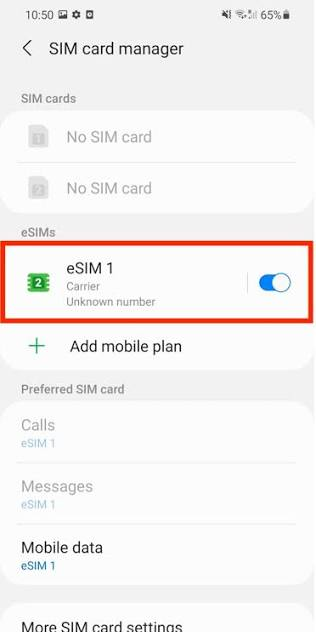
- Tap SIM manager (on some devices this may show as “SIM card manager”).
- Under the eSIMs section, you’ll see a list of every eSIM profile currently stored on your phone.
- Tap the eSIM profile you want to remove.
- Tap Remove eSIM (sometimes labeled Delete eSIM).
- Confirm by tapping Remove or Delete again on the pop-up warning.
- Enter your device PIN, pattern, or biometric confirmation if prompted.
That’s it — the profile disappears from your SIM manager immediately.
Practical example: Say you used a Holafly eSIM during a trip to Thailand back in March, and it’s now sitting unused in your SIM manager labeled “Holafly Thailand.” You’d go to Settings > Connections > SIM manager, tap that entry, tap Remove eSIM, confirm, and it’s gone in about five seconds. No restart needed.
Method 2: Deleting a Currently Active eSIM
If the eSIM you want to remove is the one that’s currently active for calls or data, Samsung will usually prompt you to either switch to another active SIM first or confirm you understand you’ll lose connectivity from that number.
- Go to Settings > Connections > SIM manager.
- Tap the active eSIM (it’ll usually have a colored label or a checkmark next to “Calls,” “SMS,” or “Mobile data”).
- Tap Remove eSIM.
- If you have another SIM (physical or eSIM) installed, the phone will automatically switch default calls/data to that one after removal. If this is your only SIM, you’ll get a warning that you’ll have no cellular service until you add a new one.
Method 3: Using SIM Manager Widget (Quick Settings Shortcut)
Some Galaxy models let you add a SIM manager shortcut to your Quick Settings panel for faster access.
- Swipe down twice to open the full Quick Settings panel.
- Tap the pencil/edit icon.
- Drag the SIM manager tile into your active tiles.
- From now on, you can tap that tile to jump straight to SIM manager instead of digging through Settings.
This isn’t a different way to delete the eSIM exactly — it just shaves off a few taps if you manage multiple eSIMs often, like if you travel frequently and swap travel eSIMs every few weeks.
What Happens After You Delete an eSIM Profile
Once removed, a few things happen:
- The phone number tied to that eSIM stops working on your device immediately. Calls and texts to that number will no longer reach your phone.
- Any data plan tied to that profile is deactivated on your phone’s end (though your billing with the carrier may continue separately — more on that below).
- The QR code you originally used typically cannot be reused unless your provider specifically allows it. Most travel eSIM providers issue single-use codes.
- Your phone’s default calling/messaging/data SIM may switch automatically if you had multiple SIMs active.
Important: Deleting the Profile Doesn’t Cancel Your Plan
This trips a lot of people up. Removing an eSIM from your phone only removes it from your device — it does not cancel your subscription or stop billing with the carrier. If you have a monthly postpaid eSIM plan, you still need to contact that carrier separately (through their app, website, or customer service) to actually cancel the plan and stop charges.
For prepaid travel eSIMs, this usually isn’t an issue since they expire on their own after the data or time runs out.
Deleting eSIM Before Selling or Trading In Your Samsung Phone

If you’re getting rid of your phone, deleting eSIM profiles is one part of a bigger reset process. Here’s the safer full sequence:
- Delete each eSIM profile individually using the steps above.
- Back up your data (Samsung Cloud, Google account, or a manual transfer).
- Sign out of your Samsung account and Google account.
- Go to Settings > General management > Reset > Factory data reset.
- Confirm the reset.
Doing a factory reset alone usually wipes eSIM profiles too, but manually removing them first is a good habit — it avoids any edge cases where a profile lingers or causes activation issues for the next owner.
Common Problems When Deleting an eSIM on Samsung
“Remove eSIM” Option Is Greyed Out
This usually means the eSIM is your only active line and the phone is preventing you from losing all connectivity. Insert or activate a second SIM (physical or digital) first, or switch to Airplane mode temporarily and try again.
Profile Won’t Delete or Gets Stuck
Try restarting your phone, then attempt the deletion again. If it still won’t budge, go to Settings > Connections > SIM manager, tap the profile, and check if there’s a “Set as inactive” option first — sometimes deactivating before deleting clears whatever is causing the hang-up.
Deleted the Wrong eSIM by Mistake
Unfortunately, there’s no undo button. You’ll need to contact your carrier and ask them to resend the activation QR code or profile so you can reinstall it. Most carriers can do this within a few minutes if you can verify your identity.
eSIM Still Shows Up in Another App or Account
Occasionally, third-party carrier apps (like a travel eSIM provider’s app) still show your eSIM as “active” even after you’ve deleted it from your phone. This is normal — the app is tracking your account status separately from what’s physically on your device. Removing it from your phone’s SIM manager is what actually disconnects it.
Pros and Cons of Removing Unused eSIM Profiles
Pros:
- Frees up space if your phone has hit its eSIM storage limit (most Galaxy phones support around 5–8 stored profiles, though only a couple can be active).
- Keeps your SIM manager screen clean and easy to navigate, especially useful if you travel often and juggle multiple travel eSIMs.
- Improves privacy before selling, trading in, or giving away your phone.
- Can resolve odd network-switching bugs where your phone tries to connect to an old, no-longer-valid carrier profile.
Cons:
- The action is permanent — most travel eSIM QR codes can’t be reused once deleted.
- You still need to separately cancel any ongoing subscription with your carrier; deleting the profile alone won’t stop billing.
- If you delete your only active SIM by accident, you’ll lose calls, texts, and data until you fix it.
- Reinstalling a deleted eSIM (if your carrier even allows it) can take time and sometimes requires ID verification.
Tips for Managing Multiple eSIMs Going Forward
If you travel a lot or switch carriers frequently, a bit of organization saves headaches later:
- Rename your eSIM profiles right after installing them. Tap the profile in SIM manager, then look for an edit/rename option, and label it clearly — like “Japan Trip Nov 2026” instead of leaving the generic carrier name.
- Delete travel eSIMs right after your trip ends instead of letting them pile up. It only takes a few seconds and keeps things tidy.
- Check your active SIM before international trips so you’re not accidentally roaming on the wrong profile and racking up charges.
- Keep QR codes or activation emails saved in a notes app or email folder in case you ever need to reinstall a profile that supports reuse.
Frequently Asked Questions
Does deleting an eSIM profile also delete my phone number?
No, not permanently. Your phone number belongs to your carrier account, not your phone. Deleting the eSIM profile just removes it from that specific device. You can usually get the number back on a new device by contacting your carrier and requesting a new activation.
Can I reinstall an eSIM after deleting it?
Sometimes. It depends entirely on your carrier. Regular carrier eSIMs (like a postpaid plan from a major network) can usually be reactivated by contacting support. Most travel eSIMs (Airalo, Holafly, Jio international packs, etc.) use single-use QR codes and typically cannot be reinstalled once removed.
Will deleting an eSIM cancel my subscription or stop billing?
No. Deleting the profile only removes it from your phone. You need to cancel the actual plan separately through your carrier’s app, website, or customer support.
Why can’t I find the “Remove eSIM” option on my Samsung phone?
Check that you’re in Settings > Connections > SIM manager and not a different SIM-related menu. If the option is missing entirely, make sure your phone’s software is updated, since older One UI versions sometimes place this option under a slightly different menu name.
Is it safe to delete an eSIM before selling my phone?
Yes, and it’s actually recommended. Deleting your eSIM profiles before a factory reset adds an extra layer of protection so your carrier information doesn’t linger on the device.
How many eSIM profiles can a Samsung phone store at once?
This depends on the model, but most current Galaxy phones can store around 5 to 8 eSIM profiles, even though typically only one or two can be active for calls, texts, and data at the same time.
What’s the difference between “removing” and “deactivating” an eSIM?
Deactivating just turns off that profile temporarily — it’s still stored on your phone and can be switched back on. Removing (deleting) erases it from your device completely. If you’re not sure you’ll need a profile again soon, deactivating first is the safer option.
My eSIM profile disappeared on its own. Did I do something wrong?
Not necessarily. Some travel eSIMs are set to auto-expire and remove themselves after their validity period ends. Check your provider’s app to confirm whether this was expected.
Conclsion
Deleting an eSIM profile on a Samsung Galaxy phone takes less than a minute once you know the path: Settings, Connections, SIM manager, then Remove. The part that actually needs care isn’t the deletion itself — it’s making sure you’re removing the right profile, that you won’t need it again, and that you’ve separately cancelled any subscription tied to it if needed.
Whether you’re clearing out an old travel eSIM, switching carriers, or prepping your phone for resale, this small bit of housekeeping keeps your device running smoothly and your SIM manager screen easy to navigate.

