
If you just got a new Apple Watch and want to use it without your iPhone nearby, you’re going to need an eSIM. This small digital SIM is what lets your watch make calls, send texts, and use data on its own — no phone in your pocket required.
Setting it up isn’t complicated, but there are a few steps involved, and it looks slightly different depending on your carrier and Apple Watch model. This guide walks you through the whole process from start to finish.

How to Download eSIM on Apple Watch. Downloading an eSIM on an Apple Watch allows you to use mobile data, make calls, send messages, and stream music without carrying your iPhone everywhere. Many users activate eSIM on their Apple Watch to stay connected during workouts, travel, or daily activities.
To download and activate an eSIM, your Apple Watch must support cellular connectivity. Models like Apple Watch GPS + Cellular work with supported mobile carriers. You also need a compatible iPhone and an active mobile plan from providers such as Airtel, Jio, or Vi India in India.
First, open the Apple Watch app on your iPhone. Tap “Mobile Data” or “Cellular,” then select “Set Up Cellular.” Your carrier’s login page will appear. Sign in with your mobile number and follow the instructions to activate the eSIM on your watch. After verification, the eSIM profile will download automatically to the Apple Watch.
The activation process usually takes a few minutes. Once completed, you will see a cellular signal icon on the watch screen. You can then use features like calling, messaging, Apple Music streaming, maps, and emergency services directly from the watch.
A stable internet connection is important while downloading the eSIM. Make sure your iPhone and Apple Watch are updated to the latest software versions for smooth setup and better compatibility.
Using an eSIM on an Apple Watch offers convenience, freedom, and better connectivity without needing a physical SIM card. It is especially useful for fitness enthusiasts, travelers, and professionals who want to stay connected on the go.
What is an eSIM on an Apple Watch?
An eSIM (embedded SIM) is a digital version of the physical SIM card you’d find in a phone. Instead of sliding a tiny chip into a tray, everything is done digitally. Your Apple Watch has one built in — but it only works after you activate it through your carrier.

Once your eSIM is set up, your watch gets its own cellular connection. You can leave your iPhone at home and still:
- Answer calls from your wrist
- Reply to messages
- Stream music on Spotify or Apple Music
- Get turn-by-turn directions
- Track workouts with live GPS and heart rate data
This is especially useful during runs, gym sessions, or any time carrying your phone isn’t ideal.
Important: Only Apple Watch Series 3 and later (GPS + Cellular models) support eSIM. If your watch is a GPS-only model, cellular won’t work regardless of what you do.
What You Need Before You Start
Before jumping into the steps, make sure you have everything in order:
- A cellular-capable Apple Watch — Look for “GPS + Cellular” on the box or in your watch settings under General > About.
- An iPhone paired to the watch — You need your iPhone to set up the eSIM. You can’t do it from the watch alone.
- A carrier plan that supports Apple Watch — Not every mobile plan automatically includes watch connectivity. Most carriers offer it as an add-on for a few dollars a month.
- watchOS and iOS up to date — Outdated software can cause errors during activation. Update both before starting.
- Your Apple ID and password — You’ll likely need this during the process.
Step-by-Step: How to Download eSIM on Apple Watch
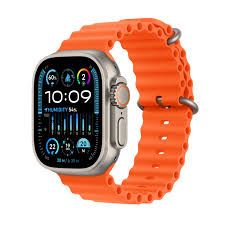
Step 1 — Open the Watch App on Your iPhone
On your iPhone, open the Watch app (it has a black icon with the Apple Watch face). Make sure your watch is nearby and connected via Bluetooth.
Step 2 — Tap “Cellular”
Scroll down the My Watch tab until you see Cellular. Tap on it. If your watch supports eSIM, you’ll see an option to set up a cellular plan here.
Step 3 — Tap “Set Up Cellular”
Hit the Set Up Cellular button. Your iPhone will now show you a list of compatible carriers in your region.
Step 4 — Select Your Carrier
Choose your carrier from the list. If your carrier isn’t listed, it may not support Apple Watch eSIM in your area — you’ll need to contact them directly to find out.
Step 5 — Add a New Plan or Use Your Existing Number
Here’s where it varies:
- If your carrier supports NumberShare or a similar plan, your watch gets the same number as your iPhone. Calls and texts go to both devices. This is the most common setup and the easiest.
- If your carrier gives your watch a separate number, you’ll get a unique number for your watch. This is less common but works fine for standalone use.
Follow the on-screen prompts. You may need to log in to your carrier account or enter a code.
Step 6 — Wait for Activation
Once you confirm everything, your iPhone will contact your carrier and download the eSIM profile to your Apple Watch. This usually takes 1–3 minutes.
You’ll see a confirmation on both your iPhone and Apple Watch when it’s done. Your watch will show the carrier name and signal bars at the top of the screen.
Step 7 — Test the Connection
To make sure it’s working, do a quick test:
- Turn off Wi-Fi on your iPhone and move it to another room (or put it in airplane mode)
- Check if your Apple Watch still shows a signal bar (look for the green indicator dot on the watch face)
- Try calling someone from your watch or sending a message
If it connects without your iPhone nearby, you’re all set.
How to Add eSIM from a Different Carrier (Carrier Switch or Travel eSIM)
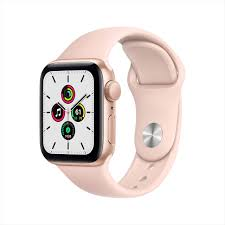
Some people want to add a travel eSIM to their Apple Watch when going abroad, or switch carriers entirely. Here’s how that works:
To add a second carrier eSIM:
Apple Watch typically supports one cellular plan at a time, though this can vary by model and region. If you want to switch, you’d remove the existing plan and add the new one.
- Open the Watch app on iPhone.
- Go to Cellular
- Tap the i icon next to your current plan
- Tap Remove [Carrier Name] Plan
- Confirm removal
- Now, follow the standard setup steps above to add your new carrier
For travel eSIMs:
If you’re traveling internationally, check if your carrier offers international roaming for Apple Watch. Many do, but at extra cost. Some travelers prefer to use their iPhone’s eSIM abroad and keep the Apple Watch connected through the paired iPhone rather than activating a separate watch plan.
Pros and Cons of Using eSIM on Apple Watch
Pros
Freedom from your phone. This is the biggest one. You can go for a run, hit the gym, or take a swim without needing your iPhone. Your watch keeps you connected on its own.
Emergency access.s Even if you’ve left your phone at home, you can still call emergency services directly from your watch. This is a genuine safety benefit — especially for people who exercise outdoors or older users.
Cleaner experience.ce No physical SIM means one less thing to worry about. No tiny card to lose, no tray to pop open, no transferring SIM cards when you upgrade.
Same number, two devi.ces With NumberShare (or equivalent), your watch rings when your phone rings. You don’t miss calls just because your phone is in your bag or on silent across the room.
Real independence for short trips. Heading to the grocery store or a quick errand? Leave the phone at home. Your watch handles navigation, payments, and communication just fine.
Cons
Extra monthly cost: Most carriers charge $5–$15/month to add an Apple Watch to your plan. Over a year, that adds up. It’s a small amount, but still an ongoing expense.
Battery drain: Using cellular on your watch eats battery faster than Bluetooth or Wi-Fi mode. On a long day with heavy cellular use, you might need a midday charge.
Limited to one plan at a time.e Unlike iPhones that support dual eSIM, most Apple Watch models only hold one cellular plan. Switching carriers isn’t instant.
Carrier restrictions: Not all carriers support Apple Watch eSIM. In some countries or regions, your options are limited. You might find that your current carrier simply doesn’t offer this feature yet.
Setup requiran es iPhone. You can’t set up eSIM directly from the watch. You always need a paired iPhone to activate it the first time. This isn’t a dealbreaker, but it’s a limitation worth knowing.
Practical Example: Leaving Your Phone at Home for a Morning Run
Say you’re a runner who goes out every morning for 45 minutes. You don’t want to strap your phone to your arm, but you also don’t want to be unreachable in case of an emergency.
With an eSIM on your Apple Watch:
- You start a workout from the Workout app
- Your watch tracks pace, heart rate, and route via GPS
- You stream a playlist directly to your AirPods via the watch
- Your wife tries to call — it rings on your wrist
- You finish the run, check your stats, and head home
No phone needed for any of that. This is exactly the kind of scenario eSIM on Apple Watch is built for.
Troubleshooting Common eSIM Setup Issues
“Set Up Cellular” option is missing
This usually means one of two things: your watch doesn’t have cellular capability, or your carrier isn’t supported. Double-check your watch model and contact your carrier to confirm Apple Watch support.
Activation keeps failing
Try these fixes:
- Restart both your iPhone and Apple Watch
- Make sure both are updated to the latest software
- Check that your carrier account is in good standing (no outstanding bills or restrictions)
- Disable any VPN on your iPhone during setup
Watch shows no signal after activation
- Confirm your watch is not in Airplane Mode (check Control Center on the watch)
- Walk away from your iPhone completely — sometimes the watch stays on Bluetooth when the phone is nearby
- Toggle cellular off and on in the Watch app
Error message: “Unable to complete eSIM setup.”
This is often a carrier-side issue. Call your carrier’s customer service, tell them you’re trying to add Apple Watch cellular, and ask them to check if the eSIM provisioning was initiated on their end.
FAQs
Do all Apple Watch models support eSIM?
No. Only Apple Watch Series 3 and later with the “GPS + Cellular” designation support eSIM. GPS-only models don’t have the cellular hardware needed.
Can I use eSIM on Apple Watch without a phone plan?
No. Your Apple Watch eSIM is tied to your existing phone account. You need an active mobile plan, and your carrier adds the watch as a connected device to that plan.
Does eSIM on Apple Watch work the same way internationally?
It depends on your carrier and the country you’re visiting. Some carriers offer international roaming for the Apple Watch. Others don’t. Check with your carrier before traveling.
Can I have two eSIM plans on one Apple Watch?
Generally, most Apple Watch models support only one cellular plan at a time. You can remove one and add another, but you can’t run two simultaneously.
Will setting up eSIM change my phone number?
No. With NumberShare-type plans, your watch uses the same number as your iPhone. Your phone number stays the same on both devices.
What happens to my eSIM if I unpair my watch?
When you unpair your Apple Watch from your iPhone, the cellular plan is typically removed from the watch. You’ll need to set it up again if you re-pair or pair to a new iPhone. However, your carrier plan itself isn’t cancelled — you’d need to do that separately.
Can I set up eSIM on Apple Watch without an iPhone nearby?
No. The initial setup requires your iPhone. After setup, the watch works independently — but that first activation step always needs the paired iPhone.
Is there a limit to how many times I can switch eSIM plans?
Technically, no, but switching frequently can cause carrier-side issues. If you’re switching often, call your carrier first to make sure your account is set up to handle it smoothly.
Conclsion
Setting up an eSIM on your Apple Watch is one of those things that sounds more complicated than it actually is. If your carrier supports it and your watch model is compatible, the whole process takes about five minutes. The Watch app on your iPhone handles almost everything.
The real payoff comes after setup — when you realize you can go for a run, head out for groceries, or spend a day at the beach without your phone, and still stay connected. For a lot of people, that freedom alone is worth the small monthly fee.
If you run into issues along the way, the most reliable fix is usually a call to your carrier. Most eSIM activation problems are on the network side, not your hardware.

