
So you just got an Apple Watch with cellular, or you’ve had one for a while and never quite figured out the eSIM setup. Either way, you’re in the right place.

How to Use an eSIM on Apple Watch. Using an eSIM on Apple Watch means your watch can make calls, send messages, stream music, and use data — all without your iPhone nearby. You go for a run, leave your phone at home, and your watch still works as a communication device. That’s the whole point of cellular on Apple Watch, and the eSIM is what makes it possible.
This guide walks you through everything: what an eSIM actually is, how to set it up, what to do when things go wrong, and whether it’s actually worth paying for.
What is an eSIM on an Apple Watch?
An eSIM is a digital SIM card — no physical chip to insert, no tiny tray to pop open. Instead, the carrier information is stored electronically inside the device itself.
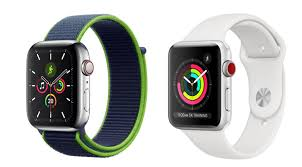
On Apple Watch, the eSIM works a little differently than on an iPhone. Your watch shares the same phone number as your iPhone through a feature called Apple Watch Cellular. When your watch is connected to a cellular network, it uses its eSIM to stay connected independently — but it still uses your iPhone’s number. So if someone calls you while your phone is at home, the call rings on your watch.
This is different from adding a second number. Your watch doesn’t get its own separate number (in most cases). It mirrors your iPhone’s number through the carrier plan.
Key requirement: You need an Apple Watch model that supports cellular. Not all Apple Watch models do. Check that your watch has the red circle on the Digital Crown — that’s the universal indicator for cellular capability.
Compatible models include:
- Apple Watch Series 3 and later (cellular versions)
- Apple Watch SE (2nd generation, cellular)
- Apple Watch Ultra and Ultra 2
- Apple Watch Series 4 through Series 10 (cellular versions)
Before You Start: What You Need
Getting the eSIM set up is straightforward, but a few things need to be in place first.
1. A cellular-capable Apple Watch. As mentioned, look for the red Digital Crown ring. If your watch doesn’t have it, it’s a GPS-only model and cannot use an eSIM or cellular.
2. An iPhone running a recent version of iOS.S Your iPhone needs to be running iOS 14 or later for reliable eSIM management. Ideally, keep both your iPhone and Apple Watch updated to their latest software versions before starting.
3. A carrier that supports Apple Watch cellular.ar Not every mobile carrier supports Apple Watch. In most countries, the major carriers do, but smaller or budget carriers may not. Check your carrier’s website or call them to confirm before assuming it’ll work.
4. An active cellular plan on your iPhone with the same carrier. ier Your Apple Watch cellular plan is usually added as an extension of your iPhone plan — often called a “watch plan” or “companion plan.” You typically pay a small monthly fee (around $10–$15 in the US) on top of your existing iPhone plan.
5. Both devices on the same ApID.e ID Your iPhone and Apple Watch must be signed into the same Apple ID. If they’re not, the setup won’t work.
How to Use an eSIM on Apple Watch:-How to Set Up eSIM on Apple Watch — Step by Step

Step 1: Open the Watch App on Your iPhone
Unlock your iPhone and open the Watch app — it’s the black icon with a watch face on it. This is where all Apple Watch settings live, including cellular setup.
Step 2: Tap the “Cellular” Option
In the Watch app, tap Cellular from the list of options. If you haven’t set up cellular yet, you’ll see a button that says Set Up Cellular.
Step 3: Follow the On-Screen Instructions
Tap Set Up Cellular. Your iPhone will guide you through the process. At some point, it’ll ask you to agree to your carrier’s terms for the watch plan.
Here’s what typically happens next:
- Your iPhone contacts your carrier automatically
- The carrier verifies your account
- The eSIM profile is downloaded to your Apple Watch
- Your watch is activated on the cellular network
The whole process usually takes 3–5 minutes if everything goes smoothly.
Step 4: Confirm Activation
Once setup is complete, you’ll see a confirmation screen. On your Apple Watch, swipe up to open the Control Center and look for the cellular signal indicator — it looks like a set of bars with a small dot or circle.
If you see signal bars, you’re connected. If the bars are green, the watch is connected to cellular. If they’re white or grey, it’s using WiFi or Bluetooth instead (which is normal when your iPhone is nearby).
Step 5: Test It
Walk away from your iPhone — leave it in another room or outside. On your Apple Watch, try:
- Sending a message to a friend
- Making a test call
- Asking Siri something that requires the internet
If all of these work without your iPhone in range, your eSIM is set up correctly.
Setting Up eSIM on Apple Watch With a New Carrier

Sometimes you might want to add a new carrier to your Apple Watch — for example, if you’re switching providers or adding a travel eSIM. The process is slightly different.
In most cases, Apple Watch eSIM plans must be set up through the Watch app on your iPhone, not directly on the watch itself. Your carrier may also have its own app that handles the activation.
For a new carrier:
- Open the Watch app → Cellular → Add a New Plan
- Your iPhone will show available carriers (this depends on your region)
- Select your carrier and follow their specific activation steps
- You may need to enter an account number, ZIP code, or scan a QR code provided by the carrier
Some carriers require you to call their customer service line to add an Apple Watch plan — especially smaller regional carriers. It’s worth checking their website first to see if it can be done online or through the app.
Managing Your eSIM — Switching Between Plans
If you’ve added more than one carrier plan to your Apple Watch (for example, your regular plan plus a travel eSIM), you can switch between them.
To switch plans:
- Open the Watch app on your iPhone
- Tap Cellular
- Under “Cellular Plans,” you’ll see your active plans
- Tap the plan you want to activate
You can also manage this directly on the Apple Watch:
- Go to Settings on your watch
- Tap Cellular
- Select the plan you want to use
This is particularly useful when traveling internationally — more on that in a moment.
Using Apple Watch eSIM When Traveling Internationally
This is where things get a bit more nuanced. International travel with Apple Watch cellular works differently depending on your setup.
Option 1: Roaming with your existing plan. If your carrier supports international roaming and you have a roaming package, your Apple Watch will work abroad using your existing eSIM. The watch follows the same roaming setup as your iPhone. Check with your carrier whether the Apple Watch is included in your international roaming package — some plans include it, others don’t.
Option 2: Adding a local carrier eSIM. Some Apple Watch models support multiple eSIM profiles, which means you can add a local carrier’s plan when traveling. However, this depends on your watch model and whether the local carrier supports Apple Watch plans.
In practice, international Apple Watch eSIM support is still limited compared to iPhone eSIM. Many travelers find it easier to just bring their iPhone along when abroad, rather than relying on the watch for cellular independence.
Practical example: You’re traveling to the UK from the US. Your US carrier charges $10/day for international roaming on your iPhone, and your watch plan may or may not be included. Before your trip, call your carrier and specifically ask: “Does my Apple Watch cellular plan work in the UK, and what does it cost?” Get a clear answer before you land.
Pros and Cons of Using eSIM on Apple Watch
Pros
Freedom from your phone: The biggest benefit. You can go for a run, swim, or workout without carrying your iPhone and still be reachable. Emergency calls work, messages come through, and music streams.
Emergency access.s If you ever find yourself in a situation without your phone, your Apple Watch with cellular can call emergency services. This alone is a strong reason for many people.
Cleaner workout, noNo armband, no pocket bulge, no bouncing phone. Just your watch. For fitness-focused users, this changes how you exercise.
No physical SIM to man. Age. Since it’s all digital, there’s no tiny chip to lose or damage. Switching plans is done through software.
Same number as your IP. You don’t need to give anyone a new number. Calls and messages come to the same number on both devices.
Cons
Extra monthly cost: Most carriers charge $10–$15/month to add an Apple Watch to your plan. Over a year, that’s $120–$180 on top of your existing phone bill. For light users, this may not feel worth it.
Battery drain:n Using cellular on your Apple Watch significantly reduces battery life. On GPS + cellular activity, you might get 6–8 hours instead of 18 hours. On always-on cellular, even less.
Limitedwithout ant iPhone nearby. Even with cellular, your watch has limitations without the iPhone. You can’t access all your apps, can’t use Apple Pay in some setups, and some features simply require the iPhone to be in range.
Carrier restrictions: Your Apple Watch cellular plan must be with the same carrier as your iPhone in most cases. You can’t mix carriers easily. If your carrier doesn’t support Apple Watch, you’re out of luck.
International use is complicated. As mentioned, roaming with Apple Watch is not always included in international plans, and adding local eSIMs abroad is limited.
Common Problems and How to Fix Them
“Set Up Cellular” option not showing in Watch app. This usually means your watch model doesn’t support cellular, your carrier doesn’t support Apple Watch, or your Watch app needs an update. Check all three before assuming something is broken.
Cellular setup fails midway. This is often a carrier-side issue. Try restarting both your iPhone and Apple Watch, then attempt setup again. If it keeps failing, call your carrier — sometimes they need to manually add the watch to your account on their end.
Watch shows no signal even after setup. Check that cellular is turned on: Settings → Cellular on your watch. Also, check that you’re not in a low-coverage area. Try toggling airplane mode on and off on the watch to reset the connection.
The watch doesn’t work independently of the iPhone. Make sure your watch is not connected to your iPhone via Bluetooth or on the same WiFi network. The watch will prefer Bluetooth and WiFi over cellular — cellular only kicks in when those aren’t available. Walk far enough away from your phone and try again. The
eSIM profile won’t download. Sometimes carrier servers are slow or temporarily down. Wait 30 minutes and try again. Also, to make sure your iPhone has a strong internet connection during setup.
FAQs — How to Use an eSIM on Apple Watch
Q: Does every Apple Watch have eSIM?
No. Only cellular models have eSIM capability. GPS-only Apple Watch models cannot use eSIM or connect to cellular networks. Look for the red ring on the Digital Crown to identify a cellular model.
Q: Can I use a different carrier on my Apple Watch than on my iPhone?
In most countries, no. Apple Watch cellular plans are tied to the same carrier as your iPhone. Some exceptions exist in certain regions, but this is not the norm.
Q: Can I add an eSIM to an Apple Watch without an iPhone?
No. The initial eSIM setup always requires an iPhone with the Watch app. Once set up, the watch can operate independently, but the setup itself must go through your iPhone.
Q: Does Apple Watch eSIM work in all countries?
No. Carrier support varies by country. In major markets like the US, UK, Canada, and Australia, most large carriers support it. In other regions, support is more limited. Check with local carriers before purchasing.
Q: Will my Apple Watch use cellular if my iPhone is nearby?
No. Apple Watch prioritizes your iPhone connection (via Bluetooth) over cellular. It only switches to cellular when Bluetooth and WiFi are both unavailable. This is actually good for battery life.
Q: Can I use Apple Watch cellular without a data plan?
You need an active cellular plan tied to your watch to use the cellular feature. Without a plan, the eSIM hardware is there but inactive — your watch will only work via WiFi or Bluetooth to your iPhone.
Q: How do I remove an eSIM from my Apple Watch?
Open Watch app → Cellular → tap your plan → Remove Plan. You can also do this from Settings → Cellular on the watch itself. Contact your carrier as well to cancel the watch plan on their end.
Q: Is there a monthly fee for Apple Watch eSIM?
Yes, in almost all cases. Carriers charge a monthly fee — typically $10–$15 in the US — to add an Apple Watch to your plan. Some carriers include it in premium family plans, so check your specific plan details.
Q: What happens to my eSIM if I get a new Apple Watch?
When you set up a new Apple Watch, the eSIM transfer is usually handled during the watch setup process through the Watch app. Your carrier may need to be involved. The old watch’s eSIM gets deactivated automatically in most cases.
Conclsion
Setting up an eSIM on Apple Watch is not complicated once you know what you’re doing — but it does require having the right watch model, the right carrier, and a few minutes to walk through the Watch app setup.
The payoff is real independence from your iPhone during workouts, quick errands, or situations where carrying your phone just isn’t practical. For fitness-focused users and people who want to stay reachable without being glued to their phone, it’s genuinely useful.
The main things to keep in mind: confirm your carrier supports it before expecting it to work, budget for the monthly plan cost, and keep your battery expectations realistic when cellular is active.
Once it’s set up and working, it just runs in the background — which is exactly how good technology should work.

