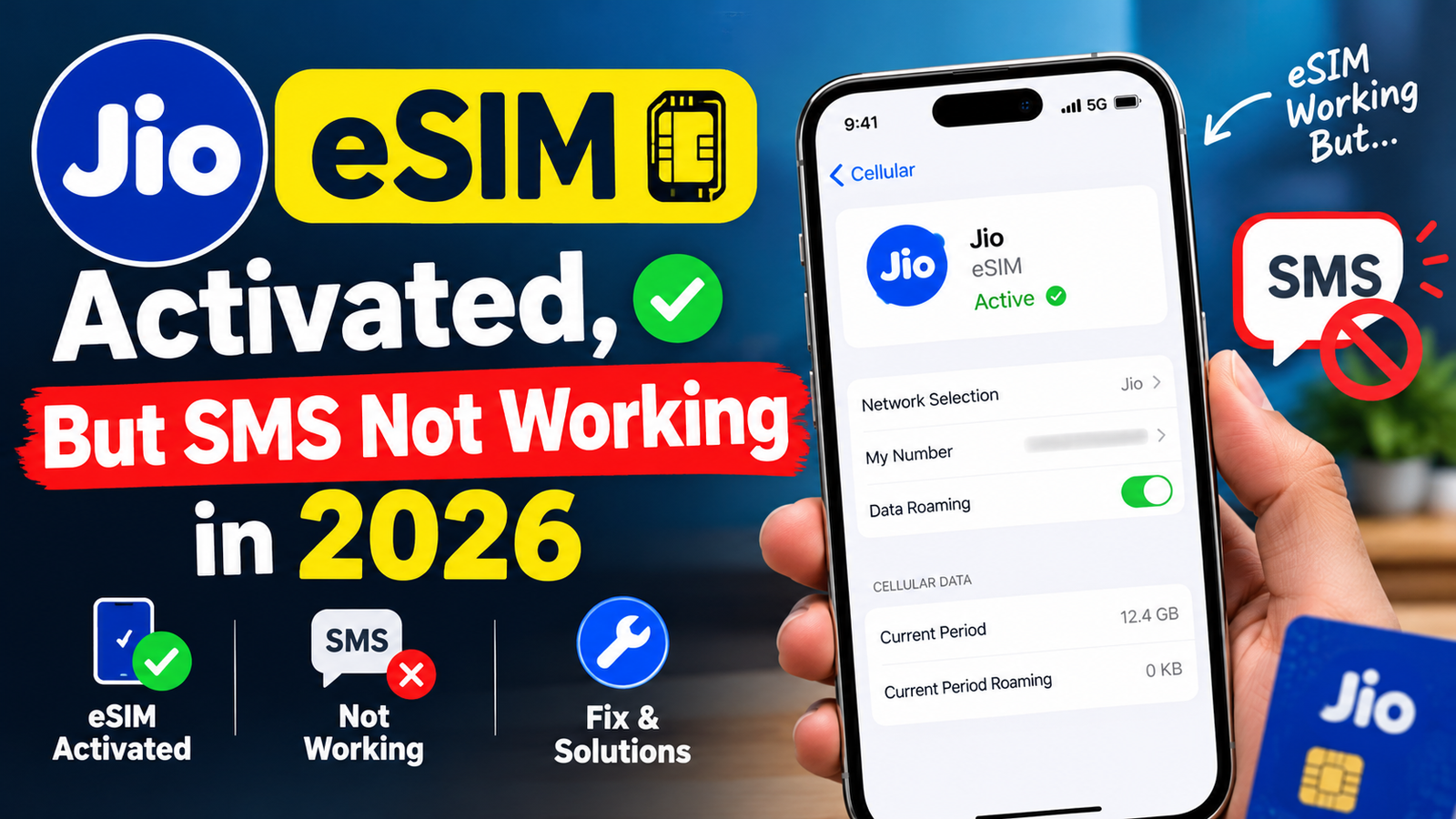
One of the most common Jio eSIM issues in 2026 is when the eSIM profile activates successfully — it appears in phone settings, shows as “Active” — but the device shows “No Service”, “Searching”, or zero signal bars. This is different from activation delay (eSIM still downloading) and different from partial service issues (SMS only failing). Complete no-service after confirmed activation has specific causes and targeted fixes.

Have you successfully activated your Jio eSIM, but your phone still shows No Service, SOS Only, or No Network? This can be frustrating, especially when you expect to start making calls, sending SMS messages, and using mobile data immediately after activation. Even if your Jio eSIM profile appears on your smartphone, the network may not connect properly due to activation delays, incorrect network settings, or a temporary carrier-side issue.
The good news is that jnc can often hlo htlv yczkinw without visiting a Jio Store. Simple steps such as restarting your phone, checking whether the eSIM line is enabled, selecting the correct network mode, and resetting network settings may help restore your connection.
Jio eSIM Activated But No Service: Why your Jio eSIM is activated but showing no service in 2026 and provide step-by-step troubleshooting methods for iPhone and Android users. You’ll also learn how to check eSIM activation status, fix common network problems, and know when to contact Jio customer support.
- Check now: Jio eSIM Activated, SMS Not Working
Confirming eSIM is Activated But No Service
Verify eSIM Active Status
iPhone:
Settings → Cellular → confirm Jio plan listed → “Turn On This Line” toggle → ON → signal bars: zero/searching.
Before troubleshooting an iPhone that shows No Service or cannot make calls after eSIM activation, first check whether the eSIM is properly installed and active. Sometimes an eSIM profile is successfully downloaded, but the mobile line is switched off or has not connected to the carrier network yet.
Follow these steps to check your eSIM status:
- Open Settings: Unlock your iPhone and open the Settings app.
- Go to Mobile Service: Tap Mobile Service (called Cellular in some regions or iOS versions).
- Select Your eSIM: Under the SIM section, look for your Jio mobile number or the label assigned to your eSIM.
- Check the Turn On This Line Option: Tap the eSIM and make sure Turn On This Line is enabled. If it is switched off, turn it on.
- Check Network Status: Return to the Mobile Service screen and check whether your Jio line displays a network name or shows No Service, Searching, or SOS.
- Check Default Voice Line: If you use multiple SIMs, confirm that your Jio eSIM is selected as the preferred line for calls, if needed.
Samsung:
Settings → Connections → SIM card manager → Jio eSIM → Active ✅ → but no signal.
Samsung phone shows No Service, cannot make calls, or fails to connect to the Jio network after eSIM activation, the first step is to check whether your eSIM profile is installed and enabled. Sometimes the eSIM is successfully downloaded, but the mobile line is switched off, or network activation is still pending.
Follow these steps to verify your eSIM status on a Samsung Galaxy phone.
1. Open Settings
Unlock your Samsung phone and open the Settings app.
2. Go to SIM Manager
Scroll down and tap Connections, then select SIM Manager. Here, you can see your physical SIM cards and installed eSIM profiles.
3. Check Your Jio eSIM
Look for your Jio mobile number or the eSIM profile name. If your Jio eSIM appears in the SIM Manager, it means the profile is installed on your device.
4. Enable Your eSIM
Tap the Jio eSIM and make sure its toggle is switched on. If it is disabled, enable it to allow your phone to use the mobile line.
5. Check Mobile Network Settings
Go back to Settings → Connections → Mobile networks. Check that network selection is set to automatic, if that option is available.
6. Check the Network Signal
Look at the status bar at the top of your Samsung screen. If Jio signal bars and the network name appear, your phone has connected to the network. If you see No Service, Searching, or Emergency calls only, the eSIM may not yet be connected to Jio’s network.
OnePlus/Realme:
Settings → SIM & network → Jio eSIM → Enabled ✅ → no service.
Jio eSIM has been activated, but your OnePlus or Realme phone still shows No Service. The first step is to check whether the eSIM profile is installed and enabled. Sometimes the eSIM is downloaded successfully, but the mobile line is switched off or has not connected to the Jio network yet.
Follow these steps to verify your eSIM status.
1. Open SIM Settings
- Open the Settings app on your OnePlus or Realme phone.
- Go to Mobile Network or SIM Card & Mobile Data.
- Look for your Jio eSIM in the available SIM list.
2. Check Whether Your eSIM Is Enabled
Tap your Jio eSIM and check its status. Make sure the Enable SIM or Turn On SIM option is switched on, if available.
If the eSIM is disabled, enable it and wait a few moments for the phone to connect to the network.
3. Check Your Jio Network Status
Return to the SIM settings and check the network information.
- Jio 4G/5G displayed: Your phone is detecting the Jio network.
- No Service: Your eSIM is not currently connected to the mobile network.
- Searching: Your phone is trying to find an available network.
- Emergency Calls Only: Normal mobile network service is not available.
4. Check Mobile Data and Preferred SIM
If you use a physical SIM and an eSIM together:
- Select Jio as your preferred mobile data SIM if you want to use Jio internet.
- Check that mobile data is enabled.
- Confirm that your preferred SIM for calls and SMS is set correctly.
5. Restart Your Phone
After confirming that the eSIM is enabled, restart your OnePlus or Realme phone. Wait a few minutes after restarting to see whether the Jio network appears.
Confirmed: eSIM profile active in settings → but no Jio network signal → this guide applies.
Why Jio eSIM Shows No Service After Activation: Jio eSIM Activated But No Service
Reason 1 — Network Registration Pending
Most common cause:
eSIM profile downloaded → device not yet registered on the Jio network → registration takes additional time after activation.
Normal wait: Up to 30 minutes post-activation.
Reason 2 — Wrong Network Mode
Device set to 3G/2G only:
Jio is a VoLTE-only network → runs on 4G/5G → device in 3G/2G mode → cannot find Jio signal.
Reason 3 — Manual Network Selection Stuck
Device searching for the wrong network:
Previous SIM network cached → device looking for Airtel/Vi → ignoring Jio → no service.
Reason 4 — eSIM Profile Incomplete
Partial profile download:
eSIM shows active → profile incomplete → missing network configuration → no service.
Reason 5 — Jio Backend Not Fully Provisioned
eSIM activated on device → but Jio backend not fully provisioned → network doesn’t recognize device yet.
Reason 6 — Device Carrier Lock
US/international phone:
Carrier-locked → eSIM active → but locked device rejects non-carrier network → no service.
Fix Guide — Jio eSIM No Service
Fix 1 — Wait 30 Minutes (First Step)
Network registration takes time:
eSIM activation → device registration on Jio network → up to 30 minutes is normal.
During the wait:
Keep device on → WiFi connected → don’t restart repeatedly → let registration complete naturally.
Fix 2 — Airplane Mode Toggle

Force network re-registration:
Airplane mode ON → 60 seconds → OFF → device re-searches → Jio network found.
Most effective single fix — resolves the majority of no-service cases post-activation.
Do 3 times if the first attempt fails:
Toggle → wait 60 seconds → toggle → repeat → usually resolves by the third attempt.
Fix 3 — Set Network Mode to 4G/LTE
Jio requires 4G/LTE:
iPhone:
Settings → Cellular → Cellular Data Options → Voice & Data → LTE or 5G → never “3G”.
Samsung:
Settings → Connections → Mobile networks → Network mode → LTE/4G/3G/2G (auto connect) → never 3G only.
OnePlus/Realme:
Settings → SIM & network → Jio → Preferred network type → 4G/LTE.
Critical: Jio has no 3G network → device on 3G = guaranteed no service.
Fix 4 — Manual Network Selection
Force select Jio manually:
iPhone:
Settings → Cellular → Network Selection → Automatic OFF → search → Jio appears → select → wait → signal.
Android:
Settings → Mobile networks → Network operators → Search → Jio → select → wait 60 seconds → signal.
If Jio is not appearing in search:
Backend not provisioned → proceed to Fix 6.
Fix 5 — Restart Device

Complete power cycle:
Power OFF → wait 30 seconds → Power ON → fresh network search → Jio service often appears.
Different from airplane mode:
Full restart clears all network caches → more thorough than airplane mode toggle.
Fix 6 — Check eSIM Enabled
Verify eSIM line is actually enabled:
iPhone:
Settings → Cellular → Jio plan → “Turn On This Line” → must be GREEN → if grey → tap to enable.
Samsung:
Settings → Connections → SIM card manager → Jio eSIM → toggle ON.
Obvious fix often missed — eSIM downloaded but line not enabled → no service.
Fix 7 — Reset Network Settings
Clear all network configuration:
iPhone:
Settings → General → Transfer or Reset iPhone → Reset → Reset Network Settings → restart → eSIM remains → fresh network search.
Android:
Settings → General management → Reset → Reset network settings → confirm → restart.
Note: Removes WiFi passwords → reconnect WiFi after reset.
Fix 8 — Call Jio 199
When to call:
30+ minutes → all above fixes tried → still no service.
What to say:
“My Jio eSIM is showing as active in settings, but I have no service. I’ve tried airplane mode, manual network selection, and network reset. Please check if my eSIM is fully provisioned on the backend.”
Jio backend check:
Staff verifies eSIM registration on Jio network → if not registered → manually triggers provisioning → service appears within 15-30 minutes.
Information needed:
- Jio number
- EID (Settings → About → EID)
- Device model
- Time of activation
Fix 9 — Re-download eSIM Profile
If profile incomplete:
Delete and re-add:
iPhone:
Settings → Cellular → Jio plan → Remove Cellular Plan → MyJio → generate new QR → scan → re-download.
Android:
Settings → SIM card manager → Jio eSIM → Delete → MyJio → new QR → re-download.
New QR generation:
MyJio → Account → Get eSIM → fresh QR (24-hour validity) → scan immediately.
Fix 10 — Check Carrier Lock Status

For international/US phones:
iPhone carrier lock check:
Settings → General → About → scroll to Carrier Lock → must show “No SIM restrictions” → if it shows a carrier name → locked → contact the original carrier.
Unlock process:
Contact AT&T/Verizon/T-Mobile → request SIM unlock → after unlock → Jio eSIM works.
Device-Specific No Service Fixes
iPhone Jio eSIM No Service
Priority fix sequence:
1. Settings → Cellular → Jio → "Turn On This Line" ON
2. Settings → Cellular → Voice & Data → LTE/5G (not 3G)
3. Airplane mode × 3 attempts
4. Settings → Cellular → Network Selection → Manual → Jio
5. Reset Network Settings
6. Remove + re-add eSIM
7. Call 199
Samsung Jio eSIM No Service
Priority fix sequence:
1. SIM card manager → Jio eSIM → toggle ON
2. Mobile networks → Network mode → LTE/4G auto
3. Airplane mode × 3
4. Network operators → Manual → Select Jio
5. Reset network settings
6. Call 199
OnePlus/Realme Jio eSIM No Service
Priority fix sequence:
1. SIM & network → Jio → Preferred network → 4G
2. Airplane mode × 3
3. Battery optimization → MyJio → Unrestricted
4. Network operators → Manual → Jio
5. Reset network settings
6. Call 199
Jio eSIM No Service — Status Guide
| Display | Meaning | Fix |
|---|---|---|
| No Service | Not registered | Airplane mode + 4G mode |
| Searching | Looking for network | Manual network selection |
| SOS Only | Emergency only | Network mode set to 4G |
| No SIM | Profile issue | Re-download eSIM |
| Invalid SIM | Carrier lock | Contact original carrier |
Frequently Asked Questions
Why does my Jio eSIM show activated but no service?
Most common causes: network registration pending (wait 30 minutes), device on wrong network mode (Jio needs 4G — not 3G), eSIM line not enabled in settings (check “Turn On This Line”), or Jio backend provisioning incomplete. Fix sequence: enable eSIM line → set 4G network mode → airplane mode toggle × 3 → manual network selection → call Jio 199 for backend provisioning check.
How do I fix Jio eSIM no service on iPhone?
Settings → Cellular → Jio plan → confirm “Turn On This Line” is ON (green) → Cellular Data Options → Voice & Data → select LTE or 5G (never 3G) → toggle airplane mode 3 times → Settings → Cellular → Network Selection → Manual → select Jio → wait 60 seconds → signal appears. If still no service: Reset Network Settings → or remove and re-add eSIM from MyJio.
How long does Jio eSIM take to get signal after activation?
Normal: 15-30 minutes after eSIM download completes. Maximum normal wait: 1 hour. Beyond 1 hour with no service: issue requiring an active fix. Airplane mode toggle is most effective → forces fresh network registration → usually resolves within 5 minutes. If beyond 2 hours: call Jio 199 → backend provisioning check → manual trigger → resolves most persistent no-service cases.
My Jio eSIM shows SOS only — how to fix?
“SOS Only” means the device found a network but was rejected for service — usually due to the wrong network mode. Fix: Settings → Mobile networks → Network mode → LTE/4G auto (not 3G only) → Jio runs on 4G/VoLTE exclusively → 3G mode = SOS only. If 4G mode set and still SOS: call Jio 199 → account suspension check → backend provisioning issue.
Does resetting network settings delete Jio eSIM?
No — Reset Network Settings on iPhone and Android does NOT delete eSIM profiles. eSIM profile remains after a network reset — only WiFi passwords, Bluetooth pairings, and cellular settings are cleared. Safe to use as a fix for no-service issues. After reset: device searches fresh → Jio eSIM re-registers → service usually restores. Re-enter WiFi password after reset — the only thing lost.
Conclusion
Jio eSIM activated but no service resolves with targeted fixes — most cases resolve within 30 minutes.
Quick fix sequence:
- Verify eSIM line enabled (green toggle) ✅
- Set network mode to 4G/LTE ✅
- Airplane mode ON/OFF × 3 ✅
- Manual network selection → Jio ✅
- Restart device ✅
- Reset network settings ✅
- Re-download eSIM (fresh QR) ✅
- Call Jio 199 → backend check ✅
Most common fix: Network mode to 4G + airplane mode toggle → resolves 70%+ of Jio eSIM no-service cases instantly.