
Activating an eSIM on your iPhone 17 is easier than most people think. But if you’re doing it for the first time, it can feel confusing—especially with QR codes, carrier settings, and network options.
This guide will walk you through how to activate eSIM on iPhone 17 in the simplest way possible. Whether you’re switching from a physical SIM or setting up a new connection, you’ll find everything you need right here.

The iPhone 17 is a powerful and modern smartphone designed to deliver a premium experience without being as expensive as the Pro models. It features a sleek aluminum body with a durable glass front, making it both stylish and strong for everyday use. The phone comes with a 6.3-inch Super Retina XDR display that supports a 120Hz refresh rate, which means scrolling, gaming, and watching videos feel very smooth and responsive. The brightness is also improved, so you can easily use it outdoors in sunlight.
- Does my phone Support eSIM?
- iPhone 17 eSIM vs Physical SIM Philippines
- iPhone 17 eSIM and Physical SIM Difference
Performance-wise, the iPhone 17 is powered by Apple’s latest A19 chip, which makes the device extremely fast and efficient. Whether you are multitasking, playing high-end games, or editing videos, the phone handles everything smoothly without lag. It also improves battery efficiency, allowing the device to last a full day on normal usage. You can expect up to 30 hours of video playback, along with fast charging support that can charge the battery up to 50% in about 20 minutes.
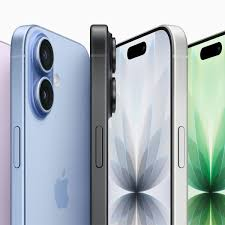
In terms of camera, the iPhone 17 offers a dual-camera system with a 48MP main sensor and a 48MP ultra-wide lens. This setup captures sharp, detailed photos even in low light conditions. Features like Night Mode, Cinematic Mode, and 4K video recording help you take professional-quality photos and videos. The front camera is also upgraded, making selfies and video calls clearer and more stable.
The phone supports both physical SIM and eSIM, giving users flexibility in managing multiple numbers. It also includes 5G connectivity, Wi-Fi 7, and Bluetooth 6 for faster and more reliable connections. Running on the latest iOS version, the iPhone 17 provides a smooth user experience with strong privacy and security features like Face ID.
Overall, the iPhone 17 is a well-balanced smartphone that offers excellent performance, a high-quality display, strong camera capabilities, and long battery life. It is a great choice for users who want a premium Apple experience without going for the higher-priced Pro models.
Features:-
The iPhone 17 comes with a wide range of advanced features that make it a powerful and user-friendly device for everyday use. One of its standout features is the 6.3-inch Super Retina XDR display with a 120Hz refresh rate. This makes everything feel smoother, whether you are scrolling through apps, watching videos, or playing games. The display is also bright and clear, so it works well even in outdoor conditions.
Another major feature is the new A19 chip, which delivers fast performance and better efficiency. This means apps open quickly, multitasking is smooth, and heavy tasks like gaming or video editing run without lag. Along with this, the improved battery life ensures that the phone can easily last a full day on a single charge, making it reliable for long usage.
The camera system on the iPhone 17 is also impressive. It includes a 48MP main camera and a 48MP ultra-wide camera, allowing you to capture high-quality photos with great detail. Features like Night Mode help in low-light photography, while Cinematic Mode adds a professional touch to videos. The front camera is enhanced as well, providing clear selfies and better video calls.
In terms of connectivity, the iPhone 17 supports 5G, Wi-Fi 7, and Bluetooth 6, ensuring fast and stable internet connections. It also offers dual SIM functionality with both physical SIM and eSIM support, which is useful for managing personal and work numbers or using international plans.
Security is another strong point, with Face ID providing quick and secure unlocking. The device also includes safety features like emergency SOS and crash detection. Running on the latest iOS version, the phone delivers a smooth, secure, and easy-to-use experience.
Overall, the iPhone 17 features a perfect combination of performance, display quality, camera capabilities, and smart connectivity, making it a strong choice for users looking for a modern and reliable smartphone.
Battery:-

- Battery Life: Up to 30 hours of video playback
- Fast Charging: 50% charge in around 20 minutes
- Charging Port: USB-C support
- Efficiency: Powered by an A19 chip for better battery optimization
- Screen Time: लगभग 6–8 hours on normal usage
- Wireless Charging: Supports MagSafe charging
- Battery Health Management: Smart charging to extend battery lifespan
- Low Power Mode: Helps save battery during low usage
- Gaming Performance: Efficient power use even during heavy gaming
- 5G Optimization: Improved battery performance while using 5G networks
👉 Overall, the battery of the iPhone 17 is designed to last a full day with smooth performance and fast charging support.
What is eSIM on iPhone 17?
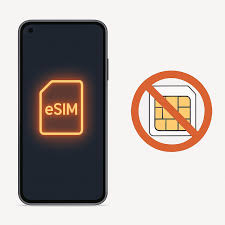
An eSIM (embedded SIM) is a digital SIM that lets you activate a mobile plan without inserting a physical SIM card.
On iPhone 17, eSIM is fully supported and may even replace physical SIM cards in some regions.
Key Features:
- No physical SIM card needed
- Store multiple plans on one device
- Switch networks easily
- Perfect for travel
Things You Need Before Activating eSIM
Before you start, make sure you have:
✅ 1. A Compatible Carrier
Your mobile network must support eSIM.
Examples include:
- Jio
- Airtel
- Vodafone Idea
✅ 2. Stable Internet Connection
You need Wi-Fi or mobile data to activate the eSIM.
✅ 3. QR Code or Activation Details
Your carrier will provide:
- A QR code
- Or manual activation details
✅ 4. Updated iOS Version
Make sure your iPhone 17 is running the latest iOS version.
Step-by-Step: How to Activate eSIM on iPhone 17
Let’s go through the actual process.
Method 1: Activate eSIM Using QR Code (Most Common)
Step 1: Open Settings
Go to:
Settings → Mobile Data → Add eSIM
Step 2: Scan QR Code
Tap “Use QR Code” and scan the code provided by your carrier.
Step 3: Confirm Activation
Tap:
- “Add eSIM”
- “Continue”
Step 4: Label Your Plan
You can name it:
- Personal
- Work
- Travel
Step 5: Set Default Line
Choose:
- Default number for calls
- Default data line
Step 6: Finish Setup
Wait a few seconds, and your eSIM will activate.
Method 2: Activate eSIM Without QR Code
If you don’t have a QR code, you can enter details manually.
Steps:
- Go to Settings → Mobile Data → Add eSIM
- Tap “Enter Details Manually”
- Enter:
- SM-DP+ Address
- Activation Code
- Follow on-screen instructions
Method 3: Transfer eSIM from Old iPhone
If you’re upgrading from an older iPhone:
Steps:
- Place both iPhones near each other
- Go to Settings → Mobile Data → Add eSIM
- Tap “Transfer from Nearby iPhone.”
- Confirm on both devices
Method 4: Activate eSIM via Carrier App
Some networks allow activation through their apps.
Example:
- MyJio
- Airtel Thanks
Steps:
- Open the app
- Select eSIM activation
- Follow instructions
How to Convert a Physical SIM to an eSIM

If you already have a SIM card:
For Airtel:
- Send SMS: eSIM <email> to 121
- Follow email instructions
For Jio:
- Visit the store or request via the app
How to Check if eSIM is Activated
Go to:
Settings → Mobile Data
You should see:
- Active network
- Signal bars
- Data working
You can also:
- Make a call
- Use mobile data
Common Problems and Fixes
❌ eSIM Not Activating
✔️ Fix:
- Restart phone
- Check internet
- Re-scan QR code
❌ No Signal After Activation
✔️ Fix:
- Turn Airplane mode ON/OFF
- Reset network settings
❌ QR Code Not Working
✔️ Fix:
- Request a new QR code
- Enter details manually
❌ Carrier Not Supported
✔️ Fix:
- Confirm with your provider
- Switch to a supported network
Practical Example
Let’s say you bought an iPhone 17 and want to activate an eSIM from Airtel.
What You Do:
- Request eSIM via SMS
- Receive QR code by email
- Scan it in Settings
- Activate within 5 minutes
That’s it—no SIM card needed.
Benefits of Using eSIM on iPhone 17
✅ Pros
- No physical SIM card
- Easy to switch carriers
- Dual SIM functionality
- Better for travel
- Less risk of SIM damage
❌ Cons
- Not supported by all carriers
- Harder to switch phones quickly
- Requires internet for setup
- Troubleshooting can be tricky
eSIM vs Physical SIM (Quick Comparison)
| Feature | eSIM | Physical SIM |
|---|---|---|
| Setup | Digital | Manual |
| Switching | Easy | Requires SIM change |
| Travel | Excellent | Limited |
| Availability | Growing | Universal |
Tips for Smooth Activation
- Always keep a backup QR code
- Use a stable Wi-Fi connection
- Update your phone before starting
- Don’t delete the old SIM until the eSIM works
When Should You Use eSIM?
Use eSIM if:
- You travel frequently
- You want dual SIM setup
- You prefer a digital setup
Avoid if:
- Your carrier doesn’t support it
- You switch phones often
FAQs
1. Can I use both eSIM and physical SIM on iPhone 17?
Yes, iPhone 17 supports dual SIM (eSIM + physical SIM or dual eSIM in some regions).
2. Is eSIM free to activate?
Usually yes, but some carriers may charge a small fee.
3. How long does eSIM activation take?
Typically:
- 2–10 minutes
4. Can I delete and re-add eSIM?
Yes, but you may need a new QR code from your carrier.
5. Does eSIM work internationally?
Yes, and it’s great for travel. You can add local plans easily.
6. What happens if I reset my iPhone?
Your eSIM may be removed. Always keep backup activation details.
7. Can I transfer eSIM to another phone?
Yes, but you’ll need carrier support or reactivation.
8. Is eSIM better than a physical SIM?
It depends. eSIM is more convenient, but a physical SIM is more flexible.
9. What is the easiest way to activate eSIM on iPhone 17?
The easiest way isto useg a QR code provided by your carrier. Just go to Settings → Mobile Data → Add eSIM, then scan the QR code and follow the instructions.
10. Can I activate eSIM on iPhone 17 without a QR code?
Yes, you can. Choose “Enter Details Manually” and input the SM-DP+ address and activation code given by your carrier.
11. How long does it take to activate eSIM?
Usually it takes 2 to 10 minutes, depending on your network and internet connection.
12. Which Indian carriers support eSIM on iPhone 17?
Popular supported carriers include:
- Jio
- Airtel
- Vodafone Idea
13. Can I use dual SIM with eSIM?
Yes, iPhone 17 supports dual SIM:
- eSIM + physical SIM
- or dual eSIM (region-dependent)
14. Do I need the internet to activate eSIM?
Yes, a stable internet connection (Wi-Fi or mobile data) is required for activation.
15. Can I convert my physical SIM to eSIM?
Yes, most carriers allow conversion. For example:
- Airtel and Jio offer easy conversion via SMS, app, or store visit.
16. What happens if I delete my eSIM?
If you delete your eSIM, you will need a new QR code or activation details from your carrier to set it up again.
17. Why is my eSIM not working after activation?
Common reasons:
- Weak network signal
- Incorrect setup
- Carrier issues
Fixes:
- Restart your phone
- Toggle Airplane mode
- Contact your carrier
18. Can I transfer my eSIM to another phone?
Yes, but you may need to re-activate it through your carrier or transfer using Apple’s built-in feature.
19 Is eSIM safe to use?
Yes, eSIM is secure. It’s embedded in your device and cannot be physically removed, reducing risks like SIM theft.
20. Can I use eSIM for international travel?
Yes, eSIM is ideal for travel. You can easily add a local data plan in another country without changing SIM cards.
Conclusion
Activating an eSIM on your iPhone 17 is simple once you understand the steps. Whether you use a QR code, manual setup, or carrier app, the process usually takes just a few minutes.
The biggest advantages are convenience, flexibility, and future-ready connectivity. Just make sure your carrier supports eSIM and follow the setup steps carefully.
Once activated, you’ll enjoy a cleaner, smarter way to stay connected—no SIM card required.

