
If you’ve been paying attention to how work, creativity, and daily life have changed over the last few years, you already know that smart software tools have quietly taken over a huge chunk of tasks that used to eat up hours of your day. In 2026, these tools are no longer novelties — they’re infrastructure.
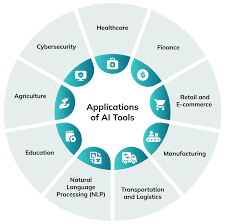
This guide breaks down what’s actually worth your time, what these tools are good for, where they fall short, and how real people are putting them to use. No hype. No jargon. Just honest, practical information.
What Are We Actually Talking About?
Before diving in, let’s get clear on the category. “Smart tools” or “intelligent software” — whatever you want to call them — are programs that can understand context, generate content, analyze data, write code, summarize documents, answer questions, and a lot more. They’ve become dramatically more capable and accessible since 2023, and by 2026, they’re baked into everything from your email client to your spreadsheet app.
They’re not magic. They’re not perfect. But when used well, they genuinely save time and help people do things they couldn’t do alone.
AI Tools and Their Applications in 2026: The Major Categories of Smart Tools in 2026
1. Writing and Content Assistants
These are probably the most widely used categories. Whether you’re a freelance writer, a small business owner, or someone who dreads writing emails, writing assistants have become genuinely useful.
Writing and content assistants have become essential tools for anyone who creates digital content regularly. Whether you are a blogger, student, marketer, or business owner, these tools help you write faster, improve quality, and stay consistent. They are designed to assist with tasks like generating ideas, correcting grammar, rewriting sentences, and even creating full-length articles.

One of the biggest advantages of writing assistants is speed. Instead of spending hours thinking about how to start a paragraph or structure an article, you can quickly get suggestions and build on them. This is especially useful for people managing blogs, websites, or social media accounts where regular content is important.
Another key benefit is improved writing quality. These tools can check grammar, spelling, tone, and clarity. They help you avoid common mistakes and make your writing more professional. Even if English is not your first language, writing assistants can help you create clear and readable content.
Content assistants are also great for brainstorming ideas. If you are stuck or facing writer’s block, you can use them to generate topics, headlines, or outlines. This makes the writing process smoother and less stressful.
However, there are some downsides. Over-reliance on these tools can reduce your creativity and personal writing style. Sometimes the suggestions may sound too generic or repetitive, so it’s important to review and edit the output carefully.
In practical use, many content creators combine these tools with their own knowledge and experience. For example, a blogger might use a writing assistant to create a draft and then refine it with personal insights and examples.
Overall, writing and content assistants are powerful tools that can save time, improve quality, and boost productivity when used wisely.
What they do:
- Draft emails, blog posts, product descriptions, and reports
- Rewrite or improve existing content
- Change the tone of your writing (more formal, more casual, shorter, etc.)
- Translate between languages
Practical example: A solo e-commerce seller used to spend 3–4 hours every week writing product listings. Now, she inputs a few bullet points about a product, and a writing tool produces a clean, SEO-friendly description in under a minute. She edits it lightly and moves on. What used to take half a workday takes about 30 minutes.
Pros:
- Massive time savings on repetitive writing tasks
- Helpful for non-native speakers who want to sound professional
- Good for overcoming writer’s block
Cons:
- Outputs often feel generic if you don’t guide them carefully
- Can miss nuance, humor, or brand voice without strong prompting
- Needs human review — especially for facts
2. Image and Visual Creation Tools
In 2026, generating professional-quality images, logos, illustrations, and even short videos from a text description is standard practice. The quality has improved significantly, and the tools are faster and more controllable than they were even two years ago.
Image and visual creation tools have become a key part of modern content creation. Whether you are building a website, running social media pages, or creating marketing materials, visuals play a huge role in attracting attention and communicating ideas clearly. These tools make it easier to design professional-looking images without needing advanced graphic design skills.

Platforms like Canva, Adobe Photoshop, and Figma allow users to create everything from simple social media posts to complex graphics and UI designs. They offer ready-made templates, drag-and-drop features, and customizable elements like fonts, colors, and icons, making the design process faster and more accessible.
One of the biggest advantages of these tools is ease of use. Beginners can quickly learn how to create eye-catching visuals using templates, while advanced users can customize designs to match their brand identity. This flexibility makes them useful for individuals as well as businesses.
Another important benefit is time-saving. Instead of starting from scratch, users can modify pre-designed layouts and produce high-quality visuals in minutes. This is especially helpful for content creators who need to post regularly and maintain a consistent visual style.
These tools also support collaboration. Teams can work together on designs in real time, share feedback, and make changes quickly. This improves workflow efficiency, especially in remote work environments.
However, there are some limitations. Free versions may have restricted features, watermarks, or limited assets. Also, relying too much on templates can make designs look similar to others, reducing uniqueness.
In practical use, many creators combine different tools—for example, designing quick posts in Canva and editing detailed images in Photoshop. This approach helps balance speed and quality.
Overall, image and visual creation tools make design accessible, efficient, and powerful, helping users create engaging visuals that stand out in today’s digital world.
What they do:
- Generate original images from text descriptions
- Edit existing photos (remove backgrounds, change lighting, swap objects)
- Create social media graphics, thumbnails, and banners
- Produce short video clips from scripts or prompts
Practical example: A small restaurant owner in Chicago needed new menu photos but couldn’t afford a photographer. He used an image generation tool to create styled food photos based on descriptions of his dishes. Combined with a few real phone photos, his revamped menu and Instagram page looked significantly more polished — at zero cost.
Pros:
- No design skills required
- Incredibly fast turnaround
- Useful for prototyping ideas before investing in professional production
Cons:
- Hands and fine details can still look off
- Licensing and ownership questions aren’t always clear-cut
- May not match a very specific brand aesthetic without a lot of iteration
3. Code and Development Tools
For developers, 2026 is an interesting time. Code assistants have gone from “helpful autocomplete” to full programming partners that can write functions, debug errors, explain unfamiliar codebases, and even generate entire applications from plain English descriptions.
Code and development tools are essential for building websites, apps, and software efficiently. They help developers write, test, debug, and manage code in a structured way. Whether you are a beginner learning programming or an experienced developer, these tools can significantly improve your workflow and productivity.

Popular tools like Visual Studio Code, GitHub, and Docker are widely used in the development process. Visual Studio Code provides a lightweight yet powerful environment for writing code with features like extensions, syntax highlighting, and debugging. GitHub allows developers to store and manage code, collaborate with others, and track changes using version control. Docker helps package applications into containers, making them easy to run across different systems without compatibility issues.
One major advantage of these tools is efficiency. Developers can automate repetitive tasks, catch errors early, and organize large codebases more effectively. This reduces development time and improves overall code quality.
Another benefit is collaboration. Teams can work on the same project, review each other’s code, and maintain version history. This is especially important in large projects where multiple developers are involved.
Code tools also support testing and debugging. They help identify bugs quickly and provide suggestions to fix issues, which is crucial for building reliable software.
However, there are some challenges. Beginners may find these tools complex at first, and setting up environments can take time. Some advanced features may also require paid plans or technical knowledge.
In real-world use, developers often combine multiple tools—for example, writing code in Visual Studio Code, managing versions on GitHub, and deploying applications using Docker.
Overall, code and development tools make the software creation process faster, more organized, and scalable, helping developers turn ideas into working products efficiently.
What they do:
- Autocomplete and suggest code in real time
- Explain what a block of code does in plain language
- Debug errors and suggest fixes
- Write boilerplate and repetitive code
- Help non-programmers build simple scripts and automations
Practical example: A marketing manager with no coding background needed a script to automatically pull data from a spreadsheet and format it into a weekly email report. Instead of hiring a developer or spending weeks learning Python, she described what she needed in plain English, got a working script back, and asked follow-up questions when something wasn’t working. The whole process took an afternoon.
Pros:
- Huge productivity boost for experienced developers
- Lowers the barrier to entry for beginners
- Excellent for learning — you can ask “why does this work?”
Cons:
- Generated code needs to be reviewed carefully; bugs can be subtle
- Over-reliance can slow down learning for beginners
- Not always up to date on the latest frameworks or libraries
4. Research and Summarization Tools
Reading through long documents, research papers, legal contracts, or financial reports used to mean setting aside large blocks of time. Summarization tools have changed that calculus entirely.
Research and summarization tools help users quickly gather information and turn large amounts of content into short, easy-to-understand insights. These tools are useful for students, bloggers, marketers, and professionals who need to save time while working with articles, reports, or online data.
Platforms like Google Scholar, Feedly, and QuillBot are commonly used. They allow users to find reliable sources, track important topics, and summarize long texts into key points.
The main advantage is speed. Instead of reading entire documents, users can quickly understand the main idea. These tools also improve productivity by helping organize research efficiently.
However, summaries may sometimes miss important details, so it’s important to review the original content when accuracy matters.
Overall, research and summarization tools make information processing faster and more manageable in today’s content-heavy world.
What they do:
- Condense long documents into clear summaries
- Answer specific questions based on a document you upload
- Compare multiple sources and highlight differences
- Pull out key data points from dense reports
Practical example: A real estate attorney uploads 80-page contracts and asks the tool to flag any non-standard clauses or unusual language. It doesn’t replace her legal judgment — but it dramatically cuts down on the time she spends doing initial document review before the real analysis begins.
Pros:
- Massive time saver for information-heavy roles
- Makes dense academic or technical content more accessible
- Great for doing quick due diligence
Cons:
- Can miss context or nuance in highly specialized fields
- Should never be used as the final word on legal, medical, or financial documents
- The quality of the summary depends heavily on the quality of the original document
5. Data Analysis and Spreadsheet Tools
Crunching numbers, finding patterns, and building reports used to require either strong Excel skills or a data analyst. In 2026, even people with no technical background can interrogate large datasets using plain language.
Data analysis and spreadsheet tools help users organize, calculate, and interpret data efficiently. They are widely used by students, businesses, marketers, and analysts to track performance, manage budgets, and make informed decisions.
Popular tools like Microsoft Excel, Google Sheets, and Tableau provide powerful features such as formulas, charts, pivot tables, and dashboards. These tools make it easy to turn raw data into meaningful insights.
The biggest advantage is accuracy and speed. Users can perform complex calculations in seconds and visualize trends clearly. Collaboration is another benefit, especially with cloud-based tools like Google Sheets, where teams can work together in real time.
However, beginners may find advanced functions difficult to learn. Also, handling very large datasets can slow performance.
Overall, these tools simplify data management and help users make smarter, data-driven decisions.
What they do:
- Analyze spreadsheets and answer questions about your data
- Build charts and dashboards from raw numbers
- Identify trends, outliers, and patterns
- Clean messy datasets automatically
Practical example: A regional sales manager uploads her team’s monthly performance data and asks, “Which territories are underperforming compared to last quarter, and what’s the percentage gap?” She gets a clear breakdown in seconds, without needing to write a single formula.
Pros:
- Democratizes data analysis for non-technical people
- Dramatically faster than manual analysis
- Makes presenting data easier — charts and summaries in one step
Cons:
- Can misinterpret ambiguous questions
- Doesn’t understand your business context unless you explain it
- Errors in the underlying data will produce confident-sounding wrong answers
6. Productivity and Workflow Automation Tools
These tools live inside your calendar, email, project management software, and CRM. They handle reminders, draft responses, schedule meetings, organize tasks, and connect different apps — all without you manually setting everything up.
Productivity and workflow automation tools help individuals and teams manage tasks, reduce manual work, and improve efficiency. These tools are designed to streamline daily activities such as task tracking, scheduling, communication, and repetitive processes.
Popular platforms like Notion, Trello, and Zapier allow users to organize projects, set reminders, and automate workflows between different apps. For example, you can automatically save email attachments to cloud storage or send notifications when tasks are completed.
The main advantage is time-saving. Automation reduces repetitive tasks, allowing users to focus on more important work. These tools also improve organization and team collaboration.
However, setting up automation can take time, and over-automation may create confusion if not managed properly.
Overall, productivity and automation tools help simplify work processes and boost efficiency in both personal and professional tasks.
What they do:
- Summarize long email threads
- Draft reply suggestions
- Auto-organize tasks and priorities
- Connect apps (e.g., when a form is submitted, create a task and send an email)
- Transcribe and summarize meetings
Practical example: A founder runs a 12-person company and used to spend an hour every Monday morning going through emails and organizing her week. Her email tool now flags what needs a response, drafts those responses for her review, and her calendar tool blocks focus time automatically based on her priorities. That hour is now about 15 minutes.
Pros:
- Reduces mental overhead from administrative tasks
- Helps teams stay organized without extra management overhead
- Scales well as workload increases
Cons:
- Requires setup and calibration time upfront
- Can create decision fatigue if you’re constantly reviewing suggestions
- Privacy concerns when connecting sensitive tools
Where These Tools Genuinely Shine
Across all these categories, there are a few common themes where smart tools consistently deliver:
Repetitive, high-volume tasks. Anything you do over and over — writing similar emails, formatting data, generating similar content — is where these tools provide the clearest ROI.
First drafts. Getting from a blank page to something to work with is often the hardest part. These tools are excellent at that bridge.
Learning and exploration. Whether you’re trying to understand a new concept, learn a new tool, or figure out how something works, having a patient, knowledgeable assistant available 24/7 is genuinely valuable.
Accessibility. People who struggle with writing due to dyslexia, language barriers, or cognitive differences have found these tools genuinely life-changing — not just convenient.
Where to Be Careful
It’s worth being honest about the limits, too.
Accuracy isn’t guaranteed. These tools can be confidently wrong. Any factual claim — especially in medicine, law, finance, or history — needs verification from a reliable source.
Your voice matters. For creative or brand-driven work, a tool can’t know what makes your writing yours. The best results come when you treat the output as a starting point, not a finished product.
Privacy is a real concern. Be thoughtful about what you paste into these tools. Sensitive company data, personal information, and confidential documents should stay out of public tools unless you’ve verified the privacy policies carefully.
Dependency risks. Leaning too hard on these tools for skills you need to develop yourself — especially in educational or professional growth contexts — can quietly erode those skills over time.
A Quick Comparison: Task-by-Task Suitability
| Task | Suitability | Notes |
|---|---|---|
| Drafting emails | ✅ Excellent | Light editing needed |
| Writing legal documents | ⚠️ Use with caution | Always review with a professional |
| Generating social media images | ✅ Excellent | Great for quick content |
| Medical diagnosis support | ❌ Not recommended | Use licensed professionals |
| Summarizing reports | ✅ Excellent | Verify key facts independently |
| Writing code | ✅ Good | Review output carefully |
| Financial advice | ⚠️ Informational only | Consult a licensed advisor |
| Customer support drafts | ✅ Excellent | Saves significant time |
FAQs
Are these tools free to use?
Many have free tiers, but the most capable features usually sit behind a paid subscription. Pricing in 2026 typically ranges from $10–$30/month for individuals, with higher tiers for teams and enterprises. Some tools — particularly those built into software you already use, like Microsoft 365 or Google Workspace — may be included in your existing subscription.
Do I need technical skills to use these tools?
No. Most tools in 2026 are designed for non-technical users. You describe what you want in plain language, and the tool handles the rest. The one exception is code-focused tools, which still work better when you have at least a basic understanding of programming.
Is my data private when I use these tools?
It depends on the tool and how you use it. Most commercial tools have privacy policies that describe how your data is stored and used. For sensitive work — anything involving confidential business data, personal health information, or legal documents — read the policy carefully or use an enterprise plan with stronger data protections.
Can these tools replace employees?
For many routine tasks, they reduce the amount of human time required. But they don’t replace judgment, creativity, emotional intelligence, or specialized expertise. In most cases, the most effective teams are using these tools to handle the repetitive work so that humans can focus on higher-value decisions.
How do I get better results from these tools?
Be specific. The more context and detail you give, the better the output. Instead of “write me a product description,” try “write a 100-word product description for a handmade soy candle, targeting gift buyers, in a warm and personal tone.” The difference in quality is significant.
Are these tools accurate enough for professional use?
For many professional applications — drafting, summarizing, organizing — yes, with appropriate review. For high-stakes domains like medicine, law, and finance, they’re useful as research and drafting aids, but the final judgment should always come from a qualified professional.
Conclsion
The tools available in 2026 are genuinely impressive, and they’re only going to get more capable. But the people getting the most value from them aren’t the ones who hand everything off and hope for the best. They’re the ones who understand what each tool is good at, use it for those specific tasks, and keep their own judgment firmly in the loop.
Think of them like a very fast, very knowledgeable assistant who never gets tired, but occasionally needs to be fact-checked and always benefits from clear direction. Used well, they free up your time for the work that actually requires a human being.
That’s a trade worth making.

