
If you’ve ever been stuck at an airport trying to buy a local SIM card just to get internet on your laptop, you’ll appreciate how useful an eSIM can be. No swapping tiny cards, no hunting for a SIM tray tool — just a built-in connection that you can activate in minutes.
This guide walks you through everything: what an eSIM is, whether your laptop supports it, how to set it up on Windows and macOS, and what to watch out for. By the end, you’ll be browsing on cellular data without touching a single physical SIM.
How to Set up eSIM on Laptop ( Windows & Mac ) 2026 Setting up an eSIM on a Windows laptop is simple and lets you connect to mobile data without using a physical SIM card. First, make sure your laptop supports eSIM and has built-in cellular capability. Many modern devices, like select models from the Microsoft Surface series or the Lenovo ThinkPad, come with this feature.
Start by opening Settings on your Windows laptop. Go to Network & Internet, then select Cellular. If your device supports eSIM, you’ll see an option to manage eSIM profiles. Click on Add eSIM profile. At this stage, your mobile carrier will provide a QR code or activation details. Popular providers like Airtel or Jio usually send this via email or app.
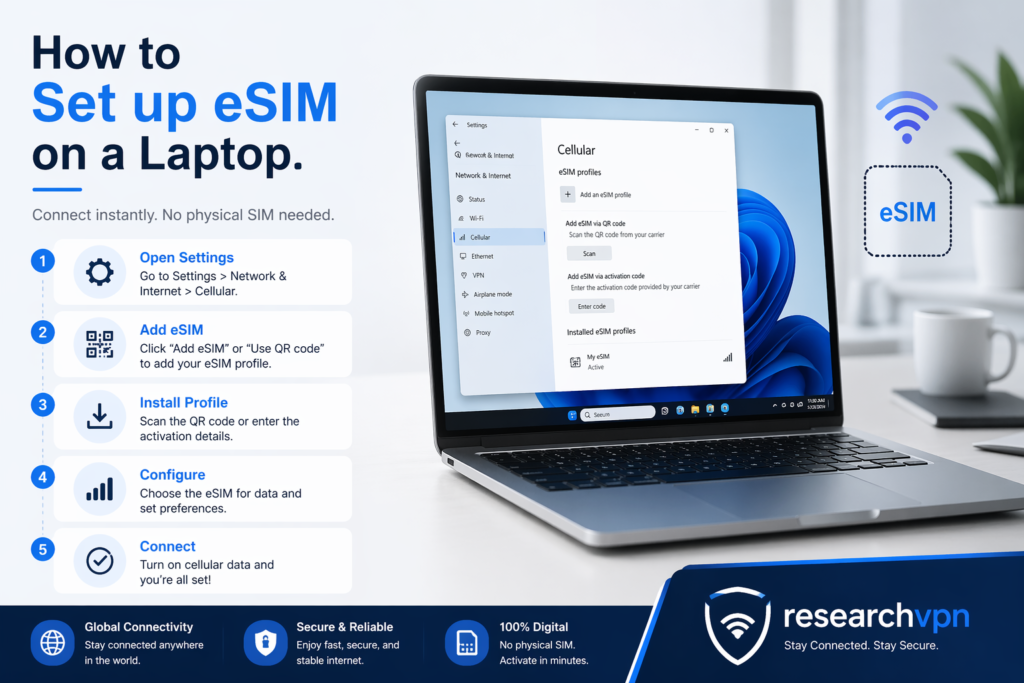
Next, choose the option to scan a QR code and use your laptop’s camera to scan it. If scanning isn’t available, you can manually enter the activation code. Once added, the eSIM profile will be installed on your device.
After installation, select the eSIM profile as your active cellular connection. You can also adjust settings like data roaming, preferred network type, and whether to use cellular as a backup when Wi-Fi is unavailable.
Finally, turn on cellular data, and your laptop should connect to the internet instantly. eSIM is especially useful for travelers and remote workers because it allows quick switching between networks without swapping physical SIM cards.
Setting up an eSIM on a Mac laptop is simple, but there’s one important thing to know first: most MacBooks, including models from Apple, do not have built-in eSIM support for cellular data like smartphones or some Windows laptops do. Instead, Macs rely on Wi-Fi or external solutions for internet connectivity.
If you still want to use eSIM with your Mac, you can do it indirectly. The most common method is using an eSIM-enabled smartphone (like an iPhone) and sharing its connection. For example, on an iPhone, you can activate your eSIM through your carrier by scanning a QR code or using their app. Once the eSIM is active, turn on Personal Hotspot. Then, on your MacBook, go to Wi-Fi settings and connect to your phone’s hotspot network. This effectively gives your laptop internet access through your eSIM plan.
Another option is using a portable Wi-Fi device (also called a mobile hotspot) that supports eSIM. These devices connect to cellular networks using eSIM and then broadcast Wi-Fi for your Mac to use. This can be useful if you need a more stable connection for work or travel.
Some newer Macs with cellular ambitions may support eSIM in the future, but as of now, direct setup on macOS isn’t available. So, while you can’t install an eSIM profile directly on your Mac, you can still enjoy its benefits by connecting through other devices.
What Is an eSIM, and Why Does It Matter for Laptops?
An eSIM (embedded SIM) is a digital SIM card that’s soldered directly onto your device’s motherboard. Unlike a physical SIM card that you insert and remove, an eSIM is programmed electronically. You download a carrier profile, and your device connects to that network.
For laptops, this means you can get a mobile data plan without a USB dongle, a mobile hotspot, or a physical SIM slot. You just activate the plan, and your laptop has its own cellular internet connection — the same way a smartphone does.
This is especially useful for:
- Remote workers who travel and need reliable internet in hotels, trains, or cafés
- Students who move between campuses or cities
- People in areas where Wi-Fi is unreliable or unavailable
How to Set up eSIM on Laptop: Does Your Laptop Support eSIM?
Before anything else, check whether your laptop actually has eSIM capability. Not all laptops do.
Laptops That Typically Support eSIM
Windows Laptops:

- Most recent Surface Pro and Surface Laptop models (Surface Pro 9, Surface Laptop 5, Surface Pro X, etc.)
- Several Dell Latitude and XPS models (look for “LTE” or “5G” variants)
- Lenovo ThinkPad X1 Carbon with LTE/5G
- HP EliteBook with integrated LTE
- Samsung Galaxy Book with LTE
macOS:
- MacBook Air (M2, 2022 and later)
- MacBook Pro (M2 and later models)
Practical tip: Check the box your laptop came in or look at the product specs page on the manufacturer’s website. Search the model number followed by “eSIM” or “LTE.” If it mentions “built-in cellular” or “nano-SIM + eSIM,” you’re good.
How to Check If Your Windows Laptop Has eSIM

- Click the Start menu and go to Settings
- Go to Network & Internet
- If you see a Cellular option in the left panel, your laptop supports cellular/eSIM.
- If there’s no Cellular option, your laptop likely doesn’t have an eSIM chip.
How to Check on Mac
- Click the Apple menu → About This Mac
- Click More Info (or System Report in older macOS versions)
- Look under Network → Cellular or check if your Mac shows a cellular option in System Settings
Setting Up eSIM on a Windows Laptop
Windows 11 (and Windows 10) has built-in eSIM support through the Cellular Settings section. Here’s how to set it up from scratch.
Step 1: Make Sure Cellular is Enabled
- Open Settings → Network & Internet → Cellular
- If you see the Cellular section, the hardware is present
- Make sure cellular is toggled On
Step 2: Get an eSIM Plan from a Carrier
You need to buy a data plan that supports eSIM. Some popular options:
- T-Mobile (US) — offers eSIM plans for laptops
- AT&T (US) — supports eSIM on select devices
- Truphone — international eSIM plans, good for travelers
- Airalo — prepaid eSIM marketplace, works in 200+ countries
- GigSky — another travel-focused eSIM provider
After purchasing, the carrier will give you either:
- A QR code to scan
- An activation code (a long string of text)
Step 3: Add the eSIM Profile
- Go to Settings → Network & Internet → Cellular
- Click Add a cellular plan (or “Add eSIM” depending on your Windows version)
- Choose one of two options:
- Scan a QR code — Use your laptop’s camera or another device to display the QR code
- Enter a code manually — Type in the activation code from your carrier
- Follow the on-screen prompts to complete activation
- Once done, the plan will appear under Cellular plans
Step 4: Connect to the Cellular Network
- Go back to Cellular settings
- Select the plan you just added
- Toggle it On
- Click the network icon in the taskbar — you should see your cellular connection list.d
Example: If you’re using an Airalo plan for a trip to Germany, you’d buy their “Eurolink” plan, receive a QR code via email, scan it in Cellular Settings, and your laptop would connect to a local German carrier automatically when you land.
Setting Up eSIM on a MacBook
Apple started supporting eSIM on MacBooks from the M2 generation. Here’s how to set it up.

Step 1: Check Cellular Settings
- Click Apple menu → System Settings
- Look for Cellular in the left sidebar
- If it’s there, your MacBook supports eSIM
Step 2: Buy an eSIM Plan
Same as with Windows — you’ll need a plan from a carrier that supports MacBook eSIM. Apple has an eSIM store built into macOS, but you can also use third-party providers like Airalo or your local carrier.
Using Apple’s built-in option:
- Go to System Settings → Cellular
- Click Add a New Plan
- macOS will open the carrier store, where you can browse and buy plans
Using a third-party provider:
- Purchase a plan and get your QR code or activation code
- Go to System Settings → Cellular → Add a New Plan
- Select Use QR Code or Enter Details Manually
Step 3: Activate and Connect
- After the profile downloads, name it if you’d like (e.g., “Italy Trip” or “Home Plan”)
- Toggle the plan on
- In your menu bar, click the Wi-Fi icon — you’ll now see a cellular data option.
Practical example: A freelancer traveling between London and Paris might have two eSIM profiles — one UK plan and one French plan — and just toggle between them in System Settings without ever touching a physical SIM card.
Managing Multiple eSIM Profiles
Both Windows and macOS let you store multiple eSIM profiles on one device. You can only use one at a time (on most laptops), but switching is easy.
On Windows:
- Go to Settings → Network & Internet → Cellular
- Under Cellular plans, select which one to use
On Mac:
- Go to System Settings → Cellular
- Click the plan you want to activate and toggle it on (the others will turn off automatically)
This is great if you travel often. Set up a home plan and a travel plan, then switch when you land.
Pros and Cons of Using eSIM on a Laptop
Pros
1. No physical SIM needed. You never have to find a store, buy a SIM card, or wait for one to arrive by mail. You can activate a plan in minutes, even at midnight, from your hotel room.
2. Multiple plans on one device. Store several carrier profiles and switch depending on where you are. Great for international travel.
3. More durable. No SIM slot means one less thing that can break, get clogged with dust, or stop working.
4. Faster activation. Buying a prepaid data plan through Airalo or your carrier takes about 5 minutes. Compare that to walking into a store.
5. Secure eSIMs are harder to physically steal or clone than a traditional SIM card.
Cons
1. Not all laptops support it. This is still a fairly new feature. Older laptops (anything before 2020–2021) are unlikely to have eSIM hardware. Budget laptops often skip it, too.
2. Carrier compatibility can be tricky. Not every carrier supports eSIM for laptops specifically. A carrier might support eSIM on phones but not computers. Always check before you buy.
3. Locked to the device. Unlike a physical SIM, you can move between devices; an eSIM profile is tied to the laptop it was activated on (in most cases). If your laptop gets replaced, you may need to transfer the plan.
4. Can drain battery faster. Using cellular data consumes more power than Wi-Fi. If you’re on battery, expect shorter usage times.
5. Limited in some regions. In some countries, eSIM for laptops isn’t widely supported yet. You may find fewer plan options or higher prices compared to physical SIM options.
Troubleshooting Common eSIM Issues
Cellular option missing in Settings. Your laptop may not have the eSIM hardware. Double-check the specs. If you’re on Windows, make sure your drivers are up to date — go to Device Manager and check for LTE/modem-related devices.
QR code not scanning. Try increasing the brightness on whatever device is displaying the QR code. Move to a well-lit area. Alternatively, ask your carrier for the manual activation code.
Plan activated, but no connection.
- Check if cellular is toggled on
- Restart your laptop
- Make sure the plan hasn’t expired or run out of data
- Confirm the carrier has coverage in your area
The plan disappeared after the update. Some system updates can reset eSIM profiles. Keep your activation QR code or contact your carrier to re-add the plan.
Frequently Asked Questions (FAQs)
Can I use eSIM on any laptop?
No. Your laptop needs to have an embedded eSIM chip. This is usually found in premium business laptops, Surface devices, and newer MacBooks. Budget laptops typically don’t include it. Check your laptop’s specs before purchasing any plan.
Is eSIM on a laptop the same as eSIM on a phone?
The technology is the same, but the implementation can differ. Not all carriers that offer eSIM for phones also support laptops. When shopping for a plan, specifically look for “eSIM for laptop” or “eSIM for PC” support.
How much does an eSIM data plan for a laptop cost?
It varies a lot. Prepaid travel plans from providers like Airalo can start around $5–$10 for a week of data in one country. Monthly plans from carriers like T-Mobile or AT&T typically cost $10–$30/month for a data-only plan. Some carriers offer shared data plans where your laptop uses data from your existing phone plan.
Can I have both Wi-Fi and eSIM active at the same time?
Yes. Your laptop can stay connected to Wi-Fi and have eSIM available as a backup. Windows lets you set preferences for which connection to use first. This is handy if you want Wi-Fi as the primary connection and cellular as a fallback.
Will using eSIM affect my laptop’s performance?
Not noticeably. The eSIM chip uses very little processing power. The main impact is battery — cellular data uses more energy than Wi-Fi, so expect 10–20% less battery life when actively using cellular.
Can I transfer my eSIM plan to a new laptop?
This depends on the carrier. Some allow you to transfer eSIM plans by contacting customer support. Others require you to buy a new plan. Check your carrier’s policy before upgrading your laptop.
Do I need a Wi-Fi connection to activate an eSIM?
Usually, yes — at least initially. To download the carrier profile, your laptop needs some form of internet access. Once activated, it works independently. Some activation processes work offline using a manual code, but it’s less common.
Is eSIM more expensive than a regular SIM?
Not necessarily. The plans themselves are often priced the same. In some cases, eSIM travel plans from providers like Airalo or Nomad are actually cheaper than buying a physical SIM card at an airport.
Conclsion
Setting up an eSIM on a laptop isn’t complicated once you know your device supports it. The hardest part is often just finding that out and choosing the right carrier plan. Once you’ve done it once, activating a new plan in a new country takes five minutes flat.
If you travel for work, study in different locations, or just want a reliable backup to café Wi-Fi, eSIM is genuinely worth exploring. It’s one of those small upgrades that quietly make daily life smoother.
Start by confirming your laptop model supports eSIM, pick a plan that fits your usage, and follow the steps above. You’ll wonder why you ever bothered with physical SIM cards.

