
If you’ve ever been stuck at an airport with no Wi-Fi, or tried to work from a café only to find their internet barely loads a webpage, you already understand why built-in cellular connectivity on laptops is a game-changer. eSIM technology makes this possible — no physical SIM card, no dongle, no mobile hotspot draining your phone battery.
But a lot of people How to Use eSIM in a Laptop buy an eSIM-compatible laptop and then have no idea how to actually set it up. This guide walks you through everything — how to check if your laptop supports eSIM, how to activate it, and how to get the most out of it day to day.
What Is an eSIM, and Why Does It Matter for Laptops?
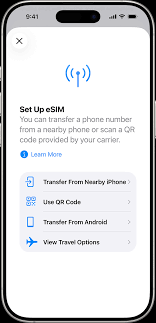
An eSIM (embedded SIM) is a small chip built directly into your device. Unlike a regular SIM card, you don’t insert or remove it — it’s permanently part of the hardware. You activate it digitally by scanning a QR code or entering an activation code from your carrier.
For laptops, this means you can connect to a cellular network — 4G LTE or 5G — without needing your phone, a portable hotspot, or a USB dongle. You get your own data connection directly on the laptop. an eSIM
This is especially useful if you travel frequently, work remotely from different locations, or just want a backup connection when Wi-Fi is unreliable.
Does Your Laptop Support eSIM?
Before anything else, you need to confirm your laptop actually has an eSIM chip. Not every laptop does — in fact, most budget and mid-range laptops still don’t include one.
Laptops that commonly support eSIM:
- Dell Latitude and XPS series (select models from 2020 onward)
- HP EliteBook and Spectre x360 (select models)
- Lenovo ThinkPad X1 Carbon and ThinkPad X1 Yoga (from Gen 7 onward)
- Microsoft Surface Pro (Surface Pro 9 and later with 5G)
- Samsung Galaxy Book series (select models)
- Apple MacBook — as of 2026, MacBooks still do not support cellular eSIM for data
How to check if your laptop has eSIM:
On Windows 11, go to: Settings → Network & Internet → Cellular. If this option appears, your laptop has an eSIM or SIM slot. If it’s missing entirely, your laptop doesn’t support cellular connectivity.
You can also check your laptop’s spec sheet — look for “LTE,” “5G,” or “eSIM” under connectivity. If none of these appear, the laptop is Wi-Fi only.
Practical example: Say you bought an HP Spectre x360 14. Go to Settings → Network & Internet. If you see a “Cellular” section, you’re good to go. If not, your specific configuration may be the Wi-Fi-only variant — many laptops come in both versions.
How to Use eSIM in a Laptop (2026): step-by-step
Step-by-Step: How to Set Up eSIM on a Windows Laptop

Step 1: Check Your Laptop’s Cellular Hardware
Open Settings → Network & Internet → Cellular. If it shows up, your laptop is eSIM-ready. You’ll typically see a message like “No SIM” or “Insert SIM” if no plan is activated yet.
Step 2: Choose a Carrier or eSIM Provider
This is where most people get confused. You have two options:
Option A – Use your existing carrier. Contact your mobile carrier (Jio, Airtel, Vi in India, or AT&T, T-Mobile, Verizon in the US) and ask if they support eSIM for laptops. Some carriers offer a “companion plan” or “data-only SIM” that works on laptops. They’ll give you a QR code or activation code. an eSIM
Option B – Use a third-party eSIM provider. Services like Airalo, Nomad, or Holafly sell eSIM data plans specifically for travel or standalone device use. You buy a plan, get a QR code in your email, and activate it on your laptop. This is often the easiest route for travellers who need short-term data. an eSIM
Practical example: If you’re heading to Europe for two weeks and need internet on your Dell laptop, buy a regional European eSIM from Airalo. You’ll get a QR code within minutes of purchase, and you can activate it before you even board the plane. an eSIM
Step 3: Add a Data Plan to Your eSIM
On Windows 11:
- Go to Settings → Network & Internet → Cellular
- Click Add a data plan or Set up eSIM
- You’ll be given an option to scan a QR code or enter a confirmation code manually
- Scan the QR code your carrier or eSIM provider sent you
- Follow the prompts to complete activation
Once done, your laptop will show the carrier name and signal bars in the taskbar — the same way your phone does.
Step 4: Connect to the Cellular Network
After activation, the cellular connection should appear in your list of available networks. Click the network icon in the taskbar, select your cellular connection, and toggle it on.
You can set preferences like:
- Let Windows use this connection automatically when Wi-Fi isn’t available
- Set as a metered connection to prevent background apps from eating through your data
Tip: Go to Settings → Network & Internet → Cellular → Advanced options and turn on “Let this connection be used when Wi-Fi isn’t available” if you want seamless automatic switching.
Step-by-Step: How to Set Up eSIM on a MacBook

Here’s the important caveat: as of 2026, standard MacBooks do not support cellular eSIM data plans. The eSIM chip present in MacBooks is used for Apple features (like Activation Lock and Find My) — not for connecting to carrier data networks.
If you want cellular connectivity on a Mac, your options are:
- Use an iPhone hotspot (via USB or Wi-Fi — very seamless on Apple devices)
- Use a USB dongle or MiFi device with a physical or eSIM plan
This guide will focus on Windows-based laptops going forward, since that’s where laptop eSIM support actually exists.
How to Manage Multiple eSIM Profiles

One of the advantages of eSIM over a physical SIM is that your laptop can store multiple carrier profiles and you can switch between them without swapping cards.
How to switch between eSIM profiles on Windows 11:
- Go to Settings → Network & Internet → Cellular
- Under “Choose a SIM,” select the profile you want to use
- Toggle it on
Practical example: You travel regularly between India and Singapore. You have an Airtel eSIM profile for when you’re in India and a Singtel profile for Singapore. Before your flight, switch to the Singtel profile in Settings so it connects automatically when you land.
Note that most eSIM providers allow you to have multiple profiles stored, but only one can be active at a time.
Managing Data Usage on Your Laptop
Cellular data is not the same as your home broadband — it’s metered and has limits. Running Windows Update or a cloud backup over cellular is a quick way to blow through your plan.
How to limit data usage on Windows 11:
- Go to Settings → Network & Internet → Cellular → Data usage
- Set a data limit so Windows alerts you before you hit your cap
- Mark the connection as “Metered” — this automatically restricts background download and eSIM
Apps that burn data quietly in the background:
- Windows Update
- OneDrive and Dropbox syncing
- Browser auto-updates
- Antivirus definition updates
Turn automatic syncing off or schedule it for when you’re on Wi-Fi.
Pros and Cons of Using eSIM in a Laptop
Pros
Always-on connectivity: You’re not dependent on finding Wi-Fi. Open your laptop, and you’re online — at the airport, on a train, in a hotel with terrible Wi-Fi.
No physical SIM hassle: No fumbling for SIM cards, no carrying adapters, no risk of losing a tiny piece of plastic.
Great for travel: Buy a regional eSIM plan before you leave, activate it instantly, and avoid roaming charges. Services like Airalo offer affordable regional plans across Asia, Europe, and the Americas. an eSIM
Keeps your phone free: Your phone battery isn’t being drained running a hotspot for hours while you work. an eSIM
Backup connection: Even if you mostly use Wi-Fi, eSIM gives you a reliable fallback when the Wi-Fi fails — which it will, inevitably, at the worst possible moment. an eSIM
Secure: No physical SIM means no SIM swapping attacks targeting your laptop connection. an eSIM
Cons
Not all laptops support it: eSIM is still not standard across the laptop market. You often pay a premium for a model that includes cellular capability, and even within a product line, not every variant has it.
Data plans can be expensive: Cellular data for laptops isn’t as cheap as your phone plan, especially if you need large amounts of data.
MacBooks are excluded: If you’re in the Apple ecosystem, this feature isn’t available to you for direct laptop use.
Single active profile at a time: While you can store multiple profiles, you can’t run two simultaneously — so switching still requires a manual step.
Carrier support varies: Not every carrier supports eSIM on laptops. Your favourite carrier might support eSIM on phones, but not on laptops specifically.
Battery impact: Maintaining a cellular connection draws more power than Wi-Fi, so expect slightly shorter battery life when using eSIM.
Best Use Cases for Laptop eSIM
Frequent business travellers: If you’re hopping between cities or countries every week, eSIM removes the headache of buying local SIM cards or paying roaming fees.
Remote workers without a fixed location: If you work from coworking spaces, cafés, or client offices, having your own reliable data connection means you’re not dependent on whatever Wi-Fi is available. an eSIM
Journalists and field workers: For people who need to file reports or upload content from locations where internet access is unpredictable, a laptop eSIM is a reliable backup. an eSIM
Students in commute-heavy situations: If you spend significant time on trains or buses and want to study or work productively, eSIM makes your laptop self-sufficient. an eSIM
Event coverage and on-site work: At trade shows, construction sites, or pop-up events where Wi-Fi is usually terrible or non-existent. an eSIM
Troubleshooting Common eSIM Issues on Laptops
The Cellular option doesn’t appear in Settings. Your laptop likely doesn’t have an eSIM chip, or the driver isn’t installed. Check your laptop’s product page for LTE/5G support. If it’s supported, go to Device Manager and look for a mobile broadband device — you may need to reinstall drivers.
QR code scan isn’t working. Try entering the activation code manually instead of scanning. The QR code scan in Windows can sometimes fail if the camera resolution is low. Your carrier’s QR code also comes with a manual activation code — use that.
Connected, but no internet. Check that your APN settings are correct. Go to Settings → Network & Internet → Cellular → Advanced options → Add an APN. Your carrier’s APN details are usually on their website or available through customer support.
Connection keeps dropping. This is often a signal issue. Check your carrier’s coverage map for your area. Also, try toggling the cellular connection off and on. If it persists, restart the laptop with cellular enabled and let it re-register on the network.
eSIM plan expired or used up. The connection will drop when your plan runs out. Go back to your eSIM provider’s app or website, purchase a new plan, and activate it using a new QR code or top-up option.
Frequently Asked Questions
Can I use any carrier for my laptop’s eSIM?
Not necessarily. Your laptop’s eSIM must work with carriers that support eSIM on laptop devices specifically — not just on phones. Check your laptop manufacturer’s website for a list of compatible carriers, and confirm with the carrier before buying a plan.
Does using eSIM on a laptop affect my phone’s plan?
No — your laptop eSIM is completely separate from your phone. You’ll need a separate data plan for the laptop unless your carrier offers a multi-device plan that covers both.
Can I use my phone’s number or plan on my laptop’s eSIM?
Some carriers offer a “companion” or “NumberShare” feature that lets your laptop share your phone’s number and data plan. This varies by carrier and region — ask your carrier specifically if this is available.
Is eSIM on a laptop faster than a mobile hotspot?
In most cases, the speed is similar since both rely on the same cellular network. However, a direct eSIM connection can be slightly more stable because there’s no intermediate Wi-Fi hop between your phone’s hotspot and your laptop.
Can I remove or switch eSIM plans easily?
Yes. On Windows 11, you can delete an eSIM profile from Settings → Network & Internet → Cellular → Manage eSIM profiles. Adding a new plan just requires scanning a new QR code.
Does eSIM work in airplane mode?
No. Airplane mode disables all wireless radios, including cellular. You can manually re-enable Wi-Fi in airplane mode (by toggling just Wi-Fi back on), but cellular will stay off until you turn airplane mode off.
Is a laptop eSIM available in India?
Yes, Airtel and Jio both support eSIM on select laptop models. Plans and availability vary, so check directly with the carrier. Third-party providers like Airalo also work well for travel-focused use cases.
What happens if I lose my laptop — can someone use my eSIM plan?
Your eSIM plan is tied to the device’s hardware, not a transferable card. If someone else gets hold of your laptop and logs in, they could potentially use your active plan. This is one more reason to use strong login passwords and BitLocker encryption on your device.
Conclsion
Using eSIM on a laptop is genuinely one of those features that sounds technical but, once set up, just quietly makes your life easier. The setup takes maybe 15 minutes, and after that, your laptop connects to the internet wherever you are — no hotspot, no dongle, no asking café staff for the Wi-Fi password. an eSIM
The main things to keep in mind: confirm your laptop model actually supports eSIM before you buy a plan, choose a carrier or eSIM provider that works in your region, and mark the connection as metered so you don’t accidentally burn through your data plan in a single afternoon of Windows updates.an eSIM

