
Adding an eSIM to a laptop is becoming more common as people want internet access anywhere without relying on Wi-Fi or physical SIM cards. If you travel, work remotely, or want a backup internet connection, eSIM can be a game-changer.

In this guide, you’ll learn:
- What eSIM is and how it works on laptops
- Which laptops support eSIM
- Step-by-step setup instructions
- Real-life examples
- Pros and cons
- Common problems and fixes
How to Add eSIM to Laptop. Let’s start simple.
What is eSIM on a Laptop?
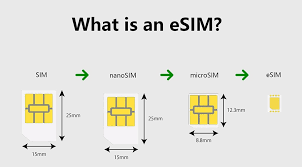
An eSIM (embedded SIM) is a digital SIM built into your laptop. Instead of inserting a physical SIM card, you activate a mobile data plan using a QR code or activation details.
Example:
- With a normal SIM → you insert a chip
- With eSIM → you scan a QR code and connect
This means no swapping SIM cards, no tiny trays, and no risk of losing anything.
Does Your Laptop Support eSIM?

Before you try anything, check if your laptop actually supports eSIM.
Common eSIM-supported laptops:
- Microsoft Surface Pro (LTE versions)
- Microsoft Surface Laptop (LTE models)
- Lenovo ThinkPad X1 Carbon (LTE models)
- HP Elite Dragonfly
- Dell Latitude (selected LTE versions)
👉 Important:
Not all laptops support eSIM. Your device must have:
- Built-in cellular (LTE/5G)
- eSIM capability enabled
How to Check eSIM Support (Quick Method)
On Windows:
- Go to Settings
- Click Network & Internet
- Look for the cellular option
If you see:
👉 “eSIM profiles” or “Add a data plan” → your laptop supports eSIM
If not → your laptop likely doesn’t support it.
How to Add eSIM to Laptop (Step-by-Step)
How to Add eSIM to Laptop. Now, let’s go through the actual process.
Step 1: Get an eSIM Plan
First, you need an eSIM plan from a mobile carrier.
Popular options:
- Airtel eSIM
- Jio eSIM
- International providers (for travel)
They will give you:
- QR code
- Activation code
Step 2: Open Cellular Settings
On Windows 10/11:
- Go to Settings
- Click Network & Internet
- Select Cellular
Step 3: Add eSIM Profile
- Click Manage eSIM profiles
- Select Add new profile
- Click Scan QR code
Now scan the QR code provided by your carrier.
Step 4: Activate the Plan
After scanning:
- The plan will download
- Your laptop will connect to the mobile network
You can now use mobile data directly.
Step 5: Set as Default (Optional)
If you want your laptop to always use eSIM:
- Enable Use this SIM for cellular data
Real-Life Example
Imagine you’re traveling from India to Dubai.
Without eSIM:
- You buy a local SIM
- Insert it into your phone
- Use a hotspot for a laptop
With eSIM laptop:
- Scan QR code
- Instant internet
- No hotspot needed
Benefits of Using eSIM on a Laptop

1. No Physical SIM Needed
No more handling small SIM cards.
2. Instant Activation
You can activate a plan in minutes.
3. Great for Travel
Switch networks without buying new SIM cards.
4. Always Connected
Useful for:
- Remote work
- Online meetings
- Emergency internet
5. Multiple Profiles
You can store multiple eSIM plans and switch anytime.
Drawbacks of eSIM on a Laptop
1. Limited Device Support
Not all laptops support eSIM.
2. Carrier Restrictions
Some providers don’t support laptop eSIM.
3. Setup Can Be Confusing
Especially for beginners.
4. Battery Usage
Cellular connection may drain the battery faster.
eSIM vs Physical SIM (Laptop Use)
| Feature | eSIM | Physical SIM |
|---|---|---|
| Setup | Digital | Manual |
| Flexibility | High | Low |
| Travel | Easy | Needs new SIM |
| Convenience | Very high | Moderate |
| Availability | Limited | Widely available |
Best Use Cases for eSIM Laptop
1. Remote Workers
Stay connected anywhere.
2. Business Travelers
Avoid roaming charges.
3. Students
Internet backup during outages.
4. Digital Nomads
Work from different countries easily.
Troubleshooting Common Problems
Problem 1: QR Code Not Working
Fix:
- Check the internet connection
- Ask the carrier for a new QR code
Problem 2: No Cellular Option
Fix:
- Your laptop may not support eSIM
- Check specifications
Problem 3: Slow Internet
Fix:
- Move to a better signal area
- Switch network provider
Problem 4: eSIM Not Activating
Fix:
- Restart laptop
- Re-add profile
Tips for Better eSIM Experience
1. Choose a Reliable Carrier
Signal strength matters more than price.
2. Keep Backup Wi-Fi
eSIM is great, but not perfect everywhere.
3. Monitor Data Usage
Laptop apps use more data than phones.
4. Update Your System
New updates improve connectivity.
Is eSIM Safe to Use on a Laptop?
Yes, eSIM is generally safe.
It offers:
- Encrypted connections
- No physical SIM theft
- Secure activation
But always:
- Use trusted carriers
- Avoid public network risks
FAQs:-
1. Can all laptops use eSIM?
No. Only laptops with built-in LTE/5G and eSIM support can use it.
2. Do I need the internet to activate eSIM?
Yes, usually Wi-Fi is needed to download the eSIM profile.
3. Can I use the same eSIM on a phone and a laptop?
No. eSIM profiles are usually device-specific.
4. Is eSIM better than a hotspot?
Yes, it gives a direct connection and better stability.
5. Can I remove or change the eSIM?
Yes, you can delete and add new profiles anytime.
6. Does eSIM cost extra?
The setup is usually free, but you pay for the data plan.
Conclsion
Learning how to add an eSIM to a laptop is simple once you understand the basics.
It’s perfect if you:
- Travel frequently
- Work remotely
- Need reliable internet anywhere
Simple Strategy:
- Check if your laptop supports eSIM
- Get a plan from a carrier
- Scan QR code
- Connect instantly
That’s it.
eSIM is not just a feature — it’s the future of connectivity. Once you start using it, going back to physical SIM cards feels outdated.eSIM Plan

