
Got a shiny new Google Pixel 9a and wondering how to get your eSIM up and running? You’re in the right place. Whether you just switched from an iPhone, bought the phone unlocked, or simply want to add a second number without carrying two phones, this guide walks you through the whole process, step by step.
No tech background needed. If you can tap through a few Settings menus, you can do this.
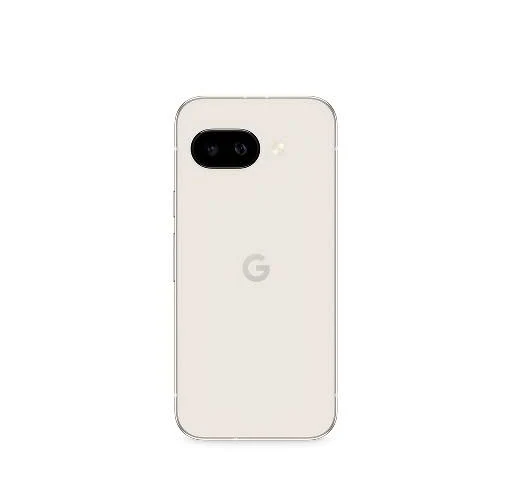
The Google Pixel 9a is a well-balanced smartphone designed for users who want premium features at a more affordable price. It comes with a sleek design, a bright 6.3-inch OLED display, and a smooth 120Hz refresh rate that makes scrolling and everyday use feel fast and responsive. Powered by the Google Tensor G4 processor, the phone handles daily tasks like browsing, social media, and multitasking with ease, while also supporting smart AI-based features that improve performance and usability.
How to Set up eSIM in Google Pixel 9a. One of the biggest highlights of the Pixel 9a is its camera system. It features a 48MP main camera and a 13MP ultrawide lens, capable of capturing detailed and natural-looking photos in different lighting conditions. Google’s advanced software features, such as Night Sight and Magic Eraser, further enhance the photography experience, making it ideal for casual users and content creators alike.
The phone is equipped with a large battery that easily lasts a full day, along with support for fast and wireless charging. It runs on a clean version of Android, free from unnecessary apps, and receives long-term software updates directly from Google. Overall, the Pixel 9a offers excellent value, especially for users who prioritize camera quality, software experience, and reliability in a smartphone.
Does the Google Pixel 9a Support eSIM?
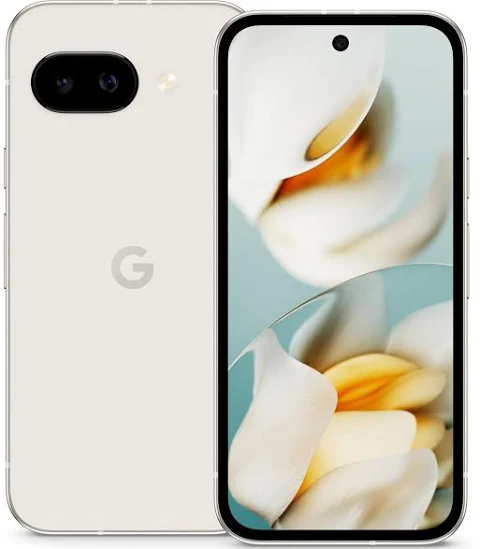
Yes, absolutely. The Pixel 9a fully supports eSIM technology. It comes with one physical nano-SIM card slot and built-in eSIM support, which means you can run two lines at the same time without needing a second SIM tray.
You get two configuration options:
- Physical SIM + eSIM — Keep your existing SIM card in the slot and add an eSIM from a different carrier
- Dual eSIM — Skip the physical card entirely and run two eSIM profiles simultaneously
The phone also supports Dual SIM, Dual Standby (DSDS). That means both your lines stay active in the background, and when a call comes in on either one, your phone rings. Pretty handy if you use separate numbers for work and personal use.
One important note: eSIM availability can vary by carrier and country. Before you start, confirm that your mobile carrier actually supports eSIM on the Pixel 9a.
Before You Begin — Quick Checklist
Don’t skip this part. A few minutes of prep now saves a lot of frustration later.
- Your phone is unlocked — Carrier-locked Pixel 9a units may block third-party eSIM profiles. If you bought the phone directly from your carrier, call them and ask if eSIM is enabled on your account.
- Wi-Fi is connected — eSIM activation needs a working internet connection. Mobile data from your existing SIM works too, but Wi-Fi is more reliable for this.
- Your Android is updated — Go to Settings → System → System update and install any pending updates. This ensures the eSIM manager works without glitches.
- You have your carrier’s eSIM details ready — This is usually a QR code sent to your email, an activation code, or access through your carrier’s app.
- Your old phone is turned off (if you’re migrating a number) — If you’re moving your number from another device to the Pixel 9a, power that phone off before activating. Forgetting this step is one of the most common causes of activation errors.
How to Set up eSIM in Google Pixel 9a: step-by-step
Method 1: Set Up eSIM During Initial Phone Setup
If you just unboxed your Pixel 9a and haven’t gone through the setup wizard yet, this is the easiest route.
- Turn on your Pixel 9a and follow the on-screen setup instructions.
- When you reach the SIM setup screen, tap Download SIM or Set up.
- The phone will scan for available carrier options automatically.
- Select your carrier from the list or choose Use a different network if yours isn’t showing.
- Follow the on-screen prompts to complete activation.
Some carriers auto-detect your eSIM details if your IMEI was already registered with them at the time of purchase. In that case, you’ll get a notification to connect — just tap it, and you’re done.
If your SIM isn’t detected automatically, don’t panic. You can always set it up manually after the initial setup is complete.
Method 2: Add eSIM from Settings (Most Common Method)
Already set up your phone but skipped the eSIM step? No problem. This is how most people do it.
- Open the Settings app.
- Tap Network & Internet.
- Tap SIMs.
- Tap the “+” (Add) icon or select Add eSIM.
- The phone will ask how you want to add the eSIM. You’ll see a few options — choose the one that matches what your carrier sent you.
From here, there are three ways to finish the setup depending on what your carrier provided.
Method 2A: Scan a QR Code

This is the most common method carriers use.
- Your carrier will email you a QR code or show it in their app.
- After tapping Add eSIM, choose Scan QR code.
- Point your Pixel 9a camera at the QR code.
- Once scanned, tap Activate or Confirm.
- Wait a minute or two while the eSIM profile downloads.
- Restart your phone when prompted.
Quick tip: If you’re trying to scan a QR code that’s on the same phone’s screen (say, displayed in your carrier’s app), this won’t work since your camera can’t scan its own screen. In that case, use a second device to display the QR code, or switch to the manual entry method below.
Real-world example: Say you bought a local travel eSIM from a provider like Airalo or Ubigi before a trip abroad. They email you a QR code. You scan it from the Settings menu, activate it, and by the time your flight lands, your data plan is ready to go — no SIM card hunting at the airport.
Method 2B: Enter an Activation Code Manually
If QR scanning isn’t an option, you can type in the activation details.
- After tapping Add eSIM, look for Enter activation code or Use activation code.
- Type in the SM-DP+ address and activation code provided by your carrier.
- Tap Connect or Activate.
- Follow the remaining on-screen steps.
This method is useful if your QR code isn’t scanning clearly, or if you received your activation details as a text string rather than an image.
Method 2C: Use Your Carrier’s App

Several major carriers — including T-Mobile, Verizon, and AT&T — have their own apps that handle eSIM activation in-app without needing a QR code at all.
- Download your carrier’s official app from the Play Store.
- Log in to your account.
- Look for an option like Set up eSIM, Activate eSIM, or Manage SIM.
- Follow the in-app instructions.
This is often the fastest route if you’re staying with your current carrier and simply want to add the eSIM to a new device.
After Activation — Managing Your eSIMs
Once your eSIM is active, you can control how your two lines work from the same Settings menu.
Go to Settings → Network & internet → SIMs.
From here you can:
- Rename your eSIM profile — Instead of a string of numbers, label it something readable like “Work Line” or “Travel Data”. Makes switching much easier.
- Set default SIM for calls — Choose which line handles outgoing calls by default.
- Set default SIM for data — Assign which line handles mobile data. If you’re using a travel eSIM abroad, set it as the data default and keep your home SIM for calls and texts.
- Enable or disable a SIM — Toggle any line on or off without deleting the profile.
- Enable data roaming — If you’re using a travel eSIM, make sure data roaming is turned on specifically for that line.
Pro tip: You can store multiple eSIM profiles on the Pixel 9a and switch between them without re-downloading. For frequent travelers, this is a game-changer. Keep a Japan eSIM, a Europe eSIM, and a US eSIM all stored on the phone — just activate the right one when you land.
Pros and Cons of Using eSIM on Google Pixel 9a
Pros
No physical SIM card needed — Activating a new plan takes minutes, not a trip to a carrier store. Great when you’re in another country and don’t want to hunt for a local SIM.
Dual SIM made easy — Running two numbers on one phone used to require phones with two SIM slots. eSIM makes dual-SIM standard on any modern device.
Easy carrier switching — Not happy with your carrier? You can switch without waiting for a physical SIM to arrive in the mail. Several carriers let you switch entirely online.
Travel-friendly — Buy a local data eSIM before you leave, activate it when you land, and avoid expensive roaming charges. No cutting SIM cards, no adapters.
Eco-friendly — Less plastic waste from physical SIM cards and their packaging.
More secure — eSIMs are harder to steal or clone compared to a physical SIM card, which you could drop or lose.
Cons
Not all carriers support it — Smaller regional carriers may not offer eSIM yet. Always confirm with your carrier before assuming it works.
Carrier-locked phones are a headache — If your Pixel 9a is locked to a specific carrier, adding a third-party eSIM may be blocked until you get it unlocked.
Switching devices is slightly more work — Moving an eSIM to a new phone requires going through the activation process again. You can’t just pull out a SIM card and slot it in.
Can’t transfer eSIM from iPhone — If you’re coming from an iOS device, there’s no cross-platform eSIM transfer. You’ll need to set everything up fresh on the Pixel 9a.
Needs internet to activate — If you’re somewhere with no Wi-Fi and no working SIM, setting up a new eSIM becomes tricky.
Troubleshooting Common eSIM Issues
QR code won’t scan. Make sure the code is well-lit, and your camera lens is clean. If it still fails, ask your carrier for a manual activation code instead.
eSIM activated, ed but no signal. Check that data roaming is enabled for the eSIM line. Also, confirm your carrier’s network covers your current location. If you installed a travel eSIM at home, it’s normal for it to show no signal until you arrive at the destination country.
“Device not supported.d” Error. This usually means your Pixel 9a is carrier-locked. Contact your carrier and ask them to unlock it or confirm eSIM is enabled on your account.
eSIM not activating afte.r scan Restart the phone and try again. Make sure you have a stable internet connection. If the problem continues, contact your carrier — sometimes the eSprofile needs to be reissued on their end.
Accidentally deleted an eSIM profile. Unfortunately, deleted eSIM profiles can’t be recovered from the phone. You’ll need to contact your carrier to get a new activation QR code or code issued.
FAQs
How many eSIM profiles can I store on the Google Pixel 9a?
You can store multiple eSIM profiles on the device, but only two can be active at the same time. You can keep unused profiles saved and activate them whenever you need.
Can I use two eSIMs at the same time on the Pixel 9a?
Yes. The Pixel 9a supports dual eSIM, so you can run two eSIM lines simultaneously without a physical SIM card. You can also combine one eSIM with one physical SIM.
Will eSIM work on a carrier-locked Pixel 9a?
It depends. If the eSIM is from the same carrier the phone is locked to, it should work. Third-party eSIMs may be blocked. Contact your carrier to unlock the device if needed.
Can I transfer my eSIM from my old phone to the Pixel 9a?
If you’re switching from an Android phone, some carriers support eSIM transfer. If you’re coming from an iPhone, there’s no transfer option — you’ll need to re-activate the eSIM from scratch.
Do I need to delete my physical SIM to use eSIM?
No. The Pixel 9a supports both at the same time. You can keep your physical SIM in the slot and run an eSIM alongside it.
Can I use an international eSIM on the Pixel 9a?
Yes. The Pixel 9a works with travel eSIM providers like Airalo, Ubigi, Roamless, and others. Buy the plan online, scan the QR code, and activate it when you land — no local SIM card needed.
What happens to my eSIM if I factory reset my phone?
A factory reset will erase all eSIM profiles stored on the device. You’ll need to contact your carrier to re-issue the eSIM after the reset.
Is eSIM safe to use?
Yes. eSIM is generally considered more secure than a physical SIM since it’s embedded in the phone and can’t be physically removed or swapped by someone else.
Conclsion
Setting up an eSIM on the Google Pixel 9a is genuinely straightforward once you know where to look. The whole process — from opening Settings to having an active line — typically takes less than five minutes if your carrier is eSIM-ready.
The QR code method works for most people. If that gives you trouble, the manual entry or carrier app routes work just as well. And once everything is set up, the dual-SIM flexibility alone makes the switch worth it — especially if you travel, run a side business, or just want to keep work and personal calls neatly separated.
The Pixel 9a handles eSIM better than most phones in its price range. Lean into it.

