
Switching to an eSIM sounds more complicated than it actually is. If you’ve just got a new Android phone, moved to a new carrier, or you’re planning to travel and want a local data plan without swapping physical SIM cards, this guide will walk you through exactly what to do.

No technical background needed. Just follow the steps, and you’ll be connected.
What Is an eSIM, and Why Does It Matter?
A traditional SIM card is the small plastic chip you slide into your phone. An eSIM (embedded SIM) is built directly into your phone’s hardware — you can’t remove it, and you don’t need to. Instead of physically inserting a card, you activate a carrier plan digitally, either by scanning a QR code or downloading a profile through an app.
The result is the same: your phone connects to a network and works as normal. But the process is faster, there’s no risk of losing a tiny piece of plastic, and your phone can hold multiple eSIM profiles at once — switching between them without touching anything physical.
For travellers, this is a game-changer. Instead of hunting for a local SIM shop when you land in a new country, you can activate a local data plan before you even board the plane.
How to set up eSIM on Android phone 2026:-
Does Your Android Phone Support eSIM?
Before anything else, confirm your phone supports eSIM. Most Android phones released from 2019 onwards do, but not all — and even phones that support eSIM hardware may have it disabled by certain carriers.
Android phones that support eSIM include (but aren’t limited to):
- Google Pixel 3 and all newer Pixel models
- Samsung Galaxy S20 and newer (S, Z Fold, and Z Flip series)
- Samsung Galaxy Note 20 series
- Motorola Razr (2019 and newer)
- OnePlus 12 and newer models
- Sony Xperia 10 IV and newer
To check on your specific device: Go to Settings → About phone → SIM status (or search “eSIM” in your Settings search bar). If eSIM options appear, your phone supports it. Alternatively, check your phone manufacturer’s website or look up your model number. Android
Important caveat: If you bought your phone locked to a specific carrier, that carrier may have disabled eSIM functionality for their version of the device. Contact your carrier if you’re unsure. Android
What You’ll Need Before You Start
- An Android phone that supports eSIM
- An active internet connection (Wi-Fi works fine)
- A QR code from your carrier (this is the most common activation method) — or the carrier’s app
- Your account details with the carrier you’re activating
If you’re switching from one carrier to another, you don’t need to cancel your old plan first. Your old SIM or eSIM profile stays active until you decide to remove it.
How to Set Up eSIM on Android: Step-by-Step
The exact menu names vary slightly between Android versions and phone manufacturers (Samsung’s interface looks different from a Pixel’s), but the overall process is the same.
Method 1: Scanning a QR Code (Most Common)

This is how most carriers provide eSIM activation. They send you a QR code — either by email, through your online account, or printed on a card in the box if you bought a physical SIM upgrade package.
Step 1: Open Settings. On your Android phone, open the Settings app.
Step 2: Go to Network/SIM settings
- On most Android phones: Settings → Network & internet → SIMs
- On Samsung: Settings → Connections → SIM card manager
- On Pixel: Settings → Network & internet → SIMs
Step 3: Select “Add eSIM” or “Add SIM” You’ll see an option to add a new SIM. Tap it. Your phone may ask what type of SIM — choose eSIM or download a SIM instead.
Step 4: Scan the QR code. Your camera will open. Point it at the QR code your carrier provided. Hold it steady until it reads.
Step 5: Confirm the plan details.s Your phone will show you the carrier name and plan details. Review them and tap Confirm or Add.
Step 6: Wait for activation.On the profile downloads in seconds. Your phone will confirm when the eSIM is active. You may need to restart your phone.
Step 7: Set it as your default (if needed).ed) If you have both a physical SIM and the new eSIM, go back to your SIM settings and choose which one handles calls, texts, and data by default.
Method 2: Using a Carrier App
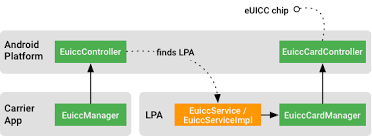
Some carriers — especially travel eSIM providers like Airalo, Holafly, or Maya — have their own apps that handle activation without a QR code.
Step 1: Download the carrier’s app from the Google Play Store.
Step 2: Create an account and purchase the plan you want.
Step 3: Inside the app, tap Install or Activate next to your purchased plan.
Step 4: Your phone will prompt you to confirm adding the eSIM. Tap Confirm.
Step 5: The profile installs automatically. Restart if prompted.
This method is especially popular with travel eSIMs because everything happens within one app — purchase, activation, and data usage tracking.
Method 3: Entering Details Manually
If your QR code doesn’t scan properly or you’re having connection issues, most carriers also provide manual activation details — typically a SM-DP+ address and an activation code.
Step 1: Go to Settings → Network & internet → SIMs → Add eSIM
Step 2: Instead of scanning, look for an option like “Enter activation code manually” or “Use another method”
Step 3: Type in the SM-DP+ address and activation code exactly as provided by your carrier.
Step 4: Confirm and wait for the profile to download.
Setting Up Dual SIM With eSIM
One of the most practical uses of eSIM is running two numbers or plans simultaneously. This is called Dual SIM, Dual Standby (DSDS).
Practical example: You work for a company that gives you a work number, but you don’t want to carry two phones. You keep your personal physical SIM in your phone and add your work number as an eSIM. Both are active at the same time. Calls and texts come through on both numbers. You set your personal number as the default for data, but you can switch easily. Android
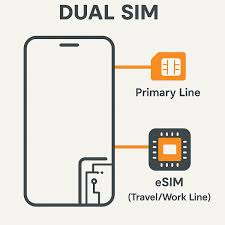
Another example: You’re travelling to Japan for two weeks. You keep your home SIM active so family can still reach your regular number, and you activate a Japanese eSIM for cheap local data. Your phone handles both simultaneously.
To manage Dual SIM on Android:
Go to Settings → Network & internet → SIMs (or SIM card manager on Samsung). Here you can:
- Name each SIM (e.g., “Personal” and “Work”)
- Set a default for calls, texts, and data
- Enable or disable individual SIMs without deleting them
- Set up “ask every time” so your phone prompts you which SIM to use for each call
How to Switch Between eSIM Profiles
If you’ve installed multiple eSIM profiles (for example, different travel plans for different countries), you can switch between them without deleting and re-adding.
Go to Settings → Network & internet → SIMs. Tap the eSIM you want to activate and toggle it on. Toggle the previous one off. Only one eSIM profile can be active at a time on most phones, though you can have several saved. Android
Practical example: A frequent traveller has eSIM profiles saved for the UK, the US, and Germany. When she lands in Berlin, she opens SIM settings, activates the Germany profile, and is connected within seconds — without needing to find a SIM shop or wait for a physical card to arrive.
Transferring Your Number to an eSIM
If you currently have a physical SIM with a number you want to keep, you can transfer it to eSIM. This is called eSIM conversion or SIM to eSIM migration.
The process varies by carrier, but typically involves:
- Contacting your carrier (via app, website, or phone)
- Requesting eSIM conversion
- Receiving a QR code or activation link
- Scanning/clicking to activate — your number transfers to the eSIM
- Your physical SIM deactivates once the transfer completes
Some carriers do this entirely through their app in under five minutes. Others require you to visit a store or wait 24 hours for processing. Android
Note: Once your number moves to eSIM, your old physical SIM stops working. Make sure the eSIM activates successfully before cutting up or discarding the old card. Android
Pros and Cons of Using eSIM on Android
Pros
- No physical card to lose or damage — eSIM profiles are stored digitally. Drop your phone in water or crack the screen — your SIM data is unaffected.
- Instant activation — Buying a new plan takes minutes. No waiting for a SIM card to be delivered.
- Multiple profiles stored simultaneously — Even if only one is active at a time, you can save several and switch freely.
- Ideal for international travel — Activate local data plans abroad without hunting for SIM shops. Keep your home number active in parallel.
- Great for dual SIM use — Separate work and personal numbers on one device without two physical slots.
- Eco-friendly — No plastic card, no packaging.
Cons
- Not all phones or carriers support it — Older phones don’t have eSIM hardware. Some carriers — particularly smaller regional ones — haven’t implemented eSIM yet.
- Harder to switch phones quickly — With a physical SIM, moving to a new phone is as simple as moving the card. With eSIM, you need to go through the carrier’s transfer process, which can take time.
- Limited eSIM profiles on some devices — Some phones only allow a set number of stored eSIM profiles (often 5–10). If you travel frequently to many countries, this can be a constraint.
- If you lose your phone, recovery takes longer — You can’t just pop your SIM into a borrowed phone. You need your carrier to re-issue the eSIM to a new device.
- QR codes can only be used once — Most carriers generate single-use QR codes. If yours expires or you scan it on the wrong device, you’ll need the carrier to issue a new one.
- Can’t use in some countries — A small number of countries have regulations that restrict or prohibit eSIM use. Check before travelling to regions you’re unfamiliar with.
Troubleshooting Common eSIM Problems
The QR code won’t scan: Make sure the QR code image is clear and well-lit. Try increasing the brightness on the screen or device showing the code. If it still fails, ask your carrier for the manual activation code as a fallback.
“eSIM not supported” message: Your phone either doesn’t have eSIM hardware, or your carrier-locked version has it disabled. Contact your carrier to confirm.
eSIM activated but no signal: Check that the eSIM is set as the active SIM in settings. Restart your phone. If still no signal, confirm the plan is actually active on the carrier’s end — call or chat with support.
Downloaded eSIM not showing up: Restart your phone. If it still doesn’t appear in SIM settings, try going through the activation process again — some carriers allow re-download within a time window.
“Download failed” during eSIM setup: This is usually a network issue. Make sure you’re on a stable Wi-Fi connection and try again. Avoid activating over mobile data if possible.
Frequently Asked Questions
Q: Can I use eSIM and a physical SIM at the same time on Android?
Yes, on phones that support Dual SIM. You can have a physical SIM in the SIM tray and an active eSIM simultaneously. Both numbers receive calls and texts. You set one as the default for data, but you can switch anytime in settings.
Q: Can I have more than one eSIM on my Android phone?
You can store multiple eSIM profiles, but most Android phones only allow one eSIM to be active at a time (alongside a physical SIM). The number of profiles you can store varies by device — typically between 5 and 10.
Q: Will setting up an eSIM delete my contacts or data?
No. Adding an eSIM only affects your network connectivity. Your contacts, photos, apps, and all other data remain completely untouched.
Q: Can I transfer my eSIM to a new phone?
Not directly. eSIM profiles are tied to the device they were activated on. To move to a new phone, you need to contact your carrier and request a new eSIM activation for the new device. Some carriers have made this easier with in-app transfer features, but it’s still a step you need to take.
Q: What happens to my eSIM if I factory reset my phone?
This depends on the device and carrier. Some eSIM profiles survive a factory reset; others are deleted. Before factory resetting, check with your carrier whether you’ll be able to re-download your eSIM profile afterwards, and keep a backup of your QR code if possible.
Q: Is eSIM more expensive than a regular SIM?
Not inherently. Most carriers charge the same for eSIM plans as physical SIM plans. Travel eSIM providers are often actually cheaper than buying a local physical SIM at an airport or tourist shop abroad.
Q: Can I delete an eSIM profile?
Yes. Go to Settings → Network & internet → SIMs, tap the eSIM profile, and select Delete or Remove. Be aware: once deleted, you may not be able to re-add it without contacting your carrier for a new QR code.
Q: Does eSIM work in all countries?
Most countries support eSIM, but a small number have regulatory restrictions. Before travelling, check whether your destination country supports eSIM on your carrier’s network. Your eSIM provider’s app usually shows coverage maps.
Q: My phone says eSIM is supported, but my carrier doesn’t offer it — what can I do?
You can use a third-party travel eSIM provider for data (like Airalo or Holafly) while keeping your existing physical SIM for calls and texts on your home plan. This is actually a very common setup for frequent travellers.
Q: How long does eSIM activation take?
Usually less than five minutes from start to finish. The profile download itself takes seconds. The main wait is sometimes on the carrier’s side,e confirming your account — this is usually instant but can occasionally take up to a few hours with some providers.
conclsion
Setting up an eSIM on an Android phone is genuinely straightforward once you know the steps. The hardest part for most people is finding the right menu — and now you know exactly where to look.Android
If you’re setting one up for travel, do it before you leave. If you’re switching your main number to eSIM, make sure the new profile activates fully before letting your old SIM go. And if something doesn’t work on the first try, the troubleshooting steps above cover the vast majority of issues people run into.
Once you’ve used eSIM, going back to fumbling with a SIM ejector tool feels very 2015.Android

