
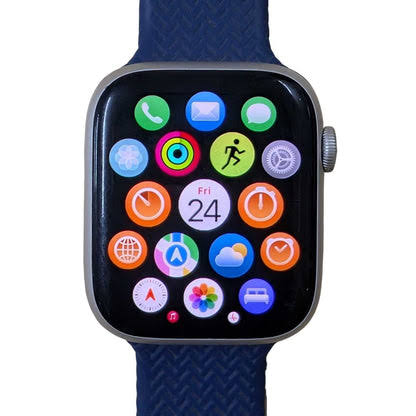
If you’ve been thinking about using your Apple Watch 7 without your iPhone nearby, eSIM is the feature that makes that possible. No extra SIM card, no extra tray — just a digital connection built right into the watch.
But there’s a catch. Not every Apple Watch 7 supports eSIM, and not every carrier works with it. If you skip over these details, you’ll end up frustrated.
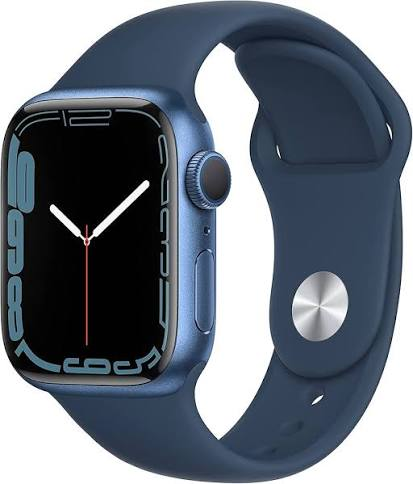
This guide walks you through how eSIM works on Apple Watch 7, how to activate it, what’s great about it, what isn’t, and answers the questions most people actually have.
The eSIM on Apple Watch 7 allows users to stay connected without carrying their iPhone everywhere. With built-in cellular support, an activated eSIM enables you to make calls, send messages, stream music, use maps, and receive notifications directly from your Apple Watch.
This digital SIM technology eliminates the need for a physical SIM card, making the setup process more convenient and efficient. Whether you’re exercising, traveling, or simply leaving your phone behind, the Apple Watch 7 with eSIM provides greater freedom and connectivity. In this guide, you’ll learn what eSIM is, how it works on Apple Watch 7, how to activate it, and the benefits it offers in 2026.
What is eSIM on the Apple Watch 7?

eSIM stands for embedded SIM. Instead of a physical SIM card you pop in and out, it’s a chip soldered directly inside the device. Your carrier activates it digitally — no physical card needed.
On Apple Watch 7, eSIM lets the watch connect to a cellular network on its own. That means you can leave your iPhone at home and still get calls, texts, and data on your wrist.
Think of it like this: your iPhone and Apple Watch 7 share the same phone number. When you’re out for a run without your phone, a call comes in — your watch picks it up. Same number, same experience.
Does Every Apple Watch 7 Have eSIM?

No, and this is important.
Apple Watch 7 comes in two versions:
- GPS only — no cellular, no eSIM
- GPS + Cellular — has eSIM built in
If your Apple Watch 7 box says “GPS + Cellular,” you’re good. If it just says “GPS,” eSIM isn’t available on that model, and there’s no workaround for it.
To double-check on your watch, go to Settings → General → About. If you see an IMEI number listed, your watch has cellular capability and eSIM support.
Carrier Compatibility: Check This First
Having a cellular Apple Watch 7 doesn’t automatically mean your carrier supports it. eSIM on Apple Watch requires carrier support, and that list varies by country.
In the US, most major carriers support Apple Watch eSIM:
- AT&T
- Verizon
- T-Mobile
- US Cellular
In India, support is more limited. Airtel and Jio support Apple Watch cellular plans in select cities, but coverage isn’t as consistent as it is in the US or UK.
In the UK, EE, O2, Vodafone, and Three all support it.
Before you try to activate, go to your carrier’s website and search “Apple Watch cellular plan.” Confirm your plan type supports it — some budget or prepaid plans don’t include watch pairing.
What You Need Before You Start
Here’s a quick checklist:
- Apple Watch 7 GPS + Cellular model
- iPhone 6s or later running iOS 14 or higher
- A carrier that supports Apple Watch cellular
- An active cellular plan on your iPhone (not prepaid in most cases)
- Both the iPhone and the Apple Watch were updated to the latest software
- Wi-Fi connection during setup
If all of that checks out, you’re ready to activate.
How to Set Up eSIM on Apple Watch 7 — Step by Step

Step 1: Open the Watch App on Your iPhone
Make sure your Apple Watch 7 is paired with your iPhone. Open the Watch app on your iPhone. Tap on My Watch at the bottom.
Step 2: Tap Cellular
Scroll down and tap Cellular. If you don’t see this option, your watch may be the GPS-only version, or your carrier doesn’t support it.
Step 3: Set Up Cellular
Tap Set Up Cellular. This will open a prompt from your carrier. You’ll need to log in to your carrier account or enter your account details.
Step 4: Choose or Add a Plan
Most carriers will ask you to add a “watch line” or a “connected device plan” to your existing account. There’s usually a monthly fee — in the US, this is around $10–$15/month depending on the carrier.
Follow the on-screen steps. Your carrier will push the eSIM configuration to your watch over the air.
Step 5: Wait for Activation
Activation can take a few minutes or up to a couple of hours, depending on the carrier. Keep your iPhone and Apple Watch 7 nearby and connected to Wi-Fi during this time.
Once it’s done, you’ll see a green indicator in the Watch app under Cellular, and the status bar on your watch will show cellular signal bars.
How to Know It’s Working
After setup, try this test:
- Turn off Wi-Fi on your Apple Watch 7 from Settings
- Leave your iPhone in another room or turn on Airplane Mode on it
- Ask someone to call your number
- Your watch should ring
If it rings, eSIM is active and working. If it doesn’t, go back to the Watch app on your iPhone and check if Cellular is turned on.
You’ll also notice a green dot or signal icon at the top of your watch face when cellular is active.
Pros of eSIM on Apple Watch 7
1. True Independence from Your iPhone
This is the biggest one. You can go for a run, a swim, or a grocery run without carrying your phone. Calls and messages still come through.
2. Emergency Access
If something happens and you don’t have your phone, your watch can still call emergency services or trusted contacts. This is genuinely useful, not just a gimmick.
3. No Physical SIM to Manage
There’s no SIM slot, no SIM ejector tool needed, no risk of losing a tiny card. Setup is entirely software-based.
4. Same Number, No Confusion
You don’t get a different number on your watch. It mirrors your iPhone’s number. People calling you don’t even know you’re on the watch.
5. Great for Workouts
Swimmers, runners, cyclists — anyone who doesn’t want their phone strapped to them gets a lot of value here. You can still take calls mid-run without stopping to dig out your phone.
Cons of eSIM on Apple Watch 7
1. Extra Monthly Cost
You’ll pay your carrier an additional fee every month just to activate the watch’s eSIM. That’s an ongoing cost on top of your existing plan. For many people, that’s the biggest downside.
2. Not All Carriers Support It
If you’re on a regional or budget carrier, there’s a real chance it doesn’t support Apple Watch cellular at all. You’d need to switch carriers or stick with the GPS-only model.
3. Battery Drains Faster on Cellular
When you’re using the cellular radio actively — not connected to your phone or Wi-Fi — the Apple Watch 7 battery takes a noticeably bigger hit. Expect around 7–10 hours of active cellular use instead of the standard 18 hours.
4. Limited to One Carrier at a Time
Unlike your iPhone,ne where you might have a dual SIM setup, Apple Watch 7 only holds one eSIM active at a time. Switching carriers means going through the setup again.
5. Requires iPhone for Initial Setup
You can’t activate eSIM on Apple Watch 7 directly from the watch itself. You need an iPhone nearby to complete the first-time setup through the Watch app.
Common Problems and How to Fix Them
eSIM Activation Fails
This usually happens because of an account issue on the carrier side. Call your carrier’s support line directly. Don’t try to reactivate multiple times quickly — it can trigger a freeze on the account.
Watch Shows “No Service” Even After Setup
First, restart both your iPhone and Apple Watch 7. Then too o the Watch app → Cellular and toggle it off and on. If it still doesn’t work, remove the cellular plan from the Watch app and set it up again.
Cellular Turns Off by Itself
Check your watch’s power settings. If Power Reserve kicks in, cellular turns off automatically. Also, make sure Cellular is set to stay on in the Watch app → Cellular → Cellular Data.
Getting Charged Without Using It
Some carriers bill you from the moment eSIM is provisioned, not from when you start using it. Check your billing cycle and confirm with your carrier when the monthly charge starts.
Apple Watch 7 eSIM vs Older Models
People often ask how eSIM on the Watch 7 compares to Series 5 or Series 6.
The underlying eSIM technology is the same. What changed with Series 7 is the larger display, faster charging, and a more durable casing — not the cellular setup process. If you know how to activate eSIM on Series 5 or 6, Series 7 works the same way.
The real difference is performance and screen size. But for pure eSIM functionality, it’s consistent across Apple Watch models from Series 3 (which was the first to include eSIM) onward.
Is eSIM on Apple Watch 7 Worth It?
It depends on your lifestyle.
If you work out regularly and want to leave your phone behind, or if you’re someone who needs to stay reachable even during outdoor activities — yes, it’s worth the extra monthly cost.
If you’re mostly at home or at a desk, and your phone is always within arm’s reach, the GPS-only model is probably enough. The eSIM plan adds cost without adding much value in that scenario.
A good middle ground: try it for a month or two. Most carriers let you add and remove watch lines without a long-term contract. See if you actually use it, then decide whether to keep paying.
FAQs About eSIM on Apple Watch 7
Can I use eSIM on Apple Watch 7 with a prepaid SIM?
In most cases, no. Carriers typically require a postpaid plan to add an Apple Watch line. Some carriers have begun supporting it on certain prepaid plans, but it’s not common. Check with your specific carrier.
Does eSIM on Apple Watch 7 work internationally?
It depends on your carrier’s international roaming policies and whether the local network supports Apple Watch cellular. Some carriers charge international roaming fees on the watch line just like they do on phones. Check before you travel.
Can I have eSIM without a plan on my Apple Watch 7?
No. eSIM only works when there’s an active carrier plan associated with it. Without a plan, the watch will only work over Wi-Fi or when paired with your iPhone via Bluetooth.
Will my Apple Watch 7 eSIM work if I switch iPhones?
Yes, but you’ll need to re-pair the watch to the new iPhone. The eSIM itself stays on the watch — it’s not tied to your old iPhone. Pairing to a new iPhone through the Watch app keeps the cellular plan active.
Can two Apple Watches share the same eSIM plan?
No. Each Apple Watch needs its own line. You can’t share a single watch cellular plan between two devices.
Does turning off cellular on the Apple Watch save battery?
Yes, significantly. If you’re spending the day near your iPhone, keep cellular off. The watch will use Bluetooth to connect to your phone instead, which is far more efficient and extends battery life.
Can I remove the eSIM from the Apple Watch 7 and add it later?
Yes. You can remove the cellular plan anytime from the Watch app. To add it back, you’d go through the carrier activation process again. Some carriers may charge a reactivation fee, so confirm that before removing it.
What happens to eSIM if I unpair my Apple Watch 7 from my iPhone?
When you unpair, the watch resets. Your carrier plan stays active on your account, but the eSIM configuration is wiped from the watch. You’d need to re-add it through the Watch app when you pair again.
Conclsion
eSIM on Apple Watch 7 isn’t complicated once you understand what you need. The GPS + Cellular model, a compatible carrier, and a few minutes in the Watch app — that’s all it takes.
The freedom to leave your phone behind while staying connected is genuinely useful for a lot of people. Whether that’s worth the monthly fee is a personal call, but the technology itself is solid and has been reliable since Apple first introduced it on the Series 3.
If you’re on the fence, start with the cellular model. You can always choose not to activate the eSIM plan, but you can’t add cellular to a GPS-only watch later. Keep your options open from the start.

