
Need to remove an eSIM from your iPhone 14? Whether you’re switching to a new mobile carrier, replacing an old eSIM, selling your iPhone, or troubleshooting network issues, deleting an unused eSIM profile is a quick and straightforward process. The iPhone 14 supports multiple eSIM profiles, allowing you to store more than one mobile plan and easily switch between them. However, removing an eSIM permanently deletes that cellular plan from your device, so you’ll need to reactivate it with your carrier if you want to use it again.
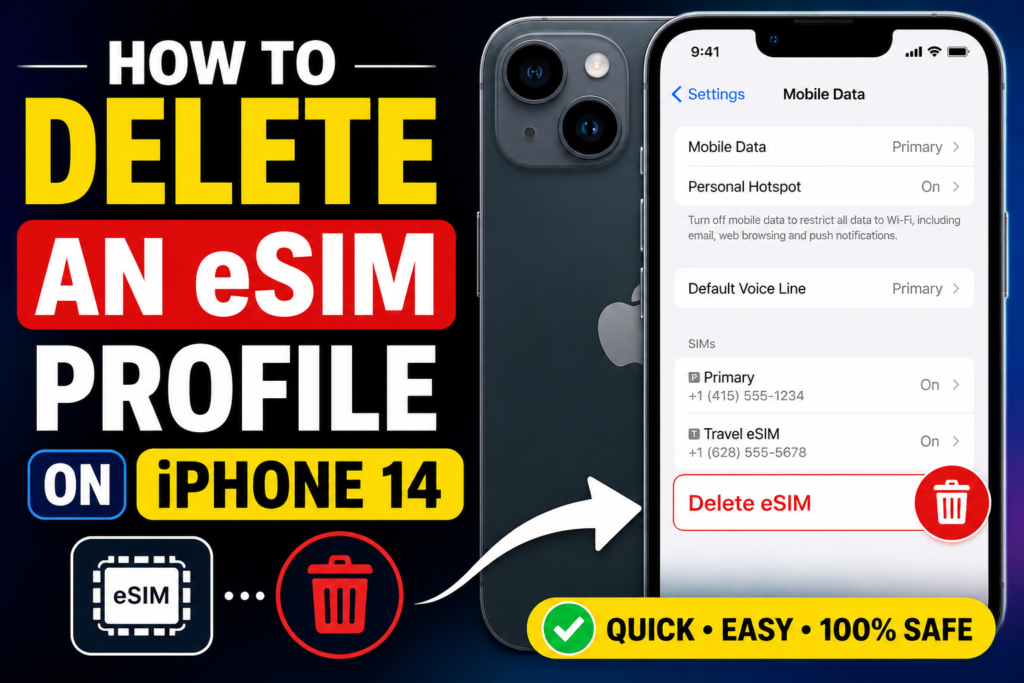
Delete an eSIM Profile on iPhone 14. In this guide, you’ll learn how to delete an eSIM profile on an iPhone 14 step by step, what happens after you remove it, and the precautions you should take before deleting your cellular plan. We’ll also cover common troubleshooting tips if the eSIM won’t delete and answer frequently asked questions to help you manage your iPhone’s cellular settings with confidence.
If you’re switching carriers, selling your iPhone 14, or simply cleaning up unused plans, deleting an eSIM profile takes less than a minute. This guide walks you through the exact steps — plus fixes for the most common issues users run into.
- Check now–eSIM on Apple Watch and iPhone
What Happens When You Delete an eSIM Profile on iPhone 14?

Deleting an eSIM profile removes the digital SIM card stored on your iPhone 14. Once deleted, your phone will no longer connect to that carrier’s network using that eSIM. However, it does not automatically cancel your carrier plan or subscription — you’ll still need to contact your carrier separately to cancel billing if required.
You can always re-add the eSIM later if your carrier allows re-provisioning (most do, via a new QR code or carrier app).
Before You Delete: Quick Checklist
- ✅ Make sure you have an alternative line active (physical SIM or another eSIM) if the one you’re deleting is your primary data line
- ✅ Note your carrier’s customer care number in case you need to reactivate later
- ✅ If your carrier provided a QR code for activation, save a photo of it — some carriers charge for re-provisioning
How to Delete an eSIM Profile on iPhone 14

Follow these steps on your iPhone 14 running iOS 16 or later:
- Open the Settings app
- Tap Cellular
- Under SIMs, tap the eSIM plan you want to delete
- Scroll down and tap Delete eSIM
- Confirm by tapping Delete eSIM again in the pop-up
The profile will be removed immediately. If you had that eSIM set as your primary data line, your iPhone 14 will switch to your physical SIM (if one is inserted) or show no service.
How to Delete an eSIM on iOS 17 (Slightly Different Path)

Apple updated the Settings layout in iOS 17. If your iPhone 14 is running iOS 17 or later:
- Open Settings
- Tap Cellular
- Tap Cellular Plans (new label in iOS 17)
- Select the eSIM you want to remove
- Tap Delete eSIM → confirm with Delete eSIM
The process is identical — only the label changed from “SIMs” to “Cellular Plans.”
Why Is the “Delete eSIM” Option Greyed Out?
This is the most common issue users face. The Delete eSIM button appears greyed out when:
- The eSIM you’re trying to delete is set as your only active line, and no physical SIM is present
- Your iPhone 14 has no backup line to fall back on after deletion
Fix: Before deleting, go to Settings → Cellular and make sure another line (physical SIM or a second eSIM) is set as your Default Line. Once a backup line is active, the Delete eSIM option becomes tappable.
Alternatively, insert a physical SIM first, then delete the eSIM.
Will Deleting an eSIM Cancel My Carrier Plan?
No. Deleting the eSIM profile from your iPhone 14 only removes the local digital configuration — it does not cancel your subscription with the carrier.
If you want to stop being billed, you must contact your carrier directly:
- Airtel: Call 121 or use the Airtel Thanks app
- Jio: Call 199 or use the MyJio app
- Vi (Vodafone Idea): Call 199 or visit a Vi store
- International carriers: Log in to your carrier’s account portal or call support
Always confirm cancellation separately to avoid unwanted charges.
Can I Re-Add an eSIM After Deleting It?
Yes — in most cases. After deleting, you can re-add the same eSIM by:
- Using the QR code your carrier originally provided
- Logging into your carrier’s app and re-activating your eSIM plan
- Visiting a carrier store for a fresh provisioning
Keep in mind: some carriers treat a deleted eSIM as a new activation and may charge a small fee. Check with your carrier before deleting if you plan to re-add the same line.
How to Check Which eSIM Profiles Are on Your iPhone 14
Your iPhone 14 can store up to eight eSIM profiles but only use two at once (one active physical SIM + one active eSIM in Dual SIM mode, or two active eSIMs if no physical SIM is inserted).
To view all stored profiles:
- Go to Settings → Cellular
- Look under SIMs (iOS 16) or Cellular Plans (iOS 17)
- All stored profiles — active and inactive — are listed here
Inactive profiles don’t use any data or connect to a network. You can keep them stored or delete them if you no longer need them.
FAQs
Q: Does deleting an eSIM delete my contacts or data?
No. Deleting an eSIM only removes the cellular plan profile. Your contacts, photos, apps, and all other data remain untouched.
Q: Can I delete an eSIM while traveling abroad?
Yes, but be cautious. If your eSIM is your only active line and you’re relying on it for data or calls while abroad, deleting it will cut off your connectivity immediately. Make sure you have Wi-Fi or another active line before proceeding.
Q: How many eSIM profiles can I store on iPhone 14?
Your iPhone 14 can store up to eight eSIM profiles, though only one (or two in Dual SIM mode without a physical SIM) can be active at a time.
Q: What if I accidentally deleted the wrong eSIM?
Contact your carrier immediately. They can re-issue the eSIM via a new QR code or through their app. Most carriers can restore your number and plan without any service interruption if you act quickly.
Q: Will deleting an eSIM unlock my iPhone 14?
No. eSIM deletion does not affect carrier lock status. If your iPhone 14 is carrier-locked, it will remain locked regardless of which eSIM profiles you delete.
Q: Can I delete an eSIM from iPhone 14 without service?
Yes. eSIM deletion happens locally on the device and does not require an internet connection or cellular signal.
Conclusion
Deleting an eSIM profile on your iPhone 14 is a straightforward process — a few taps in Settings, and it’s done. The key things to remember: always have a backup line active before deleting, confirm with your carrier separately if you want to cancel billing, and save your QR code in case you need to re-add the plan later. Whether you’re switching carriers, resetting your device, or just clearing unused profiles, this guide covers every scenario you’re likely to run into.

