
Yes, the iPhone 12 Pro fully supports eSIM technology, allowing you to activate a mobile plan digitally without inserting a physical SIM card. Apple introduced dual SIM functionality on the iPhone 12 Pro, enabling users to use a physical nano-SIM and an eSIM simultaneously, making it ideal for managing separate personal and business numbers or using a local carrier while traveling internationally.
In this guide, you’ll learn everything you need to know about eSIM support on the iPhone 12 Pro in 2026, including how to check if your device is eSIM-compatible, how to activate an eSIM, supported carriers, common setup issues, and troubleshooting tips. Whether you’re switching carriers, traveling abroad, or simply looking for a more convenient way to manage your mobile plans, this guide will help you get started with eSIM on your iPhone 12 Pro.
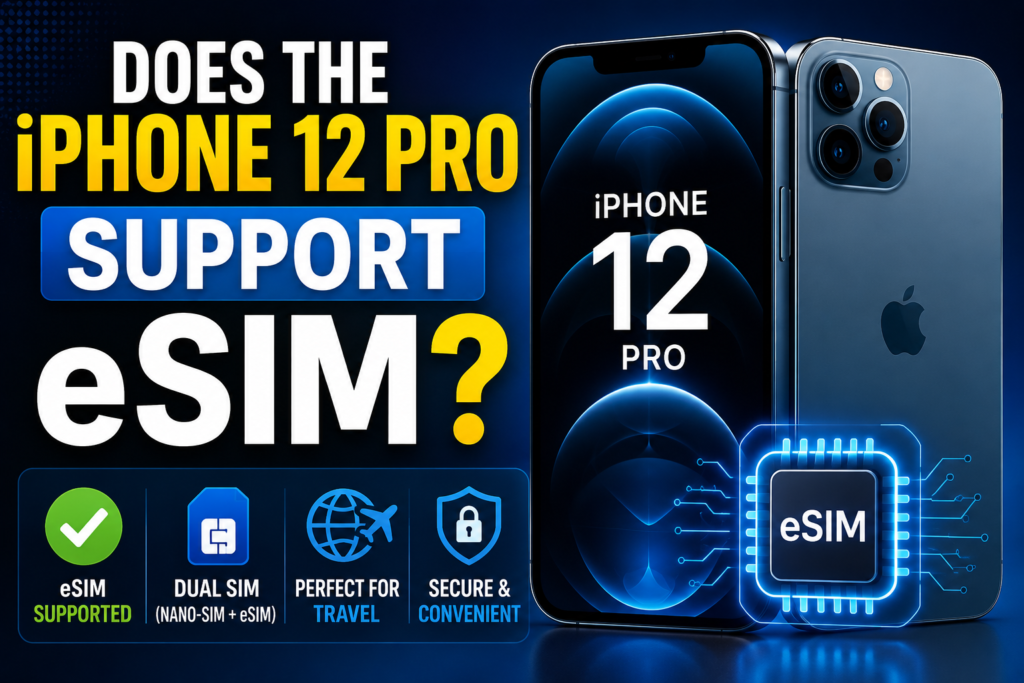
Does the iPhone 12 Pro Support eSIM? If you’re wondering whether your iPhone 12 Pro supports eSIM, the answer is yes — it does. But there’s more to it than just a yes or no. How you set it up, which carriers support it, how many eSIMs you can store, and what happens when you switch phones — all of that is worth understanding before you dive in.
This guide covers everything about eSIM on the iPhone 12 Pro in plain English. Whether you’re switching carriers, travelling abroad, or just want to understand what eSIM actually means for your phone, this is the only guide you need.
- Check now: How to Activate eSIM on iPhone 12
What Is eSIM and How Is It Different from a Regular SIM?

A traditional SIM card is a small plastic card that you physically insert into your phone. It stores your carrier information and connects you to a mobile network. If you want to switch carriers, you swap out the physical card.
An eSIM (embedded SIM) does the same job but is built directly into your phone’s hardware. There’s no physical card to insert or remove. Instead, you download your carrier plan digitally — either by scanning a QR code, using a carrier’s app, or entering an activation code. The whole process takes a few minutes and can be done from anywhere.
The practical difference is significant:
- No waiting for a SIM card to arrive in the post
- No fumbling with a SIM ejector tool
- You can switch carriers or add a new plan without touching any hardware
- You can store multiple carrier plans on one device and switch between them
Does the iPhone 12 Pro Support eSIM?

Yes. The iPhone 12 Pro was released in October 2020 and comes with full eSIM support. It supports Dual SIM functionality, which means you can run two numbers on one phone — one physical nano-SIM and one eSIM — at the same time.
Here are the key eSIM specs for the iPhone 12 Pro:
- Physical SIM: One nano-SIM tray
- eSIM: Supported
- Dual SIM: Yes — one nano-SIM + one eSIM active simultaneously
- Stored eSIM profiles: Up to 5 eSIM profiles can be stored, but only one eSIM can be active at a time (along with the physical SIM)
- eSIM-only mode: Not supported on the iPhone 12 Pro (that came later with the iPhone 14 in the US)
So in practical terms: you can have your main number on a physical SIM and use an eSIM for a second number — useful for work/personal separation or for travel.
Which Carriers Support eSIM on iPhone 12 Pro?

eSIM support depends on your carrier, not just your phone. The iPhone 12 Pro is compatible with eSIM technology, but your carrier has to support it too.
In the UK, the major carriers that support eSIM on iPhone include:
- EE
- O2
- Vodafone
- Three
- Sky Mobile
- iD Mobile
- Lebara (via the Vodafone network)
- Smarty (via Three’s network)
In India, eSIM support on iPhone is available through:
- Airtel
- Jio
- Vi (Vodafone Idea)
In the US, virtually all major carriers support eSIM on iPhone 12 Pro, including AT&T, T-Mobile, and Verizon.
If you’re unsure whether your specific carrier supports eSIM, the easiest way to check is to call their customer support line or visit their website and search for “eSIM iPhone.”
How to Set Up eSIM on iPhone 12 Pro
There are a few different ways to activate an eSIM on your iPhone 12 Pro. The method depends on what your carrier offers.
Method 1: QR Code (Most Common)
- Contact your carrier and request an eSIM activation.
- They’ll send you a QR code — either by email, in the post, or shown in their store.
- On your iPhone 12 Pro, go to Settings → Cellular → Add Cellular Plan.
- Point your camera at the QR code.
- Tap Add Cellular Plan when prompted.
- Follow the on-screen steps to activate.
The whole process usually takes 2 to 5 minutes. Your new plan activates within a few minutes to a couple of hours, depending on the carrier.
Method 2: Carrier App
Some carriers (like EE and O2 in the UK, or Jio in India) allow you to activate an eSIM directly through their official app. You log in, select eSIM activation, and follow the steps inside the app — no QR code needed.
Method 3: Activation Code
If your carrier doesn’t use a QR code or app, they may give you a manual activation code. Go to Settings → Cellular → Add Cellular Plan → Enter Details Manually and type in the code they provide.
Method 4: Converting a Physical SIM to eSIM
Some carriers let you convert your existing physical SIM to an eSIM without changing your number. In the UK, EE and O2 both offer this. You typically request it through their app or by calling customer service, and they send you a QR code to scan.
Practical example: You’re moving from a physical Three SIM to Three’s eSIM service. You call Three, request the eSIM switch, and they email you a QR code. You scan it on your iPhone 12 Pro in Settings, confirm the activation, and within 15 minutes your same number is now running on eSIM. You can cut up the old SIM card — you won’t need it anymore.
How to Use Dual SIM on iPhone 12 Pro
Once you have both a physical SIM and an eSIM active, your iPhone 12 Pro becomes a Dual SIM phone. Here’s how that works day to day:
Setting a default line: Go to Settings → Cellular and choose which line handles calls, messages, and mobile data by default.
Switching lines for a call: When you make a call, you’ll see an option to choose which line to call from. Tap the line name to switch before dialling.
Labels: You can name each line anything you want — “Work,” “Personal,” “Travel,” etc. — so it’s easy to keep track.
Data: Only one line handles mobile data at a time, though you can switch between them. If you’re abroad and have a local eSIM, you’d switch data to that line to avoid roaming charges.
Practical example: A small business owner in London has their personal number on a physical Vodafone SIM and adds a second O2 number as an eSIM for work calls. They set the O2 line as the default for work hours and switch to the Vodafone line in the evening. One phone, two completely separate numbers — no need to carry two devices.
Travelling Abroad with eSIM on iPhone 12 Pro
This is where eSIM becomes especially useful. Instead of buying a local SIM card at the airport (or paying expensive roaming charges), you can download a local or international eSIM plan before you leave home.
Several services specialise in travel eSIMs:
- Airalo — One of the most popular travel eSIM marketplaces. You buy a data-only eSIM for a specific country or region, download it to your phone, and activate it when you land. Plans start from around £2–£5 for a week of data in most countries.
- Holafly — Offers unlimited data travel eSIM plans for specific countries and regions.
- aloSIM — Similar to Airalo, good coverage across Asia, Europe, and the Americas.
- Nomad — Another option with competitive pricing for regional plans.
Practical example: You’re flying from Delhi to Bangkok for two weeks. Before leaving, you buy a Thailand eSIM from Airalo for around ₹500–₹700 (roughly $6–$8). You download it to your iPhone 12 Pro. When you land in Bangkok and turn on your phone, you activate the eSIM — you instantly have local Thai data without buying a SIM at the airport or paying Airtel/Jio’s international roaming rates. Your Indian number on the physical SIM still works for receiving calls and messages.
Pros and Cons of Using eSIM on iPhone 12 Pro
Pros
Convenience — No physical SIM card means no waiting for delivery, no SIM trays, and no ejector tools. You can switch carriers or add a plan in minutes from anywhere.
Dual SIM without carrying two phones — Having two active numbers on one device is genuinely useful for separating work and personal life, or for using a local data plan while travelling.
Faster carrier switching — If you want to try a new carrier, you can activate an eSIM plan in minutes. If you don’t like it, switching back is equally fast.
Great for travel — Downloading a local travel eSIM is cheaper and more convenient than buying a physical SIM at your destination.
More physical durability — Without a SIM tray being opened repeatedly, there’s one less point of potential damage or water ingress over the life of the phone.
Can store multiple profiles — The iPhone 12 Pro can store up to 5 eSIM profiles, so you can keep travel plans saved and reactivate them without re-downloading.
Cons
Carrier lock issues — If your iPhone 12 Pro is locked to a specific carrier, you may not be able to activate an eSIM from a different carrier. Check whether your phone is unlocked before trying to add a third-party eSIM.
Not universally supported — While eSIM support is widespread in the UK, US, and most of Europe, some carriers in smaller markets or rural areas still don’t support it. Always verify before relying on it.
Only one active eSIM at a time — The iPhone 12 Pro can store up to 5 eSIM profiles, but only one can be active alongside the physical SIM. Switching between stored eSIMs requires going into Settings.
Harder to transfer to a new phone — With a physical SIM, switching phones is as simple as moving the card. With eSIM, you need to go through the carrier’s transfer process, which varies and can occasionally be slow or complicated.
Not ideal if you lose your phone — Without a physical SIM to remove, someone who finds your phone theoretically still has access to your active eSIM line. However, iPhone’s lock screen and Find My features largely mitigate this.
Some budget carriers don’t support it — If you’re on a very cheap MVNO, they may not offer eSIM support yet. You’d need to check with your specific provider.
eSIM vs Physical SIM on iPhone 12 Pro: Which Should You Use?
For most people, the answer is: keep your main number on whichever SIM type your carrier sent you, and use eSIM as a secondary option when it makes sense.
If your carrier supports eSIM and you want to switch entirely, converting your physical SIM to eSIM is a clean move — it frees up the physical SIM slot for a travel SIM if you ever need one, though that’s a niche use case on the 12 Pro since eSIM handles travel well.
If you’re happy with your current setup and don’t have an immediate need for a second number or travel data, there’s no urgency to make the switch. eSIM is a tool — useful when you need it, irrelevant when you don’t.
What If eSIM Isn’t Working on Your iPhone 12 Pro?
A few things can prevent eSIM from working:
Carrier lock: If your iPhone 12 Pro was bought from a carrier (not unlocked), it may be locked to that carrier’s network. Go to Settings → General → About and scroll down to Carrier Lock. If it says “No SIM restrictions,” you’re unlocked. If it shows a carrier name, contact that carrier to unlock it.
iOS version: Make sure your phone is running the latest version of iOS. eSIM functionality has improved with software updates. Go to Settings → General → Software Update.
Carrier support: Double-check that your carrier supports eSIM on iPhone. Not all plans within a carrier support it — some legacy plans may need to be upgraded.
Profile not activating: If you scanned a QR code but the plan isn’t activating, try restarting your phone. If it still doesn’t work, contact your carrier — sometimes there’s a delay on their end.
Already at eSIM limit: If you’ve already stored 5 eSIM profiles and try to add a sixth, your iPhone will prompt you to delete one. Go to Settings → Cellular, tap the eSIM you want to remove, and select Delete eSIM.
FAQs: eSIM on iPhone 12 Pro
Does iPhone 12 Pro Max also support eSIM?
Yes. The iPhone 12 Pro Max has the same eSIM capabilities as the iPhone 12 Pro — one nano-SIM plus one active eSIM, with up to 5 stored eSIM profiles.
Can I use eSIM on iPhone 12 Pro without a physical SIM?
Yes. You can use just an eSIM with no physical SIM card installed. Your phone will work normally with only the eSIM active. However, you can only have one active line in this case.
How many eSIMs can iPhone 12 Pro store?
Up to 5 eSIM profiles can be stored, but only one can be active at a time. If you want to switch between stored profiles, go to Settings → Cellular, select the profile you want to use, and tap Turn On This Line.
Will my eSIM transfer if I get a new phone?
Not automatically. You’ll need to contact your carrier and request an eSIM transfer to your new device. Most carriers handle this with a new QR code or through their app. The process is straightforward but does require a step or two.
Is eSIM available in India on iPhone 12 Pro?
Yes. Airtel, Jio, and Vi all support eSIM on iPhone 12 Pro in India. You can visit an Airtel or Jio store with your phone and ID, request eSIM activation, and they’ll process it on the spot. Jio also allows eSIM activation through the MyJio app.
Does using eSIM drain the battery faster?
No. eSIM uses the same amount of power as a physical SIM. Having two active lines (Dual SIM) can use slightly more battery than a single line, but the difference is minimal in normal use.
Can I use an international travel eSIM on iPhone 12 Pro while keeping my Indian/UK number active?
Yes. This is one of the best use cases for eSIM on the iPhone 12 Pro. Keep your home number on the physical SIM (or your primary eSIM), and add a travel eSIM from Airalo or Holafly for local data abroad. Both lines are active simultaneously.
What happens to my eSIM if I reset my iPhone 12 Pro to factory settings?
A factory reset will erase your eSIM profiles. Before resetting, contact your carrier to get a new QR code, or check if they can reissue the eSIM to the same device after the reset.
Conclsion
The iPhone 12 Pro supports eSIM fully and handles it well. Whether you want to add a second number, switch carriers quickly, or set up affordable data when you travel, eSIM on the 12 Pro makes all of that straightforward.
The setup takes just a few minutes once your carrier provides a QR code or activation method. Dual SIM works cleanly — you can keep two numbers active, choose which one to use for calls and data, and label them however you like.
If you haven’t explored eSIM yet on your iPhone 12 Pro, it’s worth trying. Start by checking whether your current carrier supports it, ask for an eSIM activation, and scan the QR code when it arrives. Once you’ve used it, going back to juggling physical SIM cards — especially when travelling — feels like a step backwards.

