
Switching phones, changing carriers, or just cleaning up unused lines on your iPhone? At some point, you’ll probably need to delete an eSIM profile. It sounds simple, but if you’ve never done it before, the settings menu can feel a little confusing, especially with multiple lines showing up under Cellular settings.
This guide walks you through exactly how to delete an eSIM profile on iPhone, covers common mistakes people make, and answers the questions most users have before and after removing a profile.
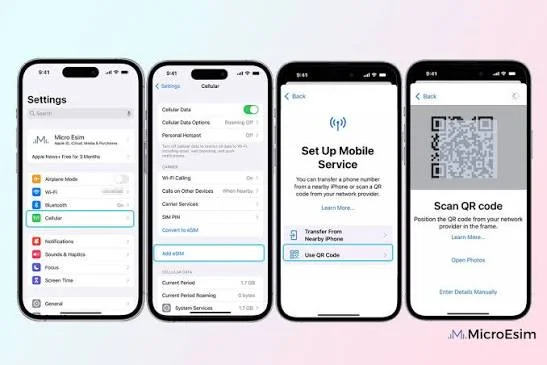
If you’re switching mobile carriers, selling your iPhone, troubleshooting network issues, or simply no longer need a cellular plan, deleting an eSIM profile is a quick and straightforward process. In 2026, all recent iPhone models that support eSIM allow you to remove a cellular plan directly from the Settings app without requiring any special tools.
Before deleting an eSIM, it’s important to understand that removing the profile disconnects that cellular plan from your device. If you plan to use the same number again, check with your carrier first to confirm whether you’ll need to reactivate the eSIM or request a new activation QR code. Deleting an eSIM without verifying your carrier’s policy may temporarily interrupt your mobile service.
In this guide, you’ll learn how to delete an eSIM profile on an iPhone step by step, when it’s safe to remove an eSIM, what happens after deletion, and how to reactivate or install a new eSIM if needed. Whether you’re upgrading to a new iPhone, changing networks, or resolving connectivity problems, this guide will help you manage your eSIM with confidence.
- Check now-eSIM on Apple Watch and iPhone
What Is an eSIM Profile, Exactly?

An eSIM (embedded SIM) is a digital version of the physical SIM card you’re used to popping in and out of your phone. Instead of a physical card, your carrier sends a digital profile that gets installed directly onto your iPhone’s built-in chip. This profile contains everything needed to connect to your carrier’s network, including your phone number, data plan, and account details.
Since eSIM profiles live on your phone rather than in a removable card, deleting one isn’t as simple as just taking a card out. You need to go through your iPhone’s settings to remove it properly.
When Should You Delete an eSIM Profile?

There are a few common situations where people need to remove an eSIM:
- Switching carriers: You’re moving from one network provider to another and no longer need the old profile
- Selling or trading in your iPhone: You need to remove all personal data, including eSIM profiles, before handing over the device
- Travel eSIM cleanup: You used a temporary travel eSIM (common when traveling abroad) and want to remove it after your trip ends
- Freeing up a line slot: Newer iPhones support multiple eSIM profiles, but there’s still a limit, so removing unused ones frees up space for new ones.
- Troubleshooting connectivity issues: Sometimes deleting and reinstalling a profile fixes network problems that a simple restart doesn’t solve
Before You Delete: Important Things to Check
Before removing any eSIM profile, keep these points in mind:
- Deleting an eSIM profile is permanent. Once removed, you can’t just “undo” it. You’ll need to contact your carrier to get a new QR code or activation link if you want that same line back.
- Make sure you’re deleting the right profile, especially if you have multiple lines active (for example, a personal Jio number and a work Airtel number both set up as eSIMs).
- Check if you still need the data plan. If your billing cycle hasn’t ended, you might still be charged even after deleting the profile from your phone, since the deletion doesn’t automatically cancel your plan with the carrier.
- Back up anything tied to that number, like two-factor authentication codes sent via SMS, before removing the profile.
How to Delete an eSIM Profile on iPhone (Step-by-Step)

Here’s the exact process, and it’s the same across most recent iPhone models running current versions of iOS.
Step 1: Open Settings
Tap the Settings app on your home screen.
Step 2: Go to Cellular (or Mobile Data)
Scroll down and tap Cellular. On some regional versions, this might be labeled Mobile Data instead.
Step 3: Select the eSIM Plan You Want to Remove
You’ll see a list of all active lines on your phone, each showing the carrier name and sometimes the phone number. Tap the specific plan you want to delete.
Example: If you set up a Jio eSIM as your primary number and an Airtel eSIM for work, you’ll see both listed separately. Tap on “Airtel” if that’s the one you want to remove.
Step 4: Tap “Remove Cellular Plan”
Scroll down on that plan’s page until you see Remove Cellular Plan in red text. Tap it.
Step 5: Confirm the Removal
A pop-up will appear asking you to confirm. Tap Remove again to finalize. Your iPhone will process this for a few seconds, and the profile will disappear from your Cellular settings list.
That’s it. The eSIM profile is now deleted from your device.
Deleting an eSIM Before Selling Your iPhone
If you’re getting ready to sell or trade in your iPhone, deleting the eSIM is just one part of the process. Here’s the fuller checklist:
- Back up your iPhone using iCloud or a computer
- Sign out of iCloud (Settings > [Your Name] > Sign Out)
- Remove any eSIM profiles following the steps above
- Go to Settings > General > Transfer or Reset iPhone > Erase All Content and Settings
Doing a full reset after removing your eSIM ensures the next owner doesn’t accidentally have access to your carrier line or personal data.
What Happens to Your Number After Deleting the eSIM?
This is where a lot of confusion happens. Deleting the eSIM profile from your iPhone does not cancel your phone plan with your carrier. It simply removes the ability for that specific iPhone to use the number.
If you want to actually cancel your line or transfer the number to a new device, you’ll need to contact your carrier directly. For example:
- Jio users can manage this through the MyJio app or by visiting a Jio store
- Airtel users can do this through the Airtel Thanks app or by calling customer care
- International carriers usually require a request through their app, website, or support line
Common Mistakes People Make
- Deleting the wrong profile when multiple lines are active, especially confusing if both lines have generic labels like “Cellular Plan 1” and “Cellular Plan 2” instead of the carrier name
- Assuming deletion cancels the plan, leading to unexpected charges on the next bill
- Deleting a travel eSIM mid-trip, accidentally losing data access while still abroad
- Not backing up two-factor authentication apps that were tied to that number before removing it.
Pros and Cons of Using eSIM (and Removing Profiles When Needed)
Since eSIM management is closely tied to how flexible this technology is, it helps to understand the bigger picture of why so many people are switching to eSIM in the first place.
Pros:
- No physical SIM card needed, so there’s nothing to lose or damage
- You can store multiple profiles on one iPhone and switch between them easily
- Removing and adding profiles is quick, especially useful for travel plans
- Carriers can activate new lines remotely without needing you to visit a store
- Easier to manage work and personal numbers on a single device
Cons:
- Switching to a new phone requires re-activating the eSIM, which sometimes needs carrier assistance
- Not all carriers globally support eSIM yet, especially in certain regions
- If your phone is lost or damaged, transferring the eSIM to a new device can be a slower process compared to just moving a physical SIM card
- Some older iPhone models don’t support eSIM at all, limiting flexibility for users with older devices
- Deleting a profile by mistake means starting the activation process over again from scratch
How to Reinstall an eSIM After Accidental Deletion
If you deleted a profile by mistake, don’t worry, it’s usually recoverable. Here’s what to do:
- Contact your carrier’s customer support (via app, website, or in-store)
- Explain that you accidentally removed your eSIM profile
- Request a new activation QR code or direct carrier activation link
- Go back to Settings > Cellular > Add Cellular Plan on your iPhone and scan the new QR code, or tap the activation link if sent digitally.y
Most carriers, including Jio and Airtel, can usually reissue this within a few minutes to a few hours, though it sometimes requires OTP verification tied to your registered ID.
Managing Multiple eSIM Profiles Efficiently
If you regularly juggle multiple lines, like a personal number and a work number, or a local number plus a travel eSIM, here are a few tips to keep things organized:
- Rename your plans under Settings > Cellular > [Plan Name] > Cellular Plan Label, so you’re not guessing which is which
- Set a default line for calls and texts under Settings > Cellular > Default Voice Line
- Choose your primary data line separately if you want work data usage tracked differently from personal usage
- Regularly review unused profiles, especially old travel eSIMs, since newer iPhones have a limit on how many eSIM profiles you can store at once (this limit varies by model and iOS version)
Frequently Asked Questions
Will deleting an eSIM profile delete my contacts or messages?
No. Deleting an eSIM only removes the cellular connection tied to that specific line. Your contacts, photos, messages, and apps remain untouched, since these are stored separately on your device or in iCloud.
Can I use the same eSIM QR code again after deleting the profile?
Usually not. Most eSIM QR codes are single-use and expire after activation. If you delete the profile and need it back, you’ll typically need to request a new QR code from your carrier.
Does deleting an eSIM cancel my phone plan?
No. Removing the profile from your iPhone only affects the device’s ability to use that line. Your billing and subscription with the carrier continues until you actively cancel it through their app, website, or customer support.
How many eSIM profiles can I store on my iPhone?
This depends on your iPhone model and iOS version, but many recent models allow you to store multiple eSIM profiles even though only two lines (one eSIM plus one physical SIM, or two eSIMs on newer models) can be active at the same time.
I have both a physical SIM and an eSIM. Can I delete just the eSIM?
Yes. The steps above only affect the eSIM profile you select. Your physical SIM card remains completely separate and won’t be affected.
What if the “Remove Cellular Plan” option is greyed out?
This can happen if the plan is currently set as your default line for calls or data. Try switching your default line to another active plan first, under Settings > Cellular > Default Voice Line, then attempt the removal again.
Do I need Wi-Fi or an internet connection to delete an eSIM profile?
No, you can delete an eSIM profile without an internet connection since it’s a local action within your iPhone’s settings. However, if you plan to add a new eSIM afterward, you’ll typically need an internet connection to complete that activation.
Can I transfer my eSIM to a new iPhone instead of deleting and reactivating it?
Yes, if you’re using Quick Transfer during the setup of a new iPhone (available on iPhone XS and later models), your eSIM can often transfer automatically as part of the device migration process, without needing to contact your carrier separately.
Conclsion
Deleting an eSIM profile on iPhone is a quick process once you know where to look, just a few taps under Settings > Cellular. The bigger thing to keep in mind is what happens after deletion: your carrier plan isn’t automatically cancelled, and if you delete the wrong profile by mistake, you’ll need to reach out to your carrier for a fresh activation.
Whether you’re switching carriers, cleaning up an old travel eSIM, or getting your iPhone ready to sell, following the steps above ensures you remove the right profile without losing access to something you still need.

