

Deleting an eSIM from your Samsung Galaxy S26 is a simple process — but it’s permanent and irreversible without going back to your carrier. Whether you’re switching carriers, selling your device, troubleshooting a faulty eSIM profile, or simply cleaning up unused profiles from your SIM Manager, this guide walks you through every deletion method, what happens after deletion, and how to protect yourself before you delete.
How to Delete eSIM on Samsung Galaxy S26 guide covers everything: deleting a single eSIM profile, deleting all eSIM profiles at once, what to do before deleting, how to get your eSIM back after deletion, and common problems you might encounter.
Why Would You Delete an eSIM on Galaxy S26?
There are several common reasons Galaxy S26 users need to delete an eSIM profile:
Switching carriers: Moving from Airtel eSIM to Jio eSIM — or vice versa — often requires deleting the old profile before installing the new one, depending on your carrier’s provisioning requirements.
Selling your Galaxy S26: Before selling or trading in your device, deleting all eSIM profiles is essential. Leaving your eSIM profiles on a device you’re selling is a serious privacy and security risk — the new owner could potentially access your carrier account details.
Troubleshooting a faulty eSIM: If your eSIM is showing “Emergency Calls Only,” failing to connect to the network, or causing SIM Manager errors, deleting and reinstalling the profile often fixes the issue.
Freeing up eSIM slots: Galaxy S26 stores up to 10–12 eSIM profiles. If you’ve accumulated multiple travel eSIMs and domestic profiles, clearing out unused ones keeps your SIM Manager organized.
Carrier request: Some carriers require you to delete your existing eSIM profile before they can issue a replacement or transfer your number to a new eSIM.
Factory reset preparation: While a factory reset removes most data, manually deleting eSIM profiles first ensures clean removal of all carrier profile data.
Critical Warning: Read Before You Delete
Deleting an eSIM profile on Galaxy S26 is permanent and irreversible on the device side. Once deleted:
- The eSIM profile is completely removed from your Galaxy S26
- You cannot restore it from device backup or Samsung account
- Your carrier number and plan remain active on their server — but you’ll need a new QR code from your carrier to reinstall the eSIM
- Some carriers charge a fee for reissuing eSIM QR codes — check your carrier’s policy before deleting
- If you’re on a prepaid eSIM plan, deleting the profile does not pause or cancel billing — contact your carrier separately
Before you delete, make note of:
- Your carrier name and account details
- Your eSIM phone number
- Your carrier customer care number (Jio: 199, Airtel: 121, Vi: 199)
- Screenshot your SIM Manager screen showing active profiles
How to Delete eSIM on Samsung Galaxy S26 step by step
Method 1 — Delete a Single eSIM Profile on Galaxy S26
This is the standard method for removing one specific eSIM profile while keeping others intact.
Step-by-Step: Delete Single eSIM
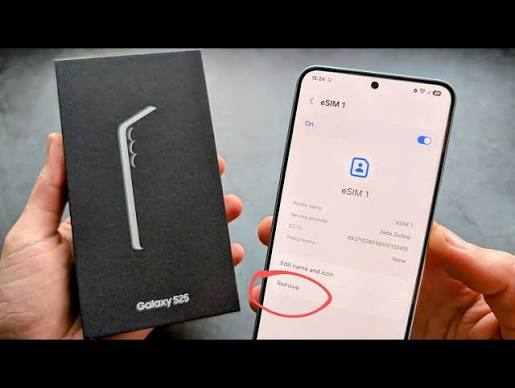
Step 1: Open Settings on your Samsung Galaxy S26
Step 2: Tap Connections
Step 3: Tap SIM Manager
Step 4: Under the eSIM section, you’ll see all installed eSIM profiles listed
Step 5: Tap the eSIM profile you want to delete
Step 6: Tap Delete or Remove eSIM (button appears at bottom of profile screen)
Step 7: A confirmation dialog appears:
“Are you sure you want to delete this eSIM? This action cannot be undone.”
Step 8: Tap Delete to confirm
Step 9: Galaxy S26 removes the profile — process takes 5–10 seconds
Step 10: SIM Manager refreshes — deleted profile no longer appears ✅
Total time: Under 2 minutes
Method 2 — Delete All eSIM Profiles at Once on Galaxy S26
If you’re selling your device, doing a factory reset, or want to clear all eSIM profiles simultaneously, use this method.
Step-by-Step: Delete All eSIM Profiles
Step 1: Open Settings
Step 2: Tap Connections
Step 3: Tap SIM Manager
Step 4: Tap the three-dot menu (⋮) in the top right corner of SIM Manager
Step 5: Select Delete All eSIM Profiles or Remove All eSIMs
Step 6: Confirmation dialog appears — read carefully:
“All eSIM profiles will be permanently deleted. You will need new QR codes from your carriers to reinstall.”
Step 7: Tap Delete All to confirm
Step 8: All eSIM profiles removed simultaneously — takes 10–20 seconds
Step 9: SIM Manager shows only your physical SIM (if installed) ✅
Note: This option may vary slightly depending on your One UI version. If “Delete All” isn’t visible in the three-dot menu, delete profiles individually using Method 1.
Method 3 — Delete eSIM via Factory Reset on Galaxy S26
If you’re resetting your Galaxy S26 before selling or giving it away, a factory reset also removes all eSIM profiles as part of the process.
Step-by-Step: Factory Reset with eSIM Deletion

Step 1: Back up all important data first:
- Samsung account backup: Settings → Accounts and Backup → Back up data
- Google account backup: Settings → Accounts and Backup → Google Account
Step 2: Remove your physical SIM card from the tray (recommended before factory reset)
Step 3: Open Settings
Step 4: Tap General Management
Step 5: Tap Reset
Step 6: Tap Factory Data Reset
Step 7: Scroll down and review what will be deleted — confirm eSIM profiles are listed
Step 8: Tap Reset at the bottom
Step 9: Enter your PIN, password, or pattern when prompted
Step 10: Tap Delete All to begin factory reset
Step 11: Galaxy S26 restarts and completes reset — all data and eSIM profiles deleted ✅
Total time: 5–10 minutes for complete factory reset
Important: Factory reset removes eSIM profiles AND all your personal data — apps, photos, contacts, settings. Only use this method when preparing to sell or give away your device.
Method 4 — Delete eSIM via Samsung Find My Mobile (Remote Deletion)
If you’ve lost your Galaxy S26 or can’t access it directly, you can remotely delete eSIM profiles through Samsung’s Find My Mobile service.
Step-by-Step: Remote eSIM Deletion
Step 1: On any browser, go to findmymobile.samsung.com
Step 2: Log in with your Samsung account credentials
Step 3: Select your Galaxy S26 from the device list
Step 4: Click Erase Data from the left menu
Step 5: Confirm remote erase — this performs a factory reset remotely
Step 6: All data including eSIM profiles deleted remotely ✅
Requirements:
- Galaxy S26 must be powered on
- Connected to internet (Wi-Fi or mobile data)
- Samsung account must be linked to device
- Find My Mobile must have been enabled before the device was lost
Note: Remote erase via Find My Mobile is a full factory reset — it deletes all data, not just eSIM profiles. Use only in emergency situations.
Before Deleting eSIM — Important Checklist
Run through this checklist before deleting any eSIM profile:
✅ Note your carrier account details
Write down your carrier name, registered mobile number, and account number. You’ll need these to request a new QR code after deletion.
✅ Check carrier QR code reissue policy
- Jio: Free QR code reissue via MyJio app or customer care
- Airtel: Free reissue via Airtel Thanks app or store
- Vi: May require store visit for reissue — check with local Vi store
- International eSIM providers: Check specific provider policy — some charge for reissue
✅ Screenshot your SIM Manager
Take a screenshot of your SIM Manager showing all installed eSIM profiles before deletion. Useful reference when reinstalling.
✅ Contact carrier before deleting (for number transfers)
If you’re deleting an eSIM to transfer your number to a new device or new SIM type, contact your carrier first. Some carriers require a specific sequence — carrier-initiated deletion followed by new profile installation — to avoid number disruption.
✅ Deactivate eSIM before deleting (recommended)
Before deleting, toggle the eSIM to inactive in SIM Manager. This ensures your carrier server registers the deactivation cleanly before the profile is removed from your device.
✅ Back up any eSIM-linked app data
Some apps use your eSIM number for two-factor authentication or account verification. Ensure you have alternative 2FA methods set up before deleting.
What Happens After You Delete an eSIM on Galaxy S26?
Understanding what happens on both the device and carrier side helps avoid surprises:
On your Galaxy S26:
- Profile is immediately and permanently removed
- SIM Manager no longer shows the deleted profile
- Associated network settings are cleared
- Any carrier-specific APN settings linked to that eSIM are removed
On your carrier’s server:
- Your number and account remain active — deletion is device-side only
- Jio/Airtel/Vi continues billing your plan normally
- Your number is not deactivated or ported
- Carrier can issue a new QR code to reinstall the eSIM
What you lose:
- The eSIM profile cannot be recovered from the device
- You cannot restore it from Samsung backup or Google backup
- Device-stored eSIM data (profile settings, carrier configuration) is gone
What you keep:
- Your phone number — still active on carrier’s server
- Your plan and billing — unaffected by device-side deletion
- Your carrier account — fully intact
- Ability to reinstall — request new QR code from carrier
How to Get Your eSIM Back After Deletion
Deleted your eSIM by mistake or need to reinstall after troubleshooting? Here’s how to get it back:
Reinstalling Jio eSIM After Deletion
- Open MyJio app
- Go to Profile → SIM Services → Get eSIM
- Enter your Galaxy S26’s EID number
- Complete OTP verification
- New QR code sent to registered email within 2–4 hours
- Scan QR code in Settings → Connections → SIM Manager → Add eSIM
- Jio eSIM reinstalled ✅
Cost: Free for most existing Jio customers
Reinstalling Airtel eSIM After Deletion
- Open Airtel Thanks app
- Go to My Account → Manage SIM → Get eSIM
- Complete video KYC (required for fresh installation)
- New QR code sent within 15–30 minutes
- Scan QR code in SIM Manager → Add eSIM
- Airtel eSIM reinstalled ✅
Cost: Free for existing Airtel customers
Reinstalling Vi eSIM After Deletion
- Call Vi customer care: 199
- Request new eSIM QR code
- May require store visit for fresh KYC
- QR code issued after verification
- Scan and install via SIM Manager
Cost: Check with local Vi store — policies vary by circle
Reinstalling International eSIM After Deletion
- Contact your international eSIM provider (Airalo, Holafly, etc.)
- Log in to your account on their website or app
- Request QR code reissue for your purchased plan
- Most providers allow one free reissue per purchase
- Some providers charge a small fee for additional reissues
- Scan new QR code in SIM Manager → Add eSIM
Deleting eSIM Before Selling Galaxy S26 — Complete Guide
Selling your Galaxy S26? Here’s the complete sequence to safely remove your eSIM before handing over the device:
Step 1: Transfer Your Number if Needed
If you want to keep using your eSIM number on a new device:
- Contact your carrier to initiate a number transfer to your new device
- Complete transfer before deleting from old device
- Confirm number is active on new device before proceeding
Step 2: Contact Your Carrier
Notify your carrier you’re deleting the eSIM from your Galaxy S26:
- Jio: Call 199 or use MyJio app
- Airtel: Call 121 or use Airtel Thanks app
- This ensures their server registers the deactivation cleanly
Step 3: Delete All eSIM Profiles
Use Method 2 (Delete All eSIM Profiles) from SIM Manager or proceed directly to factory reset.
Step 4: Factory Reset Your Galaxy S26
After eSIM deletion, perform a complete factory reset:
- Settings → General Management → Reset → Factory Data Reset
- Removes all personal data, accounts, and any remaining carrier settings
Step 5: Remove Samsung Account
During factory reset, you’ll be prompted to remove your Samsung account (FRP — Factory Reset Protection). Do this — it prevents the new owner from being locked out of the device.
Step 6: Confirm Clean State
After factory reset, power on device and confirm:
- Setup wizard appears (no previous account data)
- SIM Manager shows no eSIM profiles
- No personal data visible ✅
Device is now safe to sell or transfer.
Troubleshooting — eSIM Deletion Problems on Galaxy S26
Problem: Delete Button Grayed Out or Missing
Cause: eSIM profile is currently active — active profiles may need to be deactivated before deletion in some One UI versions.
Fix:
- Go to SIM Manager → tap the eSIM
- Toggle the eSIM to Inactive first
- Return to profile screen — Delete button should now be active
- Proceed with deletion
Problem: “Cannot Delete eSIM — Contact Carrier” Error
Cause: Some carrier-provisioned eSIM profiles have deletion locks that require carrier-side action first.
Fix:
- Contact your carrier customer care (Jio: 199, Airtel: 121)
- Request carrier-side eSIM deactivation
- Once carrier confirms deactivation, retry deletion on device
- Usually resolves within 30 minutes
Problem: eSIM Profile Reappears After Deletion
Cause: Carrier push — some carriers automatically reprovision eSIM profiles. Rare but possible.
Fix:
- Delete the profile again
- Immediately go offline (Airplane Mode)
- Contact carrier and request they remove the push provisioning from their server
Problem: Galaxy S26 Freezes During eSIM Deletion
Cause: Software glitch or low storage causing SIM Manager to freeze.
Fix:
- Force restart Galaxy S26 — press and hold Volume Down + Power button for 7 seconds
- After restart, try deletion again
- If freezing persists, update One UI to latest version
- Settings → Software Update → Download and Install
Problem: SIM Manager Shows Deleted eSIM as “Unknown Profile”
Cause: Partial deletion — profile metadata remains after incomplete deletion.
Fix:
- Tap the “Unknown Profile”
- Try deleting again
- If still showing, go to Settings → General Management → Reset → Reset Network Settings
- Retry deletion after network reset
eSIM Deletion FAQs
Q: Will deleting eSIM on Galaxy S26 cancel my phone plan?
No. Deleting the eSIM profile from your device only removes it from your Galaxy S26. Your carrier account, phone number, and billing continue unaffected. Contact your carrier separately to cancel the plan if needed.
Q: Can I recover a deleted eSIM on Galaxy S26?
Not from the device — deletion is permanent. However, your carrier can issue a new QR code to reinstall the same number and plan. Contact Jio (199), Airtel (121), or Vi (199) to request a new eSIM QR code.
Q: How long does it take to delete an eSIM on Galaxy S26?
The actual deletion takes 5–10 seconds. The full process including preparation takes under 2 minutes for a single profile deletion.
Q: Do I need to contact my carrier before deleting eSIM?
Not mandatory for basic deletion. However, if you’re transferring your number to a new device, switching carriers, or having issues reinstalling after deletion, contacting your carrier first is strongly recommended.
Q: Does deleting eSIM affect my physical SIM on Galaxy S26?
No. Deleting an eSIM profile has no effect on your physical SIM card — it continues working normally.
Q: Can I delete an eSIM remotely if my Galaxy S26 is lost?
Yes — use Samsung Find My Mobile (findmymobile.samsung.com) to perform a remote factory reset, which removes all eSIM profiles along with all other data.
Q: Will factory reset delete eSIM profiles on Galaxy S26?
Yes. A factory reset on Galaxy S26 removes all eSIM profiles permanently along with all other personal data.
Q: How many times can I delete and reinstall an eSIM on Galaxy S26?
There’s no device-side limit on how many times you can install and delete eSIM profiles. However, some carriers limit how many times they’ll issue new QR codes — check your carrier’s policy.
Q: Should I delete eSIM before selling my Galaxy S26?
Absolutely yes. Always delete all eSIM profiles and perform a factory reset before selling or giving away your Galaxy S26. Leaving eSIM profiles on a device you’re selling is a serious privacy and security risk.
Q: Does deleting eSIM on Galaxy S26 affect my WhatsApp or other apps linked to that number?
Deleting the eSIM profile from the device doesn’t directly affect apps — your number remains active on the carrier’s server. However, if you lose network connectivity on that number after deletion, WhatsApp and other number-linked apps won’t receive messages on that number until eSIM is reinstalled.
Conclusion
Deleting an eSIM on your Samsung Galaxy S26 is quick, straightforward, and takes under two minutes — but the permanence of the action makes preparation essential. Always note your carrier details, check the QR code reissue policy, and contact your carrier if you’re transferring numbers before deleting.
For most users, Method 1 — single profile deletion via SIM Manager — handles the job cleanly. Selling your device? Go straight to Method 3 — factory reset — for complete data removal including all eSIM profiles.
The key thing to remember: deleting the eSIM from your Galaxy S26 doesn’t cancel your plan or lose your number. Your carrier holds those — and can issue a new QR code whenever you’re ready to reinstall.

