
Using an Apple Watch with cellular connectivity allows you to make calls, send messages, stream music, and stay connected even when your iPhone is not nearby. Many Airtel users in India want to know whether they can use an eSIM on their Apple Watch with a prepaid connection and how the setup process works.
Airtel offers Apple Watch cellular support through its Number Share service, which lets your Apple Watch use the same mobile number as your iPhone. Once activated, you can access mobile network features directly from your watch without needing a separate phone number.

If you’re considering setting up an Airtel prepaid eSIM on your Apple Watch, it’s important to check device compatibility, carrier support, and the latest activation requirements. In this guide, we’ll explain how Airtel eSIM support works on Apple Watch, the eligibility requirements, activation steps, common issues, and everything you need to know to get connected quickly and easily.
Airtel Prepaid eSIM on Apple Watch. If you’ve been wondering whether you can use Airtel‘s prepaid eSIM on your Apple Watch, the short answer is yes, you can. But there are a few things you need to know before you start, because the setup isn’t quite as straightforward as Airtel’s postpaid plans.
This guide walks you through everything: eligibility, the actual setup steps, what the plan covers, common issues people run into, and whether it’s worth doing. Whether you’ve just bought a new Apple Watch Series 9, Ultra 2, or SE, this should answer all your questions.
What Is Apple Watch Cellular and Why Does It Need an eSIM?

Apple Watch cellular models have their own built-in mobile radio. When connected, you can leave your iPhone at home and still receive calls, reply to messages, stream music, and get notifications — all from your wrist.
To do that, your watch needs its own mobile connection. That connection comes through an eSIM — an embedded SIM built directly into the watch hardware. There’s no physical SIM slot, so you can’t pop in a regular SIM card. Everything is set up digitally through your carrier.
Airtel supports eSIM on Apple Watch for both postpaid and prepaid customers, though the process and plan options differ between the two.
Is Airtel Prepaid eSIM Supported on Apple Watch?
Yes — Airtel does offer eSIM support for prepaid users on Apple Watch. However, it works differently from postpaid.
With postpaid, the Apple Watch essentially shares your existing number and plan. With prepaid, Airtel issues a separate number for the watch. The watch gets its own eSIM profile with a dedicated prepaid plan, which means you’re managing two numbers and two recharges.
This is important to understand upfront. If you were expecting your Apple Watch to ring with the same number as your iPhone, that’s a postpaid feature. With prepaid, your watch will have its own number.
That said, the cellular functionality still works well. You can make and receive calls, use data, and stay connected even without your phone nearby.
What You Need Before You Start
Before jumping into the setup, make sure you have everything in order:
Compatible Apple Watch model. Only cellular variants support eSIM. Check your model: Apple Watch Series 4 or later (cellular), Apple Watch Ultra, Ultra 2, or Apple Watch SE (2nd gen, cellular). The GPS-only versions cannot use an eSIM regardless of carrier.
iPhone running iOS 16 or later. The Apple Watch pairs with your iPhone, and the eSIM setup is done through the Watch app on your phone. Make sure your iPhone is updated.
Airtel prepaid SIM is active on your iPhone. Your iPhone should already have an active Airtel prepaid connection. This is used to verify your identity and link the eSIM to your Airtel account. A n
Airtel account with eSIM eligibility. Some older prepaid numbers may need to be upgraded or verified before eSIM activation. You can check eligibility on the Airtel Thanks app or by calling 121.
Stable Wi-Fi connection. The eSIM download and activation process requires internet access. Do this at home on a reliable Wi-Fi network, not on mobile data alone.
How to Set Up Airtel Prepaid eSIM on Apple Watch
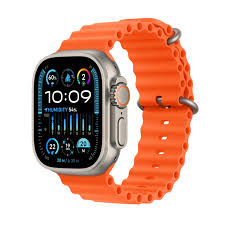
Step 1: Open the Watch App on Your iPhone
On your paired iPhone, open the Watch app. Go to My Watch at the bottom, then tap Cellular. You’ll see an option to set up cellular for your watch.
Step 2: Tap “Set Up Cellular”
Follow the on-screen prompts. Your iPhone will ask you to confirm your Apple ID and the watch you want to activate cellular on.
Step 3: Choose Airtel as Your Carrier
The Watch app will show available carriers in your region. Select Airtel. You’ll be redirected to Airtel’s activation flow, either within the app or via a web page that opens automatically.
Step 4: Verify Your Identity
Airtel will ask you to verify your mobile number and identity. For prepaid users, this typically involves:
- Enter your Airtel prepaid mobile number
- Receiving an OTP on that number
- Completing Aadhaar-based or ID verification (required for new eSIM issuance under TRAI regulations)
Keep your Aadhaar number or any government-issued ID handy for this step.
Step 5: Choose a Prepaid Watch Plan
Airtel will present available prepaid plans for the Apple Watch eSIM. These are typically standalone data + calling plans specifically for wearables. Plans vary in price and validity — check the Airtel Thanks app or the Airtel website for the latest options, as these change regularly.
As of recent listings, Airtel has offered Apple Watch plans starting around ₹149–₹299 per month, though exact pricing should be verified directly with Airtel before activating.
Step 6: Complete Payment and Wait for Activation
Once you’ve selected a plan and completed payment, Airtel will push the eSIM profile to your Apple Watch. This can take anywhere from a few minutes to a couple of hours, depending on network load.
You’ll get a confirmation notification on your iPhone once the eSIM is active. Your Apple Watch should show a signal bar and display “Airtel” in the cellular settings.
Step 7: Test the Connection
Put your iPhone in another room (or turn on Aeroplane Mode on your iPhone) and check your Apple Watch. You should see the green cellular indicator at the top of the watch face. Try making a call or sending a message to confirm everything is working.
How to Check Airtel eSIM Status on Apple Watch

After setup, you can check the status anytime:
- On your iPhone: Watch app → My Watch → Cellular — shows whether cellular is active and connected
- On your Apple Watch: Swipe up to open Control Centre — a green phone icon means cellular is active; grey means it’s off or unavailable.
If the status shows as inactive even after setup, give it a few hours. If it’s still not working after 24 hours, contact Airtel support through the Thanks app or call 121.
Managing Your Airtel Prepaid Plan for Apple Watch
Since this is a prepaid plan, you’ll need to recharge it separately from your main Airtel number. Here’s how to stay on top of it:
Recharge through the Airtel Thanks app. Open the app, go to your account, and look for the Apple Watch number under your linked devices. You can recharge directly from there.
Set reminders for expiry. Prepaid plans expire on a fixed date. If you miss the recharge window, your watch loses cellular connectivity until you top up again.
Check data usage. The Airtel Thanks app shows data usage per number. Since wearable plans have smaller data allowances than phone plans, it’s worth keeping an eye on this.
Auto-recharge option. Airtel allows setting up auto-recharge for prepaid numbers, which removes the risk of accidentally running out mid-month.
Pros of Using Airtel Prepaid eSIM on Apple Watch
No postpaid commitment required. You don’t need a postpaid plan or a long-term contract to use cellular on your Apple Watch. Prepaid keeps things flexible.
Leave your phone behind. Going for a run, heading to the gym, or taking a quick walk to the market — you can do all of it without carrying your iPhone and still stay reachable.
Genuine independence. Calls, messages, Apple Maps navigation, and Siri all work directly from the watch when you’re away from your phone.
Affordable entry point. Airtel’s wearable plans are priced lower than full smartphone plans. For the connectivity you get, the cost is reasonable.
Easy management via the Thanks app. Recharging, checking balance, and tracking usage are all handled in one place through the Airtel Thanks app.
Cons of Using Airtel Prepaid eSIM on Apple Watch
Separate number, not shared. Unlike postpaid watch plans in some countries that mirror your main number, the prepaid eSIM gives your watch its own number. People calling your regular number won’t reach your watch automatically.
Two recharges to manage. You’re now maintaining two separate prepaid numbers — your iPhone’s and your watch’s. It’s easy to forget to recharge the watch and lose connectivity unexpectedly.
Limited data allowance. Wearable plans typically come with smaller data buckets than phone plans. Streaming music on Spotify or Apple Music directly from the watch can burn through the allowance quicker than expected.
Activation can be slow. Aadhaar verification and eSIM provisioning sometimes take longer than expected. Don’t start the setup if you need the watch working within the hour.
Not all Apple Watch models qualify. GPS-only models are completely excluded. If you’re not sure which version you have, check Settings → General → About on the watch.
Common Problems and How to Fix Them
eSIM activation stuck or failed. Wait 2–4 hours and restart both your iPhone and Apple Watch. If it’s still not active, contact Airtel at 121 and provide your Apple Watch IMEI (found in Watch app → My Watch → General → About).
No signal on the watch after activation.n Check that Cellular is enabled in the Watch app. Also, to make sure your Airtel plan hasn’t expired. A simple restart of the watch often resolves connectivity glitches after a fresh eSIM install.
Watch showing cellular, but calls are not connecting. This sometimes happens if the eSIM profile wasn’t fully provisioned. Ask Airtel support to re-push the eSIM profile to your watch. The process takes a few minutes on their end.
Aadhaar verification is failing.g Make sure the name and details on your Airtel account match your Aadhaar exactly. Even small mismatches (middle name, initials) can cause the verification to fail. Contact Airtel support if the issue persists.
Watch for a losing signal frequently. Cellular coverage on a small wearable antenna is naturally weaker than on a phone. In areas with weak Airtel coverage, the watch will drop cellular and fall back to Wi-Fi if available. This is a network limitation, not a fault with the watch.
Airtel Prepaid vs Postpaid for Apple Watch: Which Is Better?
| Feature | Prepaid | Postpaid |
|---|---|---|
| Same number as iPhone | No | Yes (with NumberShare) |
| Monthly commitment | No | Yes |
| Cost | Lower, flexible | Fixed monthly charge |
| Setup complexity | Moderate | Simpler |
| Plan variety | Limited | More options |
If staying reachable on your main number is important to you — for work calls, for example — postpaid with Airtel’s NumberShare feature is the cleaner solution. If you just want basic connectivity on the watch without a contract, prepaid works fine.
FAQs
Can I use an Airtel prepaid eSIM on any Apple Watch?
Only on cellular models. This includes Apple Watch Series 4 and later (cellular versions), Apple Watch Ultra and Ultra 2, and Apple Watch SE 2nd generation (cellular). GPS-only models do not support eSIM regardless of carrier.
Will my Apple Watch ring when someone calls my iPhone number?
Not automatically with a prepaid eSIM. Your watch gets its own separate number. To receive calls on your main number through the watch, you’d need Airtel’s postpaid NumberShare plan.
How much does Airtel’s Apple Watch prepaid plan cost?
Plans start around ₹149 per month, but pricing changes periodically. Check the Airtel Thanks app or airtel. In for the most current wearable plan options before activating.
Can I remove the Apple Watch eSIM if I change my mind?
Yes. Go to Watch app → My Watch → Cellular, tap your plan, and select Remove Plan. This deactivates the eSIM on the watch. Contact Airtel to cancel the prepaid number if you don’t want to keep it active.
Does the Apple Watch eSIM work when I’m abroad?
International roaming on Apple Watch eSIM depends on Airtel’s roaming agreements and whether your watch plan includes international roaming. Check with Airtel before travelling. In most cases, you’d need a specific international add-on.
How do I know if my Apple Watch is cellular or GPS-only?
Check the back of the watch — cellular models have a red circle or dot on the Digital Crown. You can also check in Settings → General → About on the watch, or look up the model number on Apple’s website.
What happens if my Airtel prepaid watch plan expires?
Your watch loses cellular connectivity and can only connect through your iPhone’s Bluetooth or Wi-Fi. You won’t lose any data — just recharge the prepaid number to restore cellular access.
Conclsion
Setting up Airtel prepaid eSIM on Apple Watch takes a bit more effort than postpaid, but it works well once it’s done. The main thing to keep in mind is that your watch gets its own number — so it’s best suited for people who want connectivity for calls, data, and notifications when away from their phone, rather than those who need their main number to ring on the watch.
If you’re someone who goes to the gym, runs outdoors, or just prefers not carrying a phone everywhere, the setup is absolutely worth it. Stay on top of the recharge, keep the Airtel Thanks app handy, and you’ll have a watch that genuinely works on its own.
The freedom of leaving your phone behind — even for an hour — is more useful than it sounds until you actually try it.

