
You just got your Apple Watch set up, went to activate your mobile plan, and… nothing. The eSIM option is nowhere to be found. No cellular settings, no plan activation screen — just a blank wall where your connectivity should be.
It’s more common than you think. And in most cases, it’s fixable without a trip to the Apple Store or calling your carrier for an hour.
This guide walks you through every reason your eSIM might not be showing on Apple Watch and exactly what to do about it — step by step, in plain language.
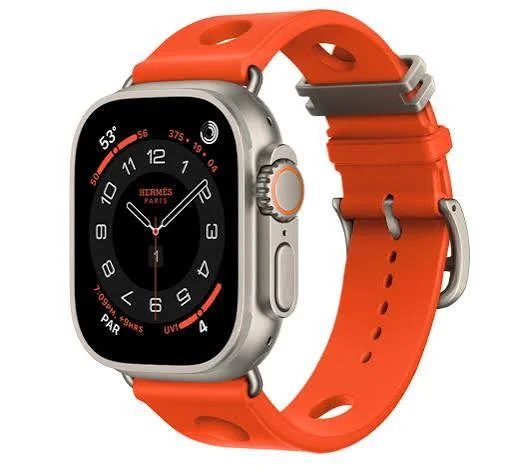
eSIM Not Showing. If your Apple Watch is not showing the eSIM option or cellular setup screen, you’re not alone. Many users encounter this issue when trying to activate cellular service on their Apple Watch. The problem can occur due to carrier compatibility issues, software glitches, incorrect Apple Watch settings, or an incomplete pairing process between the watch and iPhone.
An active eSIM allows your Apple Watch to make calls, send messages, stream music, and use mobile data even when your iPhone is not nearby. When the eSIM option is missing, however, these cellular features become unavailable, limiting the watch’s full functionality.
Fortunately, most eSIM-related issues on the Apple Watch can be resolved with a few simple troubleshooting steps. From checking carrier support and updating watchOS to re-pairing your device and resetting network settings, there are several effective ways to restore the eSIM setup option. In this guide, we’ll explain the most common reasons why the eSIM is not showing on Apple Watch and provide step-by-step solutions to help you get cellular service working again.
Why eSIM Doesn’t Show on Apple Watch

Before jumping into fixes, it helps to understand why this happens in the first place. The eSIM option on Apple Watch only appears when a few conditions are met:
- You have an Apple Watch with cellular capability (not all models have it)
- Your iPhone is running a compatible iOS version
- Your carrier supports Apple Watch eSIM in your region
- The Watch app is correctly paired and synced with your iPhone
If even one of these is off, the eSIM option simply won’t appear. Let’s go through each scenario.
eSIM Not Showing on Apple Watch? Here’s How to Fix It-
Step 1: Check If Your Apple Watch Model Supports Cellular

This sounds basic, but it’s the first thing to rule out. Not every Apple Watch has cellular built in.
Apple Watch models with cellular (eSIM support):
- Apple Watch Series 3 (GPS + Cellular version)
- Apple Watch Series 4 through Series 9 (Cellular versions)
- Apple Watch Ultra and Ultra 2
- Apple Watch SE (2nd generation, Cellular version)
How to check your model: Go to Settings → General → About on your Apple Watch. You’ll see the model name. If it says “GPS” only — with no mention of “Cellular” — your watch doesn’t support eSIM at all. No amount of troubleshooting will change that.
A quick real-world example: Someone buying a refurbished Apple Watch Series 7 on a secondhand site might not realise they got the GPS-only version. The price difference is usually small, but the hardware difference is significant.
Step 2: Make Sure Your Carrier Supports Apple Watch eSIM

Even if your watch is cellular-capable, your carrier has to support Apple Watch specifically. This is separate from general eSIM support on iPhones.
In India, for example, carriers like Airtel and Jio support Apple Watch cellular plans — but the plan type and availability can vary by city or circle. If you’re on a prepaid connection, some carriers only allow Apple Watch eSIM on postpaid plans.
To check carrier support:
- Open the Watch app on your iPhone
- Tap Cellular
- If your carrier is supported, you’ll see an option to add a plan
If the Cellular section shows “No Cellular Plans” but the option to add a plan isn’t there either, contact your carrier directly. Ask specifically: “Does my current plan and SIM type support Apple Watch cellular activation?”
Step 3: Look in the Right Place in the Watch App
A lot of people miss this. The eSIM setup for Apple Watch doesn’t happen on the watch itself — it happens in the Watch app on your iPhone.
Here’s where to find it:
- Open the Watch app on your iPhone (not Settings — the Watch app specifically)
- Scroll down and tap Cellular
- Tap Set Up Cellular or Add a New Plan
If the Cellular option isn’t even showing in the Watch app menu, jump to the next steps below.
Step 4: Restart Both Devices
Before going deeper, do the classic restart. It solves more than it should.
Restart your iPhone: Hold the side button and volume button → slide to power off → turn back on.
Restart your Apple Watch: Hold the side button → slide to power off → hold the side button again to turn on.
Once both are back on, open the Watch app and check the Cellular section again.
Step 5: Check Your iOS and watchOS Versions
Running outdated software is one of the sneakier reasons eSIM doesn’t show up.
How to update your iPhone: Settings → General → Software Update
How to update your Apple Watch: Watch app on iPhone → General → Software Update (your watch needs to be on its charger with at least 50% battery)
Keep both updated to the latest stable versions. Apple frequently fixes carrier-related bugs in point releases (like 17.1.1, 17.2, etc.), and your eSIM option might reappear after an update.
Step 6: Check Your iPhone’s Carrier Settings
Your carrier periodically pushes settings updates to your iPhone that affect how cellular features — including Apple Watch eSIM — behave. If you missed one of these, it can block the eSIM option.
How to update carrier settings:
- Go to Settings → General → About
- Stay on that screen for about 10 seconds
- If a carrier settings update is available, a prompt will appear automatically
- Tap Update
If no prompt appears, your carrier settings are already current.
Step 7: Unpair and Re-Pair Your Apple Watch

This is more drastic, but it often resolves stubborn cases where the eSIM option simply refuses to appear.
Important: Unpairing will erase your watch, but it creates a backup first, so you can restore your data.
Steps:
- Open the Watch app on your iPhone
- Tap your watch at the top of the screen
- Tap the info (i) button
- Tap Unpair Apple Watch and confirm
- Once complete, pair your watch again as new (or restore from backup)
- Check the Cellular section again
After re-pairing, the Watch app often picks up cellular support that wasn’t registering before.
Step 8: Reset Network Settings on Your iPhone
If the eSIM option is showing but activation fails, a network reset can help. Note that this clears saved Wi-Fi passwords.
Settings → General → Transfer or Reset iPhone → Reset → Reset Network Settings.
After the reset, try cellular activation again.
Step 9: Contact Your Carrier
If you’ve been through everything above and the eSIM option still isn’t showing — or it shows but keeps failing — the issue is likely on the carrier’s side.
When you call or visit the carrier, tell them:
- Your iPhone model and iOS version
- Your Apple Watch model and watchOS version
- That you want to activate an eSIM specifically for the Apple Watch
- Your current plan type (postpaid/prepaid)
Some carriers need to manually provision your account for the Apple Watch eSIM before it works. This is a 5-minute backend fix on their end, but you have to ask for it explicitly.
Pros and Cons of Using eSIM on Apple Watch
Before you troubleshoot further, it’s worth knowing what you’re working toward — and what the limitations are once you get it working.
Pros
Leave your phone behind. This is the whole point. With eSIM active, your Apple Watch can make calls, send messages, stream music, and use apps without your iPhone nearby. Great for runs, gym sessions, or quick errands.
Same number, no extra SIM. Unlike older carrier solutions, eSIM on Apple Watch shares your existing phone number. People calling you reach both your iPhone and your watch on the same number.
Emergency SOS without your phone. If you’re in a situation where your phone isn’t with you and something goes wrong, your watch can still call emergency services independently.
Seamless handoff. When you’re near your iPhone, your watch uses that connection. When you move away, it automatically switches to its own cellular. You don’t have to do anything.
Cons
Extra monthly cost. Carriers charge separately for the Apple Watch plan — typically a smaller add-on fee, but it adds up monthly. In India, this is usually around ₹199–₹299/month depending on the carrier.
Battery drain. Running cellular on the watch burns through battery faster. Expect to charge it at least once a day if you’re using cellular features regularly.
Not available on all plans. Many prepaid and budget plans don’t support Apple Watch cellular. You may need to switch to a postpaid plan to use this feature.
Still limited without a phone nearby. Some Watch apps require your iPhone to function fully, even with eSIM active. Third-party apps, especially, may not run properly in standalone mode.
When to Visit the Apple Store
If you’ve tried everything in this guide and nothing works, book a Genius Bar appointment. Bring your iPhone and Apple Watch. In some cases, a hardware fault with the watch’s antenna or eSIM chip can prevent activation entirely — this isn’t something you can fix at home and would likely be a warranty or repair situation.
Frequently Asked Questions
Q: Why is the Cellular option missing from my Watch app entirely?
A: This usually means your Apple Watch model doesn’t support cellular, or your watch wasn’t recognised as cellular-capable when it paired. Try unpairing and re-pairing. If it still doesn’t appear, verify your exact watch model.
Q: Can I use eSIM on an Apple Watch without an iPhone?
A: No. Apple Watch requires an iPhone for initial setup and pairing. Once set up, it can operate independently for calls and data, but the first-time configuration always needs an iPhone.
Q: My carrier isn’t listed during eSIM setup. What do I do?
A: Your carrier may not support Apple Watch eSIM in your region yet. Contact them to confirm. If they do support it, try resetting network settings on your iPhone and attempting setup again.
Q: Does eSIM on Apple Watch use the same number as my iPhone?
A: Yes. Apple Watch eSIM shares your iPhone’s number. You can answer or make calls from the same number on either device.
Q: I activated the eSIM, but it shows “No Service” on my watch. Why?
A: First, move away from your iPhone (at least 30 feet) to trigger independent cellular mode. If it still shows no service, the eSIM might not have fully provisioned. Contact your carrier to confirm the activation is complete on their end.
Q: Will unpairing my Apple Watch delete everything?
A: Unpairing creates a backup automatically. When you re-pair, you can restore from that backup and get your apps, watch faces, and health data back.
Q: My eSIM was working before,e and now it’s gone. What happened?
A: A carrier settings update, iOS update, or software bug can sometimes remove the active plan from the Watch app. Go to the Watch app → Cellular → check if a plan is still listed. If it’s gone, you may need to add the plan again (your carrier might do this without an extra charge since you already activated it).
Q: Can I use a different carrier for the Apple Watch than my iPhone? A: No. Apple Watch eSIM must be on the same carrier as your iPhone’s primary SIM.
Quick Troubleshooting Checklist
Before calling your carrier, run through this list:
- Confirmed your Apple Watch model is a Cellular version
- Checked carrier supports Apple Watch eSIM on your plan type
- Looked in Watch app (not iPhone Settings) → Cellular section
- Restarted both iPhone and Apple Watch
- Updated to the latest iOS and watchOS
- Updated carrier settings via Settings → General → About
- Tried unpairing and re-pairing the watch
- Reset network settings on iPhone
If you’ve checked every box and it’s still not working — that’s when you call the carrier or visit Apple.
Conclsion
The “eSIM not showing on Apple Watch” problem sounds intimidating, but it almost always comes down to one of a few fixable issues: wrong watch model, outdated software, a carrier provisioning gap, or a simple pairing glitch. Work through the steps above in order, and you’ll most likely have it sorted within 20–30 minutes.
Once your eSIM is active and working, it genuinely changes how you use your Apple Watch. Being able to step out without your phone — even just for a walk — and still be reachable is one of those features that feels small but makes a noticeable difference day to day.

