
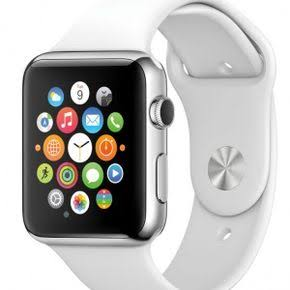
You set up your Apple Watch with a cellular plan, everything seemed fine during activation, and then — nothing. Calls aren’t going through, data isn’t working, or the watch keeps dropping to Wi-Fi only even when your phone isn’t nearby. It’s frustrating, especially when you paid extra for the cellular model specifically to use it independently.
The good news is that most eSIM issues on Apple Watch are fixable without visiting a store or calling your carrier. This guide walks through every common cause and fix, in plain language, starting with the simplest solutions.
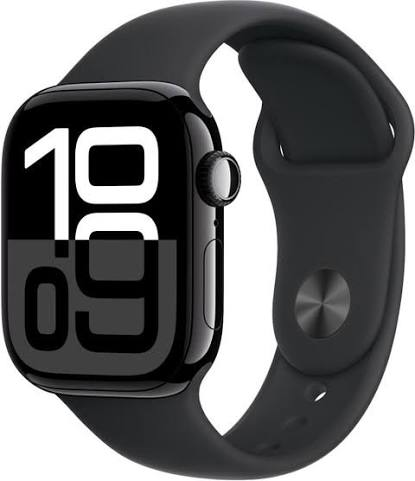
An eSIM allows your Apple Watch (often called an iWatch) to connect to a mobile network without requiring a physical SIM card, enabling features such as calls, messages, and data access even when your iPhone is not nearby. However, many users encounter issues where the eSIM fails to activate, loses connectivity, or stops working altogether. These problems can be frustrating, especially when you rely on your Apple Watch for communication and fitness tracking on the go.
Several factors can cause eSIM issues on an Apple Watch, including carrier activation errors, network compatibility problems, outdated software, incorrect cellular settings, or temporary synchronization issues between the watch and iPhone. Fortunately, most eSIM-related problems can be resolved with a few simple troubleshooting steps.
In this guide, we’ll explain the most common reasons why an eSIM may not be working on your Apple Watch in 2026 and provide step-by-step solutions to help restore cellular connectivity. Whether you’re using a newly activated eSIM or troubleshooting an existing connection, these fixes can help get your Apple Watch back online quickly and efficiently.
eSIM not working on iWatch— How to Fix It (2026): step by step
First — Understand how eSIM works on the Apple Watch.
Before troubleshooting, it helps to know what’s actually happening under the hood.
Your Apple Watch (cellular model) has a built-in eSIM — a small electronic chip that stores your carrier plan. Unlike a physical SIM card, you can’t remove or swap it. The plan is activated wirelessly through your iPhone and the carrier’s system.

For the eSIM to work correctly, a few things need to be true:
- Your carrier must support Apple Watch cellular in your country/region
- Your iPhone and Apple Watch must be on the same Apple ID and carrier account
- The Watch OS and iPhone iOS must both be reasonably up to date
- Your carrier plan must be active and linked to the Watch
When any one of these breaks down, your eSIM stops working — even if the activation appeared to succeed.
Common Reasons eSIM Stops Working on Apple Watch

Here are the most frequent causes before jumping into fixes:
1. Carrier provisioning error — The carrier’s system didn’t fully register the eSIM even though the Watch showed “activated.”
2. Software glitch after an update — watchOS or iOS updates sometimes reset network settings or break the carrier link temporarily.
3. Watch and iPhone out of sync — If your iPhone was reset, changed Apple ID, or updated to a new carrier profile, the Watch eSIM can lose its pairing.
4. Carrier plan suspended or expired — The cellular add-on for your Watch may have been paused, cancelled, or failed to renew.
5. Too far from iPhone during setup — Apple Watch eSIM activation requires your iPhone to be nearby. If the phone lost connection partway through, the setup may have been completed incompletely.
6. Region or carrier compatibility issue — Not all carriers support Apple Watch cellular in every country. If you moved, switched carriers, or are roaming, eSIM may stop working.
Fix 1 — Restart Both Devices

It sounds basic, but a restart clears a surprising number of temporary network errors.
Restart your Apple Watch: Press and hold the side button until you see the power off slider. Drag it. Wait 30 seconds, then press the side button again to turn it back on.
Restart your iPhone: Press and hold the side button and either volume button until the slider appears. Power off, wait 30 seconds, turn back on.
Once both are back on, bring them close together and check if the cellular signal appears on the Watch (the green cell icon in Control Center).
Fix 2 — Check Your Carrier Plan is Active
This catches more problems than people expect. Your cellular plan for the Watch may have been cancelled, paused, or simply not renewed.
How to check:
- Open the Watch app on your iPhone
- Tap Cellular
- Look at the plan status shown under your carrier name
If it shows an error, expired, or isn’t there at all, the plan needs to be reactivated through your carrier — either via their app, website, or customer support.
Practical example: Jio and Airtel in India both charge a small monthly add-on fee for Apple Watch cellular. If your main plan auto-renewed but the Watch add-on didn’t, you’ll lose cellular on the Watch even though your phone works fine. Logging into the carrier app and reactivating the Watch plan usually fixes this within minutes.
Fix 3 — Toggle Cellular Off and On
Sometimes the connection just needs a nudge.
On your Apple Watch:
- Swipe up from the watch face to open Control Center
- Tap the cellular icon (looks like signal bars with a dot)
- Toggle it off, wait 10 seconds, tap it again to turn back on
Wait about 30 seconds and check if the signal returns. If the Watch shows a green dot or signal bars, you’re back online.
Fix 4 — Update watchOS and iOS.
Outdated software is a frequent cause of eSIM problems, particularly after a major OS release. Apple and carriers push carrier settings updates that are essential for eSIM to function correctly.
Update your iPhone: Settings → General → Software Update
Update your Apple Watch: Watch app on iPhone → General → Software Update
Both need to be on the latest version. If your Watch is stuck on an older watchOS version because your iPhone is too old to support the latest iOS, that mismatch can cause carrier connectivity issues.
Important: Keep your Watch on its charger and your iPhone nearby while updating the Watch. Updates fail partway through more often when the Watch is off the charger.
Fix 5 — Check Carrier Settings Update on iPhone.
Carrier settings are separate from iOS updates. They control how your phone and Watch connect to the carrier network, and they update silently in the background — but sometimes they need a manual trigger.
How to check:
- Go to Settings on your iPhone
- Tap General → About
- Wait on this screen for about 10 seconds
- If a carrier update is available, a pop-up will appear prompting you to install it
Install any available update, restart both devices, and check cellular on the Watch again.
Fix 6 — Remove and Re-Add the Cellular Plan
If the above steps don’t work, removing the eSIM plan and setting it up fresh often resolves deeper provisioning errors.
Steps:
- Open the Watch app on your iPhone
- Tap Cellular
- Tap your carrier plan and select Remove [Carrier] Plan
- Confirm removal
- Restart both your iPhone and Apple Watch
- Go back to Watch app → Cellular → Add a New Plan
- Follow the on-screen steps to re-activate with your carrier
This process takes about 5–10 minutes. Your carrier may send an OTP or require you to log in to their app to complete their reactivation.
Practical example: After updating to watchOS 11, several users reported their Airtel Watch plan showing as “No Service” even though the plan was active. Removing and re-adding the plan through the Watch app fixed it in most cases without needing to call support.
Fix 7 — Reset Network Settings on iPhone.
If the eSIM still isn’t working, resetting network settings on your iPhone can clear corrupted configuration data that’s blocking the connection.
Note: This will erase your saved Wi-Fi passwords, so have those ready.
Steps:
- Go to Settings → General → Transfer or Reset iPhone
- Tap Reset → Reset Network Settings
- Enter your passcode and confirm
- Restart your iPhone and Apple Watch
- Reconnect to Wi-Fi and check cellular on the Watch
After this reset, you may need to re-enter your Wi-Fi password, but cellular and eSIM settings often come back correctly on their own.
Fix 8 — Unpair and Re-Pair Your Apple Watch
This is the nuclear option, but it works when everything else fails. Unpairing creates a full backup of your Watch and resets it completely. When you pair it again, the eSIM setup runs fresh.
Before you start: Make sure your iPhone has a recent backup (iCloud or Mac). Unpairing will erase the Watch.
Steps:
- Keep your Watch and iPhone close together
- Open the Watch app on iPhone
- Tap your Watch at the top → tap the info icon (i)
- Tap Unpair Apple Watch
- Confirm — this takes a few minutes
- Once done, set up your Watch again from the Watch app
- During setup, choose Restore from Backup
- After pairing completes, go to the Watch app → Cellular → Add a New Plan
The fresh eSIM activation after re-pairing fixes provisioning errors that survive all other troubleshooting steps.
Fix 9 — Contact Your Carrier Directly
If you’ve tried everything above and the eSIM still won’t work, the issue is almost certainly on the carrier’s side — not your Watch or iPhone.
Carriers sometimes have account-level flags, region restrictions, or backend errors that block eSIM activation for Apple Watch. No amount of restarting or resetting on your end will fix a carrier-side problem.
What to tell them:
- “My Apple Watch eSIM is not working after activation.”
- Your Watch model and serial number (Settings → General → About on the Watch)
- The exact error message you see in the Watch app → Cellular section
- Whether it ever worked before, or if this is a fresh activation
Most carriers can reprovision your eSIM remotely within minutes once they identify the issue on their end. Ask them specifically to “reset the eSIM provisioning” for your Watch line.
Pros and Cons of Using eSIM on Apple Watch
Before deciding whether to keep troubleshooting or drop the cellular plan entirely, here’s an honest look at what eSIM on Apple Watch is actually like:
Pros:
- Use your Watch independently without your iPhone nearby — great for runs, gym sessions, or travel
- Emergency SOS works even when your phone is miles away
- Calls, texts, and notifications come through on the Watch alone
- No physical SIM to manage or lose
- Most carriers offer affordable Watch add-on plans (often ₹199–₹299/month in India)
Cons:
- eSIM activation is more finicky than a regular SIM — setup errors are common
- Battery drains faster when using cellular vs. Wi-Fi only
- Carrier support for Apple Watch varies significantly by region
- If your carrier doesn’t support Apple Watch, you simply can’t use cellular — no workaround
- Switching carriers means removing the old eSIM plan and setting up a new one from scratch
eSIM vs. GPS-Only Apple Watch — Which Should You Get?
If you’re still deciding whether the cellular model is worth it, here’s a quick breakdown:
Choose Cellular (eSIM) if:
- You exercise or commute without your phone regularly
- You want to leave your phone at home and still be reachable
- Your carrier supports the Apple Watch in your country
Choose GPS-only if:
- Your phone is always nearby anyway
- Your carrier doesn’t support Apple Watch cellular
- You want to save money (cellular models cost more upfront + monthly plan fee)
FAQs
Q: Why does my Apple Watch show “No SIM” even after activation?
This usually means the eSIM activation didn’t complete correctly on the carrier’s side. Try removing the plan in the Watch app and adding it again. If that doesn’t work, contact your carrier to reprovision the eSIM on their backend.
Q: Can I use my Apple Watch eSIM while roaming abroad?
It depends on your carrier and your plan. Most Indian carriers (Jio, Airtel, Vi) do not support Apple Watch cellular roaming on international networks. When abroad, the Watch falls back to Wi-Fi calling when connected to your phone’s hotspot or a known Wi-Fi network.
Q: My Apple Watch cellular worked fine, then stopped after an iOS update. What happened?
iOS updates can sometimes reset carrier settings or disconnect the Watch eSIM link. Go to Settings → General → About on your iPhone to check for a carrier settings update. If none is available, try removing and re-adding the cellular plan in the Watch app.
Q: Does eSIM on Apple Watch use the same number as my iPhone?
Yes. Your Apple Watch shares your iPhone’s number. When someone calls your number, both your iPhone and your Watch ring simultaneously. You can answer whichever is more convenient.
Q: Can I set up eSIM on Apple Watch without an iPhone nearby?
No. The initial eSIM activation requires your iPhone to be close by. After activation, the Watch works independently, but the setup process itself needs the iPhone for authentication and carrier verification.
Q: Which Apple Watch models support eSIM?
All Apple Watch Series 3 and later cellular models support eSIM. The GPS-only versions of any model do not have an eSIM chip. Check the back of your Watch — if it has a red ring around the Digital Crown, it’s the cellular model.
Q: My carrier says the plan is active, but the Watch still shows no signal. What now?
Ask your carrier to specifically reprovision the eSIM — not just confirm it’s active on their system. There’s a difference between a plan being “active” in the billing system and the eSIM being correctly provisioned for your specific Watch hardware. The second part sometimes needs a manual reset from the carrier’s side.
Q: How long does eSIM activation take on Apple Watch?
Usually 5–15 minutes. If it’s been more than 30 minutes and you’re still seeing “Activating” or an error, restart both devices and try again. If the error persists after a second attempt, contact your carrier.
Conclsion
eSIM issues on Apple Watch are annoying, but they’re almost always solvable. Work through the fixes in order — restart, check the plan, toggle cellular, update software, remove and re-add the plan, then reset network settings. In most cases, one of those steps resolves it without any carrier involvement.
If you’ve gone through everything and it’s still not working, the issue is almost certainly on the carrier’s side. One call or chat with support — with the right information ready — usually gets it sorted quickly.
Once it’s working properly, Apple Watch cellular genuinely changes how you use the Watch. Being able to leave your phone at home and still take calls, get directions, and stream music is the whole point of the cellular model. It’s worth getting right.

