
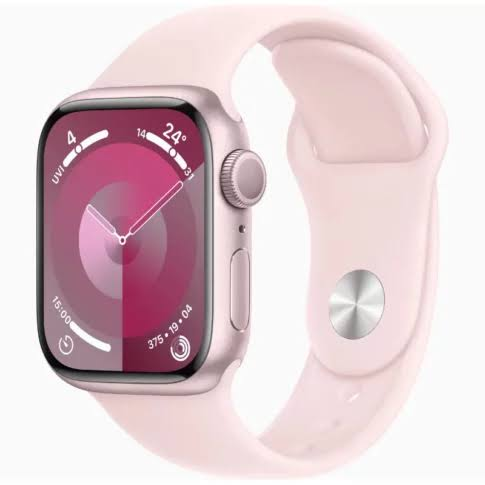
If you just got an Apple Watch with cellular and you’re an Airtel user, you’re probably wondering how to get it connected without carrying your phone everywhere. The good news — it’s very much possible, and once it’s set up, your Apple Watch works independently for calls, messages, and data.
Activate Airtel. This guide walks you through everything: what you need, how to activate it, what to do if something goes wrong, and whether it’s actually worth it.
What is an eSIM on an Apple Watch?

An eSIM (embedded SIM) is a digital SIM built directly into your Apple Watch. Unlike a physical SIM card, you don’t slot anything in — the network details are downloaded directly onto the device.
With Airtel eSIM on your Apple Watch, your watch shares the same number as your iPhone. So when someone calls your regular Airtel number, both your phone and your watch ring. You can pick up on either one.
This is useful when you’re at the gym, on a run, or just don’t want to pull out your phone for every notification.
What You Need Before You Start
Don’t skip this section. A lot of activation failures happen because one of these things is missing.
Compatible Apple Watch models:
- Apple Watch Series 4 and later (GPS + Cellular variant only)
- Apple Watch SE (2nd gen, cellular)
- Apple Watch Ultra and Ultra 2
Make sure your watch says GPS + Cellular on the box or in Settings. The GPS-only models don’t support eSIM at all.
iPhone requirements:
- iPhone 6s or later running iOS 14 or above (iOS 16+ recommended)
- Your iPhone must be connected to the same Apple ID as your watch
- Both devices should be on the same Wi-Fi network during setup
Airtel account requirements:
- Active Airtel postpaid connection (prepaid is not supported for Apple Watch eSIM pairing)
- Your account must be in good standing — no outstanding dues or suspensions
- You’ll need your Airtel-registered mobile number and, in some cases, your account login
Things to check:
- Your iPhone should NOT be on a VPN during activation
- Disable any battery saver or low-power mode on both devices
- Make sure your Airtel number is eSIM-capable — you can check this on the Airtel Thanks app or by calling 121
Step-by-Step: How to Activate Airtel eSIM on Apple Watch

Step 1: Open the Watch App on Your iPhone
On your iPhone, open the Watch app (the one with the black watch face icon). This is the main control centre for everything watch-related.
Tap on My Watch at the bottom left.
Step 2: Go to Cellular Settings
Scroll down and tap Cellular. If your watch supports cellular and it hasn’t been set up yet, you’ll see a button that says Set Up Cellular.
Tap it.
Step 3: Follow the Carrier Setup Flow
This is where Airtel’s setup page loads inside the Watch app. You’ll see Airtel listed as a carrier option (assuming Airtel is your iPhone’s active carrier).
Tap Airtel and then tap Add a New Plan.
The app will then redirect you to complete verification. This usually involves:
- Enter your Airtel mobile number
- Receiving an OTP on your iPhone
- Accepting Airtel’s terms for the paired watch plan
Step 4: Confirm Your Plan
Airtel charges a separate monthly fee for Apple Watch eSIM pairing. As of 2025–2026, this is typically around ₹199–₹299/month depending on your existing postpaid plan. Some premium Airtel postpaid plans include it at no extra cost.
You’ll see a summary screen. Confirm the plan and proceed.
Step 5: Wait for Activation
The eSIM profile will be downloaded to your Apple Watch. This can take anywhere from 2 to 10 minutes. During this time:
- Keep both devices close together
- Stay on Wi-Fi
- Don’t lock your iPhone screen (or it may interrupt the process)
Once done, you’ll see a confirmation that cellular is active on your watch.
Step 6: Test It
To verify it’s working:
- Go to your Apple Watch’s Control Centre (swipe up from the watch face)
- You should see a green cellular signal dot (not just the Wi-Fi symbol)
- Walk away from your phone and try making a call or loading something in Safari on the watch
If the green dot shows up and calls connect, you’re all set.
Using the Airtel Thanks App for eSIM Activation (Alternative Method)
Some users find it easier to initiate activation through the Airtel Thanks app on their iPhone first.

Here’s how:
- Open Airtel Thanks on your iPhone
- Go to My Account → Manage → eSIM
- Select Apple Watch as your paired device
- Follow the on-screen steps — it will redirect you to the Watch app to complete the pairing
This method is useful if the Watch app doesn’t show Airtel as a carrier option automatically, or if you’ve recently switched to Airtel and the app hasn’t refreshed yet.
What the Green, Yellow, and No Signal Icons Mean
Once cellular is set up, your Apple Watch will show different indicators:
| Icon | What It Means |
|---|---|
| 🟢 Green dot | Connected to cellular independently |
| 🔵 Blue dot | Connected via iPhone (Bluetooth/Wi-Fi) |
| No dot | No connection — watch is offline |
When you’re connected to cellular independently (green), your watch is working on its own. This is what you want when you leave your phone at home.
Common Problems and How to Fix Them
Problem 1: “Carrier Setup Required” error
This usually means Airtel hasn’t provisioned your account for watch eSIM yet.
Fix: Call Airtel customer care at 121 or visit an Airtel store. Ask them to enable “watch pairing” or “secondary device eSIM” on your postpaid number. It usually takes a few hours to activate on their backend.
Problem 2: Activation gets stuck at “Downloading”
Fix:
- Restart both your iPhone and Apple Watch
- Turn off VPN on iPhone
- Make sure both are on the same Wi-Fi
- Try again after 30 minutes
Problem 3: The cellular plan shows, but no signal on the watch
Fix: Go to Watch app → Cellular → your Airtel plan → Remove Plan, then re-add it. Sometimes the initial download misses a configuration file.
Problem 4: “The carrier for this iPhone does not support this feature”
This happens if your iPhone is locked to a different carrier or your SIM slot has a non-Airtel SIM active.
Fix: Make sure your iPhone’s active SIM (or eSIM) is the Airtel number you’re pairing with. If you use dual SIM, set Airtel as the default for calls and data.
Problem 5: Watch shows cellular, but calls won’t connect
Fix: Check if your Airtel plan is actually active. Login tooo the Airtel Thanks app and confirm there are no pending payments or plan issues. Also, also check that you haven’t disabled “Allow Calls on Apple Watch” in iPhone Settings → Phone → Calls on Other Devices.
Pros and Cons of Using Airtel eSIM on Apple Watch
Pros
Freedom from your phone: hone The biggest benefit. You can go for a run, hit the gym, or step out for groceries without your phone. Calls, messages, and Maps all work directly on the watch.
Same number, no conf. Use your Apple Watch to share your existing Airtel number. No new SIM, no new number. People call the same number, and you can answer on whichever device is closer.
Emergency: safety. If something happens and your phone isn’t with you, your watch can still dial 112 or call a family member. This alone makes it worth considering for many people.
Convenient for streaming music or podcasts via Spotify or Apple Music while running — without carrying your phone — is genuinely useful once you experience it.
Relatively affordable add-on ₹199–₹299/month for a secondary device on the same number is reasonable for what you get.
Cons
Only works with Airtel postpaid. If you’re on a prepaid plan, this isn’t available to you. That cuts out a significant portion of users in India.
Extra monthly charge. Even if your base postpaid plan is affordable, the watch add-on is a recurring cost. Over a year, that’s ₹2,400–₹3,600.
The battery drains faster on the cellular. When your Apple Watch is in cellular mode and away from your phone, the battery drains noticeably faster. A Series 9 that normally lasts a full day may only last 6–8 hours on active cellular.
Requires a cellular Apple Watch model. The GPS-only Apple Watch — which is cheaper and more commonly sold — doesn’t support this at all. You need the cellular model, which costs more upfront.
Setup can be frustrating. Activation doesn’t always go smoothly. If Airtel’s backend isn’t provisioned or there’s a carrier sync issue, you might need to visit a store or wait for support.
Is It Worth Activating Airtel eSIM on Apple Watch?
It depends on how you use your watch.
If you’re someone who goes to the gym regularly, goes on solo runs, or just finds it annoying to always carry a phone — yes, it’s genuinely useful. The experience of leaving your phone at home and still being reachable is something you appreciate more once you have it.
If you mostly stay near your phone anyway and just want notifications on your wrist, the GPS + Wi-Fi model (without cellular) does the job fine,e and you save both the upfront cost and the monthly charge.
For parents buying a watch for kids or elderly family members who don’t always carry phones, this is actually one of the best use cases. They’re always reachable on their watch number.
FAQs
Q: Can I use an IRTEL prepaid SIM to activate eSIM on an Apple Watch?
No. Airtel’s watch eSIM pairing is only available on postpaid plans. You’ll need to switch to postpaid or use a postpaid account to activate it.
Q: Will my Apple Watch get a separate number after pairing?
No. Your Apple Watch shares the same Airtel number as your iPhone. There’s no second number involved.
Q: Can I use Apple Watch eSIM without my iPhone being nearby?
Yes — that’s the whole point. Once eSIM is activated, your watch connects to Airtel’s network directly. Your iPhone can be completely off or miles away.
Q: What happens to my Apple Watch connection if I switch iPhones?
You’ll need to unpair the watch from the old iPhone and re-pair it with the new one. The eSIM plan may need to be re-added, though some plans carry over automatically. It’s safest to contact Airtel before switching.
Q: How do I check if my Apple Watch cellular is actually working on Airtel?
Go to Settings on your Apple Watch → Cellular. It should show your Airtel plan as “Active.” You can also check the signal by going into Control Centre (swipe up) and looking for the green cellular dot.
Q: Can I remove the Airtel plan from my watch and stop being charged?
Yes. Go to the Watch app on iPhone → Cellular → your Airtel plan → Remove Plan. Then contact Airtel to cancel the watch add-on from your postpaid account. Removing it from the Watch app alone may not stop the billing — confirm cancellation with Airtel separately.
Q: Does the Apple Watch use the same data balance as my iPhone?
Yes. Since it shares your postpaid number, any data used on the watch counts toward your main Airtel plan’s data balance.
Q: Which Apple Watch models work with Airtel eSIM in India?
Any Apple Watch with cellular capability sold in India (Series 4 onwards, SE 2nd gen, Ultra, Ultra 2) should work. Just confirm it’s the GPS + Cellular variant, not GPS-only.
Conclsion
Setting up Airtel eSIM on your Apple Watch takes maybe 10–15 minutes if everything goes smoothly — and for most users on compatible postpaid plans, it does. The freedom of leaving your phone at home while staying connected is one of those things that seems minor until you actually experience it.
If you hit any trouble during activation, the most common fix is contacting Airtel to ensure the secondary eSIM feature is enabled on your account. That single step resolves most activation failures.
Once it’s running, it’s one of the most practical cellular watch setups available in India — clean, reliable, and genuinely useful for an active lifestyle.

