
Activating an eSIM on your iPhone 13 can feel confusing at first, especially if you’re used to physical SIM cards. But once you understand the process, it’s actually simple, fast, and very convenient.
In this complete guide, I’ll walk you through how to activate eSIM on iPhone 13, explain how it works, share real-life examples, and cover common problems with easy solutions.
Activating an eSIM on the iPhone 13 is a modern and convenient way to connect your device to a mobile network without using a physical SIM card. Unlike traditional SIM cards, an eSIM is built directly into your phone, allowing you to download and activate a mobile plan digitally. This feature is especially useful for users who want flexibility, such as switching carriers, managing two numbers, or using international data plans while traveling.

To activate an eSIM, you typically need a QR code or activation details provided by your mobile carrier. By going to Settings, selecting Mobile Data, and choosing the option to add an eSIM, you can scan the QR code and complete the setup within minutes. Once activated, you can customize how the eSIM is used—for calls, messages, or data—and even label it for personal or work use. The iPhone 13 also supports dual SIM functionality, meaning you can use both a physical SIM and an eSIM at the same time. Overall, eSIM technology simplifies connectivity, reduces the need for physical SIM swaps, and offers a more seamless mobile experience for everyday use.
The iPhone 13 is one of Apple’s most popular smartphones, known for its strong performance, reliable battery life, and premium design. It features a 6.1-inch Super Retina XDR display that delivers sharp visuals, vibrant colors, and excellent brightness, making it perfect for watching videos, browsing, and gaming. Powered by the A15 Bionic chip, the iPhone 13 offers fast performance and smooth multitasking, whether you’re using apps, editing photos, or playing high-end games.
One of the standout features of the iPhone 13 is its advanced dual-camera system. It includes a 12MP wide and ultra-wide lens that captures detailed photos and videos, even in low-light conditions. Features like Night Mode, Deep Fusion, and Cinematic Mode help users take professional-looking shots with ease. The front camera is also improved, making selfies and video calls clearer and more natural.
Battery life on the iPhone 13 is better than previous models, allowing users to go through a full day of regular use without worrying about frequent charging. It also supports fast charging and MagSafe wireless charging, which adds convenience for everyday use.
In terms of connectivity, the iPhone 13 supports 5G networks and comes with eSIM technology, enabling users to activate mobile plans digitally without needing a physical SIM card. It also supports dual SIM functionality, making it ideal for people who want to manage personal and work numbers on the same device.
The phone runs on iOS, offering a smooth, secure, and user-friendly experience with regular updates from Apple. Overall, the iPhone 13 is a powerful and well-balanced smartphone that combines performance, camera quality, and modern features, making it a great choice for both everyday users and tech enthusiasts.
What is eSIM?
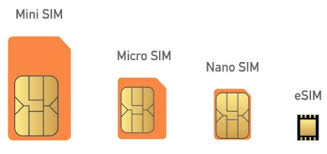
An eSIM (embedded SIM) is a digital SIM that is built into your phone. Instead of inserting a physical SIM card, you activate your mobile plan digitally.
The iPhone 13 supports both:
- Physical SIM card
- eSIM (digital SIM)
This means you can use dual SIM functionality, like:
- Personal number + work number
- Local SIM + international eSIM while traveling
How to Activate eSIM on iPhone 13: Benefits of Using eSIM on iPhone 13
Before activating it, let’s quickly understand why eSIM is useful.
✅ Pros
- No physical SIM needed
- Easy switching between carriers
- Great for travel (use local networks instantly)
- Supports dual SIM mode
- Less risk of losing or damaging the SIM
❌ Cons
- Not all carriers support eSIM
- Switching phones can be slightly complex
- Requires internet for activation
Things You Need Before Activating eSIM

Make sure you have the following ready:
- A compatible device (like iPhone 13)
- A carrier that supports eSIM
- A QR code or activation details from your mobile provider
- Stable internet connection (Wi-Fi recommended)
Method 1: Activate eSIM Using QR Code
This is the most common and easiest method.
Step-by-Step Instructions:
- Open Settings
- Tap Mobile Data (or Cellular)
- Tap Add eSIM or Add Cellular Plan
- Choose Use QR Code
- Scan the QR code provided by your carrier
- Follow on-screen instructions
- Tap Done
Example:
If you bought an eSIM from your provider, they usually send a QR code via email or give it to you in-store. Just scan it, and your plan will activate within minutes.
Method 2: Activate eSIM via Carrier App
Some telecom providers allow activation through their apps.
Steps:
- Download your carrier’s app
- Log in with your account
- Choose Activate eSIM
- Follow instructions
- Restart your phone (if required)
Example:
Many providers in India, like Jio and Airtel, allow eSIM activation directly through their apps or SMS verification processes.
Method 3: Transfer eSIM from Another iPhone
If you’re upgrading from an older iPhone, you can transfer your eSIM easily.
Steps:
- Keep both iPhones close together
- On a new iPhone, go to Settings → Mobile Data
- Tap Add eSIM
- Select Transfer from Nearby iPhone
- Follow instructions
Method 4: Manual eSIM Entry
If the QR code doesn’t work, you can enter the details manually.
Steps:
- Go to Settings → Mobile Data
- Tap Add eSIM
- Choose Enter Details Manually
- Enter:
- SM-DP+ Address
- Activation Code
- Tap Next
How to Set eSIM as Primary or Secondary Line
After activation, you can manage how your eSIM works.
Steps:
- Go to Settings → Mobile Data
- Select your eSIM
- Choose:
- Default line for calls
- Default line for data
- Rename lines (e.g., “Work” or “Personal”)
Real-Life Use Cases
1. Traveling Abroad
Instead of buying a physical SIM at the airport, you can:
- Purchase an eSIM online
- Activate it instantly
- Start using data immediately
2. Work + Personal Numbers
You can use:
- Physical SIM for personal use
- eSIM for work calls
3. Backup Network
If one network has a poor signal, switch to another using eSIM.
Common Problems and Fixes
Problem 1: QR Code Not Working
Solution:
- Ensure proper lighting
- Clean camera lens
- Restart your phone
Problem 2: eSIM Not Activating
Solution:
- Check the internet connection
- Contact your carrier
- Try manual activation
Problem 3: No Signal After Activation
Solution:
- Turn Airplane Mode ON/OFF
- Restart device
- Check carrier settings update
Problem 4: “Add eSIM” Option Missing
Solution:
- Ensure your device is unlocked
- Update iOS to the latest version
Tips for Smooth eSIM Activation
- Always connect to Wi-Fi before starting
- Keep your QR code safe (don’t share it)
- Update your phone to the latest iOS version
- Contact your carrier if stuck
Is eSIM Better Than a Physical SIM?
eSIM vs Physical SIM
| Feature | eSIM | Physical SIM |
|---|---|---|
| Setup | Digital | Manual |
| Switching | Easy | Needs replacement |
| Travel | Very convenient | Less flexible |
| Availability | Limited carriers | Widely supported |
Conclusion:
eSIM is more modern and flexible, especially for travelers and dual users.
Security of eSIM
eSIM is actually more secure than traditional SIM cards.
- Cannot be removed physically
- Harder to steal or clone
- Requires authentication to activate
iPhone 13 deactivate an eSIM on the iPhone 13

To deactivate an eSIM on the iPhone 13, you can easily manage it through the phone’s settings without needing any physical tools. The eSIM is a digital SIM stored inside your device, so removing or disabling it is done entirely through software. If you want to completely remove the eSIM, go to Settings, tap on Mobile Data (or Cellular), select the eSIM plan you want to deactivate, and choose the option to remove or delete it. Once confirmed, the eSIM will be permanently deleted from your device, and you may need a new QR code from your carrier if you want to use it again later.
Alternatively, if you only want to temporarily disable the eSIM, you can simply turn off the line from the same settings menu without deleting it. This is useful if you plan to use it again in the future. Deactivating an eSIM is helpful when switching devices, changing carriers, or troubleshooting network issues, and the process on the iPhone 13 is designed to be quick, simple, and user-friendly.
Frequently Asked Questions (FAQs)
1. Can I use both eSIM and a physical SIM on iPhone 13?
Yes, the iPhone 13 supports dual SIM functionality.
2. Do I need the internet to activate eSIM?
Yes, a stable internet connection is required.
3. Can I delete and reinstall eSIM?
Yes, but you may need a new QR code from your carrier.
4. Is eSIM available in India?
Yes, many providers like Airtel and Jio support eSIM services.
5. How long does eSIM activation take?
Usually a few minutes, but sometimes up to 24 hours, depending on the carrier.
6. Can I switch back to a physical SIM?
Yes, you can switch anytime if your carrier supports it.
7. What happens if I reset my iPhone?
Your eSIM may be removed. You’ll need to reactivate it.
8. Can I use both eSIM and a physical SIM on iPhone 13?
Yes, the iPhone 13 supports dual SIM. You can use one physical SIM and one eSIM at the same time.
9. Do I need Wi-Fi to activate eSIM?
Yes, a stable internet connection (preferably Wi-Fi) is required during activation.
10. How long does it take to activate eSIM?
In most cases, activation takes just a few minutes. However, some carriers may take up to 24 hours.
11. What if my QR code is not working?
Try these fixes:
- Clean your camera lens
- Ensure proper lighting
- Restart your phone
- Contact your carrier for a new QR code
12. Can I transfer my eSIM from another iPhone?
Yes, you can easily transfer your eSIM from an older iPhone to the iPhone 13 using the “Transfer from Nearby iPhone” option.
13. Is eSIM available in India?
Yes, major telecom providers like Airtel, Jio, and Vi support eSIM services in India.
14. Can I remove or delete an eSIM?
Yes, you can delete your eSIM from Settings → Mobile Data. But you may need a new activation code to reinstall it.
15. Will eSIM work if I reset my iPhone?
No, resetting your phone may remove the eSIM. You’ll need to reactivate it using your carrier details.
16. Is eSIM safer than a physical SIM?
Yes, eSIM is more secure because it cannot be physically removed and requires authentication for activation.
17. Can I use eSIM while traveling internationally?
Yes, eSIM is perfect for travel. You can buy and activate international data plans instantly without changing your physical SIM.
18. Why is “Add eSIM” not showing on my iPhone?
This may happen if:
- Your iPhone is carrier-locked
- Your iOS version is outdated
- Your carrier doesn’t support eSIM
19. Can I switch back to a physical SIM later?
Yes, you can switch anytime, depending on your carrier’s support and availability.
Conclusion
Activating an eSIM on your iPhone 13 is a simple process once you understand the steps. Whether you use a QR code, a carrier app, or manual setup, the entire process usually takes just a few minutes.
eSIM brings a more flexible and modern way to stay connected. It’s especially useful if you travel often, manage multiple numbers, or want to avoid the hassle of physical SIM cards. While there are a few limitations—like carrier support and initial setup—its benefits clearly outweigh the drawbacks for most users.
If you follow the step-by-step methods shared in this guide and keep basic troubleshooting tips in mind, you can activate and use your eSIM smoothly without any stress.
In short, eSIM on iPhone 13 is not just a feature—it’s a smarter way to manage your mobile connectivity.

