
new carrier, selling your iPhone 15, or simply removing an unused cellular plan, knowing how to delete an eSIM profile on your iPhone 15 is an important step. Apple makes it easy to remove an eSIM directly from the Settings app, but it’s essential to understand what happens before you tap Delete eSIM.
Deleting an eSIM removes the cellular plan from your iPhone, but it does not automatically cancel your mobile service. If you plan to stop using the phone number entirely, you’ll also need to contact your carrier to cancel your subscription. Additionally, Apple advises against deleting an eSIM as a troubleshooting step unless your carrier specifically instructs you to do so, as you’ll typically need a new eSIM to restore service afterward.
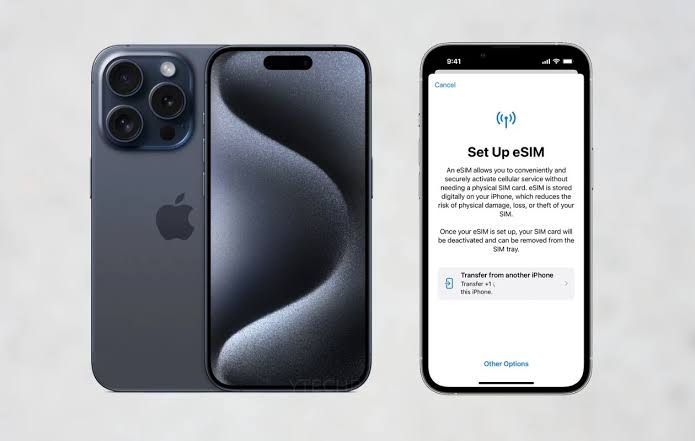
In this guide, you’ll learn the step-by-step process to delete an eSIM profile on an iPhone 15, what to do before removing it, and how to avoid common mistakes. Whether your iPhone has one eSIM or multiple cellular plans, these instructions will help you safely manage your eSIM settings and keep your device ready for its next use.
How to Delete an eSIM Profile on iPhone 15. If you’ve been juggling multiple eSIM profiles on your iPhone 15 — maybe a travel eSIM you no longer need, an old carrier plan, or a test line you set up once and forgot about — you’ve probably wondered how to clean things up without breaking your main phone number.
The good news is that deleting an eSIM profile on the iPhone 15 is simple once you know where to look. The tricky part is that Apple buries this setting a few menus deep, and if you’re not careful, you might delete the wrong profile or lose data you actually needed to keep. This guide walks you through the whole process, plus a few situations where deleting isn’t actually the right move. iPhone 15
The iPhone 15 is Apple’s 2023 flagship smartphone, featuring a 6.1-inch Super Retina XDR OLED display, the powerful A16 Bionic chip, and a 48MP dual-camera system for high-quality photos and 4K video recording. It introduces the Dynamic Island interface, replaces the Lightning port with USB-C, and supports 5G, Face ID, and MagSafe wireless charging.
The device is also rated IP68 for water and dust resistance and is available in 128GB, 256GB, and 512GB storage options. It runs the latest iOS and offers excellent performance, battery life, and long-term software support.
- Check now–How to Activate eSIM on iPhone 15
What Is an eSIM Profile, Quickly Explained.
Before diving into the steps, it helps to understand what you’re actually deleting. An eSIM (embedded SIM) is a digital SIM card built into your iPhone 15’s hardware. Instead of popping in a physical SIM tray, you activate a plan by scanning a QR code or downloading a profile directly from your carrier’s app.
The iPhone 15 supports multiple eSIM profiles at once (though only two lines can be active simultaneously, one of which can be eSIM and the other physical SIM in some regions, or dual eSIM depending on your device and country). Each profile represents a separate phone plan — your main carrier, a data-only travel plan, a work number, whatever you’ve set up. iPhone 15
When you “delete” one, you’re removing that digital profile from your phone entirely. Unlike a physical SIM you can just take out and keep in a drawer, once an eSIM profile is deleted, it’s usually gone for good unless your carrier lets you re-download it.
Why People Delete eSIM Profiles

Here are the most common real-world reasons:
- Finished traveling. You bought a data-only eSIM (like Airalo, Holafly, or a local carrier plan) for a trip to Japan, Thailand, or Europe, and now that you’re home, you don’t need it anymore.
- Switched carriers. You moved from one network to another,r and the old profile is just sitting there unused.
- Selling or trading in your iPhone. You want to wipe personal data, including eSIM profiles, before handing the phone to someone else.
- Too many profiles cluttering the settings menu. Some people test out multiple eSIM providers before settling on one, and the leftovers pile up.
- Duplicate or failed activation. Sometimes an eSIM profile doesn’t activate correctly, and you need to delete it to try again.
Before You Delete: Things to Check First
This step matters more than people realize. A few quick checks can save you a headache later.
- Confirm which profile is your primary line. If you delete the wrong one, you could lose your main phone number’s connectivity until you re-add it.
- Check if the eSIM is tied to a prepaid balance. Some travel eSIMs still have unused data. Once deleted, that balance is typically unrecoverable.
- Make sure you’re not mid-trip. If you’re still traveling and might need that data plan again in a day or two, hold off on deleting it.
- Back up your phone if you’re preparing to sell it. eSIM deletion is a good step during a factory reset process, but do it in the right order — back up first, then reset.
- Ask your carrier about QR code reuse. Some providers let you scan the same QR code again to reinstall a deleted eSIM; others generate a one-time code that won’t work twice. Knowing this ahead of time tells you if deleting is reversible or final.
How to Delete an eSIM Profile on iPhone 15 (Step-by-Step)

Here’s the exact path on iOS as it stands for the iPhone 15 lineup:
- Open the Settings app on your iPhone 15.
- Tap Cellular (this may show as “Mobile Data” depending on your region).
- You’ll see a list of all active lines/plans on your device. Tap the eSIM plan you want to remove.
- Scroll down and tap Remove Cellular Plan.
- A confirmation pop-up will appear, warning that this action can’t be undone unless your carrier provides another way to reinstall it. Tap Remove to confirm.
- The eSIM profile will disappear from your Cellular settings list immediately.
That’s it — no restart required, no extra confirmation emails in most cases. The whole process usually takes under a minute.
Practical Example 1: Deleting a Travel eSIM After a Trip
Say you used an Airalo eSIM for a two-week trip to Italy. Once you land back home and reconnect to your home carrier’s network, go to Settings > Cellular, tap the Airalo line (it’ll usually show the country or the eSIM provider’s name), scroll down, and tap Remove Cellular Plan. Since travel eSIMs are typically data-only and prepaid, there’s rarely a downside to removing it right after your trip ends, especially if you’ve used up the data allowance.
Practical Example 2: Cleaning Up After Switching Carriers
Let’s say you switched from AT&T to T-Mobile and your AT&T eSIM profile is still sitting in your settings, unused. Go into Cellular, tap the AT&T line, and remove it the same way. Just double-check the T-Mobile line is set as your default for calls, messages, and cellular data before removing the old one, so you’re not accidentally cut off from service.
Practical Example 3: Preparing an iPhone 15 for Resale
If you’re selling your iPhone 15, deleting the eSIM profile is part of a proper wipe. But the smarter order of operations is: back up your data, sign out of iCloud, use the “Erase All Content and Settings” option in Settings > General > Transfer or Reset iPhone, and let that process handle the eSIM removal for you automatically as part of the full reset. Manually deleting the eSIM first and then doing a factory reset works too, but it’s an extra step that isn’t strictly necessary.
What Happens After You Delete an eSIM Profile

Once removed, a few things happen:
- The line disappears from your Cellular settings and no longer appears in your carrier list.
- Calls, texts, and data for that number stop working immediately on this device.
- If it was your only active line, your iPhone 15 will show “No Service” until you activate a new plan.
- Any iMessage or FaceTime settings tied to that number may need to be reconfigured if you set up a new line later.
- The physical space (so to speak) is freed up, letting you add a new eSIM profile if you’re near your device’s profile limit.
Pros and Cons of Deleting an eSIM Profile
Pros
- Cleaner settings menu. No more scrolling past plans you don’t use.
- Frees up profile slots. iPhones have a limit on how many eSIM profiles can be stored, so deleting unused ones makes room for new travel or work plans.
- Better privacy when reselling. Removing old carrier data is a smart step before handing your phone to someone else.
- Quick and reversible in some cases. If your carrier allows QR code reuse, you can always reinstall the plan later without much hassle.
- No cost involved. Deleting a profile doesn’t trigger any fees from Apple or (usually) your carrier.
Cons
- Often irreversible. Many prepaid travel eSIMs use one-time QR codes, so once deleted, you’ll need to purchase a new plan to use that provider again.
- Loss of unused data or balance. If there’s data left on a prepaid eSIM, it’s typically forfeited once you delete the profile.
- Risk of accidentally removing your main line. If you’re not paying attention, it’s possible to tap the wrong plan and lose connectivity temporarily.
- Some carriers require a support call to reactivate. Not every provider makes it a simple QR rescan — a few require you to contact customer service to get a replacement profile.
- No official backup within iOS. Apple doesn’t offer a built-in way to “restore” a deleted eSIM the way you might restore an app or a photo.
Common Mistakes to Avoid
- Deleting the wrong line by mistake. Take a second to read the carrier name and phone number shown before tapping Remove Cellular Plan.
- Forgetting to check for unused data. Especially with travel eSIMs, quickly check the provider’s app for remaining balance before deleting.
- Assuming you can always reinstall later. Not all eSIM QR codes are reusable. If you’re unsure, screenshot or save the original QR code and activation details before removing the profile.
- Deleting an eSIM while it’s your only working line without a backup plan. If you’re not near Wi-Fi or another network option, you could temporarily lose the ability to make calls or use data until you activate a replacement.
- Not updating iMessage/FaceTime settings afterward. If the deleted number was linked to these services, double-check Settings > Messages and Settings > FaceTime to make sure everything still points to the right number.
How to Reinstall an eSIM After Deleting It (If Possible)
If you deleted a profile by accident, or you need the same travel eSIM again for a future trip, here’s what to try:
- Check for a reusable QR code. Look back through your email or the carrier’s app for the original activation QR code. Some providers (especially subscription-based eSIM apps) let you scan it again.
- Contact your carrier or provider’s support. Many travel eSIM companies can regenerate a QR code or resend the profile if you explain the situation.
- Use the carrier’s app directly. Providers like Airalo, Holafly, and Nomad often let you manage and reinstall eSIMs directly within their own app, bypassing the need for a fresh QR code entirely.
- For major carriers (Verizon, AT&T, T-Mobile), log into your account online or call support. They can usually push a new eSIM activation to your device remotely.
Frequently Asked Questions
Can I delete an eSIM profile without losing my phone number? Yes, deleting an eSIM profile removes that plan from your device, but your phone number itself is tied to your carrier account, not the eSIM file. As long as you don’t cancel your service with the carrier, you can usually reactivate the same number later through a new eSIM profile or a replacement QR code.
Does deleting an eSIM profile delete my contacts or photos? No. Deleting an eSIM only affects cellular connectivity settings. Your contacts, photos, messages, and apps stay untouched. Just note that if the number was linked to iMessage or FaceTime, those specific settings might need to be reconfigured afterward.
Can I have two eSIM profiles active at once on iPhone 15? Yes, the iPhone 15 supports Dual SIM using two eSIMs (in most regions) or one eSIM plus one physical SIM. However, only one eSIM can be actively transmitting data at a time in most configurations, even if multiple profiles are stored on the device.
What happens if I delete my only active eSIM by accident? Your iPhone will show “No Service” for cellular calls and data until you activate a new plan. Wi-Fi calling and internet-based apps will still work if you’re connected to Wi-Fi, so you’re not completely cut off, just limited to Wi-Fi-based communication until you set up a replacement line.
Is it safe to delete an eSIM profile before selling my iPhone 15? Yes, and it’s actually recommended. Removing your eSIM profile, along with signing out of iCloud and doing a full factory reset, helps protect your personal data and prevents the buyer from accidentally using your cellular plan.
Why can’t I find the “Remove Cellular Plan” option in my Settings? This usually means you’re looking in the wrong menu. Make sure you’re in Settings > Cellular, then tap directly on the specific plan (not the general Cellular settings page). The Remove Cellular Plan button only appears after you’ve selected an individual line.
Will I be charged for deleting an eSIM profile? No, Apple doesn’t charge anything for removing an eSIM profile. However, your carrier might have separate billing terms, like early termination fees if you’re under contract, that are unrelated to the act of deleting the profile itself on your iPhone.
Can I transfer an eSIM profile to a new iPhone instead of deleting it? Yes, if you’re upgrading to a new iPhone, Apple’s Quick Start feature can transfer eSIM profiles from your old device during setup, in many cases without needing a new QR code at all. This is a better option than deleting and reinstalling if you’re just switching devices rather than removing the plan entirely.

