
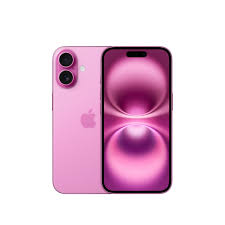
Setting up your new iPhone 16 is exciting—but if you’re switching to eSIM, you might feel a bit confused at first. Unlike traditional SIM cards, eSIM doesn’t require inserting anything physically. Everything is done digitally, which makes the process faster and cleaner.
If you’re wondering how to activate eSIM on iPhone 16, you’re in the right place. This guide will walk you through every step in simple language, whether you’re setting up a new connection or converting your existing SIM.
By the end, you’ll have your eSIM up and running without any stress.
- How to Activate eSIM on iPhone 17
- How to Activate eSIM on iPhone 17 Pro
- How to Activate eSIM on iPhone 12
- How to Activate eSIM on iPhone 15
- How to activate eSIM on iPhone?
How to Activate eSIM on iPhone 16: What is eSIM?
Before jumping into activation, let’s quickly understand what eSIM is.
eSIM (embedded SIM) is a digital SIM built into your phone. Instead of inserting a plastic SIM card, you activate your mobile plan through software.
Key Benefits:
- No physical SIM required
- Easy to switch between carriers
- Supports multiple numbers on one device
- Ideal for travel (quick international plans)
Quick Answer (Fast Setup)

Here’s the fastest way to activate eSIM on iPhone 16:
- Go to Settings
- Tap Mobile Data (or Cellular)
- Tap Add eSIM
- Choose one option:
- Scan QR Code
- Transfer from the nearby iPhone
- Enter details manually
- Follow on-screen instructions
- Restart your phone (recommended)
That’s it!
Requirements Before You Start
Make sure you have the following ready:
- Active eSIM plan from your carrier (Jio, Airtel, Vi, etc.)
- Stable internet connection (Wi-Fi recommended)
- QR code or activation details from your carrier
- Updated iPhone software (latest iOS version)
Method 1: Activate eSIM Using QR Code

This is the most common and easiest method.
Step-by-Step:
- Open Settings
- Tap Mobile Data
- Tap Add eSIM
- Select Use QR Code
- Scan the QR code provided by your carrier
- Wait for activation
- Tap Continue
- Label your plan (e.g., Work, Personal)
Example:
If you buy an Airtel eSIM:
- They send a QR code via email
- You scan it using your iPhone
- Within minutes, your eSIM is activated
Method 2: Transfer eSIM from Another iPhone
If you’re upgrading from an older iPhone, this method is very easy.
Steps:
- Keep both iPhones close together
- On iPhone 16:
- Go to Settings → Mobile Data
- Tap Add eSIM
- Select Transfer from Nearby iPhone
- Follow the instructions on both devices
- Confirm transfer
- Wait for activation
Tip:
Make sure Bluetooth is turned on for both devices.
Method 3: Activate eSIM via Carrier App
Some carriers offer apps for easy activation.
Steps:
- Download your carrier’s app
- Log in with your mobile number
- Choose eSIM activation
- Follow instructions
- Restart your device
Example:
Jio and Airtel apps often provide this feature for quick setup.
Method 4: Enter Details Manually
Use this method if the QR code isn’t available.
Steps:
- Go to Settings → Mobile Data
- Tap Add eSIM
- Select Enter Details Manually
- Enter:
- SM-DP+ Address
- Activation Code
- Tap Next
- Wait for activation
How to Convert a Physical SIM to an eSIM

You don’t always need a new number. You can convert your current SIM.
Steps:
- Contact your carrier (via SMS, app, or store)
- Request SIM-to-eSIM conversion
- Receive QR code
- Follow the QR method (above)
Example (India):
- Send SMS to your carrier (e.g., Airtel or Jio)
- Confirm request
- Get QR code via email
- Scan and activate
How to Use Dual SIM on iPhone 16
iPhone 16 supports dual SIM using:
- eSIM + eSIM OR
- eSIM + physical SIM (in some regions)
Setup:
- Add both plans
- Go to Settings → Mobile Data
- Select default line:
- For calls
- For data
Example:
- Use one number for work
- Another for personal use
Common Problems and Fixes
1. QR Code Not Working
Fix:
- Check the internet connection
- Restart phone
- Request a new QR code
2. eSIM Not Activating
Fix:
- Ensure the carrier supports eSIM
- Update iOS
- Contact customer support
3. No Network After Activation
Fix:
- Turn Airplane mode ON/OFF
- Reset network settings
- Restart device
4. “Cannot Add eSIM” Error
Fix:
- Check if the phone is carrier-locked
- Make sure eSIM is supported in your region
Pros and Cons of eSIM on iPhone 16

Pros
✔ No physical SIM needed
✔ Faster activation
✔ Multiple numbers on one device
✔ Great for travelers
✔ Secure (harder to remove or steal)
Cons
✘ Requires internet for setup
✘ Not supported by all carriers
✘ Switching phones may take extra steps
✘ QR code dependency
Practical Use Cases
1. Traveling Abroad
Instead of buying a SIM card:
- Purchase an international eSIM
- Activate instantly
- Save roaming charges
2. Business + Personal Use
Use:
- One eSIM for work calls
- One for personal life
3. Backup Network
If your main network is weak:
- Add another eSIM
- Switch instantly
Tips for Smooth Activation
- Always use a stable Wi-Fi connection
- Keep your QR code safe
- Label your SIMs properly
- Restart after activation
- Update iOS regularly
FAQs
1. Is eSIM available on all iPhone 16 models?
Yes, all iPhone 16 models support eSIM. In some regions, it may be eSIM-only.
2. Can I use two eSIMs at the same time?
Yes, iPhone 16 supports dual eSIM functionality.
3. How long does eSIM activation take?
Usually 2–5 minutes, but sometimes up to a few hours depending on the carrier.
4. Can I switch back to a physical SIM?
Yes, but you need to request a new physical SIM from your carrier.
5. Do I need the internet to activate eSIM?
Yes, a stable internet connection is required.
6. Is eSIM safe?
Yes, it is more secure than a physical SIM because it cannot be removed easily.
7. What happens if I reset my iPhone?
Your eSIM may be removed. You might need to re-activate it using your QR code.
8. Can I delete and re-add eSIM?
Yes, but you may need a new QR code from your carrier.
9. What is eSIM on iPhone 16?
eSIM is a digital SIM built into the iPhone 16. It allows you to activate a mobile plan without inserting a physical SIM card.
10. How do I activate eSIM on iPhone 16?
Go to Settings → Mobile Data → Add eSIM, then choose:
- Scan QR code
- Transfer from another iPhone
- Enter details manually
Follow the on-screen steps to complete activation.
11. Can I use eSIM and a physical SIM together?
Yes, depending on your region. The iPhone 16 supports dual SIM:
- eSIM + eSIM
- or eSIM + physical SIM
12. How long does eSIM activation take?
Usually 2–5 minutes, but in some cases it may take up to a few hours depending on your carrier.
13. Do I need the internet to activate eSIM?
Yes, you need a stable internet connection (Wi-Fi or mobile data) to activate your eSIM.
14. Can I convert my physical SIM to eSIM?
Yes, most carriers allow conversion. You can request it via:
- SMS
- Mobile app
- Customer support
They will provide a QR code for activation.
15. What should I do if my eSIM is not working?
Try these fixes:
- Restart your phone
- Turn Airplane mode ON/OFF
- Update iOS
- Contact your carrier
16. Can I delete and re-add eSIM on iPhone 16?
Yes, but you may need a new QR code from your carrier to activate it again.
17. Is eSIM safe to use?
Yes, eSIM is more secure than a physical SIM because it cannot be removed or swapped easily.
18. Can I use eSIM while traveling internationally?
Yes, you can easily buy and activate international eSIM plans without changing your main SIM.
19. What happens if I reset my iPhone?
Your eSIM may be removed. You might need to reinstall it using the QR code or carrier details.
20. Which carriers support eSIM in India?
Popular carriers like:
- Jio
- Airtel
- Vi (Vodafone Idea)
Support eSIM on the iPhone 16.
Conclusion
Activating eSIM on iPhone 16 is actually simple once you understand the steps. Whether you’re scanning a QR code, transferring from another phone, or converting your physical SIM, the process is quick and user-friendly.
eSIM is the future of mobile connectivity—clean, flexible, and efficient. Once you start using it, you’ll likely never go back to physical SIM cards.
If you’re just getting started, follow the QR code method—it’s the easiest and most reliable option.

