
If you just got an Apple Watch SE and want to use it independently from your iPhone — to take calls, receive messages, or stream music on a run without carrying your phone — you’re going to need an eSIM set up on it.
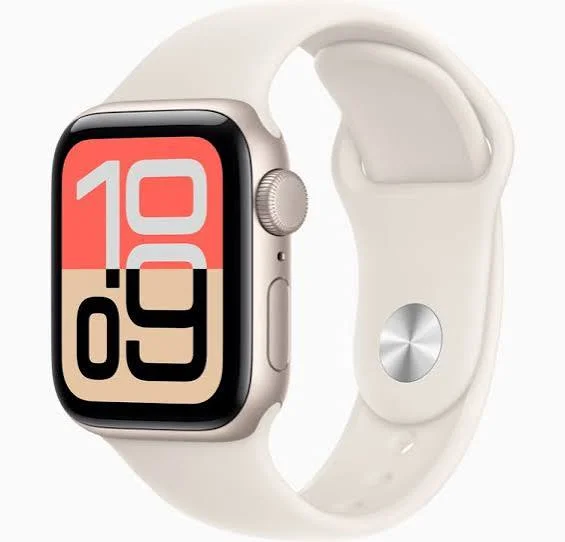
The process is straightforward once you know what you’re doing, but there are enough steps involved that it’s easy to get stuck somewhere along the way. This guide walks you through everything: what an eSIM is, whether your Watch SE supports it, and exactly how to download and activate it — plus what to do if something goes wrong.
Setting up an eSIM on your Apple Watch SE allows you to make calls, send messages, stream music, and use mobile data without keeping your iPhone nearby. While you don’t actually “download” an eSIM like a regular app, you activate and install your carrier’s eSIM profile through the Apple Watch app on your iPhone.
If you’re wondering how to download eSIM on Apple Watch SE in 2026, this step-by-step guide will walk you through the entire process, including carrier compatibility, activation requirements, common setup issues, and troubleshooting tips. By the end of this guide, you’ll have your Apple Watch SE connected to a cellular network and ready to use independently.
- What is the eSIM Apple Watch?
- Can I use eSIM on an Apple Watch?
- Is the eSIM on the Apple Watch not working?
What Is an eSIM and Why Does It Matter for Apple Watch SE?

An eSIM (embedded SIM) is a digital SIM card built directly into your device. Instead of inserting a physical SIM card, you download a carrier plan onto the device electronically.
For Apple Watch SE, this means your watch can connect to a cellular network on its own. Without an eSIM, your Watch SE only works when it’s connected to your iPhone’s Bluetooth or a known Wi-Fi network. With an eSIM active, you can leave your phone at home and still:
- Make and receive calls
- Send and receive messages
- Use streaming apps like Apple Music
- Get notifications in real time
- Use emergency SOS anywhere with signal
It’s the feature that turns Apple Watch SE from a fitness tracker into a genuinely independent wearable.
Does Apple Watch SE support eSIM?

This is the first thing to confirm before doing anything else.
Apple Watch SE (1st generation, 2020): Available in both GPS-only and GPS + Cellular versions. Only the GPS + Cellular model supports eSIM.
Apple Watch SE (2nd generation, 2022 and later): Also available in GPS-only and GPS + Cellular. Again, only the GPS + Cellular model supports eSIM.
If you’re not sure which version you have, check the back of the watch. The cellular model has a red circle on the Digital Crown. You can also go to Settings → General → About on the watch itself and look for an IMEI number — if it’s listed, you have the cellular version.
The GPS-only model cannot download an eSIM, regardless of which carrier you use or what settings you change.
What You Need Before You Start
Setting up an eSIM on Apple Watch SE requires a few things to be in place:
1. A compatible iPhone
Your Apple Watch SE must be paired with an iPhone running iOS 16 or later (iOS 17 or later recommended for the smoothest experience). The Watch app on your iPhone is where most of the setup happens.
2. A carrier that supports Apple Watch cellular
Not every carrier offers cellular plans for the Apple Watch. In India, Airtel and Jio both support Apple Watch cellular. In the US, all major carriers (AT&T, T-Mobile, Verizon) support it. Check your carrier’s website or call their support line to confirm before proceeding.
3. An active plan on your iPhone with the same carrier
Apple Watch SE shares your iPhone’s number through a feature called NumberShare (or similar, depending on your carrier). Your iPhone needs to already be on a carrier that supports this.
4. watchOS 7 or later on your Watch
Go to the Watch app → General → Software Update to check. Update if needed before starting.
5. Both devices are charged above 50%
eSIM downloads can take several minutes. Don’t start with a low battery on either device.
6. Bluetooth and Wi-Fi are enabled on your iPhone
The pairing and activation process uses both.
How to Download eSIM on Apple Watch SE: Step-by-Step

Step 1: Open the Watch App on Your iPhone
On your iPhone, open the Watch app (the one with the black icon that looks like an Apple Watch face). This is the main control center for everything Watch-related.
Make sure your Apple Watch is nearby and paired. You should see your watch listed at the top of the screen.
Step 2: Go to Cellular Settings
Tap the My Watch tab at the bottom (if it’s not already selected). Then scroll down and tap Cellular.
If you’ve never set up cellular on this watch before, you’ll see a screen that says “Set Up Cellular.” Tap that.
Step 3: Tap “Set Up Cellular”
This opens the cellular setup flow. Your iPhone will display information about what cellular on Apple Watch means — essentially that your watch will share your phone number and plan.
Tap Set Up to continue.
Step 4: Choose Your Carrier
The app will either detect your current carrier automatically or show you a list of supported carriers. If your carrier is listed, tap it. If it’s not listed, your carrier may not support Apple Watch cellular — you’ll need to contact them directly.
Example: If you’re on Airtel in India and have an iPhone on an Airtel postpaid plan, Airtel should appear automatically. Tap it, and you’ll be directed to add a cellular plan.
Step 5: Add a Cellular Plan
Depending on your carrier, you might be:
- Redirected to your carrier’s website within the app to purchase or activate a Watch plan
- Asked to log in to your carrier account
- Given a QR code or activation code to scan
For Airtel users in India: You’ll be taken to Airtel’s plan selection page. Choose the Apple Watch add-on plan (pricing varies — typically around ₹199–₹299/month as an add-on to your existing postpaid plan). Confirm and proceed.
For Jio users in India: Jio handles activation slightly differently — you may need to visit a Jio store or call Jio support to activate the Watch plan, as the in-app process may redirect you to customer care.
For US carriers: AT&T, T-Mobile, and Verizon all handle activation directly within the Watch app with no store visit required.
Step 6: Wait for the eSIM to download
Once you’ve confirmed the plan, the eSIM download begins. This usually takes between 2 and 5 minutes, but it can take longer depending on your network.
During this time:
- Keep your iPhone and Watch close together (within a few feet)
- Don’t turn off Bluetooth or Wi-Fi
- Don’t put either device in Airplane Mode
- Don’t lock your iPhone screen if you can help it
You’ll see a progress indicator on your iPhone. Your Watch may restart once during this process — that’s normal.
Step 7: Confirm Activation
Once the download is complete, you’ll get a confirmation on your iPhone that cellular is set up. Your Apple Watch SE will show the cellular signal bars at the top of its screen.
To verify it worked: On your Watch, swipe up to open Control Center. You should see a green cellular icon. Tap it — it should show your carrier name and signal strength.
Step 8: Test It
The real test is disconnecting from your iPhone. Put your iPhone in another room (or turn off Bluetooth on the iPhone temporarily). On your Watch, try calling someone or sending a message. If it goes through, your eSIM is working correctly.
How to Set Up Which Apps Use Cellular
Once your eSIM is active, you can control which apps are allowed to use cellular data on your Watch. This matters for battery life and data usage.
Go to the Watch app → Cellular on your iPhone. Scroll down to see a list of apps with cellular toggles. Turn off anything you don’t need to use when away from your phone — this will extend your Watch’s battery significantly.
Pros and Cons of Using eSIM on Apple Watch SE
Pros
True independence from your phone
The biggest benefit. You can go for a run, hit the gym, or head to a meeting without your iPhone and still stay reachable.
Emergency safety net
If you’re ever in a situation where you need help but don’t have your phone, your Watch can still call emergency services or your contacts.
Cleaner experience
No cables, no physical SIM swapping. Once set up, it just works.
Same number as your iPhone
Calls and messages come through on the same number. Nobody needs to know you’re on your Watch instead of your phone.
Easy to switch carriers
Since it’s digital, switching or removing the eSIM is done through software, not by physically swapping a card.
Cons
An add-on plan costs money
Most carriers charge a monthly fee to add Apple Watch cellular. In India, this is typically ₹199–₹499/month depending on the carrier and plan. It’s an ongoing cost on top of your existing phone bill.
The battery drains faster with cellular activity
When your Watch is using cellular independently, the battery drains more quickly than when it’s connected to your iPhone via Bluetooth. Expect 4–6 hours of independent cellular use on a full charge.
Carrier compatibility is limited.
Not all carriers support Apple Watch eSIM. If your carrier doesn’t support it, you simply can’t use this feature without switching.
Requires the same carrier as the iPhone
You can’t put a different carrier’s plan on your Watch. It has to be the same carrier your iPhone is on.
Setup can be tricky with some carriers.
Particularly with carriers that don’t support in-app activation, you may need to visit a store or call support, which adds friction to an otherwise simple process.
Common Problems and How to Fix Them
Problem: “Carrier not supported” error
This means your carrier doesn’t offer Apple Watch cellular plans. Contact your carrier directly to confirm. If they don’t support it, your only options are to switch carriers or use the Watch on Bluetooth/Wi-Fi only.
Problem: eSIM download gets stuck or fails
Try these steps in order:
- Restart both your iPhone and Apple Watch
- Make sure both devices are on the same Wi-Fi network
- Check that Bluetooth is enabled on your iPhone
- Try again with your iPhone on mobile data instead of Wi-Fi
- Contact your carrier — the issue may be on their end
Problem: The cellular icon shows, but no signal
This usually means the plan is activated, but there’s no signal in your area. Try moving to an area with better network coverage. If the problem persists indoors where your phone has a full signal, contact your carrier.
Problem: Watch shows cellular, but calls aren’t going through
Go to the Watch app → Cellular and toggle cellular off and back on. If that doesn’t work, remove the plan and re-add it.
Problem: Can’t find “Set Up Cellular” in the Watch app
This almost always means you have the GPS-only version of the Apple Watch SE. Double-check the model using the steps mentioned earlier in this guide.
How to Remove or Switch an eSIM on Apple Watch SE
If you want to remove your cellular plan (to cancel the add-on with your carrier, for example):
- Open the Watch app on iPhone
- Go to My Watch → Cellular
- Tap your carrier plan
- Tap Remove [Carrier Name] Plan
- Confirm
This removes the eSIM from your Watch. Your carrier may still charge you for the current billing cycle — check with them directly.
FAQs
Q: Can I use a different carrier on my Apple Watch SE than on my iPhone?
No. Apple Watch SE’s cellular plan must be with the same carrier as your paired iPhone. This is a platform limitation, not something you can work around.
Q: Does Apple Watch SE support eSIM in India?
Yes, but only on certain carriers. Airtel supports Apple Watch cellular on select postpaid plans. Jio has been rolling out support, but availability may vary by region. BSNL and Vi do not currently support Apple Watch cellular.
Q: Will my Apple Watch SE work as a phone replacement?
Not entirely. It can handle calls, messages, and some apps, but it doesn’t have a browser, camera, or full app ecosystem. Think of it as a companion device that keeps you connected when your phone isn’t with you — not a full phone replacement.
Q: How much data does the Pple Watch SE use on cellular?
Very little compared to a smartphone. Calls, messages, and notifications use minimal data. Streaming Apple Music uses more, but even then, the Watch is optimized for low data usage. Most carriers’ Watch add-on plans include enough data for typical use.
Q: Can I set up eSIM on Apple Watch SE without an iPhone?
No. Apple Watch SE requires an iPhone for initial setup and pairing, including eSIM activation. Once activated, the Watch can operate independently, but the setup process itself must be done through the Watch app on iPhone.
Q: What happens to my eSIM if I unpair my Apple Watch from my iPhone?
When you unpair, your Apple Watch is reset to factory settings, and the eSIM is deactivated. If you pair the Watch with a new iPhone, you’ll need to set up cellular again.
Q: Is there a one-time fee to activate eSIM on Apple Watch SE?
Some carriers charge a one-time activation fee in addition to the monthly add-on cost. In India, Airtel may charge a small activation fee when setting up the Watch plan for the first time. Check with your carrier before proceeding.
Q: Can I have two Apple Watches on the same eSIM plan?
No. Each Apple Watch needs its own plan, even if they share the same phone number. Most carriers charge per device.
Conclsion
Getting an eSIM set up on your Apple Watch SE takes maybe 10–15 minutes once you have everything in place. The biggest variables are your carrier’s support and whether the in-app activation flows smoothly on your first attempt.
If you’re on Airtel with a postpaid plan, the experience is fairly seamless. If you’re on Jio or a smaller carrier, you may need to make a quick call to customer support to complete activation — but it’s still worth doing.
Once it’s working, the freedom of leaving your phone behind while staying connected is genuinely useful — especially for workouts, commutes, or any time you’d rather not carry your phone but still need to stay reachable.

