
Got a brand new Pixel 10 Pro and trying to figure out the eSIM setup? You’re in the right place. Whether you’re switching from an old phone, setting up a travel plan, or just getting started from scratch, this guide walks you through every step clearly, without any unnecessary jargon.

The Pixel 10 Pro handles eSIM a little differently from older phones, and there are a few things worth knowing before you start. Let’s get into it.
How to Download eSIM on Pixel 10 Pro. Downloading an eSIM on the Google Pixel 10 Pro allows users to activate a mobile network digitally without inserting a physical SIM card.
- Chake now-How to set up eSIM on Pixel 10 Pro
First: What Is an eSIM and Why Does It Matter on the Pixel 10 Pro?

An eSIM (embedded SIM) is a digital version of a traditional SIM card that’s permanently built into your phone. Instead of inserting a physical card, you download your eSIM plan and activate it digitally — no physical cards required.
Here’s the important part for Pixel 10 Pro owners: phones in the US with the Pixel 10, Pixel 10 Pro, and Pixel 10 Pro XL don’t use physical SIMs and are eSIM-only. That means there is no SIM card tray to open — everything runs digitally.
If you have a US Pixel 10 Pro, you must use eSIM for everything — your home line and any travel data. International model owners can keep their physical SIM and add a travel eSIM, or go fully eSIM if preferred.
You can activate up to 2 eSIMs simultaneously and store up to 8 profiles on the device, making it ideal for combining your primary line with a travel eSIM without replacing your physical SIM card.
What You Need Before You Start
Before downloading an eSIM on your Pixel 10 Pro, make sure you have the following ready:
- A stable Wi-Fi connection (eSIM download requires internet access)
- A QR code or activation code from your carrier
- Your carrier account details in case they need to verify your identity
- Your phone’s EID number (find it at Settings > About phone > SIM status)
If you bought your Pixel 10 Pro directly from a carrier, they may have preloaded the eSIM already. Check Settings > Network & Internet > SIMs first — it might already be there waiting to be activated.
How to Download eSIM on Pixel 10 Pro: Step-by-Step
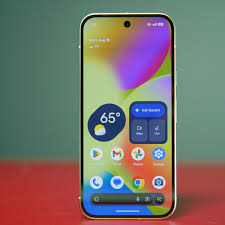
Method 1: Download eSIM Using a QR Code (Most Common)
This is the method most people use, and it’s the quickest. Your carrier will send you a QR code via email, their app, or a printed sheet.
Step-by-step:
- Connect your Pixel 10 Pro to a reliable Wi-Fi network
- Open Settings
- Tap Network & Internet
- Tap SIMs
- Tap Add SIM
- Select Set up an eSIM (or Download a SIM)
- Choose Use QR code
- Point your camera at the QR code your carrier provided
- Follow the on-screen prompts to complete activation
- Your eSIM may take a few minutes to activate — this is normal
Your eSIM may take a few minutes to activate. Once active, select Settings and follow the prompts to finish setting up your new eSIM.
Practical example: You’ve just switched to T-Mobile, and they emailed you a QR code PDF. Open that email on a second device (a laptop or tablet works perfectly), display the QR code on that screen, then scan it with your Pixel 10 Pro from the SIMs settings menu as described above. Done in under five minutes.
Method 2: Enter the Activation Code Manually
If you can’t scan the QR code — maybe the image is blurry, the lighting is poor, or you only received text-based instructions — you can enter the details manually.
Step-by-step:
- Go to Settings > Network & Internet > SIMs > Add SIM
- Select Set up an eSIM
- Instead of scanning, tap Enter code manually or Enter activation code
- Type in the SM-DP+ address and activation code provided by your carrier
- Tap Next and follow the prompts
Both methods install the same eSIM profile — the QR code simply encodes the SM-DP+ address and activation code. Manual entry is useful if you can’t scan.
Manual entry is slower and easier to mistype, so double-check every character before confirming. QR scanning is always the better option when available.
Method 3: Transfer eSIM from Your Old Phone
If you’re upgrading from a previous Android phone (like a Pixel 6, 7, or 8), you may be able to transfer your eSIM directly without contacting your carrier.
Step-by-step:
- Go to Settings > Network & Internet > SIMs > Add SIM
- Look for the option Transfer SIM from another device
- Follow the on-screen instructions — you’ll need both phones nearby
- Your carrier needs to support this feature (most major US carriers do)
An eSIM can only be active on one device at a time. If your old phone still has the eSIM active, your carrier needs to release or re-provision it before the Pixel 10 Pro can connect.
If the transfer option isn’t working, the cleanest fix is:
- Delete the eSIM from your old device (Settings > Network & Internet > SIMs > Erase SIM)
- Contact your carrier to generate a fresh QR code
- Scan that new code on your Pixel 10 Pro
Method 4: Set Up eSIM During First-Time Phone Setup
If your Pixel 10 Pro is brand new and you haven’t gone through the initial setup yet, you can add your eSIM right during that process.
Go through the phone setup process, tap Download SIM when prompted, and follow the instructions on the screen. If your SIM isn’t automatically detected at setup, you may need to activate it separately afterward.
This is the easiest path if you’re starting fresh. The setup wizard walks you through everything step by step.
Setting Up a Travel eSIM on Pixel 10 Pro
The Pixel 10 Pro is an excellent travel companion, specifically because of its dual eSIM capability. You can keep your home number active for calls and texts while using a local data plan abroad — no roaming charges, no SIM swapping.
Popular travel eSIM providers include Airalo, Holafly, Saily, and Nomad. Most work on the same QR scan method described above.
One critical tip: install the eSIM before you fly. Don’t wait until arrival. Airport Wi-Fi can block QR scans, and troubleshooting without data is incredibly frustrating.
Once your travel eSIM is installed, you need to configure it properly:
- Go to Settings > Network & Internet > SIMs
- Set the travel eSIM as your preferred data SIM
- Enable Data Roaming on the travel eSIM specifically — this does not trigger carrier roaming charges on your home plan.
- Turn off mobile data on your home SIM to avoid surprise charges
Pros and Cons of eSIM on Pixel 10 Pro
Pros
No physical SIM to lose or damage — since eSIMs are embedded in the device, they’re more secure and less damage-prone than physical SIM cards. No more hunting for a SIM ejector pin or worrying about a tiny card falling out during a phone swap.
Multiple profiles, easy switching — you can have multiple eSIM profiles on the same phone and switch between lines or manage international plans while traveling. Eight stored profiles means you can save your home carrier, a work line, and several travel plans all at once.
Instant activation — Getting a new plan takes minutes, not days. No waiting for a physical SIM to arrive in the mail.
Ideal for travel — Running a local data eSIM alongside your home number is genuinely one of the most convenient travel setups available on any phone right now.
Cleaner device design — Removing the SIM tray frees up internal space and improves water resistance.
Cons
US models have no physical SIM fallback — If you have a US Pixel 10 Pro, you must use eSIM for everything. If you’re in an area with poor carrier eSIM support, or you run into activation problems, there’s no physical SIM to fall back on temporarily.
QR codes are typically single-use. Most travel eSIM QR codes are single-use — once scanned, you can’t use the same QR code to reinstall. If something goes wrong mid-setup, you’ll need to contact your provider for a replacement code.
Carrier lock can block third-party eSIMs — If your phone is carrier-locked, installing eSIM profiles from other providers may be blocked entirely until you unlock the device.
Factory reset removes all eSIM profiles — A factory reset removes all eSIM profiles. This is critical to know before wiping your device, especially if you’re traveling and don’t have easy access to carrier support.
Not all carriers support direct transfer — Smaller or budget carriers may require you to contact support manually to get an eSIM activation code, which can take hours.
Fixing Common eSIM Problems on Pixel 10 Pro
eSIM not activating after scanning
Your phone needs an active internet connection to download the eSIM profile. Switch to a different Wi-Fi network or use mobile data from your existing SIM card, then try activation again. Also, confirm you’re using the correct QR code — carrier and travel eSIM codes are not interchangeable.
“Activation failed” error message.
This message usually appears when the eSIM profile is already installed on the device, but hasn’t completed the activation process. It can also show up if Airplane Mode is enabled, or if the eSIM installation was interrupted. Turn off Airplane Mode, reconnect to Wi-Fi, and check whether the eSIM is already listed in your SIM settings before scanning again.
eSIM shows as installed, but no internet
Set the travel eSIM as your data SIM, enable data roaming, verify your APN settings, toggle 5G/4G off and on, disable any active VPN or Private DNS, and reboot. If still failing, reset network settings and re-add the eSIM.
eSIM transfer from old phone not working
Navigate to Settings > Network & Internet > SIMs on your old device, select your eSIM profile, and tap Delete. This won’t cancel your line — it simply removes the eSIM from the old phone and frees it up for the new one. Then contact your carrier to generate a new QR code.
QR code won’t scan
Try these in order: clean your camera lens, improve lighting, increase screen brightness on the device showing the QR code, and make sure you’re scanning from within the SIM settings menu — not the regular camera app. The QR code is sometimes scanned from the camera app instead of through Android network settings, which causes errors. If scanning still fails, use the manual entry method instead.
Frequently Asked Questions
Does the Pixel 10 Pro have a physical SIM card slot?
In the US, the Pixel 10 Pro uses dual eSIM only with no physical SIM slot. Outside the US, it comes with a nano-SIM slot and eSIM support.
How many eSIMs can I store on the Pixel 10 Pro?
You can activate up to 2 eSIMs simultaneously and store up to 8 eSIM profiles on the device.
Do I need Wi-Fi to download an eSIM?
Yes. Your Pixel 10 Pro needs an active internet connection — either Wi-Fi or mobile data from an existing SIM — to download and install an eSIM profile. You cannot activate an eSIM without connectivity.
Can I use two numbers at the same time on the Pixel 10 Pro?
Yes. You can set up eSIM to use one number for personal and one for work, or use one for your home line and one for travel data. You can also set which line handles calls, messages, and data separately.
Can I move a travel eSIM to a different phone?
Usually not. For security, many eSIMs are single-device. Ask your provider about a reissue if you change devices. Carrier number eSIMs may support official transfer.
What if my eSIM QR code expired or stopped working?
Contact your eSIM provider directly — don’t try scanning the same code repeatedly. Airalo, Saily, and Holafly all offer support to regenerate or reinstall codes if your plan is still valid. Do not purchase a new plan — contact support first.
Where do I find my EID (eSIM ID) on Pixel 10 Pro?
Go to Settings > About phone > SIM status. Your EID is the 32-digit number listed there. Some carriers ask for this when setting up an eSIM remotely.
Will a factory reset delete my eSIM?
Yes — a factory reset will erase all stored eSIM profiles. Make sure you have your carrier account details and a way to get a new QR code before performing a reset.
Conclsion
Setting up an eSIM on the Pixel 10 Pro is genuinely straightforward once you know the steps. The QR code method takes under five minutes in most cases, and even the manual entry route is manageable if you take it slowly.
The most common mistakes — scanning from the camera app instead of settings, trying to activate without Wi-Fi, or not deactivating the eSIM on your old phone first — are all easy to avoid once you know about them.
Most eSIM issues come down to one toggle or a missed setting, not a faulty eSIM. Double-check your setup, save your QR codes, and you’ll avoid the usual connectivity stress. BitJoy
If you hit a wall, your carrier’s support line or live chat is your fastest path forward — they can reprovision your eSIM and issue a fresh code within minutes in most cases.

