
So you’ve heard about eSIMs, you’ve got an Android phone, and you want to set one up — but you’re not sure where to start. Maybe you’re getting ready for a trip abroad and want a local data plan without hunting down a SIM card at the airport. Maybe your carrier supports eSIM, and you want to ditch the physical card entirely. Or maybe you’re just curious about how it works.
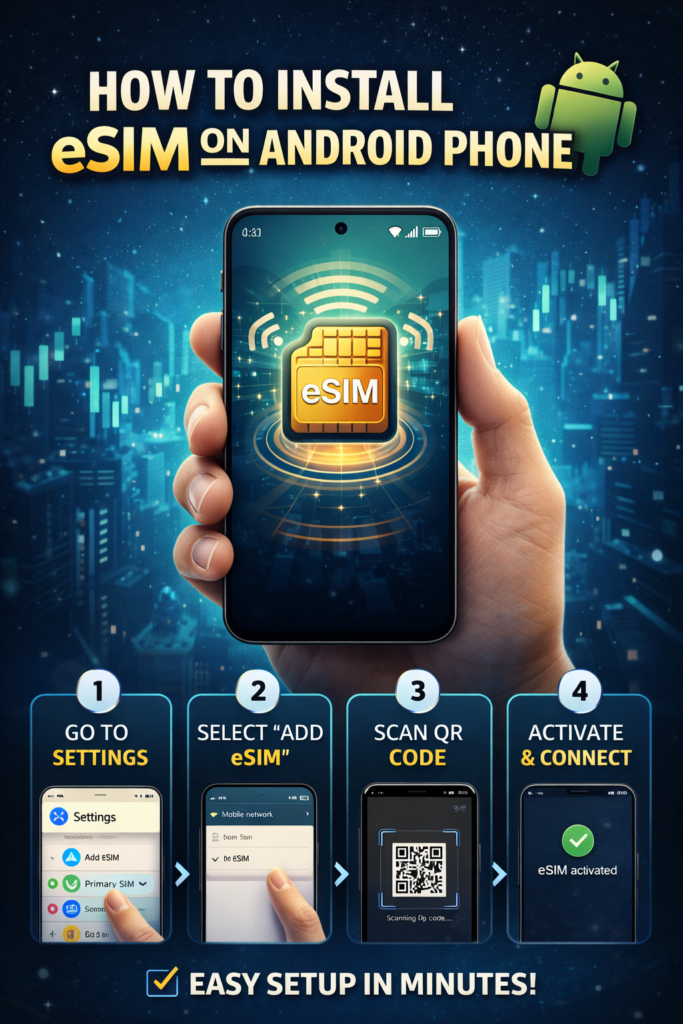
Whatever, how to install eSIM on my Android phone, this guide walks you through everything step by step — from checking if your phone supports eSIM, all the way to getting connected and troubleshooting common hiccups.
Selecting an Android phone in 2026 is an exercise in balancing cutting-edge AI capabilities with hardware breakthroughs. The market has shifted toward specialized features, with Samsung and Google leading the premium segment. The Samsung Galaxy S26 Ultra remains the powerhouse for productivity, introducing a revolutionary Privacy Display that prevents side-angle viewing—perfect for commuters. Meanwhile, the Google Pixel 10 Pro has moved to the Tensor G5 chip, focusing heavily on photography via its 100x Pro Res Zoom and the convenience of Pixel Snap magnetic charging.
For users prioritizing endurance, the mid-range and performance tiers have seen a massive leap in battery technology. The OnePlus Nord 6 and Vivo V70 FE are game-changers, sporting batteries up to 9,000mAh that can comfortably power through three days of heavy use. This shift ensures that even budget-conscious buyers no longer have to compromise on “all-day” performance.
Ultimately, your choice depends on your daily habits. If you are a mobile gamer or power user, the OnePlus 15’s 165Hz display and Snapdragon 8 Gen 5 processor are unmatched. However, if you want the smartest software experience and long-term support, the Pixel series remains the gold standard for Android.
What Is an eSIM, and Why Does It Matter?
An eSIM (embedded SIM) is a digital SIM card that’s built right into your phone’s hardware. There’s no physical card to insert or swap — you download a mobile plan directly onto your device.
Think of it like the difference between buying a CD and downloading a song. The result is the same (you get the music), but with a download, there’s no physical object to lose, scratch, or forget at home.
For everyday users, this means you can:
- Switch carriers or add a new data plan without visiting a store
- Use two numbers on one phone — say, a work line and a personal line
- Buy a local data plan for a trip abroad in minutes, right from your phone
Most modern Android phones store between 5 and 10 eSIM profiles, though typically only one or two can be active at the same time.
How to install eSIM on my Android phone: step-by-step
Step 1: Check if Your Android Phone Supports eSIM

Before anything else, confirm your phone actually has eSIM capability. Not all Android phones do — especially older models or phones purchased in certain regions.
Quick Check — Dial a Code
The fastest way: open your phone app and dial *#06#
If you see a 32-digit EID (Embedded ID) number on your screen, your phone supports eSIM. If you only see IMEI information and no EID, your device doesn’t have an eSIM chip.
Check via Settings
You can also go to Settings → Network & Internet (or Connections on Samsung) and look for an option that says “Add eSIM,” “Download a SIM,” or similar. If no such option exists, eSIM isn’t supported on your device.
Popular Android Phones That Support eSIM in 2026
Here’s a quick reference list of widely used Android phones with eSIM support:
Samsung: Galaxy S20 and newer, Galaxy Z Flip series, Galaxy Z Fold series, select Galaxy A-series models (like the A54)
Google Pixel: Pixel 3 and newer (with some regional exceptions — Pixel 3 bought in Australia, Japan, or Taiwan does not support eSIM)
OnePlus: OnePlus 11, 12, 13, and 15
Motorola: Several recent models in the Edge and Razr series
Xiaomi: Only the Xiaomi 12T Pro supports eSIM internationally — Chinese/Hong Kong models typically do not
Important note: Even if your phone model supports eSIM, some region-specific versions might not. A Samsung Galaxy S25 bought in the US supports eSIM; certain international versions may differ. Always double-check for your specific region.
Step 2: Make Sure Your Phone Is Unlocked
This is the part many people skip — and then get frustrated later.
If your phone is locked to a specific carrier (like T-Mobile or Vodafone), it may block you from adding an eSIM from a different provider.
How to check if your phone is unlocked (Android):
- Go to Settings → Connections → Mobile Networks → Network Operators
- Wait about 30 seconds while it searches for available carriers
- If you see only your current carrier’s name, your phone is likely locked
- If multiple carriers appear, your phone is unlocked
If your phone is locked, contact your carrier and request an unlock. Most carriers will unlock your device if your contract is complete or your phone is fully paid off.
Step 3: Get a Stable Wi-Fi Connection
You need an active internet connection to download your eSIM profile. Make sure you’re on a reliable Wi-Fi network — a weak or unstable connection can interrupt the installation and cause errors.
Don’t try to install an eSIM on airport public Wi-Fi or a slow hotel connection if you can avoid it. A home or office network is ideal.
Step 4: Get Your eSIM QR Code or Activation Code
Once you’ve purchased an eSIM plan (from your carrier or a travel eSIM provider), you’ll receive one of two things:
- A QR code — displayed on your computer screen or sent via email. This is the most common and easiest method.
- An activation code — a long alphanumeric string (also called an SM-DP+ Address), used when you can’t scan a QR code.
Practical tip: If you’re setting up a travel eSIM before a trip, do this at home on your computer. Pull up the QR code on your computer screen, then scan it with your phone. You won’t need to print anything.
Step 5: Install the eSIM — QR Code Method (Most Common)
The steps below work for most Android phones running Android 13 and above. The exact menu names might vary slightly depending on your brand.
For Google Pixel:

- Open Settings
- Tap Network & Internet
- Tap the ( + ) icon next to “SIMs.”
- Tap “Download a SIM instead?”
- Tap Next, then tap “Use a different network” if prompted
- Scan the QR code from your eSIM provider
- Tap Confirm to download the profile
- Follow on-screen prompts to activate
For Samsung Galaxy:

- Open Settings
- Tap Connections
- Tap SIM card manager
- Tap Add mobile plan
- Tap the Scan carrier QR code
- Scan the QR code provided by your eSIM provider
- Tap Confirm when prompted
For Other Android Phones (General Steps):
- Open Settings
- Tap Network & Internet or Mobile Network
- Tap the ( + ) icon or “Add eSIM.”
- Choose “Scan a QR code.e”
- Point your camera at the QR code
- Follow the prompts to download and confirm
Step 6: Install the eSIM — Manual Method (When You Can’t Scan)
Sometimes you might not have another screen to display the QR code, or the code just won’t scan properly. In that case, you can enter the activation details manually.
- Go to Settings → Network & Internet → SIMs (or Mobile Network)
- Tap the (+) icon or “Add eS.IM”
- When prompted to scan, look for “Enter code manually” or “Having trouble scanning?”
- Type in the SM-DP+ Address and Activation Code exactly as provided
- Tap Connect or Confirm
- Follow the remaining on-screen steps
Practical tip: These codes are long and easy to mistype. If your provider sent them by email, copy and paste where possible. Most Android phones allow you to switch between apps and paste text directly into the activation field.
Step 7: Configure Your eSIM Settings
Once installed, there are a few settings you’ll want to adjust to make sure everything works correctly.
Set the eSIM as Your Data Source
- Go to Settings → Network & Internet → SIMs
- Tap your newly installed eSIM
- Toggle on Mobile Data for that profile
- Select Use eSIM or Turn On This Line
Enable Data Roaming (for Travel eSIMs)
If you’re using a travel eSIM abroad:
- Tap on your eSIM profile in SIM settings
- Scroll to Roaming and tap All Networks
- Make sure Data Roaming is toggled on
Turn Off Your Primary SIM (Optional but Recommended for Travel)
If you don’t need calls or texts on your home SIM while traveling, turn it off to avoid surprise roaming charges:
- In SIM card manager or SIM settings
- Toggle off your physical SIM card
You can always turn it back on if you need it.
Rename Your eSIM
This is optional but helpful if you have multiple plans installed. Give it a recognizable name like “Japan Trip” or “Work Line” so you know which is which.
Real-World Example: Setting Up a Travel eSIM for a Trip to Japan
Here’s how the full process looks in practice:
Before leaving home, you book a 7-day trip to Japan. Three days before departure, you purchase a 5GB Japan data plan from an eSIM provider online. They email you a QR code and confirmation details.
You sit down at your laptop, open the QR code image, and grab your phone. You go to Settings → Connections → SIM card manager → Add mobile plan, scan the QR code on your screen, and confirm. The eSIM downloads in about 30 seconds.
You rename it “Japan eSIM” in your settings and leave it installed but inactive.
At the airport: You turn off your home SIM card and activate the Japan eSIM. By the time your plane lands in Tokyo, your phone is ready to connect to a local Japanese network. No airport SIM kiosk line. No language barrier. No physical card to keep track of.
Back home: You reactivate your home SIM and leave the Japan eSIM installed in case you return. Most devices store multiple profiles without any issue.
Pros and Cons of Using an eSIM on Android
Pros
- No physical SIM needed — nothing to lose, damage, or forget to pack
- Switch plans instantly — no waiting in carrier stores or for SIM delivery
- Perfect for travel — buy a local data plan in minutes from anywhere in the world
- Dual SIM made easy — keep a personal and work line on one device without two cards
- More secure — can’t be physically removed or stolen like a traditional SIM
- Environmentally friendlier — no plastic packaging or physical cards
Cons
- Not all phones support it — especially older or budget Android models
- Can’t transfer easily when changing phones — unlike a physical SIM, you can’t just pull it out and move it; you need to re-download profiles
- Deleting is (often) permanent — if you delete an eSIM profile, you usually can’t re-install it from the same code; you’d need to request a new one from your provider
- Carrier restrictions can be frustrating — locked devices can block certain eSIM installations
- Regional variations — the same phone model sold in different countries may or may not support eSIM
- Requires internet for setup — you need Wi-Fi to download the profile, which can be tricky if you’re already abroad without data
Troubleshooting Common eSIM Problems on Android
QR Code Won’t Scan
Try these fixes in order:
- Clean your camera lens and ensure the QR code image is well-lit
- Increase the brightness of the screen displaying the QR code
- Move the camera back slightly — you might be too close
- Restart your phone and try again
- Switch to manual installation using the activation code
eSIM Downloaded, but Mobile Data Isn’t Working
- Confirm the eSIM is set as your default data source in SIM settings
- Check that Data Roaming is enabled
- Make sure your physical SIM is not overriding the eSIM for data
- Check that your eSIM plan is active — some providers have a slight delay after purchase
- Restart your phone after confirming all settings
“Carrier Lock” Error
Your phone is locked to another carrier. Contact your current carrier and request an unlock. Once unlocked (usually takes 1–3 business days), try installing the eSIM again.
“eSIM Already Installed” Error.
If you see this error when trying to reinstall, check your SIM settings — the eSIM may already be on your device. Look under SIM card manager or SIMs for any existing profiles.
No “Add eSIM” Option in Settings
Your phone may not support eSIM, or you might be running an older Android version. Check for software updates first. If no update is available and your phone doesn’t show an EID number when you dial *#06#, your device unfortunately does not support eSIM.
FAQs
Q: Does my Android phone need to be brand new to use eSIM?
No. eSIM support goes back several years. Samsung Galaxy S20 (2020), Google Pixel 3 (2018), and OnePlus 11 (2023) all support eSIM. If your phone is from 2019 or later and is a mid-range or flagship model, there’s a reasonable chance it’s compatible — but always verify for your specific model and region.
Q: Can I have both a physical SIM and an eSIM active at the same time?
Yes, on most modern Android phones that support dual SIM. Your physical SIM handles calls and texts on one line while your eSIM handles data on another — or any combination you prefer. This is particularly useful for travelers who want to keep their home number active while using a cheaper local data plan.
Q: Can I switch back to a physical SIM after using an eSIM?
Absolutely. Installing an eSIM doesn’t remove or disable your physical SIM. You can switch between them at any time in your SIM settings.
Q: How many eSIMs can I store on my Android phone?
Most modern Android phones can store between 5 and 10 eSIM profiles. However, only one or two can be active at the same time depending on your device model. You can toggle between stored profiles without re-downloading them.
Q: Is it safe to use an eSIM? Can it be hacked?
eSIMs are generally considered more secure than physical SIM cards. They can’t be physically removed or swapped by someone who gets hold of your phone. They’re also less susceptible to SIM-swapping fraud, which is a common method attackers use against physical SIMs. That said, no technology is completely immune — use strong account security with your carrier.
Q: What happens to my eSIM if I factory reset my phone?
Factory resetting your Android phone will delete your eSIM profiles. Before resetting, check with your eSIM provider about whether you can re-download the same profile afterward. Some providers allow it; others treat the code as single-use.
Q: Do I need a special app to use an eSIM?
For most carriers, no, the installation is built into Android’s settings. Some eSIM providers (like Airalo, Saily, or Roamless) have their own apps that make finding and managing plans easier, but the actual installation still goes through your phone’s native settings.
Q: Can I use an eSIM if I’m already in another country
? Yes, if you have Wi-Fi access. You can purchase and install a travel eSIM even after you’ve arrived at your destination, as long as you have an internet connection to download the profile. However, it’s much easier and smarter to do this before you leave home.
Final Tips Before You Get Started
- Set up your eSIM before you travel, not at the airport or hotel.
- Screenshot your QR code and save the activation code to a notes app — just in case.
- Don’t delete an eSIM profile unless you’re sure you won’t need it again — many codes are single-use.
- If something goes wrong during installation, restart your phone and try again before contacting support — that alone fixes a surprising number of issues.
- Keep your Android OS updated. Older software versions can cause eSIM compatibility problems that a simple update resolves.
Setting up an eSIM on Android takes about five minutes once you know the steps. And once you’ve done it the first time, it genuinely feels like one of those things you wonder how you lived without.

