
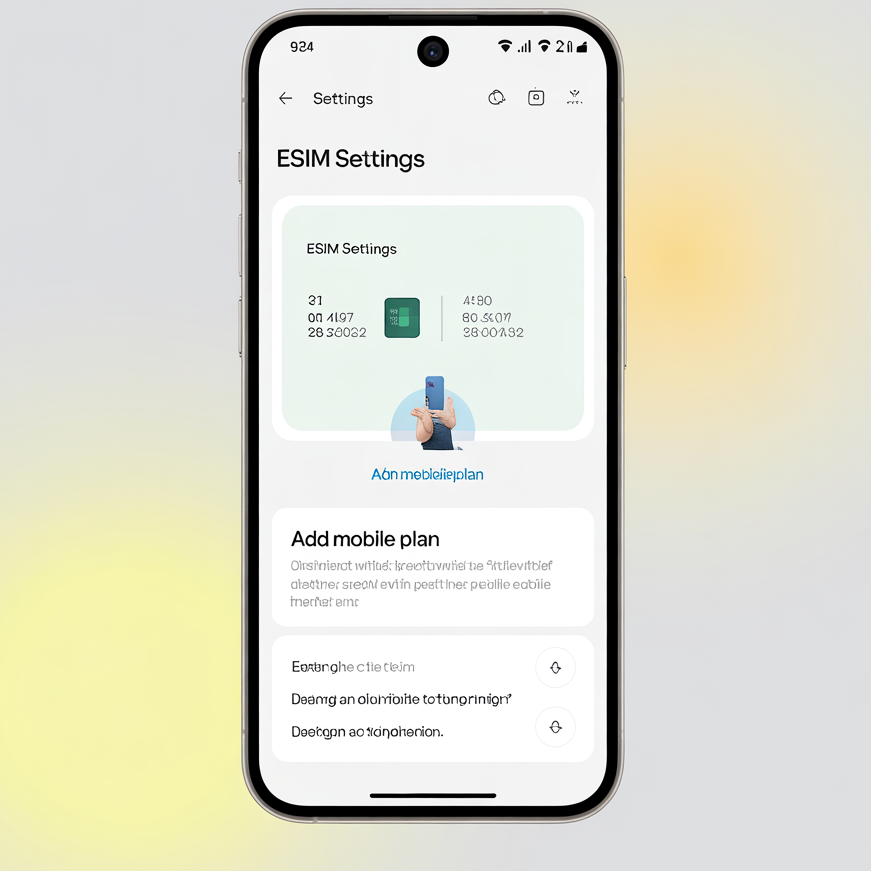
You unboxed your new Android phone, powered it on, and now you’re staring at the setup screen. Maybe your carrier told you to “just use eSIM” instead of handing you a physical SIM card. Or maybe you’re switching carriers and want to set things up digitally without waiting for a SIM in the mail. Android
Either way, eSIM setup can feel confusing the first time — especially because the steps look slightly different depending on your phone brand, Android version, and carrier.
This guide How to set up eSIM on a new Android Phone walks you through the whole process clearly. No tech jargon, no skipped steps. By the end, you’ll have your eSIM active and your new Android phone working as your daily driver.
What Is an eSIM and Why Does It Matter?
Before jumping into the setup, it helps to understand what you’re actually dealing with.
An eSIM (embedded SIM) is a SIM card that’s built directly into your phone’s motherboard. There’s no physical card to insert or lose. Instead, your carrier sends you a QR code or an activation code, and you scan it to download your plan digitally.
The “e” stands for embedded — meaning it’s already inside your device. You just need to activate it.
Most flagship Android phones released since 2020 support eSIM. This includes Samsung Galaxy S and A series, Google Pixel 3 and above, OnePlus 9 and later, Motorola Edge series, and many others. Android
How to set up eSIM on a new Android Phone:-
Before You Start: A Quick Checklist
Don’t skip this part. A lot of setup problems come from missing one of these basics:
- Your phone supports eSIM. Check your phone’s spec sheet or Settings > About Phone. If you see an “EID” (Embedded Identity Document) number listed, your phone supports eSIM.
- Your carrier supports eSIM. Not all carriers do. In India, Jio, Airtel, and Vi (Vodafone Idea) all support eSIM. In the US, all major carriers — AT&T, Verizon, T-Mobile — support it. Check your carrier’s website if unsure.
- You have a stable Wi-Fi connection. eSIM activation downloads a profile over the internet. Don’t try this on a weak or unstable connection.
- You have your activation QR code or details ready. Your carrier either emails this to you, shows it in their app, or hands you a printed sheet in-store.
- Your phone is fully charged or plugged in. The last thing you want is your phone dying mid-activation. Android
Method 1: Setting Up eSIM Using a QR Code (Most Common)

This is how most carriers handle eSIM activation — they send you a QR code. Here’s how to use it on Android.
Step 1: Open Settings
Go to your phone’s Settings app. This is the gear icon in your app drawer or notification shade.
Step 2: Navigate to Network or SIM Settings
The exact path varies slightly by phone brand:
- Samsung: Settings > Connections > SIM Card Manager > Add Mobile Plan
- Google Pixel: Settings > Network & Internet > SIMs > Add SIM
- OnePlus: Settings > Wi-Fi & Network > SIM & Network > Add eSIM
- Motorola: Settings > Network & Internet > SIMs > Download a SIM
Look for anything that says “Add SIM,” “Add eSIM,” or “Download a SIM.” All roads lead to the same place.
Step 3: Choose “Scan QR Code”
Once you’re in the eSIM section, your phone will ask how you want to add the plan. Choose Scan QR Code (sometimes called “Use QR code” or “Scan carrier QR code”).
Step 4: Scan the QR Code from Your Carrier
Point your camera at the QR code your carrier provided. Hold it steady — it scans automatically. Your phone will connect to your carrier’s servers and download your plan.
Practical tip: If the QR code is on a physical paper, lay it flat in good lighting. If it’s on a screen (like your laptop), make sure the screen brightness is turned up.
Step 5: Confirm and Activate
Your phone will show a confirmation screen with the plan details — carrier name, phone number, and plan type. Tap Confirm or Activate.
The download takes about 30–60 seconds. Once done, your eSIM profile is installed.
Step 6: Set Your eSIM as the Primary or Preferred Line
If your phone also has a physical SIM slot, you’ll now have two SIMs. Go back to SIM Card Manager (Samsung) or SIMs settings (Pixel/others) and choose which SIM handles calls, texts, and mobile data.
Most people set the eSIM as the primary data SIM and keep the physical SIM for calls — or just remove the physical SIM entirely.
Method 2: Setting Up eSIM Using an Activation Code (Manual Entry)

Some carriers don’t give you a QR code. Instead, they give you a text string — usually called an activation code or SM-DP+ address. This happens more often with international carriers or MVNOs (smaller carriers that run on larger networks).
Step 1: Go to the Same SIM Settings
Follow the same steps as above: Settings > your network/SIM section > Add eSIM.
Step 2: Choose “Enter Manually” or “Enter Activation Code”
Instead of scanning a QR code, look for an option like Enter manually, Enter code, or Use activation code. Tap it.
Step 3: Type In the Code
Your carrier gives you two things: an SM-DP+ Address (a server address) and an Activation Code (a string of letters and numbers). Enter both exactly as provided — these are case-sensitive.
Example format:
- SM-DP+ Address:
rsp.provider.com - Activation Code:
LPA:1$rsp.provider.com$ABC123XYZ456
Some carriers combine these into a single string starting with “LPA:”. If that’s what you have, paste the whole thing into the activation code field.
Step 4: Confirm and Wait
Same as with the QR method — your phone downloads the profile, you confirm, and activation completes in under a minute.
Method 3: eSIM Setup Through Your Carrier’s App
A growing number of carriers let you activate eSIM entirely through their official app, without needing any QR code or manual entry. This is becoming the smoothest option when it works.

Examples:
- Google Fi: You download the Google Fi app, sign in, and follow the in-app instructions. It handles the eSIM activation automatically.
- T-Mobile: Their app has a dedicated “Set up eSIM” flow.
- Airtel (India): The Airtel Thanks app supports eSIM activation directly for eligible plans.
The process is simply: install the app → sign in to your account → find the eSIM activation section → follow the prompts.
The app method is especially useful if you’ve lost your QR code or never received one.
Managing Multiple eSIM Profiles
One of the underrated features of eSIM is that your phone can store multiple eSIM profiles — even if only one or two can be active at a time.
This is useful if:
- You travel internationally and want to switch to a local carrier without buying a physical SIM
- You keep a personal and work number on the same device
- You’re testing different carriers before committing
To manage stored profiles on Android, go back to SIM Card Manager or your SIM settings. You’ll see a list of all downloaded eSIM profiles. You can activate, deactivate, or delete them from here.
Practical example: You’re traveling from India to the US for two weeks. Before you leave, you download a US carrier’s eSIM (like T-Mobile or Google Fi). When you land, you switch your active data SIM to the US eSIM. When you return home, you switch back to your Airtel or Jio eSIM. No SIM swapping, no roaming charges.
What to Do If Your eSIM Setup Isn’t Working
Activation problems are more common than they should be. Here’s how to handle the most frequent issues:
“QR Code Not Recognized” or “Invalid Code”
- Make sure the QR code hasn’t expired. Most carrier QR codes expire within 30 days of issue — some within 24 hours.
- Clean your camera lens — sounds silly, but smudges can cause scan failures.
- Try scanning in better lighting.
- If the QR code is on screen, increase display brightness and reduce glare.
“eSIM Download Failed” or Connection Error
- Check that Wi-Fi is working. Try opening a webpage to confirm.
- Restart your router and try again.
- Some corporate or school Wi-Fi networks block the ports needed for eSIM activation. Switch to home Wi-Fi or use mobile data from a friend’s phone as a hotspot temporarily.
“This Device Doesn’t Support eSIM.”
- Your phone may be locked to a specific carrier that hasn’t enabled eSIM. Contact your carrier to check if eSIM is enabled on your account and device.
- Some phones sold by carriers are “eSIM locked” until you’ve been a customer for a certain period. Ask your carrier.
Plan Download, but No Signal
- Restart your phone after activation.
- Go to SIM settings and confirm the eSIM is set as the active data SIM.
- Check if your plan is actually active in your carrier’s app or website — sometimes there’s a short delay on the carrier’s end.
eSIM Not Showing in Settings
Your phone may not officially support eSIM even if it’s a recent model. Some budget Android phones, dual-SIM phones sold in certain markets, and carrier-locked devices disable eSIM. Check your phone’s EID: Settings > About Phone > scroll down. If there’s no EID listed, your device doesn’t support eSIM.
Pros and Cons of Using eSIM on Android
Let’s be straightforward about what eSIM does well — and where it still falls short.
✅ Pros
No physical SIM to lose or damage. If you’ve ever dropped a SIM card into a drain or watched one snap in half, you’ll appreciate this immediately.
Switch carriers without leaving home. You can change plans, switch carriers, or add a travel SIM entirely digitally. No store visit, no waiting for a card in the mail.
Great for international travel. Buy a local eSIM from a travel provider (Airalo, Holafly, etc.) before you even land. Avoid roaming fees without the hassle of hunting for a local SIM shop.
More secure. A physical SIM can be stolen or SIM-swapped more easily. eSIM profiles are tied to your device and typically require carrier verification to transfer.
Dual SIM without a physical second card. Many Android phones support one physical SIM + one eSIM, giving you two active numbers without needing a physical dual-SIM tray.
Thinner, cleaner hardware. Removing the SIM tray allows manufacturers to build slimmer devices and improves water resistance.
❌ Cons
Harder to transfer when switching phones. With a physical SIM, you just pop it into your new phone. With eSIM, you need to request a new QR code or go through a transfer process, which sometimes involves contacting your carrier.
Not universally supported. Budget Android phones and many phones sold in South Asian, African, and parts of Southeast Asian markets still don’t support eSIM.
Carrier dependency. You can only download and activate an eSIM profile when you have internet access. If you’re in a remote area with no Wi-Fi and no data, activation isn’t possible.
Can be tricky with locked phones. If your phone is carrier-locked, you may not be able to add eSIM profiles from other carriers at all.
Some older carrier systems don’t handle it smoothly. Not every carrier’s eSIM activation process is polished. You may encounter delays, confusing error messages, or slow customer service if something goes wrong.
Tips for Getting the Most Out of Your eSIM
A few practical habits that make eSIM more useful in day-to-day life:
Save your QR code somewhere safe. Screenshot it, email it to yourself, or store it in a password manager. If you ever need to reinstall your eSIM profile (for example, after a factory reset), you’ll need it again.
Label your SIM profiles clearly. In settings, you can usually rename each SIM profile. Label them something helpful like “Jio – Personal” or “T-Mobile – Travel” instead of the generic carrier name.
Check eSIM compatibility before buying an international travel plan. Services like Airalo, Nomad, or Holafly sell eSIM data plans for travelers. Before purchasing, confirm that your Android phone is compatible with their eSIM.
Know your carrier’s eSIM transfer policy before you upgrade phones. Some carriers let you transfer your eSIM to a new device through their app. Others require you to visit a store or call support. Find this out before you need it.
FAQs
Q: Can I use eSIM and a physical SIM at the same time on Android?
Yes, on most modern Android phones that support dual SIM. You can have one physical SIM and one eSIM active simultaneously. Go to SIM Card Manager to set which one handles calls, texts, and data.
Q: Will setting up an eSIM cancel my existing number?
No — your phone number is tied to your carrier account, not the SIM card itself. Setting up eSIM on a new device typically just moves your number to the new eSIM profile.
Q: What happens to my eSIM if I factory reset my phone?
A factory reset usually deletes your eSIM profile. You’ll need your original QR code or activation details to reinstall it. Some carriers also require you to request a new QR code from their end.
Q: Can I switch back to a physical SIM after using eSIM?
Yes. If your phone has a physical SIM slot, you can insert a regular SIM card and deactivate the eSIM profile anytime.
Q: How many eSIM profiles can I store on one Android phone?
This varies by device. Most Android phones can store between 5 and 15 eSIM profiles, but can only have 1–2 active at a time. Check your phone’s specs for the exact limit.
Q: Is eSIM free or does it cost extra?
eSIM activation itself is usually free. However, some carriers charge a small fee for issuing a new eSIM profile or for transferring an existing one to a new device. Check with your specific carrier.
Q: My carrier says my account is eSIM-ready, but my phone won’t activate it. What’s wrong?
First, confirm your phone has an EID number (Settings > About Phone). If it does, the phone supports eSIM. The issue may be that your carrier hasn’t linked your account to eSIM on their backend yet. Call their customer support and ask them to check your account’s eSIM eligibility flag — this is a common fix.
Q: Can I use eSIM without Wi-Fi?
No, you need an active internet connection to download and activate an eSIM profile. Once it’s activated, your eSIM works like any SIM card and doesn’t need Wi-Fi for calls or texts.
Conclsion
Setting up an eSIM on a new Android phone isn’t complicated once you know what to expect. The QR code method works smoothly for most people, takes under two minutes, and you end up with a fully activated line without touching a physical card.
The key is going in prepared — knowing your carrier supports eSIM, having your QR code or activation code ready, and being on a reliable Wi-Fi connection. If something doesn’t work on the first try, the troubleshooting steps above will sort out most problems.
eSIM is genuinely one of the better quality-of-life improvements in modern smartphones, especially if you travel, use two numbers, or switch carriers regularly. Once you’ve set it up once, you’ll wonder why you ever bothered with physical SIM cards.

