
The Samsung Galaxy S26 is designed as a premium smartphone that combines powerful performance, an advanced camera system, a high-quality display, and modern connectivity features. It is aimed at users who want a fast device for everyday tasks, photography, gaming, streaming, and productivity. The phone also supports features such as 5G connectivity, eSIM, fast charging, biometric security, and Samsung’s latest software experience, making it a strong option for users looking for a long-term smartphone.
The Galaxy S26 is particularly useful for people who frequently switch between apps, capture photos and videos, use demanding applications, or need reliable connectivity while traveling. Its combination of hardware and software features makes it suitable for both everyday users and professionals who want a premium Android smartphone.
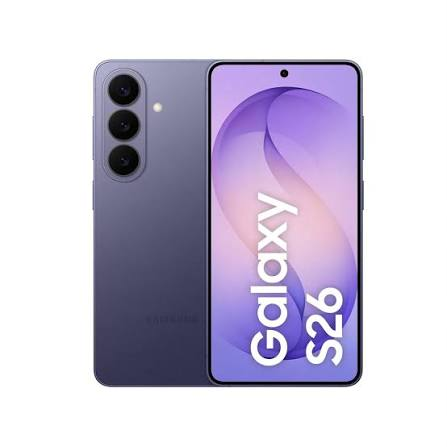
How to delete eSIM on Samsung S26. Deleting an eSIM on your Samsung Galaxy S26 sounds simple — but doing it wrong before selling your device or switching carriers can cause serious problems. Your number could get stuck in limbo, your new carrier’s eSIM might fail to install, or the buyer of your old device could potentially access your carrier account.
This guide focuses specifically on the two most common and highest-stakes eSIM deletion scenarios — selling your Galaxy S26 and switching carriers — with step-by-step instructions, carrier-specific guidance for Jio, Airtel, and Vi, and a complete troubleshooting section for when things go wrong.
- Check now the Problem – How to Delete eSIM on Samsung Galaxy S26
Why eSIM Deletion Is Different from Removing a Physical SIM

When you remove a physical SIM card from your Galaxy S26, you simply pull it out. Your carrier still has your account active — you just don’t have the card in the phone.
eSIM deletion is more complex because:
The profile lives on the device: Your eSIM profile — containing your carrier credentials, network authentication keys, and account linkage — is stored on the eSIM chip inside your Galaxy S26. Deleting it removes these credentials permanently from the device.
Carrier servers are involved: Your carrier’s server maintains a record of which device your eSIM is provisioned to. When you delete an eSIM, the carrier server needs to be updated — otherwise your number gets stuck in a provisioned state that prevents reinstallation on a new device.
Irreversibility: Unlike removing a physical SIM (which you can reinsert), deleting an eSIM profile cannot be undone on the device. Recovery requires your carrier to issue a new QR code.
Different implications for different scenarios: Deleting before selling has different requirements than deleting before switching carriers. Getting the sequence right matters.
How to delete eSIM on Samsung s26: (step by step)
Scenario 1 — Deleting eSIM Before Selling Your Galaxy S26
Selling your Galaxy S26 without properly deleting the eSIM is one of the most common mistakes Indian smartphone sellers make. Here’s exactly what to do — and why the sequence matters.
Why Proper eSIM Deletion Before Selling Is Critical
Privacy risk: Your eSIM profile contains carrier authentication credentials. A technically savvy buyer could potentially use these to access carrier account information or cause billing issues on your account.
Account security: Some carrier accounts linked to eSIM profiles have auto-pay enabled. Leaving eSIM profiles on a sold device creates unnecessary account security exposure.
Legal responsibility: If the new owner uses your number for fraudulent purposes before your carrier deactivates the profile, you could face complications as the registered account holder.
Carrier billing: Your billing continues as long as your number is active — deleting the eSIM from the device doesn’t stop billing. You need to handle both device deletion AND carrier account action.
Complete Pre-Sale eSIM Deletion Checklist.
Before running through the deletion steps, complete this checklist:
✅ Back up your data
- Samsung Cloud: Settings → Accounts and Backup → Back up data
- Google backup: Settings → Accounts and Backup → Google Account
- Manual backup: Photos to Google Photos, contacts to Google Contacts
✅ Note your eSIM carrier details
- Carrier name (Jio/Airtel/Vi)
- Your registered mobile number
- Customer care number (Jio: 199, Airtel: 121, Vi: 199)
- Account number or registered email
✅ Screenshot your SIM Manager
Take a screenshot showing all installed eSIM profiles — useful reference for reinstallation on your new device.
✅ Transfer your number if keeping it
If you want to keep using the number on a new device:
- Contact your carrier before deleting
- Request number transfer to new device
- Confirm number is active on new device BEFORE deleting from Galaxy S26
✅ Cancel or transfer eSIM-linked plans
Contact your carrier to either:
- Port your number to new device/SIM
- Cancel the eSIM plan if you no longer need it
- Transfer remaining prepaid balance
✅ Deactivate eSIM-linked services
- Remove eSIM number from WhatsApp (if it’s your WhatsApp number)
- Update 2FA on important accounts to an alternative number
- Inform contacts of number change if applicable
Step-by-Step: Delete eSIM Before Selling Galaxy S26
Step 1: Contact Your Carrier First
Before touching your Galaxy S26 settings, call your carrier:
Jio (199):
“I am selling my Samsung Galaxy S26 and need to delete my eSIM profile. Please deactivate my eSIM on your server and confirm I can safely delete it from the device.”
Airtel (121):
“I want to delete my Airtel eSIM before selling my phone. Please initiate carrier-side eSIM deactivation for my number.”
Vi (199):
“I need to remove my Vi eSIM from my Samsung Galaxy S26 before selling it. Please deactivate it from your end.”
Carrier confirmation ensures their server registers the deactivation cleanly — preventing your number from getting stuck in a provisioned state that could cause problems for both you and the new buyer.
Step 2: Deactivate eSIM Profile on Galaxy S26
- Open Settings
- Tap Connections
- Tap SIM Manager
- Under the eSIM section, tap your eSIM profile
- Toggle eSIM to Inactive/Off
- Wait 60 seconds — gives the carrier server time to register the deactivation
Step 3: Delete eSIM Profile
With the eSIM now inactive:
- Remain in SIM Manager
- Tap the deactivated eSIM profile
- Tap Delete or Remove eSIM
- Confirmation dialog appears: “This action cannot be undone”
- Tap Delete to confirm
- Profile removed from Galaxy S26 ✅
Step 4: Verify Deletion
- Go back to SIM Manager
- Confirmthe eSIM section shows no profiles
- If multiple eSIMs were installed, repeat for each one
Step 5: Remove Physical SIM (if present)
- Power off Galaxy S26
- Use a SIM ejector tool to open the SIM tray
- Remove physical SIM card
- Keep the SIM card — you’ll need it for your next device or carrier
Step 6: Factory Reset Galaxy S26
After eSIM deletion, factory reset removes all remaining personal data:
- Ensure the device is charged above 50%
- Go to Settings → General Management → Reset
- Tap Factory Data Reset
- Scroll down — review what will be erased
- Tap Reset
- Enter PIN/password when prompted
- Tap Delete All
- Galaxy S26 restarts and completes reset — takes 5–10 minutes ✅
Step 7: Remove Samsung Account (FRP)
During or after factory reset:
- Galaxy S26 shows setup wizard after reset
- If Samsung account removal wasn’t prompted during reset:
- Before reset: Settings → Accounts and Backup → Manage accounts → Samsung account → Remove account
- Removing Samsung account prevents Factory Reset Protection (FRP) lock — critical for new buyer
Step 8: Verify Clean State
Power on Galaxy S26 after reset:
- Setup wizard appears ✅
- No Samsung account signed in ✅
- SIM Manager shows no eSIM profiles ✅
- No personal data visible ✅
Device is now ready to sell safely.
Scenario 2 — Deleting eSIM Before Switching Carriers on Galaxy S26
Switching from one carrier’s eSIM to another — for example, from Airtel eSIM to Jio eSIM — requires a specific sequence to avoid losing your number or getting stuck without network connectivity.
Understanding Carrier Switching with eSIM
Two types of carrier switching:
Type A — Keeping your number (MNP — Mobile Number Portability)
You want to keep your existing number but move it from one carrier to another. Example: Moving your Airtel number to Jio while keeping the same phone number.
Type B — Getting a new number on a different carrier
You want a new number on a different carrier — your old number stays active separately or gets deactivated.
The eSIM deletion sequence is different for each type.
Type A — MNP: Switch Carrier While Keeping Your Number
Important: For MNP, do NOT delete your eSIM first. The porting process handles deletion automatically.
Step 1: Initiate MNP with New Carrier
Porting to Jio:
- Visit Jio Store or use MyJio app
- Request MNP for your number
- Provide current carrier details and Aadhaar
- Jio initiates port request with your current carrier
- You receive a UPC (Unique Porting Code) via SMS from your current carrier
Porting to Airtel:
- SMS “PORT [your number]” to 1900 from your current number
- Receive UPC via SMS (valid 15 days)
- Visit Airtel Store or use Airtel Thanks app
- Provide UPC and complete KYC
- Airtel initiates porting process
Porting to Vi:
- SMS “PORT [your number]” to 1900
- Receive UPC
- Visit Vi Store with UPC and Aadhaar
- Vi initiates porting
Step 2: Wait for Porting Completion
- MNP process takes 3–7 working days in India
- You’ll receive SMS notifications about porting status
- Current eSIM continues working during porting process
- Do NOT delete current eSIM during this period
Step 3: eSIM Automatically Deactivated
When porting completes:
- Your current carrier’s eSIM profile automatically deactivates
- New carrier sends eSIM QR code to your registered email
- Current eSIM profile may show as inactive in SIM Manager
Step 4: Delete Old eSIM Profile
After confirming new carrier’s number is active:
- Go to Settings → Connections → SIM Manager
- Tap the old carrier’s eSIM profile (now inactive)
- Tap Delete
- Confirm deletion ✅
Step 5: Install New Carrier’s eSIM
- Open the QR code email from your new carrier
- Go to Settings → Connections → SIM Manager → Add eSIM
- Tap Scan QR Code
- Scan new carrier’s QR code
- Download and activate new eSIM profile ✅
Type B — New Number: Switch Carrier Without MNP
If you want a completely new number on a different carrier while deleting your old eSIM:
Step 1: Contact Current Carrier
Call current carrier (Jio: 199, Airtel: 121, Vi: 199):
- Inform them you’re canceling/deactivating your eSIM plan
- Request server-side eSIM deactivation
- Confirm any outstanding balance or cancellation fees
Step 2: Deactivate Then Delete Old eSIM
- Settings → Connections → SIM Manager
- Tap current eSIM profile
- Toggle to Inactive
- Wait 60 seconds
- Tap Delete → Confirm
Step 3: Request New eSIM from New Carrier
New Jio eSIM:
- MyJio app → SIM Services → Get eSIM
- Enter Galaxy S26 EID number (found via *#06#)
- Complete KYC verification
- Receive QR code within 2–4 hours
New Airtel eSIM:
- Airtel Thanks app → My Account → Get eSIM
- Complete video KYC
- Receive QR code within 15–30 minutes
New Vi eSIM:
- Vi Store visit recommended for new connection
- Complete in-store KYC
- QR code issued immediately
Step 4: Install New Carrier eSIM
- Settings → Connections → SIM Manager → Add eSIM
- Scan new carrier’s QR code
- Download eSIM profile
- Tap Activate ✅
Carrier-Specific eSIM Deletion Guidance for Galaxy S26
Jio eSIM Deletion — Complete Process

Before deleting Jio eSIM:
- Log into the MyJio app and note your account details
- Check if you have any active recharge plans — Jio doesn’t refund unused prepaid balance after eSIM deletion
- Note your Jio account number for future reference
Deletion via MyJio app (recommended):
- Open the MyJio app
- Go to Profile → SIM Services
- Select the Deactivate eSIM option (if available in your circle)
- Confirm deactivation
- Proceed with device-side deletion in SIM Manager
Deletion via customer care:
- Call 199 from your Jio number
- Request eSIM deactivation
- Provide OTP verification
- Agent confirms server-side deactivation
- Proceed with device-side deletion
After Jio eSIM deletion:
- New QR code request: MyJio app, Jio Store, or call 199
- Reissue is generally free for existing customers
- Processing time: 2–4 hours via app, immediate at Jio Store
Airtel eSIM Deletion — Complete Process

Before deleting Airtel eSIM:
- Check active plan validity in Airtel Thanks app
- Note registered email — new QR code sent here
- Postpaid customers: Ensure no pending bills before deletion
Deletion via Airtel Thanks app:
- Open Airtel Thanks app
- Go to My Account → Manage SIM
- Select Remove eSIM or Deactivate eSIM
- Verify via OTP
- Airtel confirms server-side deactivation
- Proceed with device-side deletion in SIM Manager
Deletion via SMS:
- SMS “DEACT” to 121 from Airtel number
- Receive confirmation SMS
- Proceed with device-side deletion
After Airtel eSIM deletion:
- New QR code: Airtel Thanks app (includes video KYC)
- Free reissue for existing customers
- Processing: 15–30 minutes via app
Vi eSIM Deletion — Complete Process

Before deleting Vi eSIM:
- Vi’s eSIM support is less app-forward than Jio/Airtel
- Store visit may be required for complete deactivation in some circles
- Check Vi coverage in your area before switching — Vi’s network has gaps in some regions
Deletion process:
- Call Vi customer care: 199
- Request eSIM deactivation
- Provide account verification details
- Agent processes deactivation (may take 30–60 minutes)
- Proceed with device-side deletion once agent confirms
After Vi eSIM deletion:
- New QR code: Vi app or store visit
- Some circles require in-person KYC for reissue
- Processing: 4–6 hours via app, immediate at store
Troubleshooting — eSIM Deletion Problems Before Selling or Switching
Problem: Number Gets Stuck After eSIM Deletion (Can’t Install on New Device)
Cause: Carrier server wasn’t updated before device-side deletion — number remains “provisioned”.
Fix:
- Contact carrier customer care immediately
- Explain: “My eSIM was deleted from device but not deactivated on your server”
- Request manual server-side deactivation
- Allow 2–4 hours for server update
- Request new QR code after confirmation
Prevention: Always call carrier and get server-side deactivation confirmation BEFORE deleting from device.
Problem: Factory Reset Didn’t Remove eSIM Profile
Cause: Some Galaxy S26 units in certain regions store eSIM profiles in a partition not cleared by standard factory reset.
Fix:
- After factory reset, go to Settings → Connections → SIM Manager.
- Check if the eSIM profile still shows
- If yes — delete manually via SIM Manager
- If the delete option is grayed out — Settings → General Management → Reset → Reset Network Settings.
- Retry deletion after network reset
- Contact Samsung Support if profile persists
Problem: MNP Failed — Old eSIM Deleted But New Carrier eSIM Not Working
Cause: MNP process incomplete or new carrier eSIM provisioning failed.
Fix:
- Contact new carrier immediately — provide UPC and porting request details.
- New carrier checks porting status on their end
- If porting completed but eSIM not working — request new QR code
- If porting failed — contact both carriers to resolve port conflict
- TRAI helpline (1800-11-0001) for MNP disputes
Problem: Buyer Complaining About eSIM Lock on Purchased Galaxy S26
Cause: Previous owner didn’t properly delete eSIM or remove Samsung account before selling.
Fix for seller (if still reachable):
- Contact your carrier to deactivate the eSIM profile remotely
- Use Samsung Find My Mobile to remotely factory reset device
- Provide buyer with Samsung account credentials to remove FRP (not recommended — better to remotely reset)
Fix for buyer:
- Contact seller to request remote Samsung account removal or Find My Mobile reset
- If seller unreachable — Samsung Service Center can verify ownership and remove FRP with proof of purchase
Problem: Airtel eSIM Deletion Failed via App
Cause: Airtel Thanks app glitch or KYC mismatch.
Fix:
- Clear Airtel Thanks app cache: Settings → Apps → Airtel Thanks → Storage → Clear Cache
- Retry deactivation in app
- If still failing — SMS “DEACT” to 121
- If SMS method fails — visit nearest Airtel Store for in-person deactivation
- Airtel store staff can deactivate eSIM immediately with photo ID verification
Post-Deletion Verification Checklist
After completing eSIM deletion (for either scenario), verify:
For selling:
- ✅ All eSIM profiles deleted from SIM Manager
- ✅ Physical SIM removed from device
- ✅ Factory reset completed
- ✅ Samsung account removed (no FRP lock)
- ✅ Carrier confirmed server-side deactivation
- ✅ No personal data visible on device
- ✅ Setup wizard appears on first boot
For carrier switching (MNP):
- ✅ New number active on new carrier
- ✅ Old eSIM profile deleted from SIM Manager
- ✅ New eSIM profile installed and active
- ✅ Calls and SMS working on new carrier
- ✅ Mobile data working on new carrier
- ✅ WhatsApp updated to new number (if applicable)
For carrier switching (new number):
- ✅ Old eSIM deleted and old carrier confirmed deactivation
- ✅ New eSIM installed and active
- ✅ All services updated to new number
- ✅ Important contacts notified of number change
Frequently Asked Questions
Q: Should I delete eSIM before selling Samsung Galaxy S26?
Absolutely yes. Always delete all eSIM profiles and perform a factory reset before selling your Galaxy S26. Leaving eSIM profiles on a sold device creates serious privacy and security risks.
Q: Do I need to contact Jio or Airtel before deleting eSIM on Galaxy S26?
Yes — strongly recommended. Contacting your carrier before deleting ensures server-side deactivation, prevents your number from getting stuck in a provisioned state, and makes reinstallation on a new device smoother.
Q: Will deleting eSIM cancel my Jio or Airtel plan?
No — deleting the eSIM from your device only removes the profile from Galaxy S26. Your carrier plan and billing continue. Contact Jio (199) or Airtel (121) separately to cancel or port your plan.
Q: How long does it take to delete eSIM on Galaxy S26?
The device-side deletion takes 5–10 seconds. Including carrier contact and confirmation, allow 30–60 minutes for a complete deletion process before selling.
Q: Can I switch from Airtel eSIM to Jio eSIM on Galaxy S26 without losing my number?
Yes — use MNP (Mobile Number Portability). SMS “PORT [your number]” to 1900 to start the process. Do NOT delete your Airtel eSIM until porting is complete and Jio confirms your number is active.
Q: What happens if I factory reset Galaxy S26 without deleting eSIM first?
Factory reset typically removes eSIM profiles. However, some profiles persist after factory reset on certain units — always manually delete eSIM profiles before factory reset to ensure complete removal.
Q: How do I get my Jio eSIM back after deleting it from Galaxy S26?
Contact Jio via MyJio app (SIM Services → Get eSIM), call 199, or visit a Jio Store. Jio will issue a new QR code. Your number and plan remain active — you just need a new profile installed on your device.
Q: Can the buyer of my Galaxy S26 access my carrier account after I sell?
If you properly delete eSIM profiles and factory reset, no. The eSIM profile containing carrier credentials is permanently removed. This is why proper deletion before selling is so important.
Q: Is it safe to delete eSIM and immediately reinstall on new device?
Wait at least 30–60 minutes between deletion and reinstallation request. This gives carrier servers time to register the deactivation and clear the provisioned state — preventing installation errors on the new device.
Q: What if I accidentally deleted my eSIM before completing MNP?
Contact your new carrier immediately. If porting was in progress, they can usually complete the transfer and issue a new eSIM QR code. If porting hadn’t started, contact your original carrier to reissue the eSIM on your device while you restart the MNP process.
Conclsion
Deleting an eSIM on your Samsung Galaxy S26 before selling or switching carriers is straightforward when you follow the right sequence. The critical rule that applies to both scenarios: contact your carrier before deleting from the device — this single step prevents 90% of the problems users encounter.
For selling: contact carrier → deactivate eSIM → delete from device → factory reset → remove Samsung account. For carrier switching with MNP: initiate port first → wait for completion → delete old eSIM → install new carrier eSIM.
The 30-minute investment in doing this properly protects your privacy, ensures your number stays intact, and gives the new buyer a clean device. Cutting corners here creates problems that take hours to fix — often involving multiple carrier customer care calls and Samsung service visits.

