
Adding an eSIM on the Samsung Galaxy S26 Ultra lets you activate a mobile network without inserting a physical SIM card. An eSIM is a digital SIM profile stored directly on your phone, making it convenient for users who want to add a second mobile number, switch carriers, use a travel plan, or keep their physical SIM slot available.
The setup process is generally straightforward. Your mobile carrier may provide an eSIM QR code, activation code, or an option to download the eSIM directly through its app. On the Galaxy S26 Ultra, you can access the SIM settings through the phone’s Connections menu and follow the on-screen instructions to download and activate your mobile plan.
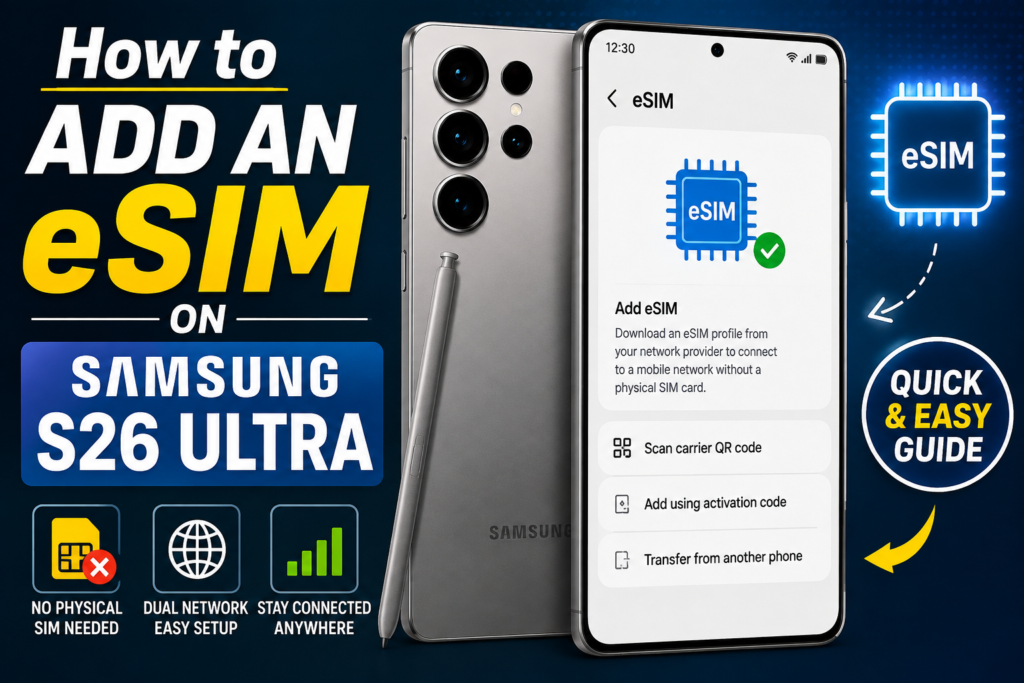
Before starting, make sure your Galaxy S26 Ultra supports eSIM in your region and that your carrier provides eSIM service. You should also have a stable Wi-Fi or mobile internet connection and keep your carrier’s QR code or activation details ready.
In this guide, we will explain how to add an eSIM on Samsung S26 Ultra, including the QR-code method, important requirements, activation steps, troubleshooting tips, and what to do if the eSIM does not activate correctly.
So you have just got your hands on the Samsung Galaxy S26 Ultra. Congratulations. This is one of the most powerful phones on the market, and its eSIM capabilities are among the best available. But if you are new to eSIM technology, the setup process can feel a bit confusing.
I have been using eSIMs across multiple devices for years, and I have helped countless friends and colleagues set theirs up. In this guide, I will walk you through everything you need to know about adding an eSIM to your Samsung S26 Ultra. I will cover the different methods, troubleshoot common problems, and help you decide if eSIM is right for you.
- Check now the Problem – How to Activate an eSIM on Samsung S26 Ultra
What Exactly is an eSIM?

Before we jump into the setup process, let us make sure you understand what you are working with.
eSIM stands for embedded SIM. Unlike the physical SIM card you are probably used to, an eSIM is built directly into your phone. You cannot see it, touch it, or remove it. Instead of inserting a plastic card, you download your mobile plan digitally.
Think of it like this: a physical SIM is like a key you insert into a lock. An eSIM is like having the key stored in your phone’s memory, ready to unlock the network whenever you need it.
Why does this matter to you?
The main advantage is convenience. You can switch carriers without waiting for a new SIM card to arrive in the mail. You can add a second phone number for work or travel without carrying two phones. You can even store multiple plans and switch between them instantly.
For travelers, eSIM is a game changer. Instead of hunting for a local SIM card when you land in a new country, you can buy a data plan online and have it working within minutes.
Before You Start – What You Will Need
Setting up an eSIM requires a few things. Make sure you have everything ready before you begin.
A compatible carrier:
Not every mobile carrier supports eSIM. In 2026, most major carriers do, but it is worth checking before you start.
A stable internet connection:
You need Wi-Fi or mobile data to download the eSIM profile. This is essential for the setup.
Your eSIM activation details:
Depending on your carrier, you will need either a QR code, an activation code, or a carrier app to get started.
Your Samsung account:
While not always required, being logged into your Samsung account can make the process smoother.
How to add an eSIM on Samsung S26 Ultra:-
Method 1: Adding an eSIM Using a QR Code

This is the most common method. Most carriers provide a QR code when you sign up for an eSIM.
Step 1: Open Settings
Swipe down from the top of your screen and tap the gear icon. Alternatively, find the Settings app in your app drawer.
Step 2: Navigate to Connections
In the Settings menu, tap on “Connections.” This is where all your network settings live.
Step 3: Tap on SIM Manager
You will see options for SIM cards here. Tap on “SIM Manager.”
Step 4: Select Add eSIM
Look for the option that says “Add eSIM” or “Add mobile plan.” Tap it.
Step 5: Choose Scan QR Code
Your phone will give you several options. Select “Scan QR code from service provider.”
Step 6: Scan the QR Code
Hold your phone over the QR code your carrier provided. The camera will recognize it automatically. Make sure you have good lighting and hold the phone steady.
Step 7: Follow the On-Screen Instructions
Your phone will process the QR code and display the plan details. Confirm that everything looks correct and tap “Add.”
Step 8: Wait for Activation
The phone will download and install the eSIM profile. This usually takes less than a minute. Once complete, you will see the new plan appear in your SIM Manager.
Practical example: Ahmed just moved to the UK and signed up with a local carrier. They emailed him a QR code. He followed these steps, scanned the code from his laptop screen, and had his new UK number working within two minutes.
Method 2: Adding an eSIM Using an Activation Code

Some carriers prefer to give you an activation code rather than a QR code. This is common with online-only carriers.
Step 1: Open Settings
As before, start from the Settings app.
Step 2: Navigate to Connections
Tap on “Connections” and then “SIM Manager.”
Step 3: Select Add eSIM
Tap “Add eSIM” or “Add mobile plan.”
Step 4: Choose Enter Activation Code
Instead of scanning a QR code, select the option to enter the code manually.
Step 5: Type in the Activation Code
Carefully enter the code your carrier provided. Double-check for any errors. One wrong digit can cause problems.
Step 6: Complete the Setup
The phone will process the code and add the plan. Follow the remaining instructions.
Method 3: Adding an eSIM Through Your Carrier’s App
Many carriers now let you add an eSIM directly through their official app. This is often the easiest method.
Step 1: Download Your Carrier’s App
Go to the Google Play Store and download the official app for your carrier.
Step 2: Log In to Your Account
Sign in to your account using your username and password.
Step 3: Look for eSIM Setup
In the app, find the section for managing your plan. There should be an option like “Set up eSIM” or “Add to device.”
Step 4: Follow the App Instructions
The app will guide you through the process. This usually involves confirming your identity and then sending the eSIM profile directly to your phone.
Step 5: Complete the Installation
Once the app sends the profile, your phone will handle the installation automatically.
Practical example: Leila switched to a new carrier in Australia. Instead of waiting for a QR code, she downloaded the carrier’s app, logged in, and tapped “Activate eSIM.” The app did everything automatically. She had service in under three minutes.
Method 4: Transferring an eSIM from Your Old Phone
If you are upgrading from another Samsung phone, you can transfer your eSIM to your new S26 Ultra.
Step 1: Prepare Your Old Phone
Make sure both phones are charged and connected to Wi-Fi. The old phone should be nearby.
Step 2: Open Settings on Both Phones
You need both devices ready.
Step 3: On Your New Phone
Go to Settings > Connections > SIM Manager. Tap “Add eSIM” and select “Transfer SIM from another device.”
Step 4: Follow the Transfer Process
The phones will communicate with each other. You may need to confirm on your old phone that you approve the transfer.
Step 5: Complete Setup
Once the transfer completes, your eSIM will be active on your new phone. Your old phone will lose service for that plan.
Important note: This method works best when moving between Samsung devices. If you are coming from an iPhone or other Android phone, you will likely need to use a QR code instead.
Managing Multiple eSIMs on Your S26 Ultra
One of the best features of the Samsung S26 Ultra is its ability to handle multiple eSIMs. Here is how to manage them.
Viewing Your Plans
Go to Settings > Connections > SIM Manager. You will see all your installed plans here. Each plan shows the carrier name and network status.
Switching Between Plans
Tap on any plan in the SIM Manager to change its settings. You can enable or disable a plan, choose it as your primary data connection, or assign it to specific contacts.
Setting a Default for Calls and Data
You can choose which plan handles your calls, texts, and data. This is useful if you have a work plan and a personal plan.
Practical example: Priya lives in India but travels to Singapore every month for work. She has her Indian carrier on one eSIM and a Singapore data plan on another. She sets her Indian number for calls and texts, and the Singapore plan for data. When she lands in Singapore, she switches data to the local plan and saves on roaming charges.
Adding an eSIM for International Travel
This is where eSIM really shines. Traveling with a physical SIM means finding a local store, queuing, and dealing with language barriers. With eSIM, you can buy a data plan online before you even board the plane.
Step 1: Research International eSIM Providers
Many companies specialize in travel eSIMs. Some popular ones include Airalo, Holafly, and Nomad. They offer data plans for virtually every country.
Step 2: Buy a Plan Online
Visit their website or download their app. Choose your destination, select a data allowance, and pay. You will usually receive a QR code or activation code by email.
Step 3: Add the eSIM to Your Phone
Use the QR code method described above. The eSIM will appear in your SIM Manager.
Step 4: Activate When You Arrive
Most travel eSIMs activate automatically when you connect to a local network. Some require you to enable the plan manually.
Step 5: Stay Connected
You now have local data rates without the roaming charges.
Practical example: Daniel traveled to Japan for two weeks. He bought a travel eSIM online for $20, got 10GB of data, and set it up on his S26 Ultra before he left. When he landed at Narita Airport, he turned on the eSIM and had data immediately. No need to find a SIM card store. No expensive roaming fees.
Troubleshooting Common eSIM Problems
Even with the best technology, things can go wrong. Here are common issues and how to fix them.
Problem: The QR Code Won’t Scan
- Make sure you have good lighting
- Hold the phone steady about 10-15 centimeters from the code
- Try zooming slightly
- If still not working, use the manual activation code method
Problem: Activation Fails
- Check your internet connection
- Restart your phone and try again
- Make sure the activation code is correct
- Contact your carrier to verify the code is still valid
Problem: No Service After Activation
- Toggle airplane mode on and off
- Restart your phone
- Go to SIM Manager and check if the plan is enabled
- Try manually selecting the network
Problem: The eSIM is Not Showing Up
- Make sure you completed the installation
- Check the SIM Manager for all installed plans
- Try adding the eSIM again
Problem: Can’t Switch Between eSIMs
- Some carriers lock eSIMs to specific devices
- Check with your carrier if the eSIM is transferable
- You may need to request a new QR code
Comparing eSIM and Physical SIM
Should you switch to eSIM or stick with physical SIMs? Here is a comparison.
| Feature | eSIM | Physical SIM |
|---|---|---|
| Setup Time | Minutes | Days (to receive the card) |
| Switching Carriers | Instant | Need new card |
| Multiple Plans | Yes | No |
| Travel Convenience | Excellent | Poor |
| Device Compatibility | Modern phones only | All phones |
| Physical Security | Cannot be lost or stolen | Can be lost |
| Resale Value | Easy to wipe | Need to remove SIM |
Security Considerations with eSIM
eSIMs offer some unique security benefits and risks.
Benefits:
- Cannot be physically stolen
- Remote management allows you to disable a lost phone’s eSIM
- Encrypted profiles are more secure than physical cards
Risks:
- If your phone is compromised, your eSIM could be affected
- Some carriers make it difficult to transfer eSIMs
- Social engineering attacks could trick you into installing malicious profiles
How to stay safe:
- Only add eSIMs from trusted carriers
- Use strong passwords on your device
- Be cautious when buying travel eSIMs from unknown providers
- Check reviews before purchasing from a new eSIM provider
Carrier-Specific Considerations
Different carriers have different policies about eSIMs. Here is what to check.
Compatibility:
Most major carriers in the US, UK, Europe, and many other regions support eSIM. Smaller or regional carriers may not.
Cost:
Some carriers charge a fee for issuing an eSIM. Others offer it for free. Check with your carrier.
Transfer Policies:
Some carriers make it easy to transfer an eSIM to a new phone. Others require you to request a new QR code each time.
Locking:
Some carriers lock eSIMs to the phone used for activation. You may need to request an unlock if you switch phones.
International:
If you travel, check if your carrier’s eSIM supports international roaming. Some plans include this; others do not.
Is eSIM Right for You?
Before you dive in, consider whether eSIM is the right choice for your situation.
eSIM is great for:
- Frequent travelers who want local data plans
- People who use multiple numbers (work and personal)
- Users who switch carriers often
- Anyone who wants convenience
- People living in countries where eSIM is widely supported
A physical SIM might be better for:
- Users in regions with limited eSIM support
- People who frequently swap SIMs between devices
- Users on carriers that charge high eSIM fees
- Anyone uncomfortable with digital-only solutions
The Future of eSIM on Samsung
Samsung has been at the forefront of eSIM adoption. The S26 Ultra represents their latest thinking on this technology.
Dual eSIM Capability:
The S26 Ultra supports multiple eSIMs simultaneously. You can have two active eSIMs, allowing you to maintain two numbers without a physical SIM.
Improved Switching:
The phone makes it easier to switch between eSIMs. You can assign specific eSIMs to specific contacts or apps.
Better International Support:
Samsung has worked with carriers worldwide to ensure seamless eSIM adoption. More countries and carriers are supported with each passing year.
Enhanced Security:
The S26 Ultra includes hardware-level security for eSIM profiles. This makes them harder to compromise.
Practical Scenarios and Solutions
Let me show you how eSIM handles different real-world situations.
Scenario 1: Switching to a new carrier
You found a better deal with a new carrier. Instead of waiting for a physical SIM to arrive, you sign up online, receive a QR code instantly, and scan it. Your new plan is active in minutes. No waiting, no hassle.
Scenario 2: Traveling for business
You travel to three countries in one month. Instead of buying three physical SIMs, you buy three travel eSIMs online. You store them all on your phone and switch as needed. No SIM cards to keep track of.
Scenario 3: Work and personal separation
Your workplace provides a business line. Instead of carrying two phones, you add your work number as an eSIM on your personal phone. You can separate work and personal contacts, choose which number to call from, and avoid carrying two devices.
Scenario 4: Losing your phone
Your physical SIM is in your lost phone. A thief could use it. With an eSIM, you log into your carrier’s app and disable the eSIM immediately. Your number is protected.
Scenario 5: Upgrading your device
You buy a new Samsung S26 Ultra. You transfer your eSIM from your old phone in minutes. No need to cut a new SIM, no need to visit a store.
Frequently Asked Questions
1. Does the Samsung S26 Ultra support eSIM?
Yes, the Samsung Galaxy S26 Ultra fully supports eSIM technology. You can add and use multiple eSIMs on this device.
2. Can I use both eSIM and physical SIM together?
Yes, the S26 Ultra supports dual SIM usage. You can have one physical SIM and one eSIM active simultaneously, or two eSIMs active at the same time.
3. How many eSIMs can I store on the S26 Ultra?
You can store multiple eSIM profiles on the phone, but only two can be active at the same time. The exact number you can store depends on the phone’s memory, but it is typically over ten.
4. Can I transfer my eSIM to a new phone?
Yes, but the process varies by carrier. Some allow you to transfer eSIMs through the phone’s settings. Others require you to scan a new QR code.
5. Is eSIM more secure than a physical SIM?
Generally yes. eSIMs cannot be physically stolen, and they can be remotely disabled if your phone is lost. The profiles themselves are encrypted for added security.
6. Do all carriers support eSIM?
No. Most major carriers support eSIM, but smaller or regional carriers may not. Check with your carrier before you rely on eSIM.
7. How long does it take to set up an eSIM?
The setup process takes between one and five minutes, depending on the method you use. QR code scanning is the fastest.
8. Can I use a travel eSIM with my regular carrier?
Yes. You can have your regular carrier’s eSIM and a travel eSIM installed simultaneously. You can switch between them as needed.
9. What happens if I reset my phone?
If you perform a factory reset, your eSIM profiles will be removed. You will need to set them up again using the QR code or activation code provided by your carrier.
10. Can I remove an eSIM from my phone?
Yes. Go to Settings > Connections > SIM Manager, select the eSIM plan, and choose the option to remove it.
11. Will eSIM work without an internet connection?
You need an internet connection to download and install the eSIM profile. Once installed, the eSIM works over the carrier’s network without needing Wi-Fi.
12. Is eSIM available worldwide?
eSIM adoption is growing rapidly. Many countries now support eSIM, but coverage is not yet universal. Check your destination’s eSIM compatibility before traveling.
13. Can I use eSIM for 5G on the S26 Ultra?
Yes, the S26 Ultra supports 5G connectivity through eSIM. Your carrier must provide 5G eSIM profiles.
14. Does adding an eSIM void my warranty?
No. Adding an eSIM is a standard feature of the phone and does not affect your warranty.
15. What is the cost of an eSIM from a carrier?
Some carriers offer eSIMs for free. Others charge a small fee, typically between $5 and $10. Check with your specific carrier.
Conclsion
Setting up an eSIM on your Samsung S26 Ultra is straightforward once you know the steps. The technology offers undeniable convenience, especially for travelers and those juggling multiple phone numbers.
Start with the QR code method if your carrier provides one—it is the easiest and fastest. If you are comfortable with technology, using your carrier’s app is even simpler. For international travel, explore third-party eSIM providers for affordable data plans.
The most important thing is understanding that eSIM is the future of mobile connectivity. Physical SIM cards are becoming obsolete, and Samsung has ensured the S26 Ultra is ready for this transition. By learning how to use eSIM now, you are future-proofing your mobile experience.
Take the time to explore your carrier’s eSIM options. Ask them about activation fees, transfer policies, and international support. Once you have all the information, you can make an informed decision about switching.
Remember, your phone is capable of so much more than just calls and texts. With eSIM, you unlock a world of flexibility and convenience that physical SIM cards simply cannot match.
So go ahead, try adding an eSIM. You might be surprised at how simple and rewarding the process is. And if you ever get stuck, refer back to this guide. Everything you need is right here.

