
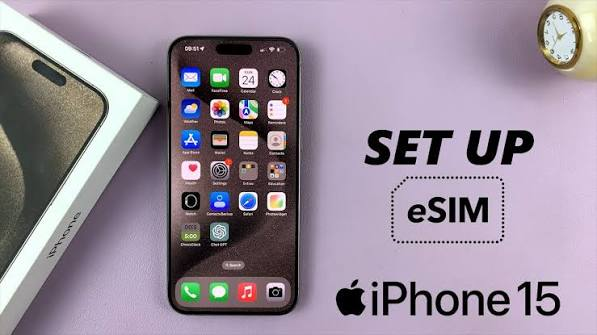
The iPhone 15 series represents a significant milestone for eSIM technology in India — Apple has doubled down on eSIM with the iPhone 15, making it the most eSIM-capable mainstream smartphone available to Indian users. With support for dual eSIM and a physical nano-SIM slot, the iPhone 15 gives Indian users maximum flexibility for managing multiple numbers and carriers.
Use eSIM on iPhone 15: Whether you have the iPhone 15, 15 Plus, 15 Pro, or 15 Pro Max, this guide covers everything you need to know about eSIM activation with Jio, Airtel, and Vi — from checking compatibility to managing multiple profiles and fixing common issues.
- Check now: Does my iPhone Support eSIM?
iPhone 15 eSIM Capabilities
The iPhone 15 series has impressive eSIM specifications:
| Feature | iPhone 15 | iPhone 15 Plus | iPhone 15 Pro | iPhone 15 Pro Max |
|---|---|---|---|---|
| Physical SIM | ✅ nano-SIM | ✅ nano-SIM | ✅ nano-SIM | ✅ nano-SIM |
| eSIM support | ✅ Yes | ✅ Yes | ✅ Yes | ✅ Yes |
| Dual eSIM | ✅ Yes | ✅ Yes | ✅ Yes | ✅ Yes |
| Total active lines | Up to 2 | Up to 2 | Up to 2 | Up to 2 |
| Stored eSIM profiles | Multiple | Multiple | Multiple | Multiple |
Important note for India: iPhone 15 models sold in India (with physical SIM tray) support one physical nano-SIM + one active eSIM simultaneously. US models (eSIM-only, no physical SIM tray) are not sold in India.
Does Your iPhone 15 Support eSIM in India?

All iPhone 15 models sold officially in India through Apple India, Flipkart, Amazon India, and authorized resellers fully support eSIM alongside the physical SIM tray.
How to Confirm eSIM Support
Method 1 — Settings check:
Settings → General → About → scroll down to find the EID number. If EID is present, eSIM is supported.
Method 2 — Carrier settings:
Settings → General → About → if prompted to update carrier settings, your iPhone is eSIM-ready.
Method 3 — SIM settings:
Settings → Cellular → Add eSIM — if this option appears, eSIM is supported.
Indian Carriers Supporting eSIM on iPhone 15
| Carrier | eSIM Support | Activation Method |
|---|---|---|
| Jio | ✅ Yes | MyJio app or SMS |
| Airtel | ✅ Yes | Airtel Thanks app or store |
| Vi (Vodafone Idea) | ✅ Yes | Vi app or store |
| BSNL | ⚠️ Limited | Store visit required |
Before You Activate eSIM on iPhone 15

Checklist:
- ✅ iOS updated — Settings → General → Software Update → install latest iOS
- ✅ Stable Wi-Fi — required during eSIM profile download
- ✅ QR code ready — from carrier app, email, or store visit
- ✅ Active SIM with signal — OTP verification sent to registered number
- ✅ Apple ID signed in — Settings → sign in if not already
- ✅ iCloud backup current — good practice before any SIM changes
Where to Find eSIM Settings on iPhone 15 (iOS 17/18)
iOS 18:
Settings → Cellular → Add eSIM
iOS 17:
Settings → Cellular → Add Cellular Plan
The interface is identical across iPhone 15, 15 Plus, 15 Pro, and 15 Pro Max.
How to Activate eSIM on iPhone 15 — All Methods
Method 1: QR Code Activation (Recommended)
Standard method for all Indian carriers:
- Open Settings
- Tap Cellular
- Tap Add eSIM (iOS 18) or Add Cellular Plan (iOS 17)
- Tap Use QR Code
- Point iPhone 15 camera at carrier QR code
- Tap Continue when plan details appear
- Tap Add Cellular Plan
- Choose label — Primary or Secondary
- Choose default line for calls, SMS, data
- Tap Done
eSIM is now active — visible under Settings → Cellular.
Method 2: Activation Code (Manual Entry)
- Settings → Cellular → Add eSIM
- Tap Enter Details Manually
- Type or paste activation code from carrier
- Follow on-screen confirmation steps
Method 3: Transfer from Nearby iPhone
If switching from another iPhone with active eSIM:
- Settings → Cellular → Add eSIM
- Tap Transfer from Nearby iPhone
- Place both iPhones close together
- Follow prompts on both devices
- Carrier verifies and transfers eSIM profile
Note: Not all Indian carriers support this transfer method — Jio and Airtel transfers may require going through the carrier directly.
Method 4: Jio eSIM on iPhone 15

Via MyJio App:
- Open MyJio app
- My Account → Get eSIM
- Verify with OTP
- Follow in-app instructions
- Jio pushes eSIM profile to iPhone 15 directly
Via SMS:
- Send “SIMCHG <15-digit EID>” to 199 from Jio number
- Find EID: Settings → General → About → EID
- Reply 1 to confirm
- Receive QR code → scan using Method 1
Via Jio Store:
Visit with iPhone 15 and Aadhaar card — activation takes 10–15 minutes.
Method 5: Airtel eSIM on iPhone 15
Via Airtel Thanks App:
- Open Airtel Thanks
- Account → My Plan → Switch to eSIM
- Verify OTP
- App detects iPhone 15 → pushes profile directly
- Confirm in iOS Cellular settings
Via store:
Visit Airtel store with iPhone 15 and valid ID.
Method 6: Vi eSIM on iPhone 15
Via Vi App:
- Open the Vi app
- My Account → SIM Services → Get eSIM
- Verify with OTP
- Complete in-app activation
Setting Up Dual SIM on iPhone 15
iPhone 15 supports one physical nano-SIM + one active eSIM simultaneously.
Configure After eSIM Activation
- Settings → Cellular
- Both lines appear — tap each to rename:
- Physical SIM: e.g., “Jio Personal”
- eSIM: e.g., “Airtel Work”
Set Default Line Preferences
Default voice line:
Settings → Cellular → Default Voice Line → select preferred SIM for outgoing calls
iMessage and FaceTime:
Settings → Cellular → set which line handles iMessage and FaceTime
Cellular data:
Settings → Cellular → Cellular Data → select line for mobile data
Enable Allow Cellular Data Switching — iPhone automatically switches to other line if primary has no data
Allow Cellular Data Switching:
This iOS feature automatically switches data to the non-default line if your default data line has no signal — useful when one carrier has poor coverage in a specific area.
iPhone 15 Specific eSIM Features
Dynamic Island and Dual SIM
iPhone 15 Pro and Pro Max feature Dynamic Island — it displays active call information from either SIM line, clearly indicating which number is being used for each call.
iOS 17/18 Dual SIM Improvements
- Clearer SIM indicator in status bar — shows both SIM lines simultaneously
- Per-app cellular data selection — assign specific apps to use specific SIM line
- Contact-level line assignment — specific contacts always called from specific line
eSIM and Apple Watch Cellular
If you have an Apple Watch with cellular, it uses your iPhone’s primary cellular line. eSIM on iPhone 15 does not affect Apple Watch cellular functionality.
iPhone 15 Pro USB-C and eSIM
iPhone 15 Pro introduced USB-C. This does not affect eSIM functionality — eSIM works identically across all iPhone 15 models regardless of connector type.
Managing eSIM Profiles on iPhone 15
View All eSIM Profiles
Settings → Cellular → scroll down to see all stored eSIM profiles
Switch Active eSIM Profile
- Settings → Cellular
- Tap the eSIM profile you want to activate
- Toggle Turn On This Line
- Confirm — iOS deactivates previous eSIM and activates selected one
Delete eSIM Profile
- Settings → Cellular
- Tap eSIM profile
- Tap Delete eSIM
- Confirm deletion
Important: Deletion is permanent on device. Contact carrier to re-issue before deleting active paid plans.
Common eSIM Problems on iPhone 15 and Fixes
“Add eSIM” option not visible
Fix 1: Update iOS to the latest version — Settings → General → Software Update.
Fix 2: Check Settings → General → About for EID — if missing, contact Apple Support.
Fix 3: If purchased from an unauthorized reseller, the phone may be carrier-locked — contact Apple or the original carrier.
QR code scan fails on iPhone 15
Fix: Ensure QR code display is at maximum brightness. Clean iPhone 15 camera lens. Use manual activation code as alternative — tap “Enter Details Manually.”
eSIM downloads but activation fails
Fix: Restart iPhone 15 after download attempt. Try again with fresh QR code from carrier. Contact carrier if repeated failures — they may need to re-generate QR code.
“Could not finish setting up eSIM” error
Fix: This usually indicates a carrier-side issue. Call carrier (Jio: 199, Airtel: 121, Vi: 199) — provide EID and request fresh activation. Carrier re-pushes profile to your iPhone.
Cellular data not working after eSIM activation.
Fix 1: Settings → Cellular → Cellular Data → confirm the correct line is selected.
Fix 2: Settings → Cellular → Cellular Data Options → check APN settings — usually auto-configured but may need manual entry for some carriers.
Fix 3: Toggle Airplane Mode on and off to force network re-registration.
eSIM line shows “No Service”
Fix: Toggle the eSIM line off and on in Settings → Cellular → tap the eSIM → Turn Line Off → Turn Line On. Wait 2 minutes for network registration.
OTP not received during Jio/Airtel activation
Fix: Physical SIM must have an active signal during eSIM activation. OTP goes to registered number via physical SIM — ensure Jio or Airtel SIM has network coverage before starting.
Both SIMs showing but calls only working on one.
F.: Settings → Cellular → Default Voice Line → ensure correct line selected. Also check that the non-default line is enabled and shows signal bars.
eSIM Transfer to New iPhone 15 from Old iPhone
Switching to iPhone 15 from any previous iPhone:
From iPhone with eSIM:
- Note your carrier name and registered mobile number
- Contact carrier — inform switching to iPhone 15
- Provide iPhone 15’s EID (Settings → General → About → EID)
- Carrier deactivates old eSIM → generates new QR code
- Scan on iPhone 15
From iPhone without eSIM (physical SIM only):
- Contact carrier to convert physical SIM to eSIM
- Jio/Airtel/Vi all support this conversion
- They issue a QR code for iPhone 15 activation
- Physical SIM deactivates when eSIM activates
Your number, plan, and balance remain unchanged throughout.
eSIM vs Physical SIM on iPhone 15
| Feature | Physical SIM | eSIM |
|---|---|---|
| Move to another phone | ✅ Instant | ❌ Carrier re-issuance |
| Dual SIM capability | ✅ With eSIM | ✅ With physical SIM |
| Travel flexibility | ❌ Buy local SIM | ✅ Download plan instantly |
| Water resistance | ✅ SIM tray sealed | ✅ No tray exposure |
| Risk of loss | ✅ Can lose SIM | ❌ Built into phone |
| Carrier switching | Slow | Fast (digital) |
| International travel | ❌ Airport SIM hunt | ✅ Pre-download plan |
International Travel with iPhone 15 eSIM
One of the best use cases for iPhone 15 eSIM is international travel:
Before departure:
- Purchase travel eSIM from Airalo, Nomad, or Holafly app
- Download eSIM profile while still in India
- Keep Indian SIM active for OTPs and banking
After landing abroad:
- Settings → Cellular → tap travel eSIM
- Turn on travel eSIM line
- Set travel eSIM as Cellular Data default
- Keep Indian SIM active for calls and SMS (roaming rates apply for calls — use WhatsApp/FaceTime instead)
Returning to India:
- Turn off travel eSIM line
- Set Indian SIM back as default data line
- Travel eSIM profile stays stored — reactivate next trip
Best travel eSIM apps for iPhone 15:
- Airalo — Largest eSIM marketplace, 190+ countries
- Nomad — Good coverage, competitive pricing
- Holafly — Unlimited data plans popular with travelers
Frequently Asked Questions
Does iPhone 15 support dual eSIM in India?
iPhone 15 sold in India supports one physical SIM + one eSIM simultaneously — effectively dual SIM. True dual eSIM (two active eSIMs, no physical SIM) is available on US eSIM-only models not sold in India.
Can I use two Jio numbers on iPhone 15?
Yes — one Jio number on a physical SIM and a second Jio number on eSIM. Contact Jio separately for each activation, providing the EID for eSIM setup.
Will my existing Jio or Airtel number transfer to eSIM on iPhone 15?
Yes. Both Jio and Airtel support converting existing numbers from physical SIM to eSIM. Your number, plan, and balance transfer completely — the physical SIM deactivates when eSIM activates.
Does switching to eSIM on iPhone 15 cost anything in India?
Jio charges approximately ₹10–₹25 for eSIM issuance. Airtel charges a nominal SIM replacement fee. Your existing recharge balance and plan remain unaffected.
What happens to iPhone 15 eSIM if I factory reset?
Factory reset deletes all eSIM profiles permanently. Before resetting: Settings → General → Transfer or Reset iPhone → Erase All Content and Settings — iOS prompts you to keep or delete eSIM plans. Choose Keep Plans to retain eSIM profiles through reset.
Can I use Apple Watch cellular with iPhone 15 eSIM?
Yes — Apple Watch cellular pairs with your iPhone’s primary line regardless of whether it is a physical SIM or eSIM.
How many eSIM profiles can iPhone 15 store?
iPhone 15 can store multiple eSIM profiles, but only one can be active alongside the physical SIM at a time. There is no specific published limit on stored profiles.
Conclusion
The iPhone 15 makes eSIM setup straightforward — Apple’s iOS interface is the most intuitive eSIM management system available on any smartphone. Whether you activate through QR code scanning, the MyJio or Airtel Thanks app, or visit a carrier store, the process takes under 10 minutes.
Update iOS to the latest version before starting, connect to Wi-Fi, find your EID in Settings → General → About, and you are ready to activate. Jio and Airtel both support iPhone 15 eSIM reliably — the activation process is smooth, and the dual SIM setup gives Indian users genuine flexibility for managing personal and work numbers on one device.

