
A dedicated Windows PC built specifically for crypto trading performs better, lasts longer, and gives you more control than a general-purpose laptop or shared computer. In 2026, building or buying a trading PC in India is more accessible than ever — and getting the setup right makes a real difference to how you trade.
Crypto Trading PC setup: This guide covers everything: choosing the right PC, building vs buying, monitor setup, Windows configuration, trading software, internet, security, and India-specific budget recommendations.
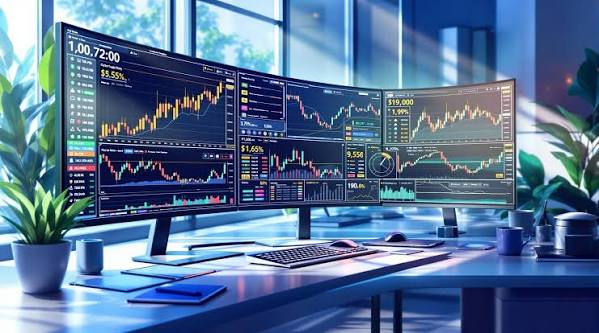
A reliable crypto trading PC setup can make a significant difference in your trading performance. In 2026, traders need more than just a fast computer—they need a stable internet connection, multiple monitors, responsive peripherals, and software that supports real-time market analysis. Whether you’re a beginner learning the basics or an experienced day trader managing multiple exchanges, the right setup helps you execute trades quickly and stay focused during volatile market conditions.
Crypto Trading PC Setup: In this guide, we’ll cover the best crypto trading PC setup in 2026, including recommended hardware, monitor configurations, internet requirements, essential trading software, and accessories. You’ll also learn how to build a cost-effective trading workstation that delivers smooth performance, improves productivity, and supports informed trading decisions.
Why a Dedicated Trading PC Makes Sense
Running crypto trading on your primary home computer — shared with gaming, video editing, or family use — creates problems:
- Other applications consume RAM and CPU during trading sessions
- Browser tabs from other users slow down exchange platforms
- System crashes or restarts at critical moments
- Security risks from non-trading software and downloads
- Inconsistent performance affecting chart rendering and order execution
A dedicated Windows trading PC eliminates all of these. It runs only what you need, stays optimised for trading performance, and can be hardened for security in ways a shared computer cannot.
Crypto Trading PC setup (step by step)
Step 1: Choose Your PC — Build vs Buy

Option A: Build Your Own PC (Best Value)
Building your own trading PC gives you the best performance per rupee and full control over every component. In India, sourcing components from MD Computers, Vedant Computers, or local computer markets in major cities gives you competitive pricing.
Budget Trading PC Build — ₹35,000–₹50,000
| Component | Recommendation | Approx Price |
|---|---|---|
| CPU | AMD Ryzen 5 7600 (6 cores, 12 threads) | ₹14,000 |
| Motherboard | MSI B650M Pro-A WiFi | ₹10,000 |
| RAM | 16GB DDR5 (2×8GB, 5200MHz) | ₹5,500 |
| Storage | 500GB Samsung 980 NVMe SSD | ₹4,500 |
| GPU | Integrated AMD Radeon (handles 2 monitors) | Included |
| PSU | Corsair CV550 550W 80+ Bronze | ₹4,500 |
| Case | Cooler Master Q300L | ₹3,000 |
| Total | ~₹41,500 |
Mid-Range Trading PC Build — ₹70,000–₹90,000
| Component | Recommendation | Approx Price |
|---|---|---|
| CPU | Intel Core i7-13700 (16 cores) | ₹28,000 |
| Motherboard | ASUS Prime Z790-P WiFi | ₹16,000 |
| RAM | 32GB DDR5 (2×16GB) | ₹10,000 |
| Storage | 1TB Samsung 990 Pro NVMe SSD | ₹8,500 |
| GPU | NVIDIA RTX 3060 12GB (handles 3–4 monitors) | ₹22,000 |
| PSU | Seasonic Focus GX-650 80+ Gold | ₹8,000 |
| Case | NZXT H510 | ₹7,000 |
| Total | ~₹99,500 |
Professional Trading PC Build — ₹1,50,000+
| Component | Recommendation | Approx Price |
|---|---|---|
| CPU | AMD Ryzen 9 7900X (12 cores, 24 threads) | ₹35,000 |
| Motherboard | ASUS ROG Strix X670E-F | ₹25,000 |
| RAM | 64GB DDR5 (4×16GB) | ₹20,000 |
| Storage | 2TB Samsung 990 Pro NVMe SSD | ₹16,000 |
| GPU | NVIDIA RTX 4070 (handles 4+ monitors) | ₹45,000 |
| PSU | Corsair RM850x 80+ Gold | ₹12,000 |
| Case | Fractal Design Meshify 2 | ₹9,000 |
| Total | ~₹1,62,000 |
Option B: Buy a Pre-Built PC (Convenience)

If building is not your preference, these pre-built options work well for crypto trading in India:
Budget (₹40,000–₹60,000):
- Acer Aspire TC or Lenovo IdeaCentre with Ryzen 5 / i5, 16GB RAM, SSD
- Add a second monitor, and you have a functional trading setup
Mid-Range (₹80,000–₹1,20,000):
- Dell OptiPlex 7010 Tower with i7, 32GB RAM, 512GB SSD
- HP EliteDesk 800 G9 — business-grade reliability, upgradable
Gaming PC repurposed for trading (₹70,000–₹1,50,000):
- Any mid-range gaming PC with 32GB RAM, dedicated GPU, and fast SSD works excellently for trading. Gaming PCs are often well-priced,d and the GPU handles multiple monitors well.
Option C: Upgrade Your Existing Windows PC

If buying new is not an option, upgrade in this priority order:
- Add RAM — If you have 8GB, upgrade to 16GB or 32GB. Highest-impact upgrade. Cost: ₹3,500–₹8,000
- Add NVMe SSD — Replace HDD with SSD. Transforms load times. Cost: ₹4,000–₹8,000
- Add dedicated GPU — For multiple monitors. Cost: ₹8,000–₹25,000 (entry-level)
Step 2: Monitor Setup for Windows Trading PC
Multiple monitors are the single biggest quality-of-life upgrade for traders.
Monitor Recommendations
Single Monitor (Beginner)24-inch
- 24 inch, 1920×1080 Full HD, IPS panel
- 75Hz+ refresh rate
- Price: ₹8,000–₹15,000
- Options: LG 24MK430H, BenQ GW2480
Dual Monitor Setup (Recommended):
- Two 24–27-inch monitors at 1920×1080 or 2560×1440
- Match monitors for visual consistency
- One for TradingView charts, one for exchange platforms
- Price: ₹15,000–₹35,000 for a pair
- Options: Two LG 27MK600M monitors or Dell P2422H pair
Triple Monitor Setup (Professional):
- Three 24-inch 1920×1080 monitors
- Requires GPU with 3 display outputs (RTX 3060 or better)
- One for charts, one for exchanges, one for news and on-chain data
- Price: ₹25,000–₹50,000 for three
- Use a VESA monitor stand for clean desk management
Ultrawide Alternative:
- 34-inch ultrawide (3440×1440) replaces two standard monitors
- No bezel gap, cleaner aesthetics
- Price: ₹25,000–₹55,000
- Options: LG 34WP500-B, Samsung ViewFinity S65UA
Connecting Multiple Monitors to Your Windows PC
DisplayPort — Best for high refresh rates and 4K. Use for your primary chart monitor.
HDMI — Universal and widely available. Use for secondary monitors.
USB-C / Thunderbolt — If your GPU supports it, useful for connecting a monitor via a USB-C dock.
If your PC has integrated graphics only (budget build): Integrated AMD Radeon on Ryzen processors supports 2 monitors via HDMI and DisplayPort simultaneously. For 3+ monitors, you need a dedicated GPU.
Adding a budget GPU for more monitors: NVIDIA GT 1030 (₹6,000) or AMD RX 6400 (₹9,000) adds 2–4 additional display outputs to any PC with an available PCIe slot.
Step 3: Windows-Specific Configuration for Trading
Windows Version
Use Windows 11 Pro for your trading PC. Pro version adds BitLocker encryption, Remote Desktop access, and better security features than the Home edition. Cost: ₹15,000 (OEM license) or included with many pre-built PCs.
Essential Windows Settings for Trading
Set Power Plan to High Performance: Control Panel > Power Options > High Performance Prevents CPU throttling during intensive charting sessions.
Disable Windows Update during trading hours: Settings > Windows Update > Advanced Options > Active Hours Set to your trading window (e.g., 8 AM to 11 PM IST) to prevent forced restarts mid-trade.
Disable Startup Programs: Task Manager (Ctrl+Shift+Esc) > Startup tab. Disable everything except antivirus and VPN. Frees significant RAM at boot.
Enable Windows Game Mode: Settings > Gaming > Game Mode > On. Allocates more CPU and GPU resources to the active application. Speeds up rendering in TradingView and exchange platforms.
Increase Virtual Memory: System > Advanced System Settings > Performance > Advanced > Virtual Memory. ry Set to 1.5× your RAM (e.g., 48,000 MB for 32GB RAM).
Set Display Scaling: Right-click desktop > Display Settings > Scale. On 27-inch QHD monitors, 125% scaling works well for trading interfaces. Test what works for your monitor size and resolution.
Disable Visual Effects: System > Advanced System Settings > Performance Settings > Adjust for Best Perform. ance Removes unnecessary animations and visual effects, freeing CPU resources.
Enable Storage Sense: Settings > System > Storage > Storage. Sense automatically clears temporary files and keeps your SSD performing well.
Windows Security Configuration
Windows Defender — Keep enabled and updated. Set Quick Scan to run daily at a time you are not trading.
BitLocker (Windows 11 Pro) — Enable full disk encryption. Protects your trading data if the PC is stolen. Go to Control Panel > BitLocker Drive Encryption > Turn On BitLocker.
Windows Firewall — Keep enabled. Do not disable it even if a poorly designed application asks you to.
User Account Control (UAC) — Keep at default level. Prompts before system changes.
Create a Standard User Account for daily use — Log into Windows with a standard (non-administrator) account for daily trading. Only use the administrator account for software installation. Significantly reduces malware risk.
Step 4: Trading Software Setup on Windows
Charting Software
TradingView (tradingview.com): The industry standard for crypto charting on Windows.
Windows-specific setup:
- Use Chrome or Brave browser for TradingView (better performance than Edge for heavy chart use)
- Pin TradingView to taskbar for one-click access
- Set Chrome to open TradingView at startup: Settings > On Startup > Open specific pages
- Learn keyboard shortcuts: Alt+1 (layout 1), Alt+2 (layout 2), F11 (full screen)
- Save chart layouts for different session types (scalping layout, swing layout)
TradingView Desktop App (Windows): Available as a downloadable Windows app — slightly faster than the browser version. Download from tradingview.com/desktop.
Exchange Platforms on Windows
Install and bookmark these on your trading PC:
- Binance — binance.com (largest global exchange, deepest liquidity)
- Bybit — bybit.com (best for derivatives)
- OKX — okx.com (full-service exchange + DeFi)
- WazirX / CoinDCX — for INR deposits and withdrawals
Windows browser setup for exchanges:
- Create separate Chrome profiles for trading vs personal use
- Pin exchange tabs as Chrome Tab Groups
- Use Chrome’s “Create Shortcut” to add exchanges to Windows desktop as PWA apps
- Enable hardware acceleration in Chrome: Settings > System > Use hardware acceleration
On-Chain Data Tools (Windows Browser)
Bookmark these in your trading browser:
- CoinGlass (coinglass.com) — Futures open interest, liquidation heatmap, funding rates
- DeFiLlama (defillama.com) — DeFi protocol TVL and yield data
- Glassnode (glassnode.com) — Bitcoin and Ethereum on-chain metrics (free tier)
- Arkham Intelligence (arkham.intel.com) — Whale wallet tracking
- TradingEconomics (tradingeconomics.com) — Macro data affecting crypto markets
Windows Trading Utilities
Crypto price ticker on Windows taskbar:
- Crypto Pro (Microsoft Store) — shows live prices in notification area
- CoinMarketCap Desktop Widget — customisable price widgets on Windows desktop
Multi-monitor management:
- DisplayFusion (free tier available) — manage multi-monitor setups, custom taskbars per monitor, window snapping rules for trading layouts
- PowerToys FancyZones (Microsoft, free) — create custom window layouts on each monitor for your trading setup
Screen recording for trade journaling:
- OBS Studio (free) — record your screen during trades for later review and journaling
- ShareX (free) — screenshot tool with annotation for capturing chart setups
Portfolio and Tax Tracking (India)
- KoinX — Best for Indian traders. Tracks all transactions, calculates 30% tax liability, ITR-compatible reports. Available at koinx.com
- ClearTax Crypto — Alternative Indian crypto tax calculator
- Delta App (Windows desktop version available) — portfolio tracking across all exchanges
Step 5: Internet Setup for Windows Trading PC
Recommended Connection
Primary: Jio Fiber or Airtel Xstream broadband (100 Mbps or higher)
- Jio Fiber plans from ₹699/month (100 Mbps)
- Airtel Xstream from ₹799/month (100 Mbps)
Ethernet over Wi-Fi: Always connect your trading PC via a Cat6 Ethernet cable directly to your router. Wi-Fi introduces latency spikes and packet loss that affect order execution timing. A 10-metre Cat6 cable costs approximately ₹300–₹500.
Backup connection: Keep a Jio or Airtel 4G/5G hotspot charged and ready. Configure Windows to automatically switch: Settings > Network > WiFi > Available Networks > Add your mobile hotspot as a saved network.
Test your connection:
- Speed: fast.com or speedtest.net
- Ping to exchange servers: open Command Prompt → type
ping api.binance.com→ check response time (below 50ms is good) - Packet loss:
ping api.binance.com -n 100— all 100 packets should return
Windows Network Optimisation
Set your network adapter to maximum performance: Device Manager > Network Adapters > [your adapter] > Properties > Advanced Set Power Management to maximum performance. Disable “Allow this device to turn off to save power.”
Flush DNS cache periodically: Open Command Prompt as Administrator → type ipconfig /flushdns Clears stale DNS entries that can slow initial exchange connections.
Use a wired gaming router if possible: ASUS RT-AX3000 or Xiaomi AX3600 routers (₹5,000–₹12,000) with QoS (Quality of Service) features let you prioritise trading PC traffic over other household devices.
Step 6: Security for Your Windows Trading PC
Hardware Security
Hardware wallet: For holdings above ₹50,000, use a Ledger Nano X (₹12,000) or Trezor Model T (₹14,000). Never keep large amounts on exchange.
UPS (Uninterruptible Power Supply): Essential in India. APC Back-UPS 1500VA (₹8,000–₹12,000) keeps your PC running for 15–30 minutes during power cuts — enough to close positions safely.
Surge protector: Connect all equipment through a surge protector to prevent voltage spike damage.
Windows Software Security
Antivirus: Windows Defender (built-in) is adequate. Add Malwarebytes Premium (₹2,000/year) for real-time ransomware protection.
VPN: NordVPN (₹282/month) or ExpressVPN (₹693/month). Run VPN on all connections outside your home network. Encrypts trading traffic from ISP visibility.
Password Manager: Bitwarden (free) or 1Password (₹830/month). Generate unique complex passwords for every exchange account. Never reuse passwords.
2FA Authentication App: Google Authenticator or Authy on your phone. Enable 2FA on every exchange — use app-based, not SMS-based 2FA.
Browser security extensions:
- uBlock Origin — blocks malicious ads and tracking scripts
- MetaMask (if using DeFi) — keep updated and verify URLs carefully
- Netcraft — flags phishing sites before you enter credentials
Exchange Security on Windows
- Bookmark all exchange URLs — never click links in emails or Telegram
- Enable withdrawal address whitelist on every exchange
- Enable IP-based login restrictions where available
- Enable anti-phishing codes (Binance, OKX support this)
- Set up login notification emails
Step 7: Workspace and Peripheral Setup
Desk Setup
Desk size: Minimum 120cm wide for dual monitors. 150cm+ for triple monitor setup. Standing desk (₹15,000–₹40,000) is recommended for full-time traders — alternate between sitting and standing during long sessions.
Monitor positioning: Top of monitors at eye level. 50–70cm from eyes. Slight backward tilt (10–15°) reduces neck strain.
Cable management: Use cable trays (₹500–₹1,500) to keep Ethernet cables, power cables, and USB cables organised. A clean desk reduces cognitive distraction during trading.
Windows-Optimised Peripherals
Keyboard: Mechanical keyboard with tactile switches (Cherry MX Brown or similar). Reduces typing errors when entering order sizes and prices. Recommended: Keychron K2 (₹6,000) or Royal Kludge RK84 (₹3,500).
Mouse: Any comfortable mouse with precise tracking. A mouse with programmable buttons (Logitech MX Master 3, ₹8,000) can be configured for trading shortcuts — e.g., one button to switch TradingView layouts.
Headset: For audio price alerts and market news streams. Sony WH-1000XM5 (₹26,000) or boAt Rockerz 450 (₹1,500) for a budget option.
Webcam: For KYC verification on exchanges and video calls. Logitech C920 (₹5,500) is reliable.
Step 8: Backup and Redundancy
Data Backup
- Export TradingView chart layouts monthly (from TradingView settings)
- Back up 2FA backup codes to an encrypted offline file (VeraCrypt is free)
- Store hardware wallet seed phrase physically — fireproof safe or bank locker
- Back up exchange API keys securely
Windows Backup Configuration
Enable Windows Backup: Settings > System > Storage > Advanced Storage Settings > Backup Options. Back up to an external SSD (₹4,000–₹8,000) weekly.
System Restore Points: Create a System Restore Point before installing any new trading software. If something breaks, you can restore to a working state instantly. Right-click Start > System > System Protection > Create
Full India Budget Summary
| Setup Level | PC Budget | Monitors | Total Estimate |
|---|---|---|---|
| Beginner | ₹35,000–₹50,000 | ₹8,000–₹15,000 (single) | ₹43,000–₹65,000 |
| Intermediate | ₹70,000–₹1,00,000 | ₹25,000–₹35,000 (dual) | ₹95,000–₹1,35,000 |
| Professional | ₹1,50,000–₹2,00,000 | ₹45,000–₹80,000 (triple/ultrawide) | ₹2,00,000–₹2,80,000 |
Does not include UPS (₹8,000–₹12,000), hardware wallet (₹12,000–₹14,000), and peripherals (₹5,000–₹20,000) — add these to any budget.
FAQs
Q: Do I need a dedicated GPU for crypto trading on a Windows PC?
Not necessarily. For a dual monitor setup, integrated graphics on modern AMD Ryzen or Intel processors handle two monitors without issues. For three or more monitors, a dedicated GPU (NVIDIA GTX 1650 at ₹10,000 or RTX 3060 at ₹22,000) is recommended.
Q: Is Windows 11 better than Windows 10 for crypto trading?
Windows 11 offers better security features (TPM 2.0 requirement, improved BitLocker), better memory management, and improved multi-monitor support. If your hardware supports Windows 11, upgrade. For older hardware, Windows 10 with the latest updates remains fully functional for trading.
Q: How much RAM do I need for a crypto trading PC?
16GB is the practical minimum for running TradingView, multiple exchange tabs, and on-chain data dashboards simultaneously. 32GB is the sweet spot for serious multi-screen, multi-exchange setups. Chrome alone can consume 4–8GB with many tabs open.
Q: Can I use a gaming PC for crypto trading? Yes — a gaming PC with 32GB RAM, dedicated GPU, and fast NVMe SSD is excellent for trading. The GPU handles multiple monitors well, and the fast CPU handles browser-intensive trading platforms without issues. Gaming PCs are often competitively priced.
Q: What is the best browser for crypto trading on Windows?
Chrome or Brave. Both handle heavy tab loads better than Firefox or Edge for trading-intensive sessions. Brave additionally blocks trackers by default, adding a small security benefit. Enable hardware acceleration in either browser for better chart rendering.
Q: How do I prevent Windows Update from restarting my PC during trading?
Settings > Windows Update > Advanced Options > Active Hours. Set your trading hours as active hours (maximum 18-hour range). Windows will not restart automatically during these hours.
Q: Which antivirus is best for a Windows trading PC?
Windows Defender (built-in) plus Malwarebytes Premium covers most needs. Do not install multiple antivirus products simultaneously — they conflict and degrade performance. The combination of Defender + Malwarebytes is widely recommended for trading computers.
Conclsion
Building a dedicated Windows crypto trading PC in 2026 does not require spending lakhs. A ₹35,000–₹50,000 budget build with a second monitor, wired Ethernet connection, and proper Windows security configuration gives you a trading setup that outperforms most laptops and general-purpose PCs.
The highest-impact upgrades in order: wired internet (₹500 Ethernet cable), second monitor (₹8,000–₹15,000), 32GB RAM upgrade (₹5,500–₹10,000), UPS for power cut protection (₹8,000), and a hardware wallet for coin security (₹12,000).
Configure Windows properly — High Performance power plan, disabled startup programs, Game Mode enabled, active hours set to prevent forced restarts — and your trading PC runs reliably through every session.
A well-built, well-configured Windows trading PC is one of the best investments a serious crypto trader can make. Build it right once, and it serves you for years.

