
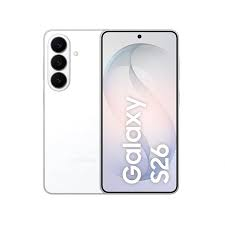
The new phone: Just unboxed your Samsung Galaxy S26 and want to set it up with an eSIM from scratch? This guide is specifically for first-time eSIM installation — whether you’re setting up your Galaxy S26 for the very first time, installing a second eSIM alongside your physical SIM, or adding an international eSIM before a trip abroad.
Unlike activation guides that assume you already have an eSIM profile ready, this guide starts from zero — from confirming your Galaxy S26 supports eSIM, to choosing the right carrier, to having a fully working eSIM installed and ready to use in India.
Installing an eSIM on the Samsung Galaxy S26 is a simple way to activate a mobile plan without using a physical SIM card. Whether you are switching to a new carrier, adding a second number, or using a travel eSIM, the Galaxy S26 supports convenient digital SIM activation through its network settings.
How to install an eSIM on Samsung Galaxy S26, including where to find the eSIM settings, how to scan a QR code, and what to do if the eSIM does not activate correctly. These steps can help you get your mobile connection working quickly without visiting a physical store.
- Check now. Problem-solve: How to Add an eSIM on Samsung S26
What Is an eSIM and How Is It Different from a Physical SIM?
Before installing, it helps to understand what you’re actually setting up.
A physical SIM card is a small removable chip that your carrier programs with your number and account information. You insert it into your phone’s SIM tray, and it connects you to the network.
An eSIM (embedded SIM) is a SIM chip permanently soldered inside your Samsung Galaxy S26 — you can’t remove it. Instead of swapping physical cards, you download carrier profiles digitally. The profile contains the same information as a physical SIM — your number, carrier settings, and account details — but it’s stored electronically on the eSIM chip.
Key differences for first-time eSIM users:
| Feature | Physical SIM | eSIM |
|---|---|---|
| Installation | Insert card into tray | Download profile digitally |
| Switching carriers | Buy new SIM card | Download new profile |
| Risk of loss | Card can fall out or be lost | Permanently inside phone |
| Multiple numbers | Need multiple SIM trays | Store multiple profiles |
| Travel | Buy local SIM abroad | Download travel eSIM instantly |
| India carrier support | All carriers | Jio, Airtel, Vi ✅ |
How to Install an eSIM on Samsung Galaxy S26: (step by step)
Step 1 — Confirm Your Galaxy S26 Supports eSIM
All three Galaxy S26 models support eSIM — but it’s worth confirming your specific unit before proceeding.
How to confirm eSIM support:
Method 1 — Settings check:
- Open Settings on your Galaxy S26
- Tap Connections
- Tap SIM Manager
- If you see an “Add eSIM” or “Add Mobile Plan” option — your device supports eSIM ✅
Method 2 — Dial code:
- Open the Phone app
- Dial *#06#
- Your device information screen appears
- Look for EID (Embedded Identity Document) number — a 32-digit code
- If EID is present — your Galaxy S26 has a functioning eSIM chip ✅
Your EID number: Note this down — some carriers require your EID number when setting up an eSIM account. It’s unique to your device.
Important for Indian buyers: Some carrier-bundled Galaxy S26 units sold through operator retail channels may have eSIM functionality restricted. If you bought your Galaxy S26 through a Jio or Airtel bundle deal, confirm with the carrier that eSIM is enabled on your specific unit before proceeding.
Step 2 — Check If Your Galaxy S26 Is Network Unlocked
For eSIM to work with any carrier you choose, your Galaxy S26 needs to be network unlocked — not locked to a specific carrier.
How to check if your Galaxy S26 is unlocked:
- Go to Settings → Connections → Mobile Networks
- Tap Network Operators
- Tap Search Now
- If multiple carriers appear in the search results — your device is unlocked ✅
- If only one carrier appears or you get an error — your device may be carrier-locked
If your Galaxy S26 is carrier-locked:
- Contact the carrier it’s locked to and request an unlock
- Provide your IMEI number (dial *#06# to find it)
- Most Indian retail Galaxy S26 units are sold unlocked — this mainly affects devices bought through carrier subsidy programs or brought from abroad.
Open market Galaxy S26 units purchased from Samsung India, Flipkart, or Amazon India are always sold unlocked and work with any Indian carrier eSIM.
Step 3 — Choose Your eSIM Carrier in India
For Indian Galaxy S26 users, three major carriers support eSIM installation:
Jio eSIM
Best for: Data-heavy users, 5G coverage, JioFiber bundle users
Jio’s eSIM support is the most seamless in India — the MyJio app handles the entire installation process digitally without requiring a store visit for most users.
Jio eSIM availability:
- All postpaid plans support eSIM
- Select prepaid plans support eSIM (confirm with Jio customer care)
- Jio 5G fully supported on Galaxy S26 eSIM ✅
What you need:
- Active Jio account or new Jio connection request
- Aadhaar card for KYC verification
- Registered mobile number for OTP verification
Airtel eSIM
Best for: Voice call quality, premium postpaid plans, Airtel Black bundle users
Airtel’s eSIM installation is fully digital via the Airtel Thanks app — video KYC included. One of the smoothest eSIM experiences among Indian carriers.
Airtel eSIM availability:
- All postpaid plans support eSIM
- Select prepaid plans — confirm availability for your circle
- Airtel 5G fully supported on Galaxy S26 eSIM ✅
What you need:
- Active Airtel account or new connection request
- Photo ID and Aadhaar for video KYC
- 5–10 minutes for video KYC process
Vi (Vodafone Idea) eSIM
Best for: Users in Vi coverage areas, existing Vi customers
Vi supports eSIM on the Galaxy S26,26 but the installation process is less seamless than Jio or Airtel — a store visit may be required in some circles.
Vi eSIM availability:
- Postpaid plans primarily
- Coverage varies by circle — check Vi website for your area
- 4G primary — 5G rollout ongoing
What you need:
- Active Vi account
- Store visit may be required for KYC in some areas
- Photo ID and Aadhaar
BSNL eSIM
Best for: Rural coverage, government employees on BSNL plans
BSNL eSIM support on Galaxy S26 is being rolled out gradually in 2026. Available in select circles — check with your local BSNL office for current availability.
Step 4 — Request eSIM Installation from Your Carrier
This is where eSIM installation begins — requesting your carrier to provision an eSIM profile for your Galaxy S26.
Installing Jio eSIM — Full Process

Option A: Via MyJio App (Recommended — No Store Visit)
- Download the MyJio app from the Play Store if not already installed
- Log in with your Jio number
- Tap your profile icon (top right)
- Select SIM Services
- Tap Get eSIM (for new eSIM) or Convert to eSIM (moving existing Jio number to eSIM)
- Enter your Galaxy S26’s EID number when prompted (found via *#06#)
- Enter your IMEI number when prompted
- Complete Aadhaar-based KYC — scan your Aadhaar QR code or enter Aadhaar number.
- Verify via OTP sent to your registered number.
- Jio processes your request — eSIM QR code sent to registered email within 2–4 hours.
Option B: Via Jio Store Visit
- Visit the nearest Jio Store with your original Aadhaar card and Galaxy S26
- Request eSIM installation at the counter
- Store staff will verify your identity and initiate the eSIM request
- QR code issued immediately at store — installation completed on the spot
- Total time: 15–30 minutes
Option C: Via Jio Customer Care
- Call 199 from your Jio number
- Request eSIM installation
- Provide EID and IMEI numbers over call
- Complete OTP verification
- QR code sent to registered email within 2–4 hours
Installing Airtel eSIM — Full Process

Option A: Via Airtel Thanks App (Recommended)
- Download the Airtel Thanks app from the Play Store
- Log in with your Airtel number
- Go to My Account → Manage SIM
- Tap Switch to eSIM or Get New eSIM
- Enter your Galaxy S26’s EID number
- Complete Video KYC — a live video call with an Airtel agent (3–5 minutes)
- Show your Aadhaar card and face clearly during video KYC
- Airtel provisions your eSIM profile immediately after KYC approval
- QR code sent to registered email within 15–30 minutes
Option B: SMS Request
- Send SMS: “eSIM [your email address]” to 121 from your Airtel number
- Example: eSIM yourname@gmail.com
- You’ll receive a confirmation SMS
- Complete video KYC via the link sent to your email
- QR code delivered to your email after KYC approval
Option C: Airtel Store Visit
- Visit the nearest Airtel Store with Aadhaar and Galaxy S26
- Request eSIM installation
- In-store KYC completed immediately
- QR code issued on the spot
- Total time: 15–20 minutes
Installing Vi eSIM — Full Process

Option A: Via Vi App
- Download the Vi app from the Play Store
- Log in with your Vi number
- Go to My Account → Manage SIM → Convert to eSIM
- Enter your Galaxy S26’s EID number
- Complete KYC verification
- QR code sent to registered email within 4–6 hours
Option B: Vi Store Visit (Recommended for Vi)
- Visit the nearest Vi Store with Aadhaar and Galaxy S26
- Request eSIM installation at counter
- Store staff handles the full process
- QR code issued at store
- Total time: 20–30 minutes
Step 5 — Install the eSIM Profile on Galaxy S26
Once you have your QR code from your carrier, the actual installation on your Galaxy S26 takes under 5 minutes.
Installation via QR Code Scan
- Open Settings on your Galaxy S26
- Tap Connections
- Tap SIM Manager
- Tap Add eSIM
- Select Scan QR Code
- Your Galaxy S26 camera opens
- Point the camera at the QR code from your carrier
- QR code recognized in 2–5 seconds
- Carrier plan details appear on screen — verify they match your plan
- Tap Confirm to proceed
- Galaxy S26 connects to carrier server and downloads eSIM profile
- Download takes 30–90 seconds with stable Wi-Fi
- Tap Activate once download completes
- Your eSIM is now installed and active ✅
Installation via Manual Code Entry
If your carrier provided an activation code instead of a QR code:
- Go to Settings → Connections → SIM Manager
- Tap Add eSIM
- Tap Enter Activation Code
- Type or paste the activation code exactly as provided
- Tap Connect
- Wait for profile download (30–90 seconds)
- Tap Activate
Installation via Carrier App (Jio/Airtel Direct Push)
Some carriers push the eSIM profile directly to your device without needing a QR code:
- Complete the carrier app request process (Steps above for Jio/Airtel)
- A notification appears on your Galaxy S26: “New Mobile Plan Available”
- Tap the notification
- Tap Add Plan
- Confirm installation
- Tap Activate
Step 6 — Configure Your eSIM After Installation
After successful installation, configure your SIM settings for the best experience.
Setting Up Dual SIM (Physical SIM + eSIM)
If you have both a physical SIM and eSIM installed:
- Go to Settings → Connections → SIM Manager
- Both SIMs appear — your physical SIM and newly installed eSIM
- Rename each SIM for easy identification:
- Tap physical SIM → Edit → Name it “Airtel Primary” or your carrier
- Tap eSIM → Edit → Name it “Jio Data” or “eSIM”
Setting Default SIM for Calls
- In SIM Manager → Calls
- Select which SIM handles outgoing calls
- Options: Always ask, SIM 1, SIM 2
- Recommended: Set your primary number as default for calls
Setting Default SIM for SMS
- In SIM Manager → Text Messages
- Select default SIM for SMS
- Recommended: Match your call SIM for consistency
Setting Default SIM for Mobile Data
- In SIM Manager → Mobile Data
- Select which SIM provides mobile data
- Recommended for India: Set the SIM with a better data plan as default
- Jio users: Set Jio eSIM as data SIM (better 5G coverage)
- Airtel users: Set Airtel as data SIM (strong in metros)
Enabling 5G on eSIM
- Go to Settings → Connections → Mobile Networks
- Select your eSIM
- Tap Network Mode
- Select 5G/LTE/3G/2G (Auto)
- Your Galaxy S26 will automatically use 5G when available ✅
Step 7 — Verify Your eSIM Is Working Correctly
After installation and configuration, run these quick checks:
Check 1 — Signal bars
Your Galaxy S26 status bar should show signal bars for your eSIM carrier. If showing “No Service” — see the troubleshooting section below.
Check 2 — Make a test call.
Dial a known number using your eSIM as the default call SIM. Confirm the call connects clearly.
Check 3 — Send a test SMS
Send an SMS from your eSIM number. Confirm delivery.
Check 4 — Test mobile data.
Disable Wi-Fi. Open a website or app. Confirm mobile data works through your eSIM.
Check 5 — Check carrier name in status bar.
Pull down the notification shade. Your eSIM carrier name (Jio/Airtel/Vi) should appear alongside signal bars.
First Time eSIM Installation — Common Problems and Fixes
Problem: QR Code Expired
Cause: Most carrier QR codes expire within 24–72 hours of generation.
Fix: Request a new QR code from your carrier. Jio and Airtel both allow QR code regeneration via app or customer care at no extra charge.
Problem: EID Not Accepted by Carrier App
Cause: EID entered incorrectly — it’s a 32-digit number, easy to mistype.
Fix: Use copy-paste instead of manual entry. Find EID via *#06# → long press to copy the EID number → paste into carrier app.
Problem: eSIM Download Stuck at 0%
Cause: Weak Wi-Fi connection or carrier server issue.
Fix:
- Switch to a different Wi-Fi network
- Disable VPN if active
- Restart Galaxy S26 and retry
- Try at a different time — carrier servers sometimes experience load during peak hours.
Problem: “Profile Installation Failed” Error
Cause: Multiple possible causes — device lock, carrier provisioning delay, or software issue.
Fix:
- Ensure Galaxy S26 is onthe latest One UI software
- Go to Settings → General Management → Reset → Reset Network Settings
- Wait 30 minutes and retry — carrier may need time to fully provision your account
- Contact carrier customer care if error persists
Problem: eSIM Installed But Showing “Emergency Calls Only”
Cause: Carrier hasn’t fully provisioned your account on their end yet.
Fix:
- Toggle Airplane Mode on and off
- Wait 5–10 minutes for network registration to complete
- Go to Settings → Connections → Mobile Networks → Network Operators → Search manually
- Contact carrier if issue persists beyond 30 minutes
Problem: Galaxy S26 Not Showing “Add eSIM” Option
Cause: Device may be carrier-locked or running older software.
Fix:
- Update One UI to the latest version: Settings → Software Update → Download and Install
- Confirm device is network unlocked
- Restart device and check SIM Manager again
- Contact Samsung Support if the option is still missing
Installing International eSIM on Galaxy S26 for Travel
Planning to travel abroad from India? Installing an international eSIM before your trip saves you from expensive roaming charges.
Best International eSIM Providers for Galaxy S26
| Provider | Coverage | India Price Range | Best For |
|---|---|---|---|
| Airalo | 200+ countries | ₹500 – ₹3,000 | Budget travelers |
| Holafly | 160+ countries | ₹800 – ₹4,000 | Unlimited data plans |
| Maya Mobile | Asia focus | ₹400 – ₹2,000 | Asia travel |
| Nomad eSIM | 100+ countries | ₹600 – ₹3,500 | Flexible plans |
| Airtel International | Select countries | ₹999 – ₹5,000 | Existing Airtel users |
Installing International eSIM — Step by Step
- Purchase international eSIM plan from provider website or app
- Receive QR code via email
- On Galaxy S26: Settings → Connections → SIM Manager → Add eSIM
- Scan QR code
- Download and install profile — do not activate yet
- Keep international eSIM installed but inactive until you land
- At destination: Go to SIM Manager → tap international eSIM → toggle Active
- Your Indian physical SIM stays in the tray for receiving calls and SMS on an Indian number
- Set mobile data to international eSIM for local data rates
Pro tip: Install international eSIM at home on Wi-Fi before traveling — airport Wi-Fi is often unreliable for eSIM installation.
Frequently Asked Questions
Q: How do I install eSIM on Samsung Galaxy S26 for the first time?
Go to Settings → Connections → SIM Manager → Add eSIM. Request a QR code from your carrier (Jio, Airtel, or Vi), scan it, download the profile, and tap Activate. The full process takes under 10 minutes.
Q: What is the EID number on Galaxy S26 and where do I find it?
EID (Embedded Identity Document) is your Galaxy S26’s unique eSIM identifier — a 32-digit number. Find it by dialing *#06# or going to Settings → About Phone → Status Information → EID.
Q: Can I install both Jio and Airtel eSIM on Galaxy S26?
You can store multiple eSIM profiles, but only one can be active at a time alongside your physical SIM. Install both, then switch between them in SIM Manager as needed.
Q: Do I need to visit a store to install eSIM on Galaxy S26 in India?
Not for Jio or Airtel — both support fully digital eSIM installation via their apps, including video KYC. Vi may require a store visit in some circles.
Q: How long does eSIM installation take on Galaxy S26?
The actual profile download takes 30–90 seconds. Including carrier request and QR code delivery, total time is 15 minutes to 4 hours depending on your carrier.
Q: Can I install eSIM on Galaxy S26 without Wi-Fi?
eSIM profile download requires an internet connection — Wi-Fi or mobile data. Wi-Fi is recommended for stability. If using mobile data, ensure you have sufficient signal.
Q: What happens to my physical SIM when I install eSIM on Galaxy S26?
Your physical SIM continues working normally. Installing an eSIM adds a second line — it doesn’t replace your physical SIM unless you specifically request number transfer from physical to eSIM.
Q: Can I install an international eSIM on Galaxy S26 while keeping my Indian number?
Yes — install the international eSIM profile before traveling. Keep your Indian physical SIM active for calls and SMS. Switch mobile data to the international eSIM when abroad.
Q: Is eSIM installation free on Jio and Airtel?
eSIM installation is generally free for existing customers converting from a physical SIM. New connections may have standard activation charges. Check current carrier pricing as it may vary.
Q: How many eSIM profiles can I install on Galaxy S26?
Galaxy S26 can store up to 10–12 eSIM profiles simultaneously. Only one can be active at a time alongside your physical SIM.
Conclsion
Installing an eSIM on your Samsung Galaxy S26 for the first time is a straightforward process once you know the steps. The key is getting your EID number ready, requesting your eSIM QR code from Jio or Airtel via their apps, and following the SIM Manager installation steps on your device.
For most Indian Galaxy S26 users, the Jio MyJio app or Airtel Thanks app method is the fastest and most convenient — fully digital, no store visit required, and completed in under 30 minutes from start to finish.
Once installed, your Galaxy S26’s dual SIM capability — one physical SIM plus one eSIM — gives you the flexibility to run two numbers, optimize data plans, and instantly switch to an international eSIM when traveling. It’s one of the most practical features of the Galaxy S26 and worth setting up from day one.

