
Setting up an eSIM on the Samsung Galaxy S26 Ultra can be a convenient way to activate a mobile plan without inserting a physical SIM card. Whether you are switching from a physical SIM, adding a second mobile number, or activating a travel eSIM, the Galaxy S26 Ultra supports a straightforward digital SIM setup through its mobile network settings.
The activation process can vary depending on your mobile carrier, country, and eSIM plan. Your carrier may provide a QR code, activation code, or an automatic eSIM setup option. Before starting, make sure your Galaxy S26 Ultra supports eSIM in your region and that you have an active eSIM plan from a compatible carrier.
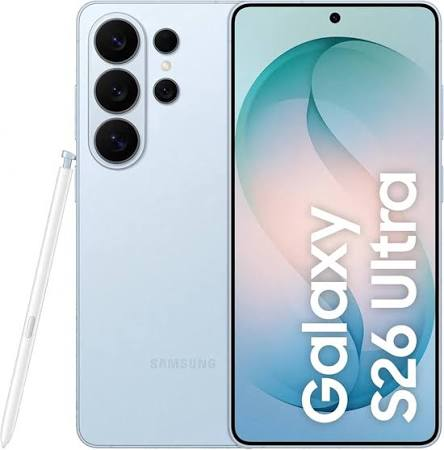
In this guide, we’ll explain how to set up an eSIM on the How to Set Up an eSIM on Samsung Galaxy S26 Ultra, including how to scan an eSIM QR code, activate your mobile plan, check whether the eSIM is working, and troubleshoot common activation problems.
You just got your hands on the Samsung Galaxy S26 Ultra. The display is breathtaking. The cameras are incredible. And then you notice something different—there is no SIM card tray. Or maybe there is one, but you have heard about this eSIM thing and want to give it a try.
If you are feeling a bit lost, do not worry. You are not alone. eSIM technology is still new to many people, and setting it up for the first time can feel confusing. But once you understand how it works, you will wonder why you ever used physical SIM cards.
This guide walks you through everything you need to know about setting up an eSIM on your Samsung Galaxy S26 Ultra. Whether you are using a local carrier, travelling abroad, or switching between multiple numbers, we have got you covered.
- Check now the Problem – How to use an eSIM in the Samsung S26 Ultra 2026
What Is an eSIM and Why Should You Care?
Let us start with the basics. An eSIM is a digital SIM card. Instead of a physical plastic card that you insert into your phone, the eSIM is a tiny chip built directly into your device.
Think about it this way. A physical SIM is like a house key. You carry it around, you insert it into the lock, and you hope you do not lose it. An eSIM is like a digital key stored in your phone. You download it, activate it, and switch between different keys without ever touching a piece of plastic.
The Samsung Galaxy S26 Ultra supports eSIM technology out of the box. In fact, it is a dual eSIM device, meaning you can have two active eSIM profiles at the same time. This is incredibly useful if you have a personal number and a work number, or if you travel frequently and need a local data plan alongside your home number.
What You Need Before Setting Up Your eSIM
Before you start the setup process, make sure you have everything ready. Here is what you need:
Your eSIM activation details. This is usually a QR code from your carrier. Some carriers send it via email, others print it on a card, and some use their own app to handle the activation.
A stable internet connection. You need Wi-Fi or mobile data to download the eSIM profile. Wi-Fi is the safer option, especially if you are setting up the phone for the first time.
Your carrier’s eSIM support. Not all carriers support eSIM yet. In 2026, most major carriers do, but it is worth checking before you start. In Nigeria, MTN, Glo, Airtel, and 9mobile all offer eSIM services.
Your Samsung account. This is not always required, but it helps. Your Samsung account can back up your eSIM profiles and make it easier to transfer them to a new phone later.
The phone itself. Obviously. Make sure your Galaxy S26 Ultra is charged and ready to go.
How to Set Up an eSIM on Samsung Galaxy S26 Ultra:-
Method 1: Setting Up eSIM Using a QR Code

This is the most common method. Your carrier gives you a QR code, you scan it, and the eSIM installs automatically. Here is exactly how to do it.
Step 1: Open Settings
From your home screen, swipe down from the top to open the notification shade. Tap the gear icon in the top right corner to open Settings.
Step 2: Go to Connections
In the Settings menu, look for Connections and tap it. This is where all your network and connectivity settings live.
Step 3: Tap SIM Manager
Scroll down until you see SIM Manager and tap it. This section shows you all the SIMs currently on your phone, both physical and digital.
Step 4: Select Add eSIM
At the bottom or top of the SIM Manager screen, you will see an option to Add eSIM. Tap it. Your phone will start searching for available eSIMs.
Step 5: Scan the QR Code
The phone gives you options to scan a QR code or enter details manually. Tap Scan QR Code. The camera will open. Point it at the QR code provided by your carrier. Make sure the code is well-lit and in focus. The phone reads the code and starts downloading the eSIM profile.
Step 6: Confirm and Activate
Once the profile downloads, you will see the details of your plan—usually the carrier name and your phone number. Tap Continue or Activate to confirm. The phone registers your eSIM with the network.
Step 7: Set Your Preferences
The phone will ask you to choose which SIM to use for different tasks. You can set your default SIM for calls, messages, and mobile data. If you have two SIMs active, you can choose which one handles what.
Step 8: Wait for Activation
The phone contacts the network to complete the activation. This usually takes a few seconds. You will see a confirmation message when it is done.
That is it. Your eSIM is now active and ready to use.
Method 2: Setting Up eSIM via Your Carrier’s App
Some carriers have moved beyond QR codes. They use their own apps to handle eSIM activation. This is often the easiest and most seamless method.
How It Works
You download your carrier’s official app from the Google Play Store. You log in to your account. You look for the eSIM or digital SIM section. You follow the prompts, and the app pushes the eSIM profile directly to your phone.
Specific Examples
For MTN Nigeria users: Download the myMTN app from the Play Store. Log in with your MTN number. Navigate to the eSIM section. Follow the on-screen instructions. The app handles everything, and the eSIM appears in your SIM Manager automatically.
For Airtel Nigeria users: Airtel has an online portal where you can request an eSIM. After verification, they send you an email with a QR code or activation details. You then follow Method 1 above to scan the code.
For Glo users: Glo supports eSIM through their customer service. Contact them, provide your details, and they send the activation information to your registered email.
For international carriers: Apps like Vodafone, AT&T, T-Mobile, and others have built-in eSIM support. You typically log in, select “Get eSIM,” and the profile downloads automatically.
The carrier app method usually involves fewer manual steps. The app communicates with Samsung’s eSIM system and installs the profile without you needing to scan anything.
Method 3: Manual Entry (When You Have an Activation Code)
Sometimes your carrier gives you an activation code instead of a QR code. This happens when the QR code cannot be scanned, or when you are travelling, and the carrier sends you a code via email.
Step 1: Open SIM Manager
Go to Settings > Connections > SIM Manager, just like before.
Step 2: Tap Add eSIM
Select Add eSIM from the menu.
Step 3: Choose Manual Entry
Instead of scanning a QR code, tap the option that says Enter details manually or Activation code. The exact wording may vary depending on your software version.
Step 4: Enter the Information
You will need two pieces of information:
- SM-DP+ address: This is a server address that your phone uses to download the profile. It looks something like “smdp.example.com” or a similar format.
- Activation code: A series of letters and numbers provided by your carrier.
Enter both carefully. Any mistake will cause the download to fail.
Step 5: Download and Activate
Follow the on-screen instructions. The phone downloads the profile from the server and activates it on the network.
Manual entry is a bit more tedious than scanning a QR code, but it works just as well. Just make sure you have the correct information.
How to Use Dual eSIM on the S26 Ultra

The Samsung Galaxy S26 Ultra supports two active eSIMs simultaneously. This is a powerful feature that gives you a lot of flexibility.
Use Case 1: Personal and Work Numbers
You can have your personal number and your work number on the same phone. Set your personal SIM as the default for calls and messages, and your work SIM for data. Or mix it up however works for you.
Use Case 2: Local and Travel
Keep your home eSIM active for calls and messages, and add a travel eSIM for data when you are abroad. You can turn off data roaming on your home eSIM to avoid charges while still receiving calls and messages.
Use Case 3: Two Different Carriers
If you are in an area where one carrier has better coverage than another, you can keep both active and switch between them easily.
How to Manage Dual eSIMs
Go to Settings > Connections > SIM Manager. You will see both eSIMs listed. Tap on each one to change its settings. You can choose which SIM is used for:
- Mobile data
- Calls
- Messages
There is also a setting called “Always use this SIM for data,” which prevents accidental roaming charges on your travel eSIM.
You can also rename your eSIMs to make them easier to identify. Instead of “eSIM 1” and “eSIM 2,” you could name them “Personal” and “Travel” or “Nigeria” and “UK.”
Traveling with eSIM on the Galaxy S26 Ultra

This is where eSIM really shines. Travel eSIM providers have made it incredibly easy to get data when you land in a new country. You buy a plan before you leave, and you have data the moment you arrive.
Popular Travel eSIM Providers in 2026
Airalo is the most well-known. They support over 200 countries and regions. You download the app, choose a plan for your destination, and install the eSIM directly from the app. The integration with the S26 Ultra is seamless.
Nomad offers flexible data plans for travellers. They partner with local networks in many countries to give you good coverage at reasonable prices.
Holafly specializes in unlimited data plans for many destinations. If you are going on a long trip, their daily plans can be good value.
Keepgo is an alternative that offers data plans that do not expire for a year. Good for frequent travellers.
How It Works
You download the travel eSIM app on your phone. You select your destination and data package. You pay using your credit card or mobile wallet. The app pushes the eSIM profile to your phone. You activate it when you land, and you have data immediately.
A Practical Example
Say you are flying from Lagos to London. Before you leave, you buy a travel eSIM for the UK from Airalo. You install it on your S26 Ultra but keep it inactive. When your plane lands at Heathrow, you go to SIM Manager, activate the travel eSIM, and turn off data on your home eSIM to avoid roaming charges. Within seconds, you have data. No need to find a shop, no need to swap SIMs, and no expensive roaming charges.
Transferring eSIM to a New Phone
If you are upgrading from an older Samsung phone to the S26 Ultra, transferring your eSIM is easier than ever.
Method 1: Using Samsung Account (Recommended)
Both phones need to be signed in to the same Samsung account. On your new S26 Ultra, go to Settings > Accounts and Backup > Transfer eSIM. The phone looks for nearby Samsung devices with eSIM profiles. Select your old phone, and the eSIM profile transfers to your new device. The old profile deactivates automatically.
Method 2: Contact Your Carrier
If you do not have a Samsung account or if the transfer fails, contact your carrier. They can generate a new QR code for you. Scan it on the S26 Ultra, and the eSIM activates. The old eSIM on your previous phone will deactivate when the new one activates.
Important: Remove eSIM Before Selling or Giving Away Your Old Phone
Before you sell or give away your old Samsung phone, always remove your eSIM profile first. Go to Settings > Connections > SIM Manager, tap the eSIM, and select Remove or Delete. This ensures your profile is not still active on the old device.
Troubleshooting Common eSIM Issues
Even with the best technology, things can go wrong. Here are the most common eSIM problems and how to fix them.
Issue: QR Code Not Scanning
Why it happens: The QR code is smudged, damaged, or the camera lens is dirty.
How to fix it: Clean your camera lens with a soft cloth. Make sure the QR code is well-lit. If it still does not work, tap the manual entry option and type in the activation details.
Issue: Profile Downloaded but Not Activating
Why it happens: The phone cannot contact the carrier’s network.
How to fix it: Make sure you have an internet connection. If you are on Wi-Fi, try switching to mobile data. Restart the phone and try again. If the problem persists, contact your carrier.
Issue: No Signal After Activation
Why it happens: The phone is not connecting to the carrier’s network properly.
How to fix it: Go to Settings > Connections > Mobile Networks. Check that the network mode is set to automatic. You can also manually select your carrier from the network operators list. Toggle Airplane Mode on and off to force the phone to search for networks again.
Issue: eSIM Not Showing in SIM Manager
Why it happens: The profile did not download correctly, or the phone needs a restart.
How to fix it: Restart your phone. This often refreshes the network settings and the eSIM appears. If it still does not show, you may need to contact your carrier to resend the activation details.
Issue: Cannot Add More Than One eSIM
Why it happens: The S26 Ultra supports two active eSIMs at a time. If you try to add a third, you will get an error.
How to fix it: You need to remove one of the existing eSIMs before adding a new one. Go to SIM Manager, tap an existing eSIM, and select Remove. Then try adding the new one.
Issue: Roaming Not Working
Why it happens: Data roaming is not enabled, or your eSIM plan does not include roaming.
How to fix it: Go to Settings > Connections > Mobile Networks > Data Roaming and toggle it on. Also check that your eSIM plan includes roaming in your destination. For travel eSIMs, this is usually included automatically.
Pros and Cons of eSIM on the Galaxy S26 Ultra
Before you fully commit to eSIM, it helps to understand the advantages and disadvantages.
Pros
Convenience. You can switch carriers without physically swapping cards. This is a game-changer for frequent travellers and anyone who likes to keep things simple.
Security. If your phone is stolen, the eSIM stays locked. No one can simply pop it out and use it in another device. The eSIM is tied to your specific phone.
Dual-SIM without the clutter. Two active numbers on one phone without carrying extra cards or using a SIM ejector tool. This alone makes eSIM worthwhile for many people.
Better device design. Without the SIM tray, manufacturers can make phones more water-resistant and pack in larger batteries. The S26 Ultra’s massive 6000mAh battery benefits from this design.
Instant activation when you travel. No more searching for a local shop or dealing with language barriers. Buy a travel eSIM online and activate it instantly.
Multiple profiles. You can store multiple eSIM profiles on your phone and switch between them as needed. This is useful if you travel to many countries or have multiple carriers for different purposes.
Cons
Carrier dependency. If your carrier does not support eSIM, you are stuck. Most major carriers do support it in 2026, but smaller or regional networks may not.
Switching phones is slightly more complicated. With a physical SIM, you simply pop it out and put it in the new phone. With an eSIM, you have to go through a transfer process or get a new QR code. It is not difficult, but it is an extra step.
Travelling to some countries may still be a problem. While most developed countries support eSIM, some developing nations are still catching up. Always check eSIM availability for your destination.
Limited number of active profiles. The S26 Ultra can store multiple eSIM profiles but can only keep two active at once. If you travel to many countries, you may need to manage your profiles and remove unused ones.
Removing an eSIM before selling your phone is an important step that some people forget. If you do not remove it, the next owner could potentially access your plan (though carriers usually deactivate the old profile when a new one activates).
Frequently Asked Questions
Does the Samsung Galaxy S26 Ultra support eSIM?
Yes. The S26 Ultra fully supports eSIM technology. It can hold multiple eSIM profiles and keep two active simultaneously. It also supports one physical nano-SIM card if you still have one.
Can I use eSIM with Nigerian networks?
Yes. All major Nigerian carriers support eSIM in 2026:
- MTN Nigeria offers eSIM through the myMTN app.
- Airtel Nigeria supports eSIM with a QR code via their online portal or customer service.
- Glo offers eSIM through customer support.
- 9mobile also supports eSIM.
Contact your carrier directly to get started.
Can I have two eSIMs active at the same time?
Yes. The S26 Ultra supports dual active eSIMs. You can have two numbers active simultaneously. For example, you could have a personal number and a work number, or your local number and a travel eSIM.
What if my carrier does not support eSIM?
If your carrier does not support eSIM, you can still use a physical nano-SIM card. The S26 Ultra has a SIM tray slot alongside the eSIM functionality. However, more and more carriers are adopting eSIM, so it is worth checking again in a few months.
Can I convert my physical SIM to eSIM?
Yes. Most carriers allow this. Contact your carrier and request an eSIM conversion. They will usually send you a QR code or provide an app to activate your eSIM. Your physical SIM will stop working once the eSIM is activated.
Do I need Wi-Fi to set up an eSIM?
Yes. You need an internet connection to download the eSIM profile. Wi-Fi is the most reliable option, especially during initial phone setup. Once the eSIM is active, you can use mobile data.
Is eSIM secure?
Yes. eSIM is generally more secure than physical SIM cards. The eSIM chip is embedded in the phone, so a thief cannot remove it. The profile is also encrypted and tied to your specific device.
What happens if I reset my S26 Ultra?
If you do a factory reset, your eSIM profiles are usually removed. You will need to download them again from your carrier. Some carriers automatically restore the profiles when you log in to your Samsung account. To avoid losing your eSIM, check with your carrier before resetting.
Can I use the same eSIM on two phones?
No. An eSIM profile is tied to a single device. If you try to activate the same profile on another phone, the original one will be deactivated. This is a security feature to prevent cloning.
Does eSIM drain the battery faster?
No. eSIM uses a similar amount of power to a physical SIM. The S26 Ultra’s 6000mAh battery easily handles dual eSIMs without any noticeable impact on battery life.
How much does an eSIM cost?
The eSIM itself is usually free. Your mobile plan costs the same whether you use a physical SIM or an eSIM. Travel eSIMs have their own pricing, which varies by provider, data amount, and destination.
Can I delete an eSIM profile?
Yes. Go to Settings > Connections > SIM Manager, tap the eSIM you want to remove, and select Remove or Delete. The profile will be deleted from your phone. You can always add it again later if needed.
How many eSIM profiles can I store?
The S26 Ultra can store multiple eSIM profiles—some sources say up to 10 or more. However, only two can be active at the same time. If you need to use a third, you must deactivate or remove one of the active ones first.
Conclsion
The Samsung Galaxy S26 Ultra is a powerhouse of a phone, and its eSIM capabilities are a big part of what makes it so versatile. Yes, there is a learning curve if you are used to physical SIM cards. But once you make the switch, you will likely wonder why you did not do it sooner.
The convenience of adding and switching between carriers instantly—especially when travelling—is hard to overstate. The security benefits are real. And the dual-SIM flexibility gives you options that were difficult to manage before.
Still unsure? Start simple. Set up your primary eSIM using the QR code from your carrier. Use it for a few weeks. Once you are comfortable, add a second eSIM for travel or work. You will quickly see how seamless it can be.
The days of fumbling with a SIM ejector tool are behind us. The S26 Ultra is ready for the future, and now you know exactly how to set it up.

