
Staying connected on a laptop has become more important than ever, especially for people who work remotely, travel frequently, or study online. Most of us still depend on Wi-Fi or mobile hotspots, but these options are not always reliable or convenient. This is where eSIM technology comes in. An eSIM allows your laptop to connect directly to a mobile network without needing a physical SIM card, giving you internet access almost anywhere.
If you’ve already used eSIM on a smartphone, the concept is very similar on a laptop. Instead of inserting a SIM card, you simply scan a QR code or enter activation details provided by your network provider. Within minutes, your laptop can connect to 4G or even 5G networks, making it a powerful tool for staying productive on the go.
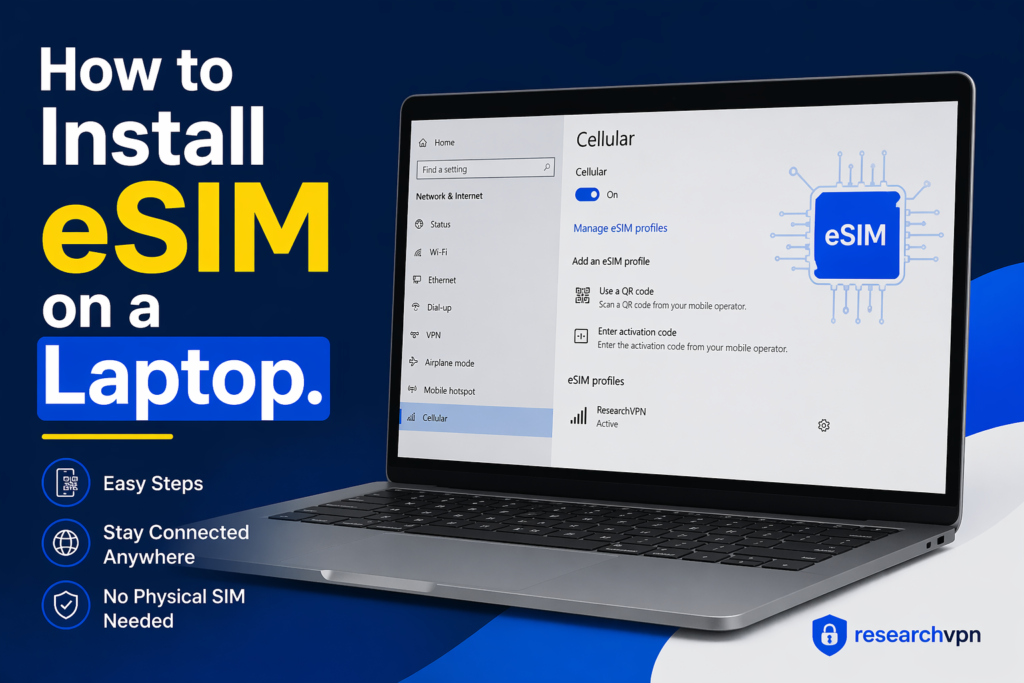
However, many users are still confused about how to install eSIM on a laptop. Questions like compatibility, setup steps, and troubleshooting often make the process seem complicated. The good news is that it’s actually quite simple once you understand the basics.
In this guide, you’ll learn everything you need to know about installing eSIM on a laptop. We’ll walk you through the setup process step by step, explain the requirements, and share practical tips to help you avoid common mistakes. Whether you’re a beginner or someone looking to switch from a physical SIM, this guide will make the process easy and stress-free.
If you’re tired of depending on Wi-Fi or carrying a hotspot device everywhere, eSIM on a laptop can be a game-changer. It gives you direct mobile internet access—just like your smartphone—without needing a physical SIM card.
In this guide, you’ll learn how to install eSIM on a laptop step by step, even if you’re a beginner. We’ll also cover real-life examples, benefits, drawbacks, and common problems so you don’t get stuck.
What is eSIM on a Laptop?
An eSIM (embedded SIM) is a digital SIM built into your laptop. Instead of inserting a physical SIM card, you activate a mobile plan using a QR code or activation code from your carrier.
Think of it like this:
- Physical SIM = You insert a chip
- eSIM = You scan a code
That’s it.
Can Your Laptop Support eSIM?
Before doing anything, check if your laptop supports eSIM.
Laptops that usually support eSIM:
- Premium ultrabooks (business laptops)
- Some Windows laptops with LTE/5G support
- Newer models with “Cellular” or “WWAN” features
Common compatible brands:
- Dell Latitude series
- HP EliteBook
- Lenovo ThinkPad (select models)
- Microsoft Surface devices
How to check on Windows:
- Go to Settings
- Click Network & Internet
- Look for Cellular
If you see “Cellular,” → your laptop supports eSIM.
If not, your device likely doesn’t support it.
Requirements Before Installing eSIM
Make sure you have these ready:
- A compatible laptop
- Active internet (Wi-Fi for setup)
- eSIM plan from a carrier
- QR code or activation code
- Updated operating system
How to Install eSIM on a Laptop (Step-by-Step)
Let’s go step by step.
Step 1: Open Cellular Settings
- Click Start Menu
- Go to Settings
- Click Network & Internet
- Select Cellular
Step 2: Add a New eSIM Profile
- Click Manage eSIM profiles
- Select Add a new profile
- Choose:
- Scan QR code (recommended), or
- Enter the activation code manually
Step 3: Scan the QR Code
- Use your laptop camera to scan the QR code provided by your carrier
- Wait for the system to detect the plan
Step 4: Download and Activate
- Click Download
- Select Yes to activate
Your laptop will now connect to the mobile network.
Step 5: Set as Default Connection
- Go back to Cellular settings
- Turn on:
- “Let Windows manage this connection.”
- Choose your eSIM as the default
Real Example: Installing eSIM on a Windows Laptop

Let’s say you bought a Lenovo ThinkPad with LTE support.
- You purchase an eSIM plan online
- You receive a QR code via email
- You go to Settings → Cellular → Add profile
- Scan the code → Activate
Within minutes, your laptop connects to 4G/5G internet—no Wi-Fi needed.
How to Install eSIM on a MacBook
Here’s the truth:
Most MacBooks do not support eSIM directly (yet).
Workarounds:
- Use iPhone hotspot (not ideal)
- Use an external eSIM hotspot device
- Wait for future Mac models with cellular support
Benefits of Using eSIM on a Laptop

1. No Physical SIM Needed
No more swapping SIM cards or worrying about losing them.
2. Instant Activation
You can activate a plan in minutes.
3. Better for Travel
Switch networks easily when traveling.
4. More Secure
Harder to remove or tamper with than physical SIMs.
5. Cleaner Design
No SIM tray required.
Drawbacks of eSIM on Laptops

1. Limited Device Support
Not all laptops support eSIM.
2. Carrier Restrictions
Some networks don’t offer laptop eSIM plans.
3. Setup Confusion
Beginners may find the setup tricky.
4. Switching Devices is Harder
You can’t just remove and insert a SIM.
Best Use Cases for eSIM on a Laptop
- Remote workers
- Students
- Travelers
- Digital nomads
- Business professionals
eSIM vs Physical SIM on Laptop
| Feature | eSIM | Physical SIM |
|---|---|---|
| Setup | Digital | Manual |
| Flexibility | High | Medium |
| Security | High | Medium |
| Portability | Easy | Limited |
| Compatibility | Limited devices | Widely supported |
Common Problems and Fixes
Problem 1: eSIM Not Showing
Fix:
- Update Windows
- Check if your laptop supports eSIM
Problem 2: QR Code Not Working
Fix:
- Ensure good lighting
- Try manual code entry
Problem 3: No Internet After Activation
Fix:
- Restart laptop
- Check APN settings
- Contact carrier
Problem 4: Cellular Option Missing
Fix:
- Your laptop may not support cellular hardware
Tips for Better eSIM Performance
- Choose a reliable network
- Keep your system updated
- Avoid switching profiles frequently
- Use strong signal areas
Best eSIM Providers for Laptops (2026)
Here are some popular options:
1. Global eSIM Providers
2. Indian Telecom Providers
Is eSIM Safe to Use?
Yes, eSIM is generally safe.
Reasons:
- No physical removal
- Encrypted profiles
- Secure activation
When Should You Use eSIM on a Laptop?
Use eSIM if:
- You travel often
- You need internet everywhere
- You work remotely
- You hate carrying extra devices
Avoid it if:
- Your laptop doesn’t support it
- You prefer physical SIM flexibility
Future of eSIM in Laptops
eSIM is growing fast.
In the future:
- More laptops will support it
- Faster 5G integration
- Easier switching between networks
- No physical SIM slots at all
FAQs
1. Can all laptops use eSIM?
No. Only laptops with built-in cellular hardware support eSIM.
2. Do I need a QR code for eSIM?
Yes, most carriers provide a QR code for activation.
3. Can I use eSIM without Wi-Fi?
You need Wi-Fi only during setup. After that, no.
4. Is eSIM better than a hotspot?
Yes, because:
- No extra device
- More stable connection
5. Can I use multiple eSIM profiles?
Yes, but usually only one is active at a time.
6. Does eSIM drain battery?
Slightly more than Wi-Fi, but not a big difference.
7. Can I remove an eSIM?
Yes, you can delete the profile from settings.
8. Is eSIM available in India for laptops?
Yes, but support is still limited depending on device and carrier.
9. What is an eSIM on a laptop?
An eSIM is a digital SIM built into your laptop that lets you connect to mobile networks without inserting a physical SIM card. You activate it using a QR code or activation details from your carrier.
10. How do I know if my laptop supports eSIM?
Go to Settings → Network & Internet → Cellular on your Windows laptop. If you see a Cellular option, your device likely supports eSIM. You can also check your laptop specifications online.
11. Do I need the internet to install eSIM?
Yes, you need a Wi-Fi connection during setup to download and activate the eSIM profile. After activation, you can use mobile data without Wi-Fi.
12. Can I use eSIM and Wi-Fi at the same time?
Yes, your laptop can switch between Wi-Fi and eSIM automatically depending on which connection is stronger or preferred.
13. Is eSIM better than using a mobile hotspot?
In many cases, yes. eSIM provides a more stable connection and removes the need to carry an extra device like a hotspot.
14. Can I switch between multiple eSIM profiles?
Yes, most laptops allow you to store multiple eSIM profiles, but you can usually use only one active connection at a time.
15. What should I do if the QR code doesn’t work?
Make sure the QR code is clear and well-lit. If it still fails, try entering the activation code manually or contact your service provider.
16. Does eSIM work internationally?
Yes, many eSIM providers offer international plans, making it a great option for travelers.
17. Is eSIM safe to use on a laptop?
Yes, eSIM is secure. It uses encrypted profiles and cannot be physically removed, which reduces the risk of theft or misuse.
18. Can I remove or delete an eSIM?
Yes, you can easily delete an eSIM profile from your laptop settings if you no longer need it or want to switch providers.
Conclsion
Installing eSIM on a laptop might sound technical, but once you understand the steps, it’s actually simple.
The biggest advantage is freedom—you’re no longer tied to Wi-Fi networks or external devices.
If your laptop supports it, eSIM is absolutely worth trying in 2026.

