
The Samsung Galaxy S25 Ultra is Samsung’s most powerful flagship in 2026 — featuring a titanium frame, the most advanced Snapdragon 8 Elite processor, and Galaxy AI capabilities that set it apart from every previous Samsung flagship. From an eSIM perspective, the S25 Ultra represents a significant upgrade over the S23 Ultra — supporting dual eSIM alongside the physical SIM slot, giving Indian power users the ability to run three active numbers simultaneously.
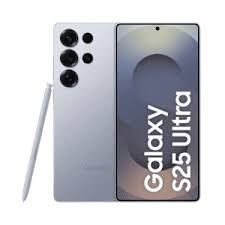
eSIM on Samsung Galaxy S25 Ultra. Whether you are a business executive managing personal and work numbers, a frequent international traveler who downloads country-specific data plans, or simply someone who wants maximum connectivity flexibility, the S25 Ultra’s eSIM implementation is the most capable Samsung has ever offered.
This guide covers everything about using eSIM on the Samsung Galaxy S25 Ultra — from confirming compatibility to activating with Jio, Airtel, and Vi, setting up all three SIMs simultaneously, and using Galaxy AI features alongside eSIM.
Samsung Galaxy S25 Ultra eSIM Specifications
| Feature | Galaxy S25 Ultra |
|---|---|
| Physical SIM | ✅ 1x nano-SIM |
| eSIM support | ✅ Yes |
| Dual eSIM | ✅ Yes — 2 simultaneous eSIMs |
| Total active numbers | Up to 3 (1 physical + 2 eSIMs) |
| Stored eSIM profiles | Multiple |
| One UI version | One UI 7 |
| Android version | Android 15 |
| Processor | Snapdragon 8 Elite |
| S Pen | ✅ Built-in |
Key advantage over S23 Ultra: S25 Ultra supports dual eSIM — two simultaneous eSIM profiles plus a physical SIM = three active numbers. S23 Ultra supports only a single eSIM (two total numbers).
Does Your S25 Ultra Support eSIM?
All Samsung Galaxy S25 Ultra units sold in India fully support dual eSIM. However, variant checking is important:
India variant (SM-S938B/DS): ✅ Full dual eSIM support
Global variant: ✅ Full dual eSIM support
China variant: ❌ eSIM not supported
Some US carrier-locked variants: ⚠️ May have eSIM restrictions
Confirm eSIM and Dual eSIM Support
Method 1 — Dial code:
Dial *#06# — if two EID numbers appear alongside IMEI numbers, dual eSIM is confirmed. Single EID = single eSIM only.
Method 2 — Settings check:
Settings → Connections → SIM Manager → if the Add eSIM option with the option to assign to Slot 1 or Slot 2 appears, dual eSIM is supported.
Indian Carriers Supporting eSIM on S25 Ultra
| Carrier | eSIM Support | Dual eSIM | Activation Method |
|---|---|---|---|
| Jio | ✅ Yes | ✅ Yes | MyJio app or SMS |
| Airtel | ✅ Yes | ✅ Yes | Airtel Thanks app or store |
| Vi (Vodafone Idea) | ✅ Yes | ✅ Yes | Vi app or store |
| BSNL | ⚠️ Limited | ⚠️ Limited | Store visit required |
Before You Activate eSIM on S25 Ultra
Checklist:
- ✅ Stable Wi-Fi — required during eSIM profile download
- ✅ One UI 7 updated — Settings → Software Update → install all pending updates
- ✅ Both EIDs noted — dial *#06# and screenshot both EID numbers
- ✅ QR codes ready — from carrier app, email, or store visit
- ✅ Phone unlocked — carrier-locked S25 Ultra may reject profiles
- ✅ Active physical SIM — OTP verification required

Where to Find SIM Manager on S25 Ultra (One UI 7)
One UI 7 (Android 15):
Settings → Connections → SIM Manager
Quick access: Pull down notification panel → SIM Manager tile → tap to open directly.
One UI 7 has redesigned SIM Manager with clearer dual eSIM slot visualization — both eSIM slots visible simultaneously in the interface.
How to Activate eSIM on Samsung Galaxy S25 Ultra — All Methods
Method 1: QR Code Activation (Recommended)
Works with all Indian carriers:
- Open Settings
- Tap Connections
- Tap SIM Manager
- Tap Add eSIM
- Select Scan QR code
- Point the S25 Ultra camera at the carrier QR code
- Tap Confirm when profile details appear
- S25 Ultra specific: Select which eSIM slot — eSIM Slot 1 or eSIM Slot 2
- Wait 30–60 seconds for download and installation
- Tap Done
Repeat for the second eSIM with a different carrier — assign to the remaining slot.
Method 2: Activation Code (Manual Entry)
- Settings → Connections → SIM Manager
- Tap Add eSIM
- Select Enter activation code
- Type or paste the code from the carrier
- Select eSIM slot to assign
- Confirm and wait for installation
Method 3: Jio eSIM on S25 Ultra

Via MyJio App:
- Open MyJio app
- My Account → Get eSIM
- Verify with OTP
- S25 Ultra: App detects dual eSIM capability — select which slot
- eSIM profile pushed directly to selected slot
Via SMS (for specific EID):
- Dial *#06# → note EID for desired slot (EID 1 for Slot 1, EID 2 for Slot 2)
- Send “SIMCHG <15-digit EID>” to 199
- Reply 1 to confirm
- Receive QR code → scan
Via Jio Store:
Visit with S25 Ultra and Aadhaar — provide both EIDs if activating two Jio numbers on dual eSIM.
Method 4: Airtel eSIM on S25 Ultra

Via Airtel Thanks App:
- Open Airtel Thanks
- Account → My Plan → Switch to eSIM
- Verify OTP
- App detects S25 Ultra dual eSIM — select slot
- Profile pushed to selected slot
For second Airtel eSIM (Slot 2):
Contact Airtel (121) — provide EID 2 from the *#06# screen for second slot activation.
Method 5: Vi eSIM on S25 Ultra
Via Vi App:
- Open Vi app
- My Account → SIM Services → Get eSIM
- Verify OTP
- Select eSIM slot on S25 Ultra
- Complete activation
Method 6: Store Activation
Visit Jio, Airtel, or Vi store with:
- Samsung Galaxy S25 Ultra
- Aadhaar card
- Registered mobile number
- Screenshot of *#06# showing both EIDs
For dual eSIM setup at the store — inform the representative you want to activate eSIM on both slots. Provide the correct EID for each slot.
Setting Up Triple SIM on S25 Ultra
The S25 Ultra’s most distinctive connectivity feature — running three numbers simultaneously:
Step 1: Activate Physical SIM
Insert nano-SIM → SIM Manager → physical SIM appears automatically.
Step 2: Activate First eSIM (Slot 1)
Follow any activation method → assign to eSIM Slot 1.
Step 3: Activate Second eSIM (Slot 2)
Repeat with the second carrier → assign to eSIM Slot 2.
Step 4: Configure Three-Way SIM Management
- Settings → Connections → SIM Manager
- All three SIMs appear — rename each:
- Physical SIM: “Airtel Personal”
- eSIM Slot 1: “Jio Work”
- eSIM Slot 2: “Travel Data”
Set Default Functions Across Three SIMs
Calls:
- Set default call SIM
- Or always ask — S25 Ultra prompts which SIM to use per call
- Assign specific contacts to specific SIM lines
SMS:
- Select primary SMS SIM
Mobile Data:
- Only one SIM active for data at a time
- Switch quickly from SIM Manager or quick settings
- S25 Ultra advantage: Faster SIM data switching than previous generations
Best Triple SIM Setups for Indian S25 Ultra Users
Power User Setup (3 active numbers):
- Physical SIM: Airtel (primary personal — strong voice quality)
- eSIM Slot 1: Jio (work number + best 5G data)
- eSIM Slot 2: International travel eSIM (Airalo/Nomad — activate before travel)
Executive Setup:
- Physical SIM: Personal number (Jio/Airtel)
- eSIM Slot 1: Company-provided work number
- eSIM Slot 2: International roaming eSIM for frequent travel
Cost Optimization Setup:
- Physical SIM: Primary number for calls and SMS
- eSIM Slot 1: Best data plan (compare Jio vs Airtel monthly)
- eSIM Slot 2: Secondary data backup (different carrier for coverage)
Family Manager Setup:
- Physical SIM: Own number
- eSIM Slot 1: Family member’s number (managed remotely)
- eSIM Slot 2: Smart home or IoT device SIM
S25 Ultra Specific eSIM Features
Galaxy AI + Dual eSIM
One UI 7’s Galaxy AI features work seamlessly with dual eSIM:
Live Translate: Works on calls from any of the three active SIM lines — translate conversations in real time regardless of which number receives the call.
AI Call Transcript: Transcribes and summarizes phone calls — works on calls from physical SIM, eSIM Slot 1, or eSIM Slot 2.
Circle to Search: Works with data from whichever eSIM slot is active for data — no manual switching needed.
S Pen + eSIM Management
The S25 Ultra’s built-in S Pen enhances eSIM management:
- Annotate QR codes — if the QR code is on the same screen, use the S Pen to annotate and separate it for camera scanning
- Note EID numbers — Samsung Notes with S Pen to record EID details before store visits
- Air Actions — S Pen remote can be configured to quick-switch data SIM
Snapdragon 8 Elite + WireGuard VPN
The S25 Ultra’s Snapdragon 8 Elite processor handles the WireGuard VPN protocol with near-zero battery impact — running VPN alongside dual eSIMs simultaneously without performance degradation.
Samsung Knox + Dual eSIM Security
Knox security platform secures both eSIM slots at the hardware level:
- eSIM profiles locked to device EID — cannot be cloned
- Enterprise MDM can manage both eSIM slots remotely
- Separate Knox Vault for each eSIM profile’s credentials
DeX Mode + Triple SIM
Samsung DeX (desktop mode via USB-C or wireless) maintains full triple SIM functionality:
- Incoming calls on all three numbers
- Data from configured default SIM
- All Galaxy AI features available in DeX
Managing Multiple eSIM Profiles on S25 Ultra
S25 Ultra stores multiple eSIM profiles across two slots — each slot can have multiple stored profiles but only one active per slot.
Switch Active Profile in Slot 1
- Settings → Connections → SIM Manager
- Tap eSIM Slot 1
- Tap eSIM profiles
- Select profile to activate
- Tap Enable → confirm
Switch Active Profile in Slot 2
Same process — Settings → SIM Manager → eSIM Slot 2 → profiles → enable desired profile.
Travel eSIM Workflow
Before international travel:
- Purchase travel eSIM from Airalo, Nomad, or Holafly
- Download to eSIM Slot 2 (keep Indian eSIM in Slot 1)
- Set Slot 2 as default data when abroad
After returning to India:
- SIM Manager → eSIM Slot 2 → disable travel eSIM
- Re-enable Indian plan or set physical SIM as default data
- Travel eSIM stored — reactivate for next trip
Common eSIM Problems on S25 Ultra and Fixes
Only one EID showing despite S25 Ultra
Fix: Your variant may not support dual eSIM despite being an S25 Ultra model number. China variants and some specific market variants have eSIM disabled. Confirm via *#06# — two EIDs = dual eSIM confirmed.
“Add eSIM” not appearing in SIM Manager
Fix 1: Update One UI 7 — Settings → Software Update.
Fix 2: Restart phone — One UI 7 occasionally needs a restart after software updates for eSIM features to appear.
Fix 3: Phone may be carrier-locked — contact Samsung support or the original carrier.
QR code scan failing on S25 Ultra
Fix: Clean the S25 Ultra camera lens (titanium frame edge near camera). Increase brightness on the QR code display device. Use manual activation code entry as an alternative.
eSIM Slot 2 showing “No Service” after activation
Fix: Toggle Airplane Mode on and off to force network re-registration for both slots. Settings → Connections → Mobile Networks → Network operators → Search manually → select carrier for Slot 2 specifically.
Data not switching between eSIMs
Fix: Settings → Connections → SIM Manager → Mobile Data → tap to switch active data SIM. S25 Ultra data switching takes 5–15 seconds — wait for completion before testing.
Third SIM (eSIM Slot 2) causing battery drain
Fix: Running three active SIM slots increases radio activity. This is normal — Snapdragon 8 Elite handles it efficiently, but triple SIM does use more battery than a single SIM. Set eSIM Slot 2 to data-only if voice is not needed on that line — reduces radio scanning.
S25 Ultra vs Previous Ultra Models — eSIM Comparison
| Feature | S21 Ultra | S22 Ultra | S23 Ultra | S24 Ultra | S25 Ultra |
|---|---|---|---|---|---|
| Physical SIM | ✅ | ✅ | ✅ | ✅ | ✅ |
| eSIM slots | 1 | 1 | 1 | 2 | 2 |
| Total numbers | 2 | 2 | 2 | 3 | 3 |
| One UI | 3/4 | 4/5 | 5.1/6.1 | 6.1/7 | 7 |
| Galaxy AI | ❌ | ❌ | ⚠️ Limited | ✅ | ✅ Full |
| Processor | Exynos/SD888 | Exynos/SD8G1 | SD8G2 | SD8G3 | SD8 Elite |
Key progression: Dual eSIM arrived with S24 Ultra and continues with S25 Ultra — giving Indian power users genuine triple SIM capability for the first time in Samsung’s mainstream lineup.
eSIM Transfer — Moving to S25 Ultra from Previous Phone
From S24 Ultra (dual eSIM to dual eSIM)
- Note both S25 Ultra EIDs from *#06#
- Contact each carrier separately — provide the respective S25 Ultra EID
- Carrier deactivates S24 Ultra eSIM → generates a new QR code for the S25 Ultra EID
- Scan on S25 Ultra → assign to correct slot
From S23 Ultra (single eSIM to dual eSIM)
Same process — you now have an additional eSIM slot available. Can activate a second carrier on Slot 2, which was not possible on the S23 Ultra.
From iPhone to S25 Ultra
Contact carrier with S25 Ultra EID (specify which slot) — carrier re-issues eSIM for new device. Standard 10–15 minute process.
Frequently Asked Questions
Can S25 Ultra run 3 SIMs simultaneously?
Yes — one physical nano-SIM and two eSIMs simultaneously. All three receive calls and SMS. Only one SIM handles mobile data at a time — switch from Quick Settings.
Can I use two Jio numbers on S25 Ultra?
Yes — one Jio number on a physical SIM and another on eSIM Slot 1, with a third carrier on eSIM Slot 2. Or two Jio eSIM profiles on Slot 1 and Slot 2, with a physical SIM for the third carrier. Contact Jio separately for each eSIM activation with the respective EID.
What happens to dual eSIM if I factory reset S25 Ultra?
A factory reset deletes all eSIM profiles from both slots permanently. Before resetting: Settings → General Management → Reset → Erase All Content → iOS prompts you to keep or delete the eSIM. On Samsung, back up eSIM details with each carrier before resetting. Provide EIDs post-reset for re-issuance.
Does S25 Ultra support 5G on all three SIMs?
The S25 Ultra supports 5G — but only the active data SIM uses 5G data. All three SIMs can receive voice calls on their respective network bands simultaneously. Jio and Airtel 5G both work on the S25 Ultra’s physical SIM and eSIM slots.
Is Galaxy S25 Ultra eSIM compatible with international travel eSIMs?
Yes. Airalo, Nomad, Holafly, and other international eSIM providers work on both S25 Ultra eSIM slots. Download a travel eSIM to Slot 2 while keeping the Indian eSIM active on Slot 1 and the Indian physical SIM for OTPs and banking.
Does S25 Ultra eSIM work with Samsung Knox Enterprise?
Yes — Knox Enterprise MDM can manage both eSIM slots remotely. Enterprise IT can provision, activate, and delete eSIM profiles on both slots without physical device access — useful for corporate device management.
Conclusion
The Samsung Galaxy S25 Ultra represents the most capable eSIM implementation Samsung has ever shipped — dual eSIM plus physical SIM gives Indian power users genuine triple connectivity that was impossible on previous Ultra models.
The practical impact is immediate for Indian users: personal number on physical SIM, work number on eSIM Slot 1, and international travel plan on eSIM Slot 2 — all active simultaneously, all manageable from One UI 7’s redesigned SIM Manager.
Setting up is straightforward — dial *#06# to confirm both EIDs, update to One UI 7, connect to Wi-Fi, and activate through your carrier’s app or QR code. The entire triple SIM setup takes under 20 minutes.
For Indian business executives and frequent travelers specifically, the S25 Ultra’s dual eSIM capability is not just a feature — it fundamentally changes how you manage connectivity across personal, professional, and international contexts on a single device.

