
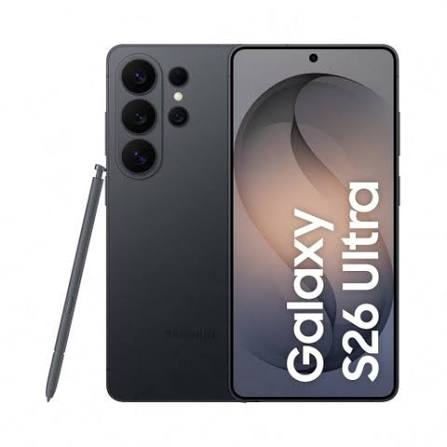
The Samsung S26 Ultra represents the pinnacle of smartphone technology, and one of its most convenient features is the eSIM capability. If you’ve just unboxed your new device or are considering making the switch from a physical SIM, you’re in the right place. This guide walks you through everything you need to know about downloading and setting up an eSIM on your Samsung S26 Ultra.
Downloading an eSIM on the Samsung Galaxy S26 Ultra in 2026 is a convenient way to activate mobile service without using a physical SIM card. Whether you are switching carriers, traveling internationally, or adding a second mobile number, the eSIM setup process can be completed directly from your phone’s settings when your carrier supports eSIM.
eSIM on Samsung S26 Ultra: Learn how to download and install an eSIM on the Samsung S26 Ultra, how to use an eSIM QR code, what information you need before starting, and how to troubleshoot common activation problems. We’ll also explain the important steps to follow so your eSIM connects successfully to your mobile network.
What Exactly is an eSIM?
Before jumping into the setup process, let’s clarify what we’re working with. An eSIM (embedded SIM) is a digital SIM card built directly into your Samsung S26 Ultra. Unlike traditional plastic SIM cards you physically insert, an eSIM is software-based and can store multiple carrier profiles simultaneously.
Think of it as having a virtual SIM card. You can switch between carriers without hunting for a tiny piece of plastic or waiting for a SIM card to arrive in the mail. It’s particularly handy when traveling internationally or when you want to keep personal and work numbers on the same device.
- Check now: How to add an eSIM on Samsung S26 Ultra
What Is an eSIM and Why Should You Care?
An eSIM (embedded SIM) is a digital SIM card built directly into your phone. Instead of sliding a tiny plastic card into a tray, you download a carrier profile wirelessly. Once it’s installed, it works exactly like a regular SIM — you can make calls, send texts, and use mobile data.
The Samsung Galaxy S26 Ultra takes this a step further. It supports dual eSIM configurations, meaning you can run two active lines at the same time — no physical SIM needed at all, if you prefer. Or you can keep your existing nano-SIM for one line and add an eSIM for a second.
For travellers, this is huge. Heading to Dubai next month? Download a local eSIM before your flight, land with data already working, and avoid paying ₹500–₹1,500/day in international roaming to Airtel or Jio.
Does the Samsung Galaxy S26 Ultra Support eSIM?

Yes — the Galaxy S26 Ultra fully supports eSIM. Released in March 2026, it runs Android 16 with One UI 8.5 and is built on the GSMA remote SIM provisioning standard.
Here’s the SIM configuration depending on your region:
- International (most countries including India): Nano-SIM + Nano-SIM + eSIM + eSIM (max 2 active at a time)
- USA models: Nano-SIM + eSIM + eSIM (max 2 active at a time)
- China models: Nano-SIM + Nano-SIM only (no eSIM)
Important: If your S26 Ultra was purchased in mainland China, Hong Kong, Taiwan, or Macau, eSIM is not available on those variants. India-purchased models and most international models support it fully.
You can store up to 5–8 eSIM profiles on the device and switch between them from the SIM manager settings.
Why Choose eSIM Over Physical SIM on Your Samsung S26 Ultra?

The benefits of using an eSIM on your Samsung S26 Ultra extend beyond convenience:
- Dual SIM functionality: Use two different phone numbers simultaneously without carrying two phones
- Instant activation: Set up a new line in minutes rather than waiting days for a physical SIM
- Travel flexibility: Add local data plans when traveling without removing your home SIM
- Security: If your phone gets stolen, the eSIM can’t be physically removed and used in another device
- Environmental impact: No plastic waste from disposable SIM cards
However, it’s worth noting that not all carriers support eSIM technology yet. You’ll want to confirm your provider offers eSIM activation before proceeding.
Prerequisites Before Downloading eSIM on Samsung S26 Ultra
Before starting the download process, make sure you have:
- A stable Wi-Fi connection – The download requires internet access
- Your carrier’s QR code or activation details – Most carriers provide these via email, their app, or in-store
- Your Samsung S26 Ultra fully charged – Keep it above 50% to avoid interruptions
- Your carrier account credentials – Some carriers require login verification
- The latest software update – Check Settings > Software Update
Step-by-Step Guide: How to Download eSIM on Samsung S26 Ultra

Method 1: Using a QR Code
This is the most common method carriers use. Here’s how to do it:
- Open Settings on your Samsung S26 Ultra
- Tap Connections > SIM Manager
- Tap Add eSIM
- Select Scan QR code from carrier
- Point your camera at the QR code provided by your carrier
- Follow the on-screen prompts to complete the installation
- Wait for the confirmation message that your eSIM is active
Pro tip: If scanning is tricky, most QR codes also have a numeric code you can enter manually. Look for the “Enter code manually” option at the bottom of the scan screen.
Method 2: Through Your Carrier’s App
Many major carriers now offer eSIM activation directly through their apps:
- Download your carrier’s official app from the Galaxy Store or Google Play
- Log in to your account
- Navigate to the “Manage Plan” or “Activate eSIM” section
- Select “Add to Samsung S26 Ultra”
- The app automatically configures your eSIM
- Restart your phone once the installation completes
This method is particularly popular with carriers like T-Mobile, AT&T, Verizon, and international providers like Orange and Vodafone.
Method 3: Manual Entry
If you don’t have a QR code but have the activation details:
- Go to Settings > Connections > SIM Manager
- Tap Add eSIM > Scan QR code from carrier
- Look for the “Enter code manually” option at the bottom
- Type in the SM-DP+ Address and Activation Code provided by your carrier
- Follow the confirmation prompts
After Download: Configuring Your eSIM
Once you’ve downloaded your eSIM, there are a few settings you’ll want to check:
Setting Your Default Line
If you have both an eSIM and a physical SIM installed:
- Go to Settings > Connections > SIM Manager
- Under “Preferred SIM,” choose which number to use for calls, messages, and data
Configuring Mobile Data
- Settings > Connections > Mobile Networks
- Select your preferred network for data
- Enable “Data roaming” if you’ll be using your eSIM internationally
Naming Your eSIM Profile
To keep things organized:
- Settings > Connections > SIM Manager
- Tap your eSIM profile
- Tap the pencil icon next to the name to rename it
- Choose something like “Personal” or “Business” to differentiate
Troubleshooting Common eSIM Download Issues
Even with the best tech, hiccups happen. Here are some issues you might encounter and how to fix them:
QR Code Not Scanning
- Clean your camera lens – Smudges can interfere with scanning
- Increase brightness – QR codes scan better in well-lit conditions
- Try manual entry – Use the numeric code instead
Download Gets Stuck
- Check your Wi-Fi connection – Switch to a different network if possible
- Restart your Samsung S26 Ultra – This often resolves temporary glitches
- Clear cache – Go to Settings > Apps > SIM Manager > Storage > Clear Cache
“No eSIM Available” Error
This typically means your carrier doesn’t support eSIM on Samsung S26 Ultra yet. Contact customer support to confirm.
Network Connection Issues After Download
- Toggle Airplane mode on and off – This forces the phone to re-establish network connections.
- Manual network selection – Go to Settings > Connections > Mobile Networks > Network Operators and select your carrier manually
Managing Multiple eSIM Profiles
One of the best features of the Samsung S26 Ultra is the ability to store multiple eSIM profiles. Here’s how to manage them:
Switching Between Profiles
- Settings > Connections > SIM Manager
- Tap the profile you want to use
- Toggle “Active” on
Deleting Unused Profiles
- Settings > Connections > SIM Manager
- Tap the profile you want to remove
- Tap “Remove” or “Delete”
- Confirm when prompted
Remember, deleting a profile doesn’t cancel your service, but you’ll need to re-download it if you want to use it again.
Benefits of eSIM on Samsung S26 Ultra
For Travelers
Sarah, a digital nomad, recently used her Samsung S26 Ultra to travel through six countries in Southeast Asia. Instead of hunting for physical SIM cards at each airport, she simply downloaded local eSIM profiles before arriving. She saved significant time and money, all while keeping her home number active for important calls.
For Business Users
James, a small business owner, uses his Samsung S26 Ultra with two eSIM profiles – one for personal use and one for business. He appreciates being able to switch between profiles based on the time of day, ensuring work calls don’t disrupt family time.
For International Students
Lisa, studying abroad, found eSIM incredibly useful. She kept her home country number active for family calls while adding a local eSIM for cheaper data and local calls. The ability to manage both from her S26 Ultra simplified her communication needs significantly.
Things to Consider Before Downloading eSIM
Carrier Support
Pros:
- Major carriers worldwide support eSIM
- Quick activation process
- Easy to switch between carriers
Cons:
- Smaller or regional carriers may not support eSIM yet
- Some carriers charge an activation fee
- Business accounts sometimes have restrictions
Device Specifics
Pros:
- Samsung S26 Ultra has excellent eSIM support
- Multiple profiles can be stored
- Seamless integration with One UI
Cons:
- Some firmware versions may have minor bugs
- Certain countries restrict eSIM functionality
Saving eSIM Activation Details
Always keep a copy of your activation information:
- Take a screenshot of your QR code
- Save the activation code in a secure notes app
- Email the details to yourself
- Print a physical copy as backup
If something happens to your phone, having these details makes restoration much easier.
How to Set Up Dual SIM with eSIM on S26 Ultra
One of the most practical setups: keep your physical Jio or Airtel SIM for calls and local data, and add a travel eSIM for international data when you go abroad.
After adding your eSIM:
- Go to Settings → Connections → SIM manager
- You’ll see both SIMs listed — assign each one a label (e.g., “Jio – Personal” and “Airtel – Work” or “Travel eSIM”)
- Set your preferred SIM for calls, SMS, and mobile data separately
- When travelling, switch mobile data to your travel eSIM — your home SIM stays active for calls and texts
This way, family can still reach you on your Indian number while you browse on a local data plan abroad. No roaming fees, no SIM swapping.
What to Do When Upgrading or Resetting Your Samsung S26 Ultra
Before Resetting Your Device
- Settings > Connections > SIM Manager
- Note which eSIM profiles are active
- Remove or deactivate eSIMs if you plan to sell or trade-in your phone
- Keep your QR codes accessible for re-installation
After Factory Reset
- Complete the initial phone setup
- Connect to Wi-Fi
- Follow the steps above to re-download your eSIM
- Use the same activation details as before
Transferring eSIM to a New Samsung S26 Ultra
If you’re upgrading within Samsung devices:
- On your old phone, go to Settings > Connections > SIM Manager
- Select the eSIM > Transfer to another device
- On your new S26 Ultra, follow the on-screen prompts
- This works with most major carriers
Frequently Asked Questions
Q: Can I download an eSIM on Samsung S26 Ultra without a QR code?
A: Yes, you can use manual entry or your carrier’s app. The QR code is just one option.
Q: How many eSIMs can I store on Samsung S26 Ultra?
A: You can store up to 20 eSIM profiles, though only two can be active simultaneously.
Q: Will downloading an eSIM delete my physical SIM card information?
A: No. eSIM and physical SIM work independently. You can use both simultaneously.
Q: Does eSIM work with all carriers on Samsung S26 Ultra?
A: Not all carriers support eSIM. Check with your provider before attempting activation.
Q: Can I use eSIM for international roaming?
A: Yes, many international carriers offer eSIM for roaming, and you can purchase local data plans abroad.
Q: What happens if I lose my phone with an active eSIM?
A: Contact your carrier immediately to suspend or transfer the eSIM. Since it’s digital, it can’t be physically removed and used elsewhere.
Q: Is eSIM more secure than a physical SIM?
A: Generally, yes. eSIMs can’t be physically stolen or swapped without authorization.
Q: Can I convert my physical SIM to an eSIM?
A: Most carriers allow this. Contact them for conversion options, often available through their app.
Q: Will my eSIM work if I travel to another country?
A: Yes, provided the local carrier supports eSIM and your Samsung S26 Ultra is compatible with their network bands.
Q: Does eSIM consume more battery than a physical SIM?
A: No noticeable difference in battery consumption between eSIM and physical SIM.
Q: Can I have the same phone number on both eSIM and physical SIM?
A: Not typically. This would create a duplicate line issue with most carriers.
Q: What’s the difference between eSIM and Dual SIM?
A: Dual SIM generally means two physical SIM slots, while eSIM enables digital profiles. The S26 Ultra supports both.
Conclsion
Downloading an eSIM on your Samsung S26 Ultra is a straightforward process that offers significant flexibility. Whether you’re a frequent traveler, someone who needs separate work and personal numbers, or you simply want to future-proof your phone setup, eSIM technology delivers clear advantages.
The activation methods have become increasingly user-friendly, with carrier apps and QR codes making the process accessible to anyone comfortable with basic phone settings. While occasional hiccups occur, the troubleshooting steps in this guide should resolve most common issues.
Remember to keep your activation details somewhere safe, and don’t hesitate to contact your carrier’s support team if you run into problems. They’ve handled these setups countless times and can provide targeted assistance.
Ready to make the switch? The convenience of managing multiple numbers from your Samsung S26 Ultra is just a few taps away. With this guide, you should be all set to download and activate your eSIM successfully.

