
You just set up Airtel eSIM on your Apple Watch, and now it refuses to work. Calls aren’t going through, mobile data is missing, or the Watch simply shows “No Service.” Frustrating — especially when you paid for the plan and went through the whole activation process.
The good news is that most Airtel eSIM issues on Apple Watch are fixable at home. This guide covers every common reason this happens, step-by-step fixes, and answers to the questions people ask most.
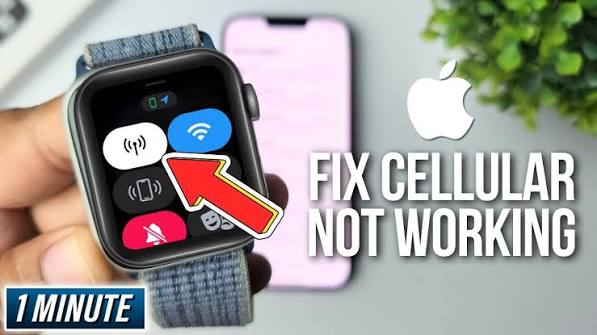
If your Airtel eSIM is not working on an Apple Watch, it can be frustrating—especially when you expect your watch to stay connected without your iPhone nearby. Issues may occur due to incomplete eSIM activation, carrier settings problems, unsupported plans, network outages, or incorrect Apple Watch cellular setup. In some cases, the Airtel mobile plan may not have been properly linked to the watch, while in others, restarting the devices or updating software can resolve the problem.
Before troubleshooting, make sure your Apple Watch supports cellular connectivity, your Airtel number is active, and both your iPhone and Apple Watch are running the latest software versions. Checking the Airtel cellular plan settings and reactivating the eSIM can often fix common connectivity issues. This guide explains the most common reasons why Airtel eSIM may not be working on Apple Watch and provides step-by-step solutions to get your cellular service running again.
Why Airtel eSIM Stops Working on Apple Watch
Before jumping into fixes, it helps to understand what’s actually happening. The Apple Watch uses eSIM differently from your iPhone. It shares the same mobile number as your iPhone through a feature called Family Sharing or Watch Cellular Plan, but it connects to the network independently when your iPhone is out of range.

When Airtel eSIM fails on the Watch, it usually comes down to one of these reasons:
- The eSIM was not fully activated from Airtel’s side
- The Watch and iPhone lost their pairing connection
- Carrier settings are outdated
- watchOS or iOS needs an update
- There’s a network outage or SIM provisioning error
- The Watch cellular plan was accidentally removed
Let’s go through each fix properly.
Fix 1: Check if Airtel eSIM Is Actually Activated
Sometimes users assume the eSIM is active when it’s still in a “pending” state on Airtel’s network. This is especially common if you activated it through the Airtel Thanks app or via SMS.
How to check:
- Open the Airtel Thanks app on your iPhone
- Go to My Account → Manage SIM / eSIM
- Look for your eSIM status — it should say “Active.”
If it shows “Pending” or “Processing,” wait 2–4 hours. Airtel sometimes takes time to provision the eSIM, particularly after a new plan purchase or SIM replacement.
If it’s been more than 6 hours and still shows pending, call Airtel customer care at 121 or visit the nearest Airtel store. Ask them to manually refresh the provisioning from their backend.
Fix 2: Re-Add the Watch Cellular Plan on iPhone
This is the most common fix. If the Apple Watch cellular plan gets corrupted or removed, the Watch loses its ability to use Airtel’s network.
Steps:
- On your iPhone, open the Watch app
- Tap Cellular
- If you see “Set Up Cellular,” tap it and follow the on-screen steps to re-add Airtel as the carrier.r
- If your plan is already listed but shows an error, tap the “i” icon next to it, then tap Remove Plan
- After removing it, re-add the plan for free.
You may receive an OTP from Airtel during this process. Make sure your iPhone has network access at the time.
Example: Rahul in Delhi had this exact issue after updating his iPhone. The Watch plan showed “Airtel” in the list but with a small warning symbol. Removing and re-adding the plan fixed everything within 5 minutes.
Fix 3: Update Carrier Settings on iPhone
Carrier settings are small updates pushed by Airtel to improve network compatibility. If your iPhone is running outdated carrier settings, the Watch may not connect properly.
How to update:
- Make sure your iPhone is connected to Wi-Fi
- Go to Settings → General → About
- If a carrier update is available, a pop-up will appear automatically — tap Update
If no pop-up appears, your carrier settings are already current. This step takes less than a minute and solves more problems than people expect.
Fix 4: Update watchOS and iOS
Both your iPhone and Apple Watch need to be on recent software to maintain stable eSIM connectivity. Older versions sometimes have bugs that break cellular pairing with carrier eSIMs.
For iPhone: Settings → General → Software Update
For Apple Watch: Watch app on iPhone → General → Software Update
Make sure both devices are charged above 50% and connected to Wi-Fi before starting. After updating, restart both devices and check if cellular works on the Watch.
Fix 5: Restart Both Devices
Simple, but it works more often than it should. A full restart clears temporary network errors on both devices.
Restart your iPhone: Hold the side button + volume down → slide to power off → wait 30 seconds → turn back on.
Restart your Apple Watch: Hold the side button → slide to power off → wait 15 seconds → press the side button to turn it back on
After both restarts, open the Watch app on iPhone, go to Cellular, and check if Airtel shows as connected.
Fix 6: Toggle Airplane Mode On and Off
This forces the Watch to reconnect to Airtel’s network from scratch.
On Apple Watch: Swipe up from the bottom of the watch face → tap the airplane icon to turn on → wait 10 seconds → tap again to turn off
Do the same on your iPhone. After both are off Airplane Mode, give it about 60 seconds to reconnect.
Fix 7: Check Apple Watch Cellular Settings
Sometimes, my cellular is turned off on the Watch itself without the user realizing it.
Steps:
- On your Apple Watch, open Settings
- Tap Cellular
- Make sure the Cellular toggle at the top is turned ON (green)
Also, check that Data Roaming is enabled if you’re traveling outside your usual service area.
Fix 8: Remove and Re-Pair the Apple Watch
This is a last resort, but it completely resets the Watch-iPhone connection,n including the cellular plan.
Warning: This will erase your Watch and restore it from backup. Only do this if nothing else works.
Steps:
- Open the Watch app on iPhone
- Tap your watch name at the top
- Tap Unpair Apple Watch
- Confirm — this also removes the Airtel cellular plan automatically
- Set up your Watch again from scratch or restore from backup
- Re-add the Airtel cellular plan during setup
After pairing completes, go to the Cellular section and add Airtel again. This almost always resolves deep-rooted provisioning issues.
Fix 9: Contact Airtel Support for Backend Issues
If you’ve tried everything above and Airtel eSIM still doesn’t work on your Watch, the issue is likely on Airtel’s network side — a provisioning error, an account-level block, or an eSIM profile that needs to be reissued.
Contact options:
- Call 121 from your Airtel number
- Use the Airtel Thanks app → Help & Support → Chat
- Visit an Airtel store with your iPhone and Watch
Tell them: “My Airtel eSIM is not working on Apple Watch. I’ve already checked the Watch app and restarted both devices. I need you to check the eSIM provisioning from your side.”
This usually gets them to escalate to the technical team, who can re-push the eSIM profile to your device within hours.
Pros and Cons of Using Airtel eSIM on Apple Watch

Using Airtel eSIM on your Apple Watch has real advantages — but it’s worth knowing the limitations too.
Pros
- No physical SIM needed — The Watch stays slim and water-resistant without a SIM card slot.
- Independent connectivity — Leave your iPhone at home and still get calls, messages, and data on the Watch
- Same number as your iPhone — No separate number to manage
- Easy plan management — Airtel lets you add or remove the Watch cellular plan through the app
- Useful for workouts and runs — You can go out with just the Watch and stay connected
Cons
- Extra monthly cost — Airtel charges an additional fee for the Watch cellular plan (usually ₹199–₹299/month, depending on the plan)
- Setup can be buggy — eSIM activation on Watch has more steps than a regular SIM and fails more often.n
- Dependent on Airtel network coverage — If the Airtel signal is weak in your area, the Watch will struggle too.
- Not all Apple Watch models support cellular — Only GPS + Cellular variants work with eSIM; the GPS-only models do not.
Things to Check Before Calling Support

Before reaching out to Airtel, run through this quick checklist. It saves time and often reveals the fix immediately:
- eSIM status in Airtel Thanks app is “Active” (not pending)
- Cellular toggle on Apple Watch is ON
- iPhone and Watch are both on the latest software
- Carrier settings are updated
- Watch cellular plan is visible in the Watch app → Cellular
- Both devices have been restarted recently
- Airplane Mode has been toggled on and off
If all of these check out and it’s still not working, then support escalation is the right move.
FAQs
Does Airtel support eSIM on all Apple Watch models?
No. Only Apple Watch models with cellular (GPS + Cellular) support eSIM. The GPS-only models do not have an eSIM chip and cannot use any carrier plan. Check the box your Watch came in — it will say “GPS + Cellular” if it supports this feature.
How much does Airtel charge for the Apple Watch cellular plan?
Airtel typically charges between ₹199 and ₹299 per month for adding an Apple Watch to an existing postpaid plan. The exact price depends on your current Airtel plan and any active promotions. Check the Airtel Thanks app under “Add-ons” for current pricing.
Can I use Airtel eSIM on an Apple Watch with a prepaid plan?
Currently, Airtel’s Watch cellular plan is only available with postpaid connections. If you’re on prepaid, you’ll need to switch to a postpaid plan first. Call 121 or check the Airtel website for postpaid options that include Watch support.
Why does my Apple Watch show “No Service” even after adding Airtel eSIM?
“No Service” usually means the Watch can’t find an Airtel signal. This could be because you’re in a low-coverage area, the eSIM hasn’t finished provisioning, or the Watch is out of Bluetooth range from your iPhone and can’t fall back to cellular. Try the Airplane Mode toggle fix and check Airtel’s coverage map for your area.
Will Airtel eSIM work on Apple Watch without my iPhone being nearby?
Yes — that’s the whole point of the cellular plan. Once set up, the Watch can make calls, send messages, and use data independently when your iPhone is turned off or out of range. The Watch connects directly to Airtel’s network.
What if I change my Airtel SIM or switch from a physical SIM to an eSIM on my iPhone?
Changing your iPhone SIM setup can disconnect the Watch’s cellular plan. After switching your iPhone SIM, go to the Watch app → Cellular and re-add the plan. You may also need to call Airtel to re-link your number to the Watch plan.
How long does Airtel eSIM activation take for the Apple Watch?
Most activations are complete within 30 minutes to 2 hours. If it takes longer than 6 hours, something has gone wrong on the network side, and you should contact Airtel support.
Can I remove the Airtel Watch plan temporarily to avoid monthly charges?
Yes. In the Watch app on iPhone, go to Cellular → tap the “i” next to your Airtel plan → Remove Plan. This stops billing. You can re-add it whenever you want, though the setup takes a few minutes again.
Conclsion
Airtel eSIM on Apple Watch is a genuinely useful setup once it’s running properly. The ability to leave your phone behind and still stay reachable is one of those features that quietly becomes indispensable.
Most of the time when it stops working, the fix is simple — a restart, a carrier settings update, or re-adding the Watch plan in the Watch app. The deeper fixes involving Airtel support are rarely needed, but when they are, being clear about what you’ve already tried speeds up the resolution significantly.
Work through the steps in order, and you’ll almost certainly have it working again within the hour.

